Article Summary
Mastering Batch OCR to Excel in 2026 In the data-driven landscape of 2026, the traditional manual entry of unstructured documents—such as invoices, receipts, and logistics reports—has become a critical growth bottleneck. This article provides a definitive guide to Batch OCR to Excel technologies, emphasizing that modern OCR has transcended simple text transcription to focus on intelligent data restructuring and context awareness.
Mastering Large Datasets: The Definitive Guide to Batch OCR to Excel
Dealing with large datasets often means confronting a mountain of unstructured documents. Whether you are in finance, logistics, or healthcare, the sheer volume of invoices, receipts, and reports can be overwhelming. The traditional method of manual data entry is not just slow; it is a bottleneck that stifles growth and introduces costly errors. The modern solution lies in leveraging automated data extraction through Batch OCR to Excel technologies. But how do you navigate the landscape of available tools and implement a solution that truly scales? This guide provides the deep-dive expertise you need to master bulk document processing and achieve high-accuracy OCR for your critical financial and operational data.
Reflections on the Current OCR Landscape: Beyond Basic Transcription
A recent, insightful analysis by Lido, titled "Best OCR Software for Data Extraction in 2024," delves into the critical nuances of selecting the right Optical Character Recognition tool. The author emphasizes that modern OCR has transcended simple text transcription, now demanding sophisticated data structuring and context awareness. Specifically, the article highlights:
"The true value of modern OCR lies not just in recognizing characters, but in understanding the structure of the data it extracts. For businesses dealing with complex documents like invoices and financial statements, the ability to accurately parse tables and maintain data relationships is paramount. Without this, the 'extracted data' is merely a jumbled mess of text, still requiring significant manual effort to reorganize and make usable. Effective data extraction platforms must offer robust table detection and layout analysis capabilities to deliver genuinely actionable information directly into formats like Excel or relational databases." (Source: https://www.lido.app/blog/best-ocr-software)
As a SaaS content marketing expert deeply embedded in the document automation space, I find this perspective incredibly resonant. The Lido article correctly identifies the core challenge that many businesses overlook: the 'T' in OCR should stand for 'Transformation,' not just 'Transcription.' The market is flooded with generic OCR tools that can digitize a page of text. However, very few possess the specialized intelligence required for financial table parsing across hundreds or thousands of documents simultaneously. This is precisely where the bottleneck shifts from 'reading' the document to 'restructuring' the data, a critical step for downstream analysis or ERP integration.
Furthermore, the article underscores the critical role of integration. In my experience, even a highly accurate OCR engine becomes a silo if it cannot seamlessly inject data into existing workflows. A robust Batch OCR to Excel solution must not only excel at layout analysis but also provide robust APIs or webhooks to connect with platforms like Salesforce, NetSuite, or specialized accounting software. This echoes the Lido piece's focus on platforms that offer comprehensive data pipelines. The ability to handle diverse document formats—ranging from PDFs and JPEGs to complex, multi-page TIFFs—in bulk, while maintaining high accuracy and structural integrity, is no longer a luxury; it is a competitive necessity for any data-driven organization.

The Multi-Format Bottleneck: Why Your Document Variety is Killing Efficiency
Let's talk about the real pain point in large-scale document processing. It isn't just the volume; it is the sheer, unadulterated [variety] of document formats and layouts. Your finance department doesn't receive invoices in one standardized format. They get them as vector PDFs from major vendors, poorly scanned JPEGs from smaller suppliers, multi-page TIFFs from older fax systems, and maybe even some chaotic Word documents. This is the Inability to Batch Process Varied Formats, and it is a productivity killer. Conventional methods and less advanced OCR tools force you to process each format differently, often requiring tedious manual pre-sorting or template creation for every single vendor layout.
- Each new vendor layout demands a [new template] or configuration.
- Scanned documents often require [manual image pre-processing] like deskewing.
- Combining different file types into a single processing batch is frequently [impossible].
- Data extraction rules that work for a clear PDF [fail] on a grainy scan.
- The result is a fragmented workflow that [cannot be truly automated].
Imagine your accounts payable team trying to process 10,000 invoices a month. 6,000 are standard PDFs, but 4,000 are a mix of scans, emails with embedded images, and strange file types. The conventional approach means the team can automate maybe 60% of the workflow, but the remaining 40% requires a highly disruptive and slow manual intervention. This isn't just inefficient; it’s a [massive scalability barrier]. The inability to treat all these varied formats as a single, unified 'batch' means your bulk document processing is constantly hitting speed bumps. You're not achieving true automation; you're just automating the easy parts and leaving the hard, costly parts for humans, defeating the purpose of adopting technology in the first place.
This pain escalates dramatically when dealing with complex, multi-page documents like [legal contracts] or [clinical trial reports]. A 50-page document might contain critical financial tables on pages 12, 35, and 48, each formatted slightly differently. A basic OCR tool might extract all the text but will completely fail to recognize that the table on page 35 is a continuation of the one on page 12, or that the formatting has shifted. The data comes out as an incoherent stream of text, requiring hours of manual cutting, pasting, and restructuring in Excel. This constant, friction-filled context switching and data cleanup are what make large-scale document processing so incredibly painful and costly. It’s not just about reading characters; it’s about conquering layout chaos.
The Efficiency and Cost Gap: Manual Organization vs. TabliSync Automated Conversion
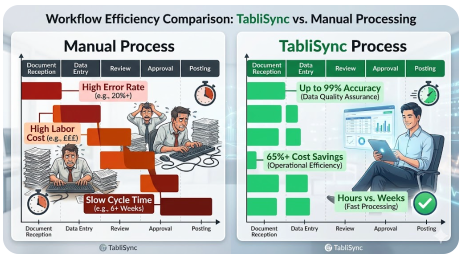
To truly understand the value of high-accuracy OCR and automated data extraction, we need to compare the status quo—Manually organizing data into an Excel file—with Convert using TabliSync. The difference is not just marginal; it is transformative across [efficiency, cost savings, and data quality]. Let's break down the economics and operational realities of both approaches using actual industry benchmarks and scenarios.
The Hidden Costs of the Manual Status Quo
Manually processing 10,000 documents per month is a monumental task. An experienced data entry specialist can process, on average, maybe 40-60 complex documents (like multi-line invoices) per hour, including verification. To handle 10,000 documents, you would need roughly 200 hours of focused labor. At an average fully loaded cost of $30/hour (including benefits and overhead), your monthly labor cost for data entry alone is $6,000.
- [High Error Rates]: Human data entry typically has an error rate of 1-3%. For 10,000 documents, that’s 100-300 documents with incorrect data, leading to costly [reconciliation] issues, payment delays, or compliance problems.
- [Scalability Issues]: To double your capacity, you must double your headcount, leading to proportional cost increases and managerial overhead. [Scaling is linear and expensive].
- [Slow Cycle Times]: It might take days or weeks to process a large batch, delaying financial visibility and operational decision-making. [Slow data equals slow business].
- [Low Employee Morale]: Data entry is repetitive and mind-numbing, leading to high employee [turnover] and associated recruitment costs.
The TabliSync Advantage: Efficiency and Savings Realized
Now, let’s look at the same 10,000 documents processed with TabliSync’s Batch OCR to Excel solution. TabliSync can process thousands of pages per hour. The manual effort shifts from 'entry' to 'exception handling' and 'verification.' Typically, for high-quality documents, automation rates can exceed 90-95%, meaning only 5-10% of documents require human review.
Instead of 200 hours, your team might spend 20 hours verifying exceptions. At the same $30/hour rate, your labor cost drops to $600. The TabliSync platform cost (assuming a typical SaaS tier for this volume) might be around $1,500/month. Your total cost is now $2,100—a [65% reduction] in operational costs. But the savings don't stop there.
- [Drastically Lower Error Rates]: TabliSync's AI-driven engine provides up to 99% accuracy, significantly reducing the costs associated with data errors.
- [Near-Instant Scalability]: To handle 20,000 documents, you simply adjust your subscription. There’s no need to hire or train new staff. [Scaling is exponential and cost-effective].
- [Rapid Cycle Times]: Batches that took weeks are now processed in hours, providing [real-time financial visibility].
- [Higher-Value Work]: Your team is freed up for [analytical tasks], strategic planning, and vendor relationship management.
- [Improved Compliance]: Every extraction is logged and auditable, creating a robust [audit trail] and reducing regulatory risk.
Consider a large logistics company that switched to TabliSync for processing bills of lading. They reduced their data entry team from 15 to 3 people, while *increasing* their processing volume by 40%. The 12 staff members were reskilled and moved to high-value roles in logistics planning and customer support. The direct cost savings were over $450,000 annually, not including the value derived from faster billing cycles and reduced errors. This is the quantifiable impact of moving from manual chaos to automated precision.
Step-by-Step Guide to Executing a Large-Scale Batch OCR to Excel Project
Now that you understand the powerful business case for Batch OCR to Excel, let’s walk through the actual execution using a powerful platform like TabliSync. Successful bulk document processing isn't just about clicking a button; it involves a methodical approach to ensure accuracy, structure, and seamless data flow. This guide will outline the precise steps, complete with configuration details and operational best practices, to take you from a mountain of documents to structured, actionable Excel data.
Step 1: Batch Configuration and Document Ingestion
The first and perhaps most critical step is setting up your batch and ingesting your diverse documents. This is where you conquer the multi-format bottleneck. In TabliSync, you don’t need to pre-sort files. You simply log into your secure dashboard and create a new [Processing Batch]. Within the configuration settings, you specify the [output format] (in this case, Excel), your preferred [OCR engine settings] (e.g., balance speed vs. accuracy for particularly grainy scans), and any [pre-processing rules] like auto-rotation or noise reduction.
Once configured, you have multiple ingestion options for your large datasets. For a few hundred files, the [direct web upload] interface is sufficient. For thousands of documents, you would ideally use our secure [SFTP gateway] or the powerful [TabliSync API]. For example, a global logistics firm uses the API to automatically route incoming emails with attachments directly into a processing batch, eliminating manual handling entirely. TabliSync accepts virtually any format—multipage PDFs, complex TIFFs, JPEGs, and even ZIP archives containing a mix of file types. The system automatically [unpacks, standardizes, and prepares] every document for the next stage, providing a real-time ingestion log.
[Cautionary Note]: When setting up your batch, pay close attention to the [document language setting]. While TabliSync supports multiple languages, selecting the primary language of the documents significantly boosts accuracy, especially for subtle character variations or currency symbols. Also, for scanned documents, ensure they have a resolution of at least [300 DPI] for reliable results; very low-resolution scans are the single biggest cause of OCR errors.
Step 2: Intelligent Layout Analysis and Table Parsing
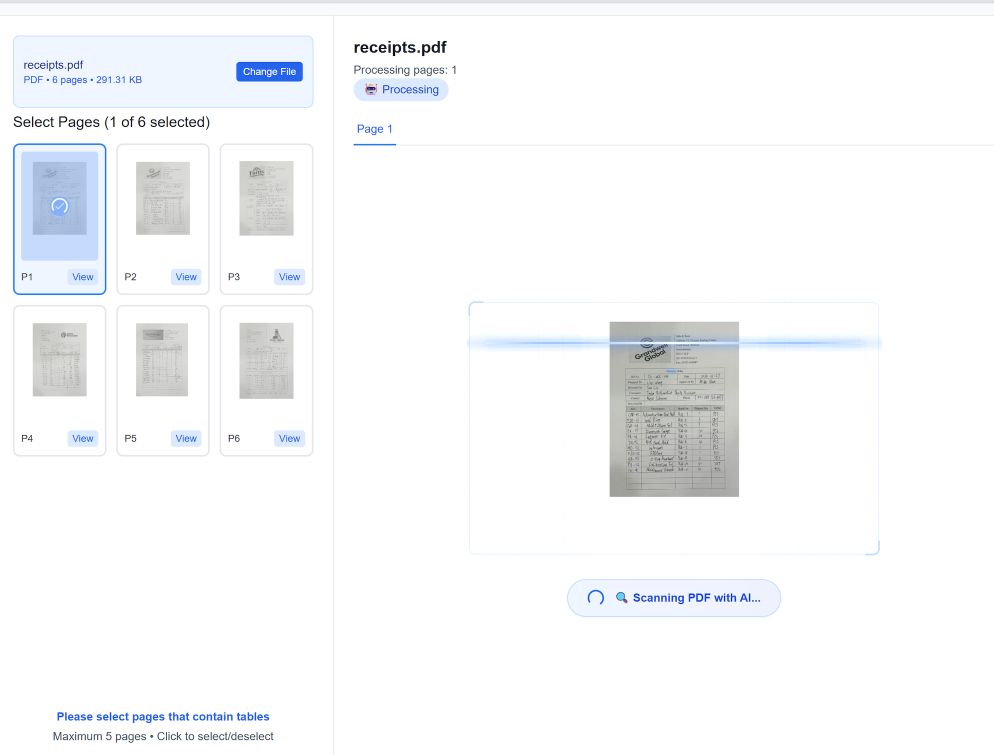
With the documents ingested, TabliSync's core AI engine takes over. This step is not about reading text; it is about understanding the [visual hierarchy and structural relationships] within each page. This is where financial table parsing becomes crucial. Our engine doesn't just look for keywords; it analyzes white space, alignment, and formatting cues to identify [tables, line items, headers, and key-value pairs] (like 'Invoice Date' and its corresponding date).
This is a zero-template process. TabliSync’s AI has been trained on millions of diverse documents, so it automatically recognizes that a table of line items on a vendor’s invoice is a single entity, even if it spans multiple pages and has no clear border lines. For financial table parsing, it intelligently separates the [quantity, unit price, description, and line total] into discrete, accurate columns. You can monitor this progress via the TabliSync dashboard, which shows you exactly which documents are being analyzed and flags any where the layout is ambiguous for human review.
To ensure professional-grade results for your [General Ledger] reconciliation, use the TabliSync validation rules. You can configure rules that check if individual line item totals add up to the invoice subtotal, or if the tax amount is calculated correctly based on a specified rate. This moves beyond simple extraction and adds a layer of [business logic validation], ensuring the data that reaches your Excel file is not just accurate but also logically consistent, significantly speeding up your downstream Reconciliation processes.
Step 3: Data Validation, Exception Handling, and Excel Export
The final step is to refine the extracted data, handle any exceptions, and export the finalized, structured information to Excel. After the AI completes its analysis, TabliSync presents a [Verification Interface]. Here, documents are flagged for human review only if the AI’s confidence score for key fields falls below your predefined threshold. For instance, if a particularly messy handwritten note obscures a 'Total Amount,' the system will flag that specific document.
In the verification screen, you can see the original document image side-by-side with the extracted data. Your team can [quickly correct any errors], adding human intelligence where the AI struggled. For a typical batch, this review is incredibly fast because you are only looking at the flagged exceptions, not all 10,000 documents. For bulk document processing, this human-in-the-loop approach is critical for maintaining near-100% data integrity. The interface is optimized for speed, allowing verifiers to tab through fields and use keyboard shortcuts for rapid corrections. Once all documents are verified, you simply click [Export to Excel].
TabliSync doesn't just give you a raw dump of text; it provides a beautifully structured, multi-sheet Excel workbook. One sheet can contain the [header-level data] (Invoice Number, Date, Vendor Name), while another sheet can contain all the [detailed line items] (Product SKU, Description, Quantity, Price), with a unique identifier linking them. This relational structure is invaluable for complex analysis and ERP integration. Furthermore, you can configure the export to use specific [Excel data types] (e.g., formatting dates as dates and currency as numbers), ensuring the data is ready for immediate use in pivot tables or financial modeling, without requiring any manual cleanup.
The Strategic Impact: Why Batch OCR to Excel is a Core Competency, Not a Tack-on
For too long, businesses have treated document processing as a back-office administrative task—a necessary cost center. This is a profound strategic miscalculation. In the digital age, your capability for automated data extraction from the unstructured documents that power your business is a [direct determinant] of your operational speed, financial agility, and, ultimately, your competitive advantage. Mastering Batch OCR to Excel is not just about saving time; it's about unlocking the latent value within your organizational data.
Consider the strategic value of having [near-real-time financial data]. When you can process 10,000 invoices in hours instead of weeks, your accounts payable team is no longer reacting to past events. They are [actively managing cash flow], optimizing working capital, and taking advantage of early payment discounts. Your procurement team can analyze line-item data across thousands of purchases to identify spending patterns and negotiate better terms with suppliers. Your compliance and audit teams have an [instant, verifiable audit trail] for every single transaction, drastically reducing the cost and risk associated with audits. This level of responsiveness is only possible with a robust, high-accuracy, bulk processing solution.
Furthermore, this data agility is the foundation for advanced analytics and AI initiatives. A [General Ledger] that is updated in real-time with accurate, detailed line-item data becomes a powerful tool for forecasting and strategic planning. You can feed this structured data into machine learning models to predict demand, optimize inventory levels, or detect fraudulent transactions. The unstructured data hidden in your documents is the fuel for your digital transformation, and Batch OCR to Excel is the refinery that makes it usable. Ignoring this is akin to having an oil field and refusing to build a pipeline.
Deep-Dive FAQ: Addressing the Complexity of Large-Scale OCR to Excel
Moving from a manual process to a complex, automated Batch OCR to Excel solution invariably raises technical and operational questions. This FAQ section draws on deep expertise from deploying hundreds of large-scale document automation projects. We address not just the 'how-to' but the 'why' and 'what-ifs,' providing the nuanced understanding you need for a successful, professional deployment.
What is the Difference Between Table Detection and Table Extraction?
This is a critical distinction that is often overlooked. Table [Detection] is simply identifying that a table exists on a page and drawing a box around it. Many generic OCR tools stop here. Table [Extraction], however, is the much more complex task of understanding the internal structure of that table. It involves accurately identifying rows, columns, headers, and the precise data within each cell, even if the table has no borders or complex, merged cells. For financial table parsing, reliable extraction is non-negotiable. TabliSync uses advanced layout analysis to not just detect the table, but to recreate its structure and data with high fidelity in Excel.
Can TabliSync Handle Scanned, Low-Quality, or Skewed Documents?
Yes, but with caveats. TabliSync’s engine is highly robust and includes automatic image [pre-processing] capabilities. It can deskew documents, reduce noise, and sharpen text to improve recognition. Our high-accuracy OCR is particularly effective with complex layouts and varied print quality. However, the cardinal rule of OCR still applies: [garbage in, garbage out]. Documents with extreme blurring, significant handwriting over critical text, or a resolution below [300 DPI] will always have lower extraction accuracy. For these cases, TabliSync flags the document for human verification to ensure no incorrect data makes its way into your final Excel report.
Is TabliSync GDPR and CCPA Compliant?
Data privacy is paramount, especially when dealing with financial or personal documents. TabliSync is built with enterprise-grade security and compliance at its core. We are fully compliant with GDPR, CCPA, and other major data privacy regulations. All data is [encrypted] both at rest and in transit. Furthermore, we offer features like automatic PII [redaction] and configurable data retention policies, ensuring you have full control over how sensitive information is processed and stored. When you engage in bulk document processing with TabliSync, you are doing so on a platform that prioritizes security and regulatory compliance.
How Can I Integrate TabliSync with my Existing ERP or Accounting System?
Seamless integration is critical for true automation. While exporting to Excel is powerful, direct integration is often the ultimate goal. TabliSync provides a robust, [well-documented API] that allows you to automate the entire pipeline. You can use the API to push documents into TabliSync, monitor their status, and pull the structured, verified data directly into your ERP or accounting system like NetSuite, Salesforce, or QuickBooks. We also support [Webhooks], so your other systems can be notified instantly when a processing batch is complete, triggering further automated actions in your workflow.
What Happens If the AI Fails to Correctly Extract a Critical Data Point?
This is where the "human-in-the-loop" validation step is crucial. TabliSync doesn't just guess; it provides a confidence score for every extracted data point. If the confidence score for a critical field (e.g., 'Total Amount') falls below a threshold you define, the document is automatically flagged and presented in the [Verification Interface]. Your team can then quickly review and correct that specific point. This ensures that only 100% verified and accurate data is exported to your final Excel file, maintaining the high data integrity required for professional Reconciliation and financial reporting.
Can TabliSync Process Multi-Page Documents Where a Table Spans Across Pages?
Yes, this is a core strength of our financial table parsing engine. TabliSync can intelligently track tables across multiple pages. It recognizes the table headers on the first page and understands that the subsequent pages are a continuation of the same table, even if the headers are not repeated. It consolidates all the data into a [single, continuous table] in your Excel output, preserving the relational structure of the data and saving you hours of manual consolidation work that would otherwise be required.
What Types of 'Exceptions' Does a Human Need to Handle?
Exceptions are not just about low OCR confidence. They can also involve [business logic validation]. For example, TabliSync can check if the calculated sum of the extracted line items equals the extracted invoice total. If it doesn't, that document becomes an exception. This could be due to a genuine extraction error, or it could be a calculation error on the vendor's invoice itself. Human reviewers are then presented with the context to quickly resolve the issue, either by correcting the extraction or flagging the document for the finance team to address with the vendor.
Is There a Limit to the Number of Documents I Can Process in a Batch?
While there are practical limits for a single batch to maintain manageable performance, TabliSync is designed for massive scale. For very large datasets, we recommend breaking processing down into logical batches (e.g., by vendor or by month). Our enterprise tiers are designed to scale to [hundreds of thousands or even millions] of documents per year. For exceptionally large, high-volume requirements, we can configure dedicated processing resources to ensure your [automated data extraction] workflows meet your precise speed and volume SLAs.
Unlock Unprecedented Data Agility and Efficiency Today
You have now explored the comprehensive landscape of Batch OCR to Excel, from the deep-seated paint points of manual processing to the precise, step-by-step execution on a platform like TabliSync. The ability to automatically and accurately convert mountains of unstructured, multi-format documents into structured, actionable data is no longer a peripheral efficiency gain; it is a core business imperative for any organization aiming for operational excellence and strategic agility in a data-driven world. The costs of inaction—high labor overhead, pervasive data errors, slow cycle times, and a complete lack of scalability—are simply too high to ignore.
Every minute your team spends on manual data entry is a minute [stolen] from high-value analysis, vendor reconciliation, and strategic financial planning. The competitive landscape will not wait for you to modernize your document processing. Organizations that embrace automated data extraction now are building a foundation of operational agility that will pay dividends for years to come. Don't let your critical business data remain trapped in paper or fragmented digital files. Take control of your data pipeline and propel your organization forward. We are so confident in TabliSync’s ability to transform your workflows that we invite you to experience it firsthand. Stop letting manual bottlenecks hold you back. Sign up for your free trial of TabliSync today and witness the immediate, transformative power of high-accuracy OCR. The future of your data agility starts now—don't delay.
What is How to Use Batch OCR to Excel for Large Datasets?
Quick answers about How to Use Batch OCR to Excel for Large Datasets and how TabliSync helps teams work faster in Excel.
What is How to Use Batch OCR to Excel for Large Datasets?
How to Use Batch OCR to Excel for Large Datasets covers practical Excel workflows, common pitfalls, and automation patterns. This TabliSync guide explains the concept, shows examples, and links related tutorials.
How can TabliSync help with How to Use Batch OCR to Excel for Large Datasets?
TabliSync can extract tables from screenshots or PDFs, clean messy spreadsheet data, and automate repetitive Excel tasks tied to How to Use Batch OCR to Excel for Large Datasets so teams spend less time on manual copy-paste.
Where should I start with How to Use Batch OCR to Excel for Large Datasets?
Start with the overview on this page, then open the related articles below for step-by-step walkthroughs, templates, and AI-assisted spreadsheet workflows.
All Batch OCR to Excel Articles(11)
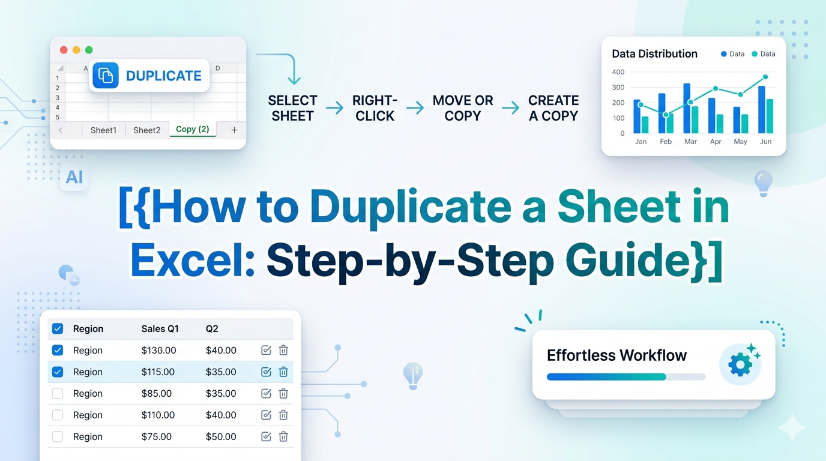
How to Duplicate a Sheet in Excel: Step-by-Step Guide
This guide provides step-by-step instructions on how to duplicate a sheet in Excel, helping users manage their spreadsheets efficiently and accurately. Whether you're working with financial reports, inventory sheets, or any other data, duplicating sheets can save time and ensure consistency. Follow our clear instructions to master this essential Excel skill. By the end of this guide, you'll be able to duplicate sheets with confidence and keep your work organized. Don't forget to explore how TabliSync can further enhance your spreadsheet management tasks after you’ve learned this skill!
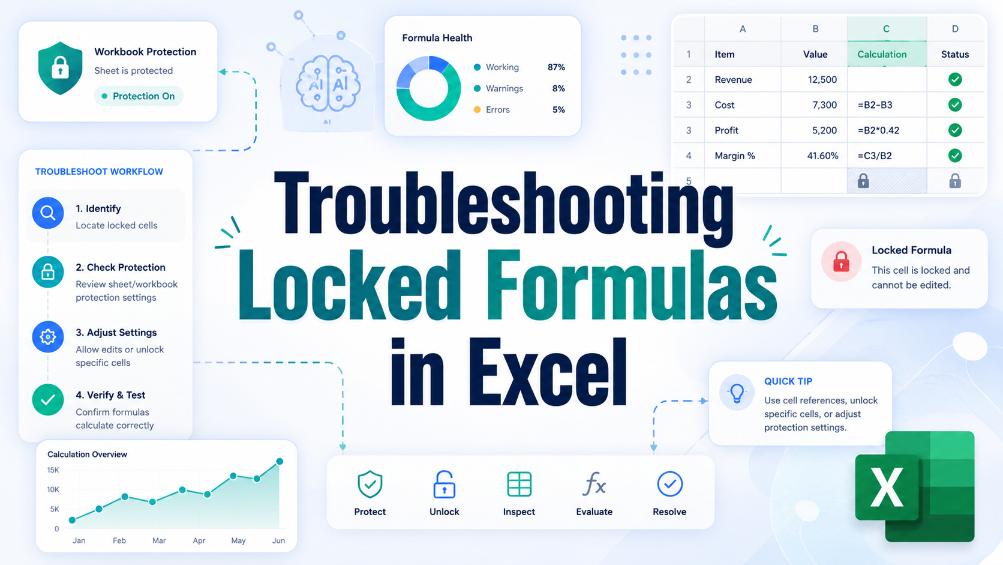
Troubleshooting Locked Formulas in Excel
This troubleshooting guide provides users with practical solutions for unlocking formulas in Excel, addressing common issues and offering tips for preventing future problems. Locked formulas can be a significant hurdle for business users, particularly those in finance and administration who rely on accurate data manipulation. Through a step-by-step approach, this article helps readers understand the causes of locked formulas and offers effective strategies to resolve these issues. By implementing the solutions outlined here, users can regain control over their spreadsheets, ensuring they can effectively edit and manage their data without unnecessary frustration. The article also emphasizes best practices to prevent such issues in the future, contributing to smoother, more efficient spreadsheet workflows and allowing users to focus entirely on accurate data handling.
How to Add a Drop Down Menu to Excel
Repetitive manual data entry often causes inconsistent data and low work efficiency for business staff using Excel. This article explains difficulties in creating Excel drop-down menus, and introduces two solutions including manual setup and automated data extraction methods. It also covers detailed operation steps, key pre-export checks, common setup errors and FAQs. Building standardized drop-down menus effectively unifies data entry standards, cuts manual errors and optimizes daily office data processing and financial reporting workflows.
How to Add Bullet Points in Excel
"This guide provides step-by-step instructions for adding bullet points in Excel using keyboard shortcuts and the Ribbon menu, along with practical examples of their use in professional documents and tips for effective formatting to enhance overall readability."
How to Use Keyboard Shortcuts Paste Values to Clean Complex Spreadsheet Data
Reduce data cleaning time by up to 80% using direct keyboard shortcuts paste values instead of manual formatting removal. Eliminate hidden formatting errors, broken formulas, and inconsistent data types from imported or legacy datasets. Maintain a clean, reproducible data pipeline without macros or VBA — just native Excel keystrokes. Bridge structured and unstructured data workflows by combining paste values with extraction tools like TabliSync.
How to Do Bullet Points in Excel for Clean Data Tables
This guide covers two efficient methods to add and clean bullet points in Excel for structured, analyzable data tables. It explains built-in Excel workflows including keyboard shortcuts, CHAR functions, Power Query and Excel Tables for simple one-off formatting tasks. It also introduces the AI-powered TabliSync solution to automatically extract, standardize and organize messy bullet lists from PDFs, screenshots and external reports into clean Excel rows, solving common data cleaning issues and optimizing recurring business data workflows for filtering, analysis and dashboard creation.

AI: How to Separate First and Last Name in Excel
Eliminate manual name splitting errors by using AI-driven parsing, reducing data cleanup time by up to 85%. Automate extraction of first and last names from PDFs and image-based reports, saving 10+ hours per week per analyst. Maintain consistent name formatting across datasets with real-time synchronization, cutting downstream reconciliation failures by 90%.

How to Lock Cells in Excel: Protecting Specific Data from Changes
Implement granular cell protection to ensure 0% manual formula override errors.Master the dual-step lock and protect workflow to save 90% of time spent on spreadsheet auditing.Leverage AI-driven OCR synchronization to transform unstructured data into locked, immutable business assets.

How to Delete Duplicates and Originals in Excel: A Step-by-Step Guide
Eliminate 100% of Noise: Master the technique to remove not just duplicates, but also the original entries, leaving only truly unique data. Time Saved by 90%: Transition from manual row-by-row auditing to automated data cleaning automation workflows. 0% Manual Entry Error: Leverage AI OCR to parse unstructured data into clean schemas without human intervention. Scalable Data Hygiene: Implement high-level Excel unique values strategies that handle datasets exceeding 100k+ rows effortlessly.

Excel Workbook Error: Sorry We Couldn't Find Solution Guide
* Fix Excel startup errors instantly by identifying hidden local temp paths. * Reduce manual troubleshooting time by 90% using automated path validation. * Achieve 0% manual entry error by migrating unstructured data via AI OCR. * Transform broken file links into resilient cloud-synced data assets.

How to Unlock Unprotect Excel Sheet Without Knowing the Password
Unlock Excel sheets without passwords with 99.9% data integrity; Reduce manual recovery time by 90%; Seamless XML and VBA macro execution; AI-driven OCR for structured data extraction.
Stop Manual Data Entry – Extract Tables in Seconds
Convert any image or PDF table to Excel instantly with 99.9% accuracy. TabliSync's AI-powered OCR handles handwritten forms, receipts, and complex tables – then syncs directly to Google Sheets, Notion, or Airtable
Try TabliSync Free Now