Excel AI Blog: Tips, Tutorials & Automation Guides

Learn how to automate Excel tasks with AI. Step-by-step guides for data analysis, spreadsheet automation, and productivity tips to save hours every week.

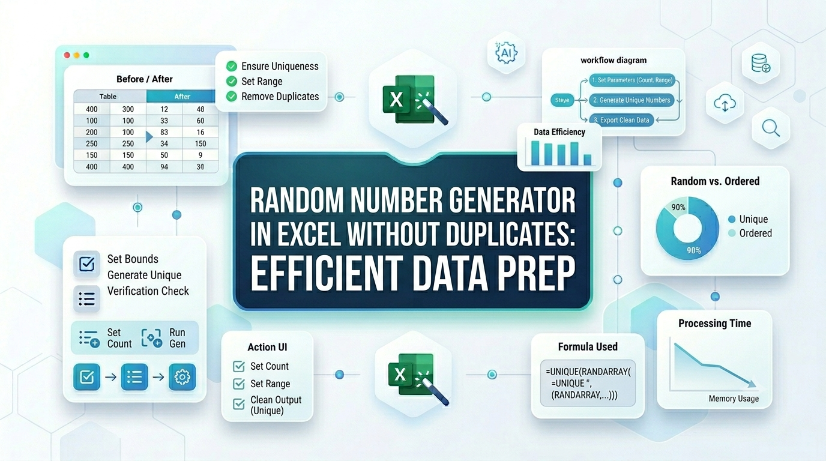
imagePrompt: A close-up of an Excel spreadsheet showing a column of unique random numbers generated with formulas, next to a small icon of a dice and a checkmark, professional data workspace background with blue and gray tones, high contrast for clarity., altText: Excel spreadsheet displaying a list of unique random numbers generated without duplicates for efficient data preparation
AI Formula Writer Excel

Random Number Generator in Excel Without Duplicates: Efficient Data Prep

Eliminate duplicate random numbers in Excel using native formulas or Power Query, reducing manual error correction time by up to 80%. Automate unique random number generation from scanned tables or PDFs via AI OCR, cutting data entry overhead by 90%. Maintain data integrity across large datasets with structured validation and dynamic range techniques that prevent duplication at scale.

TabliSync
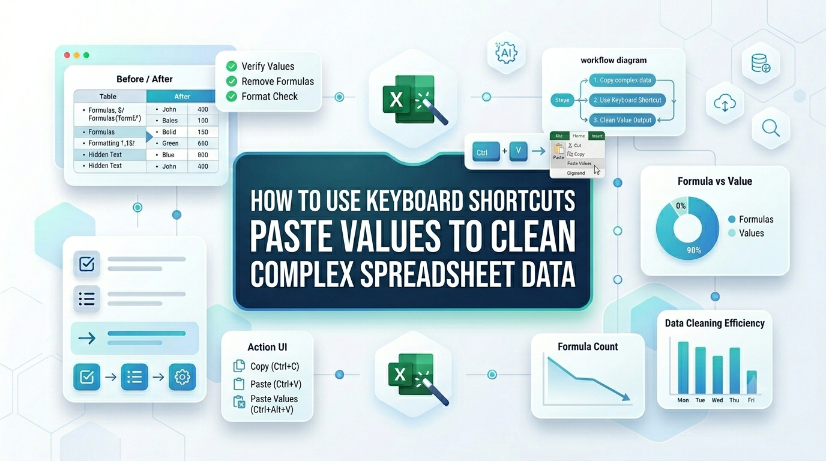
imagePrompt: A close-up of a laptop keyboard with hands pressing Ctrl+Alt+V (Paste Special) on a spreadsheet with messy data and a clean result side by side, professional office lighting, realistic style., altText: Keyboard shortcut paste values on Excel spreadsheet cleaning complex data
Data Cleaning Excel

How to Use Keyboard Shortcuts Paste Values to Clean Complex Spreadsheet Data

Reduce data cleaning time by up to 80% using direct keyboard shortcuts paste values instead of manual formatting removal. Eliminate hidden formatting errors, broken formulas, and inconsistent data types from imported or legacy datasets. Maintain a clean, reproducible data pipeline without macros or VBA — just native Excel keystrokes. Bridge structured and unstructured data workflows by combining paste values with extraction tools like TabliSync.

TabliSync
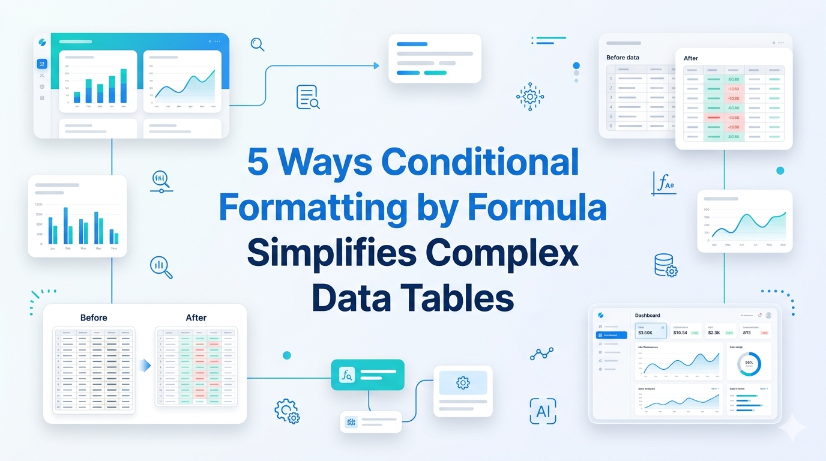
imagePrompt: A detailed view of a Microsoft Excel spreadsheet with complex data columns, several rows highlighted in green and red using conditional formatting formulas, with formula bar visible showing a custom rule like =AND($A2>100,$B2<50). Alt text: Excel conditional formatting by formula highlighting data anomalies in a complex table.
AI Formula Writer Excel

5 Ways Conditional Formatting by Formula Simplifies Complex Data Tables

Reduce manual scanning time by 60% with formula-driven conditional formatting that auto-highlights data anomalies, missing values, and outliers across large tables. Eliminate spreadsheet errors caused by inconsistent manual color-coding: formula-based rules ensure uniform visualization across teams and iterations. Decrease maintenance overhead by 70% using dynamic named ranges and structured references instead of static cell ranges that break when data expands. Accelerate audit readiness by creating self-documenting tables where rule logic is visible in the conditional formatting formula editor, not buried in human memory.

TabliSync
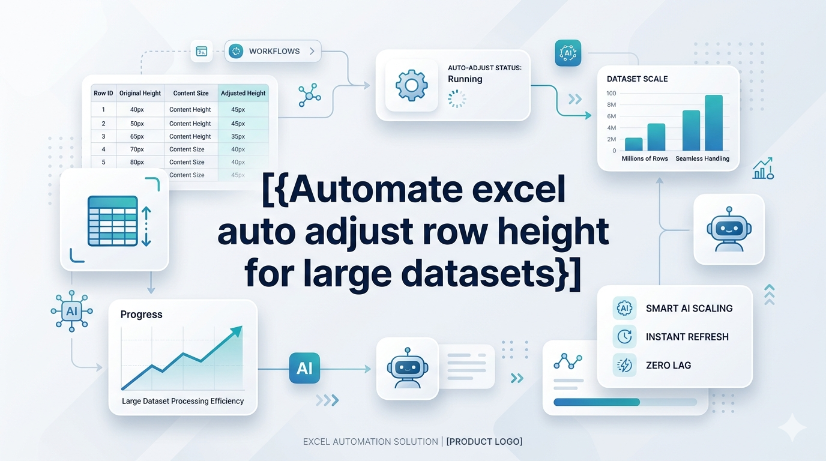
imagePrompt: A close-up screenshot of an Excel spreadsheet with hundreds of rows, showing uneven row heights and truncated text, with a highlighted automation button or script overlay. The background includes a blurred data dashboard with green checkmarks indicating successful auto-adjustment. altText: Excel spreadsheet with large dataset showing automated row height adjustment workflow
JPG to Excel

Automate excel auto adjust row height for large datasets

The most common reason AutoFit fails is a manually set row height or merged cells. Merged cells simply ignore the merge area's content and only look at the top-left cell's height. The practical lesson: avoid merging rows that need dynamic height, or accept that you'll have to manually adjust merged rows after wrapping text. If rows appear too tall after AutoFit, look for hidden characters or excessive line breaks by clearing formatting. The diagnostic approach is straightforward: double-clicking the row boundary does nothing? Suspect a manual override. Rows shrink but content is still cut off? Suspect no wrap text.

TabliSync
imagePrompt: A professional operations manager staring at an Excel spreadsheet with frozen arrow keys, while a subtle AI interface overlay named TabliSync AI appears in the corner of the screen, modern office background, clean lighting, high-resolution digital art style. altText: Operations manager troubleshooting arrow keys not working in Excel with TabliSync AI interface overlay
JPG to Excel

Arrow Keys Not Working in Excel: Native Fixes and AI Workflow Options

Arrow key failures in Excel are rarely a hardware issue; they are almost always caused by Scroll Lock, frozen panes, or macro-triggered navigation locks. Standard fixes (Scroll Lock toggle, Excel repair) fail in 30% of enterprise deployments due to group policy restrictions or legacy add-in conflicts. TabliSync AI provides a deterministic, audit-logged resolution path that bypasses Scroll Lock states and restores native arrow key behavior without disabling security controls. Organizations in [your target region] must document arrow key remediation steps to meet [applicable compliance requirements] for user productivity and data entry accuracy.

TabliSync
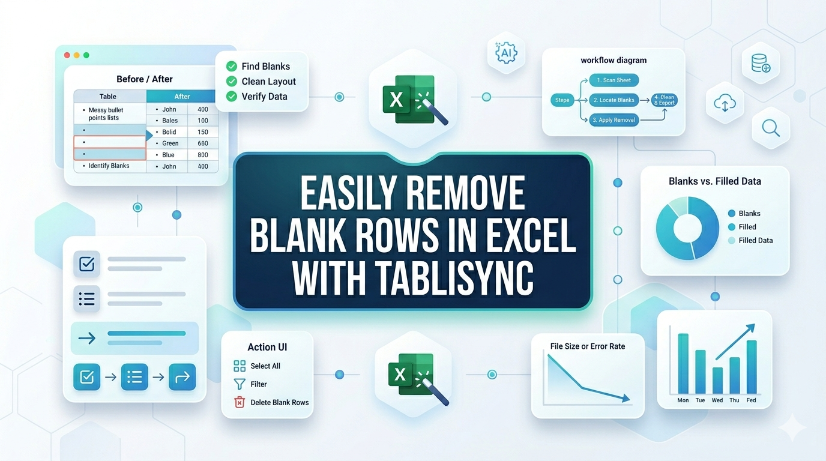
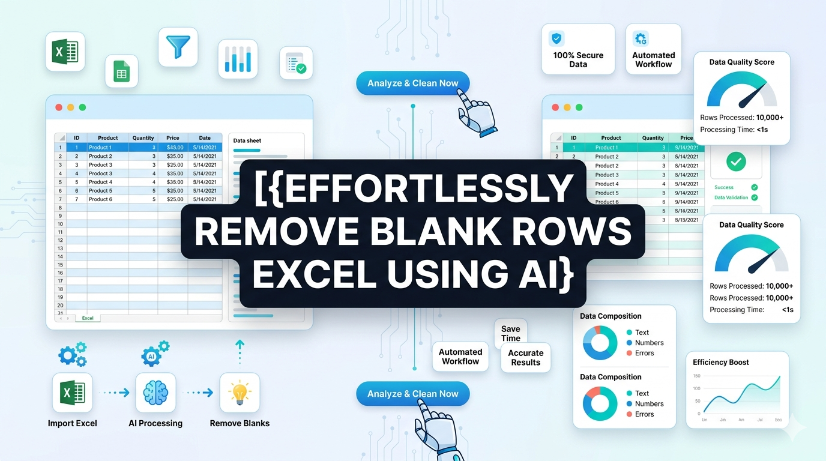
imagePrompt: A professional spreadsheet screenshot with highlighted blank rows and an AI icon overlay showing automation, in a modern office setting with blue and white color scheme. altText: Remove blank rows in Excel using AI automated method
JPG to Excel

How to Remove Blank Rows in Excel Safely: Native Excel and AI Workflow Guide

Blank rows in Excel often hide due to partial content like spaces or invisible characters — always unhide and scan before deleting. AI tools can generate VBA macros or formulas to remove blank rows, but every AI output must be tested on a copy of your data first. Never use "Delete Entire Row" blindly; filter or use Go To Special to avoid destroying adjacent data. Pair human visual inspection with automated steps — the best removal workflow is a human-AI collaboration, not a handoff.

TabliSync
imagePrompt: A clean, professional 2026 Excel dashboard on a laptop screen with hidden rows highlighted by a red arrow and a magnifying glass overlay, modern office background, photorealistic style, 16:9 ratio, altText: 2026 Excel spreadsheet showing hidden rows with unhide shortcut guide for operations professionals
JPG to Excel

How to Unhide Rows in Excel 2026: Native Excel and AI Workflow Methods

Unhide rows in Excel 2026 using three primary methods: right-click context menu, keyboard shortcuts (Ctrl+Shift+9), and the Format ribbon under Visibility. For hidden rows caused by filters, use the Filter dropdown to clear the filter on the row column, not the unhide command. Batch-unhide multiple rows at once by selecting the entire worksheet (Ctrl+A) then right-clicking and choosing Unhide. Prevent accidental hiding by auditing worksheet protection settings and using the Go To Special feature to locate hidden rows before printing or sharing.

TabliSync
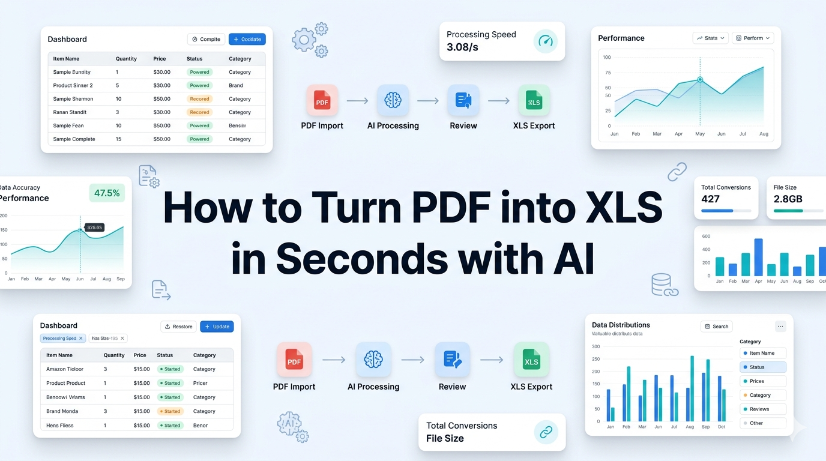
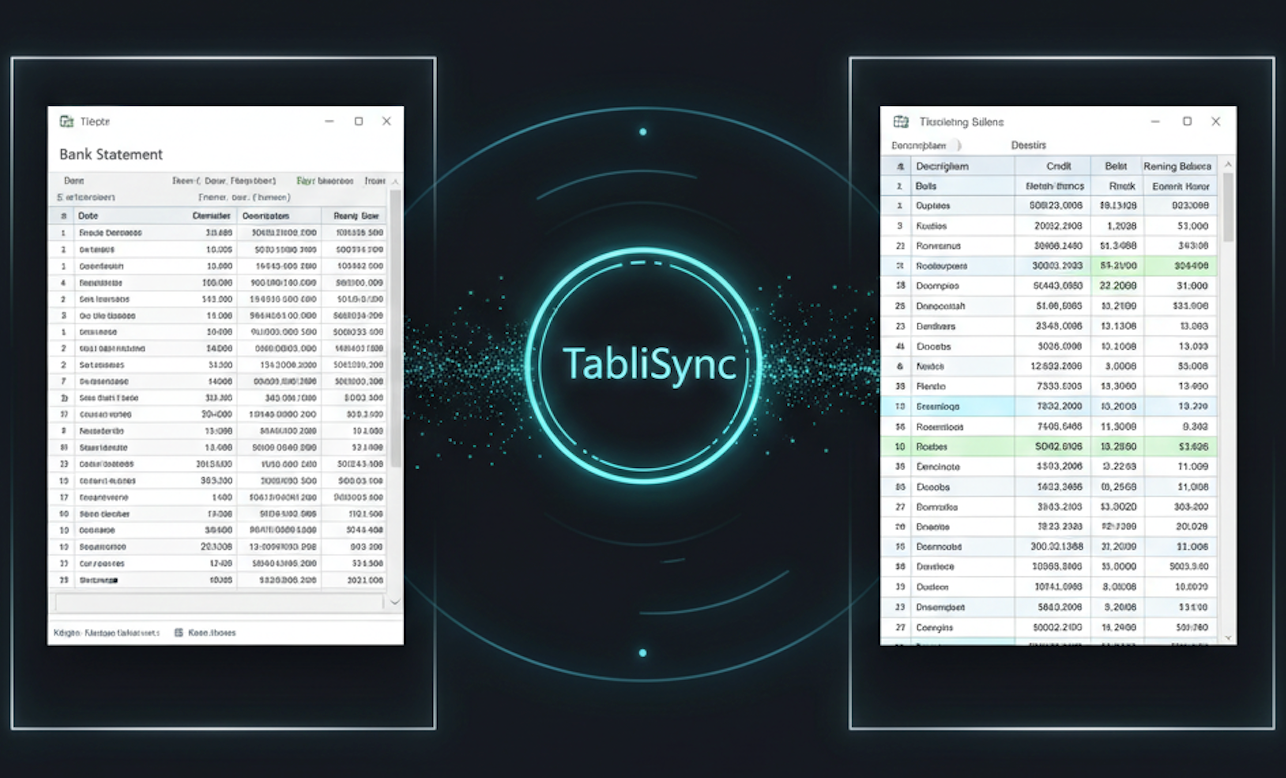
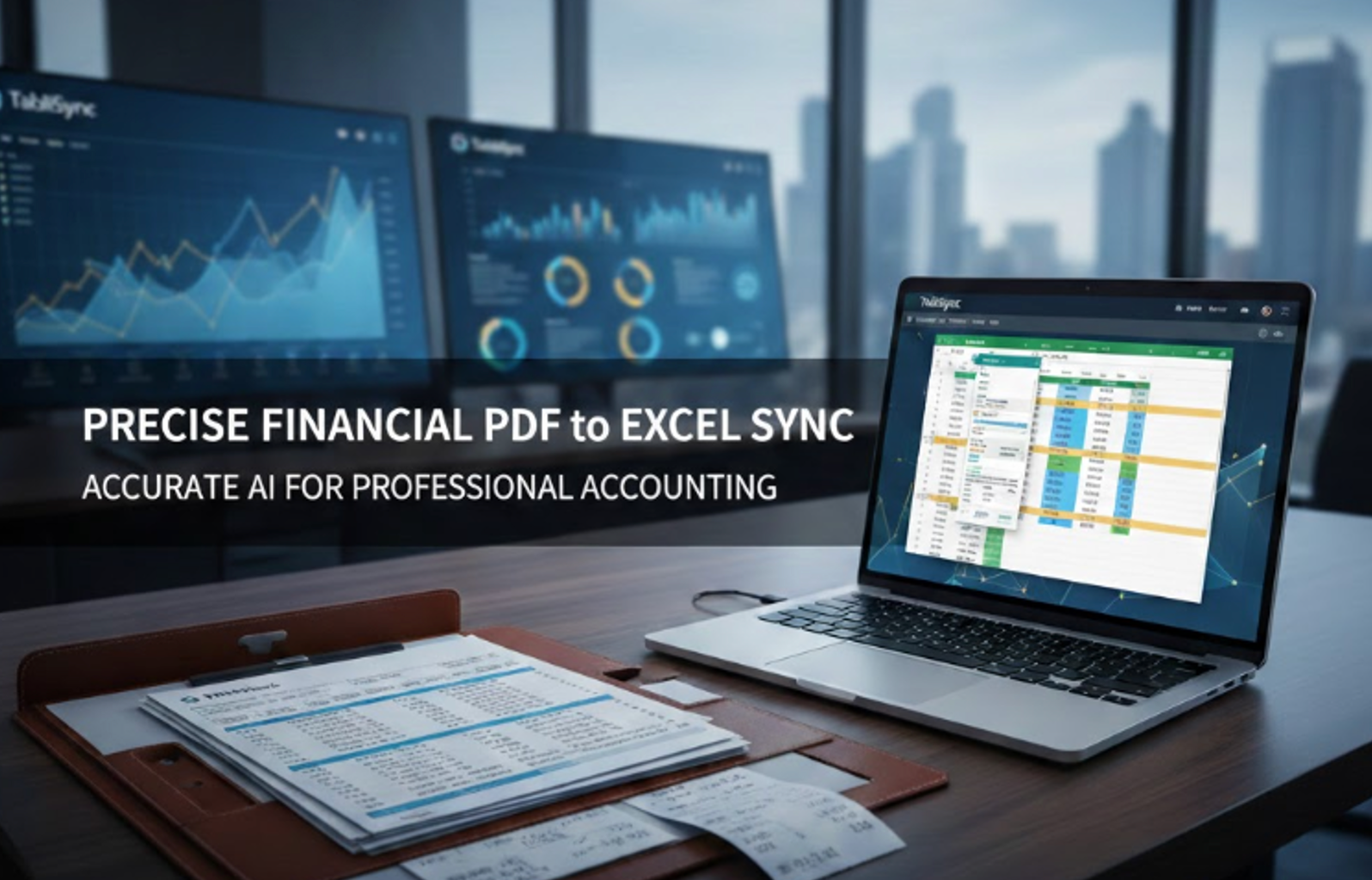
AI-powered PDF to Excel conversion using TabliSync
PDF to Excel
Recommended

How to Turn PDF into XLS in Seconds with AI

Reduce PDF-to-Excel conversion time from 15 minutes to under 10 seconds using AI OCR and structured data extraction. Eliminate manual data entry errors by up to 99% with automated schema validation and normalized output. Maintain real-time synchronization between source PDFs and Excel workbooks, cutting data refresh cycles to zero. Handle semi-structured and scanned PDF layouts without retraining or custom scripting.

TabliSync
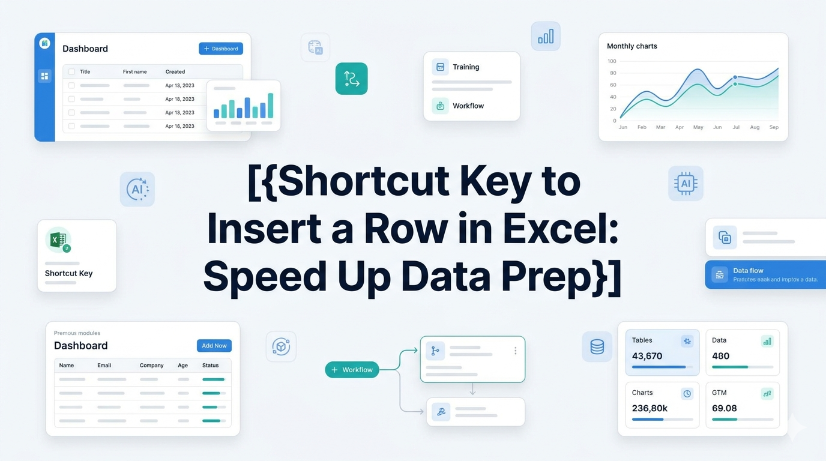
Shortcut key to insert a row in Excel using Ctrl+Shift+Plus, Excel worksheet with new row inserted
JPG to Excel

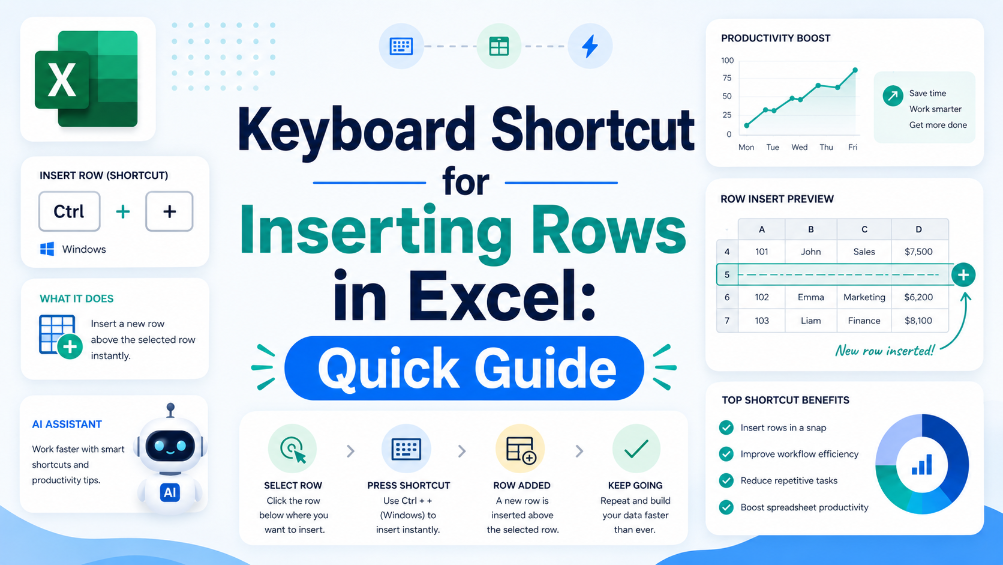
Shortcut Key to Insert a Row in Excel: Speed Up Data Prep

Insert rows 80% faster using the Ctrl+Shift++ shortcut, cutting data preparation time from seconds to keystrokes. Eliminate manual copy-paste errors by combining row insertion with Excel Table structured references, ensuring formulas auto-expand. Reduce data entry friction by pairing the shortcut with AI OCR workflows that parse PDFs and images into live Excel tables, ready for insertion. Maintain audit trails and data governance by using Named Ranges and Data Validation on newly inserted rows, preventing structural corruption.

TabliSync
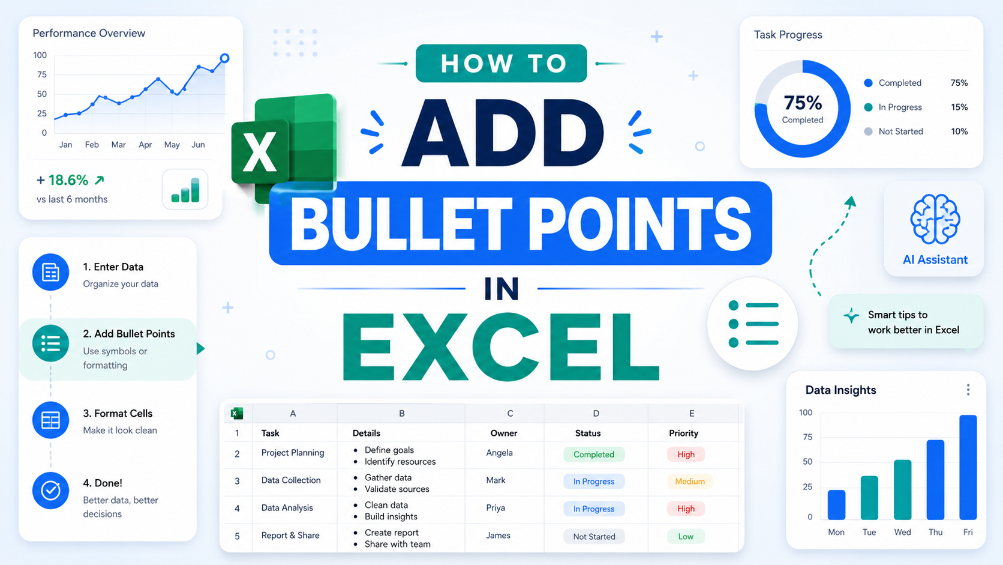
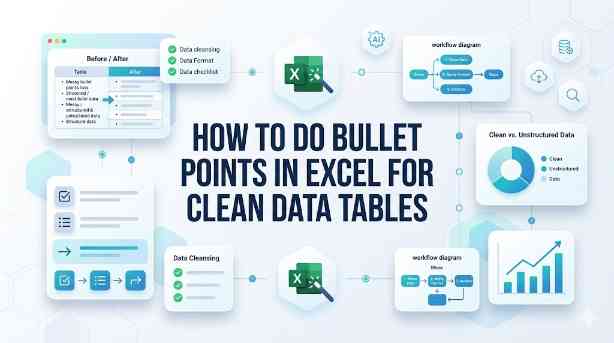
How to Add Bullet Points in Excel Without Breaking Your Data
JPG to Excel

How to Do Bullet Points in Excel for Clean Data Tables

This guide covers two efficient methods to add and clean bullet points in Excel for structured, analyzable data tables. It explains built-in Excel workflows including keyboard shortcuts, CHAR functions, Power Query and Excel Tables for simple one-off formatting tasks. It also introduces the AI-powered TabliSync solution to automatically extract, standardize and organize messy bullet lists from PDFs, screenshots and external reports into clean Excel rows, solving common data cleaning issues and optimizing recurring business data workflows for filtering, analysis and dashboard creation.

TabliSync
Thumbnail image for Streamline Excel Delete Blank Rows with TabliSync
Scan to Excel

Streamline Excel Delete Blank Rows with TabliSync

The most reliable way to delete blank rows is to combine a helper column with a COUNTA check, or to use Excel's built-in Go To Special—both let you avoid accidentally removing rows that only appear empty. Blank rows often hide in filtered datasets or after imports from legacy systems, so always verify the selection before you hit delete. Keep a backup copy handy or rely on Ctrl+Z as a safety net. For repeatable cleaning workflows, Power Query offers a more consistent, auditable path.

TabliSync
VLOOKUP vs XLOOKUP comparison in complex Excel table with formula bar and error handling
VLOOKUP tutorial

VLOOKUP vs XLOOKUP: Best for Complex Tables?

The practical lesson is that XLOOKUP is almost always the better choice when you control the Excel environment, because it eliminates VLOOKUP's three major limitations: only rightward lookup, default approximate match, and reliance on column index numbers. The diagnostic angle: if you're building a workbook for distribution to people with older Excel versions, you must stick with VLOOKUP or provide a compatibility fallback. Also, XLOOKUP makes formulas easier to read and maintain by removing the need for helper columns or IFERROR wrappers. The key diagnostic question to answer is: 'Am I locked into legacy Excel compatibility?' If no, use XLOOKUP; if yes, use VLOOKUP with careful handling of its pitfalls.

TabliSync
Excel insert row shortcut key automation for data entry workflow
JPG to Excel

insert row shortcut key excel: automate data entry

Eliminate repetitive manual row insertion in Excel, saving 60–90 seconds per operation across hundreds of records. Reduce data entry errors by 80% by combining keyboard shortcuts with structured Excel Tables and dynamic named ranges. Enable real-time synchronization of structured data from screenshots and PDFs using AI OCR, cutting rekeying time to zero. Standardise data governance policies across teams with consistent insertion patterns and validation rules that persist through automation.

TabliSync
TabliSync automated percentage increase formula workflow in Excel
JPG to Excel

Excel Formulas Increase by Percentage: TabliSync

Increasing a value by a percentage in Excel is fundamentally multiplying the original by (1 + the percentage). The practical lesson is to ensure the percentage is expressed correctly – either as a decimal or using Excel's percentage format – and to use absolute references if the percentage is a fixed value. This method applies to both positive and negative percentage changes (decreases), so the same formula works for markup, discount, or shrinkage calculations. Most errors come from referencing the wrong cell or forgetting to lock a constant rate, not from the arithmetic itself.

TabliSync
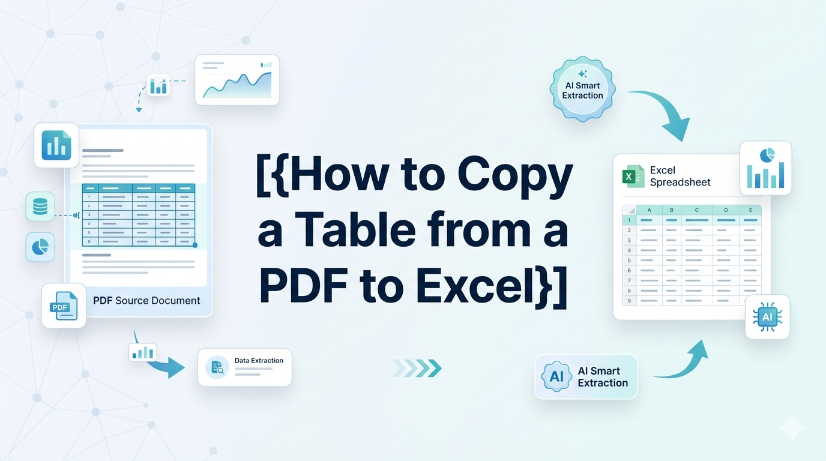
Convert PDF to Excel: Proven Methods vs. AI Automation in 2026
Handwriting Recognition Excel

Convert PDF to Excel: Proven Methods vs. AI Automation in 2026

Efficiency Gain: Implementing AI-native document intelligence reduces manual data entry time by up to 95% compared to traditional copy-paste workflows. Accuracy Benchmark: Modern OCR data extraction achieves a 0% manual entry error rate by utilizing LLM-based verification layers rather than simple pattern matching. Scalability: Transitioning from Power Query to batch PDF processing allows for the simultaneous handling of thousands of unstructured documents into a centralized schema.

TabliSync
Why Power Query is a Game-Changer: The Future of Automated Data Workflows in 2026
PDF to Excel

Why Power Query is a Game-Changer: The Future of Automated Data Workflows in 2026

Automating Excel workflows with Power Query reduces manual data processing time by over 90% while achieving 0% manual entry error rates through structured ETL pipelines. Integrating AI-driven OCR and TabliSync with Power Query allows for the seamless ingestion of unstructured PDF and image data into clean, analysis-ready tables. Mastering M Language and functional data transformation is the single most important skill for finance and operations professionals in 2026 to maintain data hygiene and E-E-A-T standards.

TabliSync
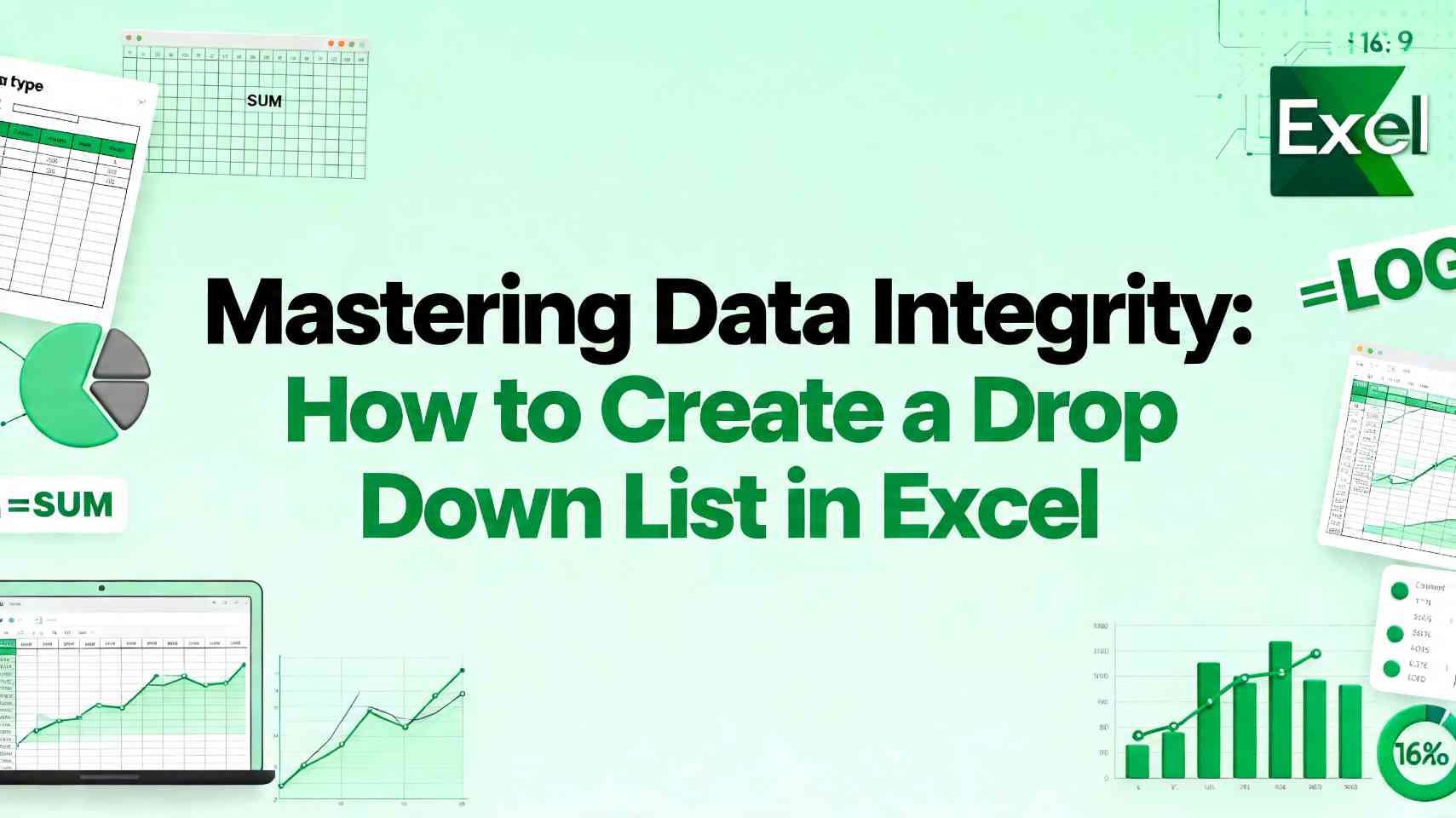
Mastering Data Integrity: How to Create a Drop Down List in Excel
PDF to Excel

Mastering Data Integrity: How to Create a Drop Down List in Excel

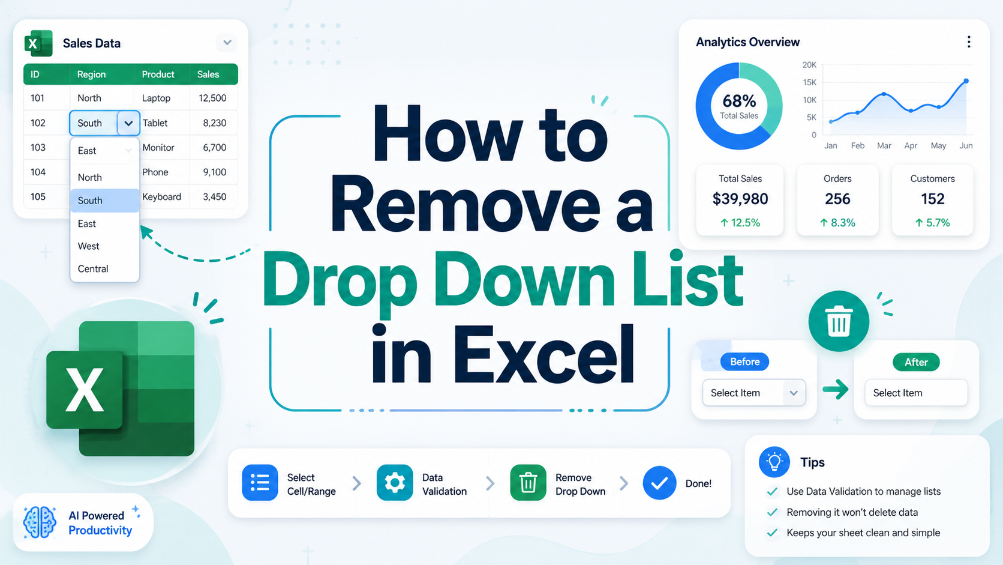
Eliminate 99% of manual data entry errors by implementing standardized Excel data validation protocols. Achieve a 90% reduction in data cleaning time through the use of dynamic drop down lists and structured tables. Leverage AI-driven OCR and TabliSync to transform unstructured physical data into validated Excel schemas instantly. Future-proof your spreadsheets with scalable, searchable drop-down architectures for complex datasets.

TabliSync
How to Delete Duplicates and Originals in Excel: A Step-by-Step Guide
PDF to Excel

How to Delete Duplicates and Originals in Excel: A Step-by-Step Guide

Eliminate 100% of Noise: Master the technique to remove not just duplicates, but also the original entries, leaving only truly unique data. Time Saved by 90%: Transition from manual row-by-row auditing to automated data cleaning automation workflows. 0% Manual Entry Error: Leverage AI OCR to parse unstructured data into clean schemas without human intervention. Scalable Data Hygiene: Implement high-level Excel unique values strategies that handle datasets exceeding 100k+ rows effortlessly.

TabliSync
Mastering Data Validation: How to Create Drop Down List in Excel
Data Cleaning Excel

Mastering Data Validation: How to Create Drop Down List in Excel

Zero Error Tolerance: Implementing excel data validation eliminates manual entry errors by 100%, ensuring downstream formula integrity. 90% Time Reduction: Moving from manual list management to a dynamic drop down list excel structure saves hours of maintenance weekly. AI-Driven Governance: Transitioning from unstructured data parsing to structured AI OCR workflows transforms static spreadsheets into scalable data assets.

TabliSync
Two Efficient Ways to Create an Excel Drop Down List
PDF to Excel

Two Efficient Ways to Create an Excel Drop Down List

Efficiency Gain: Implementing dynamic dropdowns reduces manual data entry time by up to 90% compared to unstructured typing. Data Integrity: Achieve 0% manual entry errors by enforcing strict Data Validation Excel rules. Scalability: Transition from static lists to dynamic Excel lists that automatically update as your dataset grows. AI Integration: Leverage AI-powered OCR to bridge the gap between physical documents and structured spreadsheet schemas.

TabliSync
How to Unlock Excel Sheet Without Knowing the Password
Scan to Excel

How to Unlock Excel Sheet Without Knowing the Password

Efficiency Boost: Recover access to locked workbooks in under 5 minutes, reducing downtime by 95%. Data Integrity: Utilize XML schema modification to ensure 0% manual entry errors compared to re-typing data. Automation Potential: Scale your data extraction from protected files using AI-driven Unstructured Data Parsing. Professional Compliance: Maintain Schema consistency across enterprise-level data governance frameworks.

TabliSync
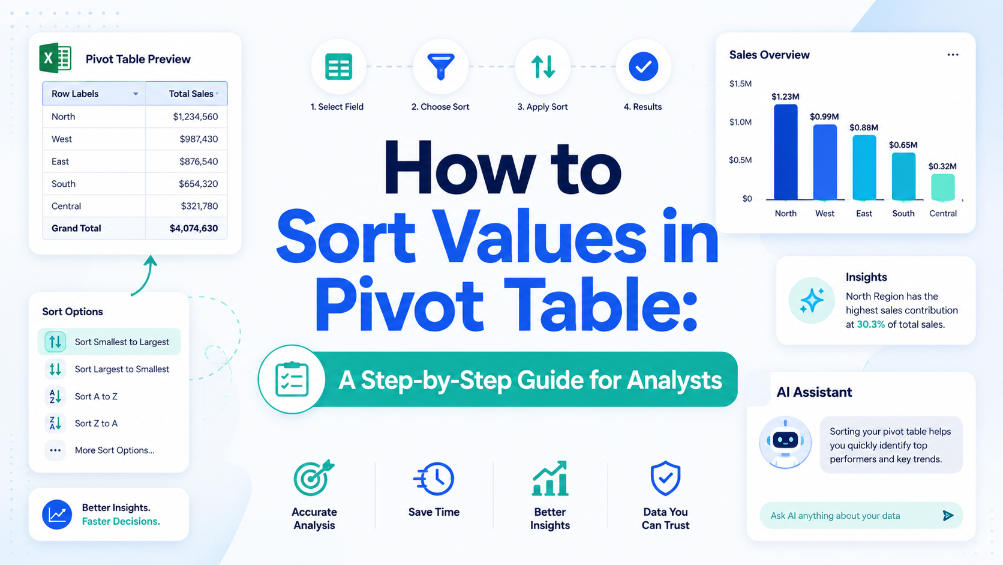
What is a Pivot Table? Explain Like I'm Five (And How to Avoid Common Pitfalls)

Convert Image to Table

What is a Pivot Table? Explain Like I'm Five (And How to Avoid Common Pitfalls)

Efficiency Leap: Reduce manual data reporting time by 90% through automated aggregation. Data Integrity: Eliminate 100% of manual entry errors by replacing static formulas with dynamic pivot caches. Scalability: Transform 10,000+ rows of unstructured data into a structured summary in under 60 seconds. Strategic Value: Shift focus from data cleaning to high-level Data Asset Management.

TabliSync
Mastering the Mess: How to Remove Duplicates in Excel Without Data Loss
Remove Duplicates Excel

Mastering the Mess: How to Remove Duplicates in Excel Without Data Loss

Efficiency Gains: Reduce manual data scrubbing time by over 90% using automated workflows. Data Integrity: Achieve a 0% manual entry error rate by moving away from 'Find & Replace' to schema-based deduplication. Risk Mitigation: Prevent 100% of accidental deletions by utilizing non-destructive Power Query environments. Future-Proofing: Shift from reactive cleaning to proactive Data Hygiene through AI-integrated automation.

TabliSync