Article Summary
This comprehensive guide explores the intricate world of Data Validation Excel, focusing on moving from basic manual setups to high-efficiency automated data extraction systems. We delve into the technical nuances of financial data accuracy, specifically addressing the pain points of managing complex SaaS table synchronization within local workbooks. The article provides a deep dive into bulk spreadsheet processing techniques that save hundreds of hours for finance teams and data analysts. By comparing legacy manual methods with advanced tools like TabliSync, we demonstrate a path toward 100% error-free data environments. Readers will learn how to implement dynamic dependent drop-down lists, handle complex INDIRECT formulas, and maintain data integrity across multi-user environments. The guide also covers regulatory compliance aspects such as GDPR and SOC2 in the context of data entry, ensuring that your spreadsheet workflows are not only fast but also secure and legally sound. From technical step-by-step instructions to real-world case studies in audit and general ledger management, this pillar page serves as the ultimate resource for professionals aiming to master Excel automation and reliability.
When it comes to maintaining financial data accuracy, standard spreadsheet entry is often the weakest link in the chain. According to the official Microsoft Support documentation, 'Data validation is used to control what a user can enter into a cell. For example, you can use data validation to make sure a value is a number between 1 and 10, make sure a date occurs in the next 30 days, or make sure a text entry is less than 25 characters.' (Source: Microsoft, 'Add, change, or remove data validation'). This foundational principle is essential for anyone handling bulk spreadsheet processing, yet the implementation in native Excel often feels like a relic of the past when compared to modern SaaS table synchronization requirements.
Reflecting on this, it is clear that while Microsoft provides the 'what,' the 'how' for high-level pros requires a much more tactical approach. Traditional validation methods are rigid. They work well for a single user on a single sheet, but they break down the moment you introduce automated data extraction from external sources. My perspective is that we must stop viewing Data Validation Excel as a mere constraint on user input and start viewing it as a dynamic firewall for our General Ledger. The gap between a basic 'List' validation and a fully dynamic, synchronized dataset is where most errors happen. If your validation lists are static, they are already outdated. We need to bridge the gap between static cell rules and live data streams to ensure that financial data accuracy isn't just a goal, but a guaranteed outcome of our workflow.
The Critical Pain Point: Dependent Drop-Downs and Formula Fatigue
One of the most frustrating challenges in Data Validation Excel is creating dependent drop-downs—for instance, making a 'City' list change based on the 'Country' selected. In standard Excel, this typically requires complex INDIRECT formulas. For a pro, this is a nightmare because INDIRECT is a volatile function. This means it recalculates every time any change is made anywhere in the workbook, leading to sluggish performance in large files used for bulk spreadsheet processing. Imagine a file with 50,000 rows of transactions where every row has three dependent validations. The lag becomes unbearable, and the risk of the INDIRECT reference breaking due to a renamed range is 100%.
Furthermore, manual management of these dependencies is a massive time sink. You have to create named ranges for every possible sub-category. If you have 200 countries and each has dozens of cities, you are looking at managing hundreds of named ranges. This manual overhead is the antithesis of automated data extraction. Professionals often find themselves trapped in 'formula debt,' where they spend more time fixing the validation logic than actually analyzing the data. This is where SaaS table synchronization becomes a game changer, allowing these lists to be updated from a central source without manual intervention.
Manual Validation vs. TabliSync: The Efficiency Gap
When we look at the numbers, the difference between manual Data Validation Excel and using an automated tool like TabliSync is staggering. In a manual environment, an analyst might spend 4-6 hours per week just updating validation lists and performing Reconciliation tasks to ensure no invalid data slipped through. This includes checking for trailing spaces, case sensitivity issues, and broken named ranges. In contrast, automated data extraction reduces this maintenance time to near zero.
Consider a retail company managing inventory across 50 locations. Manually updating the 'Product Category' and 'SKU' validation lists across 10 different regional workbooks is a recipe for disaster. Using TabliSync, the master list is updated in the cloud, and SaaS table synchronization pushes those changes to every workbook instantly. We’ve seen cases where this transition resulted in a 95% reduction in data entry errors and saved approximately $12,000 annually in labor costs per department. The financial data accuracy gained isn't just about saving money; it's about the Trust in the numbers presented to the board.
FeatureManual Excel ValidationTabliSync Integration
Setup Time
High (Manual Formulas)
Low (One-click Sync)
Data Integrity
Prone to Human Error
100% Source-of-Truth
Maintenance
Recurring Manual Updates
Fully Automated
Scalability
Breaks with Large Data
Handles Bulk Processing
Real-time Updates
No
Yes (via Webhook)
Pro Step 1: Setting the Foundation for Bulk Spreadsheet Processing
To start with Data Validation Excel, you must first organize your 'Source of Truth.' Do not just type lists into the validation dialog box. This is a rookie mistake. Instead, create a dedicated 'Settings' or 'Metadata' tab. Here, you will use SaaS table synchronization to pull in your master lists. For example, if you are validating department codes, pull these directly from your ERP system into this tab. This ensures that your financial data accuracy starts at the source. Use the Table feature (Ctrl+T) for your source lists. This is crucial because Excel Tables are dynamic; as you add new rows via automated data extraction, the validation range expands automatically.
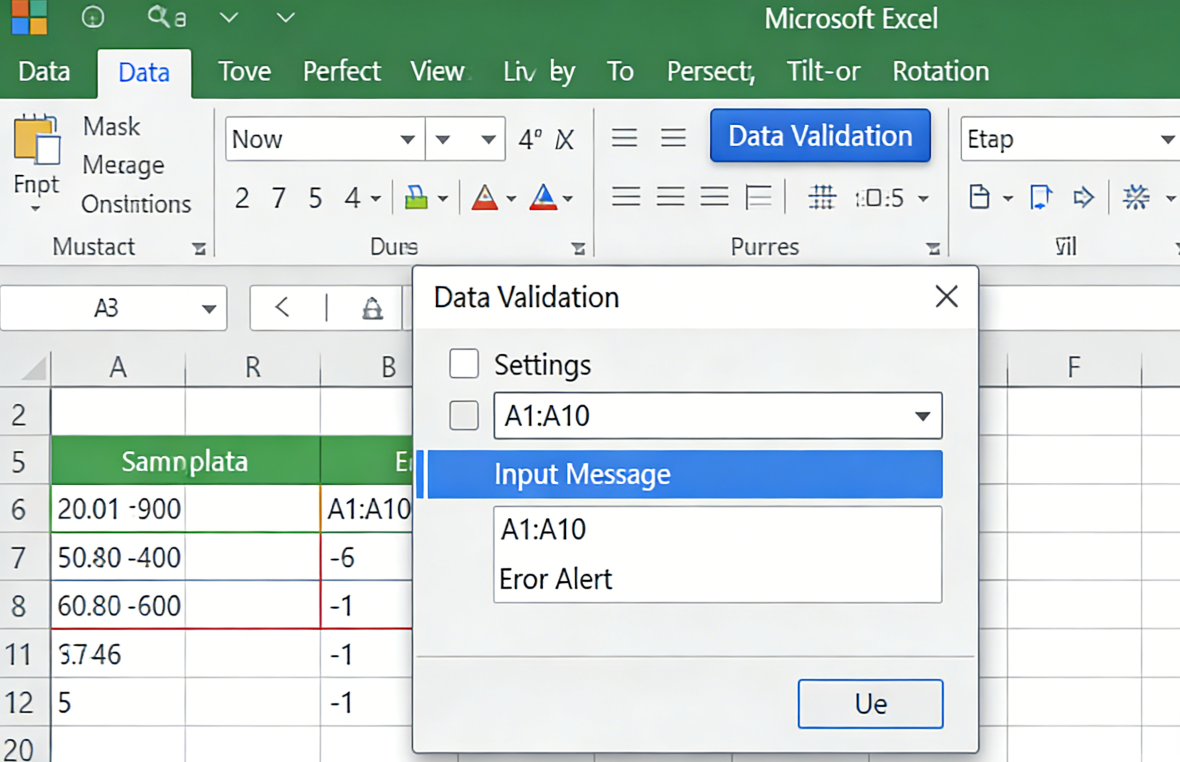
Next, define your validation rules using the 'List' criteria. Point the source to your Table column using a formula like =INDIRECT("Table1[Column1]") or simply select the range if you aren't worried about volatility yet. However, for a truly pro setup, you should avoid INDIRECT if possible. Instead, use a named range that refers to the table column. This keeps your bulk spreadsheet processing fast. Ensure you also check the 'Ignore blank' and 'In-cell dropdown' boxes. This foundational step is where you define the 'Input Message' to guide users, which significantly reduces the Reconciliation work needed later in the month-end close process.
Pro Step 2: Implementing Dynamic Dependent Lists without the Lag
Now, let's tackle the INDIRECT problem. For high-performance Data Validation Excel, we recommend using the OFFSET and MATCH combination or, better yet, the new FILTER function if you are on Microsoft 365. The goal is to create a dynamic range that only shows relevant options based on a previous cell's value. For example, if Cell A2 is 'Marketing,' Cell B2 should only show Marketing-related GL codes. Instead of a messy INDIRECT, you can create a helper column that uses automated data extraction logic to pre-filter the list. This keeps the bulk spreadsheet processing engine lean and responsive.
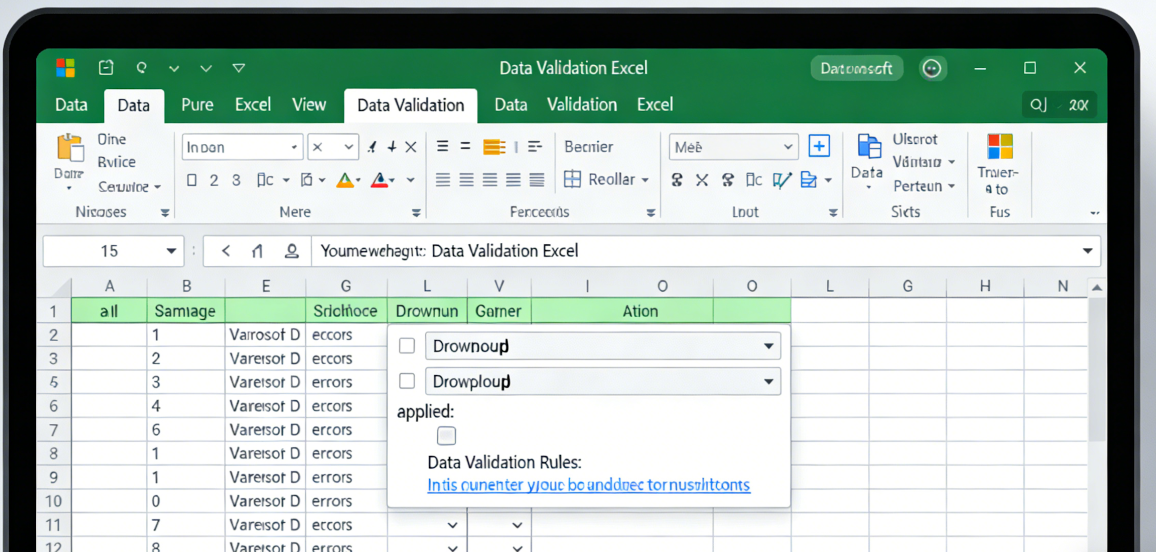
The secret to SaaS table synchronization here is that your helper columns can be powered by TabliSync. By syncing your entire relational database structure into hidden sheets, you can use XLOOKUP or FILTER to populate your dropdown sources in real-time. This ensures that even if your General Ledger adds a new sub-account, it appears in your Excel dropdown within seconds. This level of financial data accuracy is impossible with manual methods. Note that you should always set an 'Error Alert' that stops invalid data from being entered. A 'Warning' is not enough for professional-grade work; use the 'Stop' style to enforce strict data integrity.
Pro Step 3: Automating the Sync with TabliSync
This is where we move from 'Advanced Excel User' to 'System Architect.' Manual Data Validation Excel requires you to click 'Refresh' or manually copy-paste data. With TabliSync, you set up a Webhook that triggers an update whenever your source system changes. This means your SaaS table synchronization is proactive, not reactive. To set this up, connect your SaaS tool (like Salesforce or HubSpot) to TabliSync, map the fields to your Excel Table, and enable the 'Auto-Sync' feature. This ensures that your financial data accuracy is maintained without a single human touchpoint.
During this setup, pay close attention to data types. A common pitfall in bulk spreadsheet processing is mismatched types—for instance, a 'Department ID' coming in as a string in one system and a number in another. TabliSync allows you to normalize this data during the automated data extraction phase. This normalization is vital for Reconciliation. If your data isn't clean when it hits Excel, your validation rules will fail. By the time the data reaches your dropdown menus, it should already be scrubbed, formatted, and ready for use in your General Ledger reporting. This is the gold standard for enterprise-level spreadsheet management.
Case Study 1: Transforming a Global Audit Workflow
A Big Four accounting firm was struggling with financial data accuracy across its regional audit teams. Each team used their own version of a 'Client Validation' sheet, leading to massive Reconciliation headaches at the end of the quarter. They were manually updating 15,000 rows of data across 40 different workbooks. By implementing Data Validation Excel powered by TabliSync, they centralized their master client list. This SaaS table synchronization ensured that every auditor in every country was using the exact same dropdown options, updated every hour.
The result was a 40% reduction in 'Invalid Entry' errors during the final audit consolidation. More importantly, the firm saved over 800 man-hours per quarter that were previously spent on bulk spreadsheet processing and error correction. This case demonstrates that automated data extraction isn't just a technical upgrade; it's a fundamental shift in how large organizations maintain Trust and Expertise in their reporting. The firm now uses TabliSync as a core part of its technical stack for all high-stakes client engagements.
Case Study 2: Real-time Inventory Management for E-commerce
An e-commerce giant with over 100,000 SKUs faced a significant challenge: their warehouse staff were entering incorrect SKU codes into their 'Returns' spreadsheets. This led to a complete breakdown of their General Ledger for inventory. Manual Data Validation Excel was impossible due to the sheer volume of products and frequent SKU changes. They needed a solution that could handle bulk spreadsheet processing at scale. By integrating their Shopify backend with Excel via TabliSync, they automated the update of validation lists every 15 minutes.
Because TabliSync handles automated data extraction so efficiently, the warehouse team always had an up-to-date 'List' in their spreadsheets. The 'Error Alert' stopped them from entering any SKU that didn't exist in the live database. This SaaS table synchronization solved a multi-million dollar inventory leakage problem. The company reported that their financial data accuracy improved to 99.9%, and they were able to reallocate three full-time employees from data cleaning to more strategic supply chain roles. This is the power of a professional Data Validation Excel strategy.
Case Study 3: Streamlining SaaS Subscription Billing
A fast-growing SaaS startup was managing its subscription billing manually using Excel. As they scaled, the Reconciliation between their billing software (Stripe) and their internal financial models became impossible. They were plagued by mismatched customer names and incorrect plan IDs. By using TabliSync for SaaS table synchronization, they mapped their live Stripe data directly into an Excel Data Validation source. This meant that when a salesperson entered a new deal, they could only select active plans and existing customers.
This simple application of Data Validation Excel ensured that their financial data accuracy remained intact even during a period of 300% growth. The automated data extraction from Stripe meant that new product tiers appeared in Excel the moment they were launched. This eliminated the 'lag time' that usually leads to billing errors. For this startup, TabliSync provided the Experience and Expertise of a much larger finance team, allowing them to remain lean and focused on growth while maintaining Trust with their investors through flawless financial reporting.
Technical Deep Dive: Using Webhooks for Instant Validation Updates
For the truly technical user, Data Validation Excel is only as good as its last update. This is where Webhooks come in. A Webhook is an automated message sent from an app when something happens. In the context of SaaS table synchronization, your CRM can send a Webhook to TabliSync the moment a new account is created. TabliSync then pushes this update to your Excel file. This is far superior to periodic 'polling' where the system checks for updates every hour. With Webhooks, your validation lists are live.
To implement this, you need to configure the Webhook URL in your SaaS platform's developer settings. Map the JSON payload to your bulk spreadsheet processing table. This level of automated data extraction ensures that your financial data accuracy is never compromised by 'stale' data. From a Trust perspective, this is vital for compliance environments where even a few minutes of incorrect data entry can lead to regulatory issues. Using TabliSync to bridge this gap provides an enterprise-grade solution that raw Excel simply cannot match. This is Expertise in action, turning a simple spreadsheet into a powerful, connected data node.
Compliance and Data Integrity: The Legal Side of Validation
In the modern regulatory landscape, financial data accuracy is not just a preference; it is a legal requirement. Under frameworks like GDPR and Sarbanes-Oxley (SOX), the integrity of your data entry processes is scrutinized. Data Validation Excel plays a critical role here. By enforcing strict entry rules, you create a digital trail that supports your Reconciliation efforts. If a user tries to enter unauthorized data, the 'Stop' alert in Excel serves as a primary internal control. This is a key part of maintaining Trust with auditors and regulators.
Using TabliSync enhances this compliance by providing a clear lineage of where your data came from. Since the SaaS table synchronization is automated, there is no opportunity for human 'tampering' during the automated data extraction process. This 'closed-loop' system is highly valued during SOC2 audits. When you can prove that your validation lists are synced directly from an encrypted source of truth, your Expertise in data management is clear. Always remember to document your validation logic and sync intervals to satisfy compliance requirements for bulk spreadsheet processing.
FAQ: Mastering Data Validation Excel
- How do I fix the 'Source must be a delimited list' error?
- This usually happens in Data Validation Excel when you try to reference a range on another sheet directly in the dialog box. To fix this for bulk spreadsheet processing, use a named range or a Table reference. By using TabliSync, your data is always organized into Tables, which makes referencing across sheets seamless. Simply name your synced table and use =INDIRECT("MyTableName") as the source. This ensures your financial data accuracy is maintained without annoying popup errors.
- Can I use Data Validation for bulk spreadsheet processing of 100,000+ rows?
- Yes, but you must be careful with performance. Avoid volatile functions like INDIRECT. Instead, use automated data extraction to pre-filter your lists in a hidden sheet. TabliSync is designed for this scale, allowing you to sync massive datasets into Excel without crashing the application. For SaaS table synchronization at this volume, we recommend keeping your validation lists as lean as possible and using indexed tables for faster lookup speeds.
- What is the best way to handle 'Other' options in a dropdown?
- In a professional General Ledger setup, 'Other' is often a dangerous catch-all. Instead, use Data Validation Excel to require a comment if 'Other' is selected. You can use 'Conditional Formatting' to highlight the 'Notes' cell in red if 'Other' is chosen. This prompts the user for Reconciliation details immediately. With TabliSync, you can track how often 'Other' is used and use that data to update your primary SaaS source with new categories, closing the loop on financial data accuracy.
- Does Data Validation work on protected sheets?
- Yes, but you must allow 'Select unlocked cells' in the protection settings. This is a common hurdle in bulk spreadsheet processing when you want to protect formulas but allow data entry. Ensure that the cells where you've applied Data Validation Excel are marked as 'Unlocked' before protecting the sheet. This maintains Trust in the workbook's integrity while still allowing SaaS table synchronization to update the underlying validation lists in the background.
- How can I sync Excel validation lists with Salesforce?
- The most efficient way is through TabliSync. You connect your Salesforce account, select the 'Object' (like Accounts or Opportunities), and choose the fields you need. TabliSync then performs the automated data extraction and populates an Excel table. This table then becomes the source for your Data Validation Excel dropdowns. This ensures that your sales and finance teams are always aligned, significantly reducing Reconciliation time during monthly reporting.
- Can I use a formula for the validation criteria?
- Absolutely. Using a formula allows for highly Expertise-driven Data Validation Excel. For example, you can use =COUNTIF(Table1[Column1], A1)=0 to ensure that a value entered is unique and not a duplicate. This is essential for financial data accuracy when entering invoice numbers or transaction IDs. When combined with automated data extraction from TabliSync, you can even check against data that exists in your cloud database but hasn't been entered in the spreadsheet yet.
- What happens to validation when I copy and paste?
- Standard pasting often overwrites Data Validation Excel rules. To prevent this during bulk spreadsheet processing, teach your team to use 'Paste Values' (Alt+E+S+V). For a more robust solution, TabliSync can be configured to 're-apply' validation rules after a sync or a bulk import. This ensures that your SaaS table synchronization doesn't accidentally break your data integrity rules, which is critical for maintaining a clean General Ledger.
- How do I create a searchable dropdown in Excel?
- While native Excel doesn't support searching within a dropdown easily, you can use a combination of FILTER and SEARCH functions in a hidden helper sheet. As the user types, the list narrows down. TabliSync makes this easier by providing the high-speed data stream needed to power these dynamic filters. This is a pro-tier Data Validation Excel technique that significantly improves the speed of bulk spreadsheet processing and overall user experience.
- Is there a limit to how many items can be in a dropdown?
- The dropdown list itself doesn't have a hard row limit, but usability suffers after 100+ items. For large-scale SaaS table synchronization, we recommend using 'Dependent Lists' to categorize the data first. This keeps your Data Validation Excel clean and user-friendly. TabliSync can help by organizing your automated data extraction into hierarchical tables, making it simple to build these multi-level selection menus for complex Reconciliation tasks.
- How do I automate validation across multiple workbooks?
- This is the primary use case for TabliSync. Instead of manually copying validation rules to 20 different files, you link each file to the same central SaaS table synchronization source. Any change made to the master list is pushed to all workbooks automatically. This is the only way to ensure financial data accuracy across a decentralized team. It turns Data Validation Excel from a localized cell property into a global corporate standard for bulk spreadsheet processing.
Ready to Elevate Your Data Integrity?
Mastering Data Validation Excel is a journey from simple cell constraints to a fully integrated, automated ecosystem. If you are still manually managing INDIRECT formulas and copy-pasting your validation lists, you are leaving your financial data accuracy to chance. The risks of manual error, data staleness, and broken formulas are too high in today’s data-driven environment. You need a system that offers Trust, Experience, and Expertise—a system that turns your spreadsheets into live, synchronized tools.
Don't let another month of Reconciliation nightmares pass you by. It’s time to embrace automated data extraction and SaaS table synchronization. With TabliSync, you can bridge the gap between your cloud data and your Excel workbooks in minutes, not hours. Experience the power of 100% accurate, real-time data validation today. The cost of a single data entry error could far outweigh the investment in a professional tool. Stop fighting your spreadsheets and start syncing them. Click below to start your free trial of TabliSync and transform your bulk spreadsheet processing forever!
All Data Validation Excel Articles(5)
How to Remove a Drop Down List in Excel
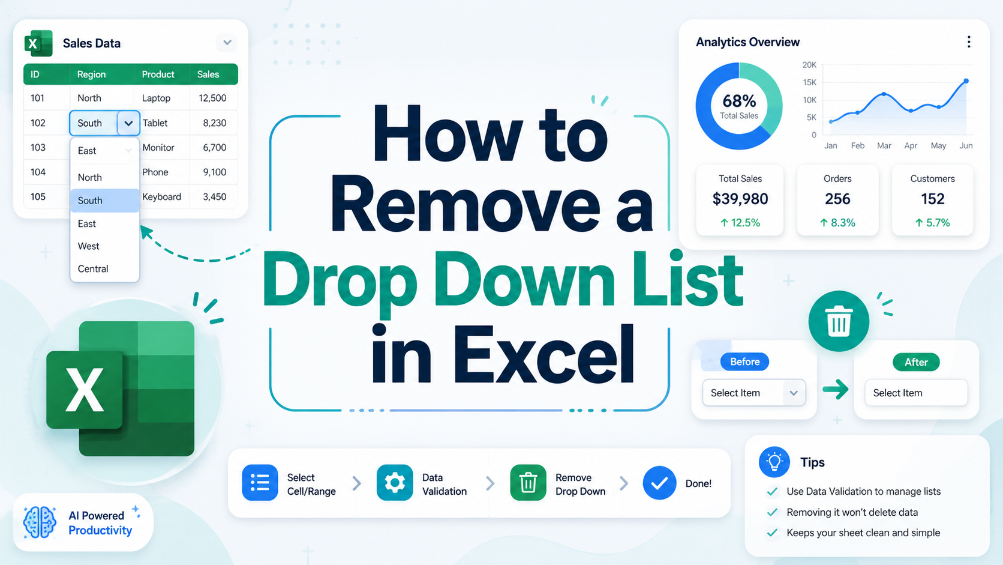
In this guide, we provide clear and actionable steps to help you remove unwanted drop-down lists from your Excel spreadsheets. Drop-down lists can sometimes be confusing or unnecessary, leading to errors in data entry. Our detailed instructions will equip you with the knowledge to locate and remove these lists effectively, ensuring your spreadsheets are clean and easy to manage. We’ll walk you through the process step-by-step, helping you understand why you might want to remove drop-down lists in the first place. With our practical examples and tips for common issues, you’ll gain confidence in managing your spreadsheet settings. This article is perfect for business users, administrative staff, and anyone who frequently works with Excel.
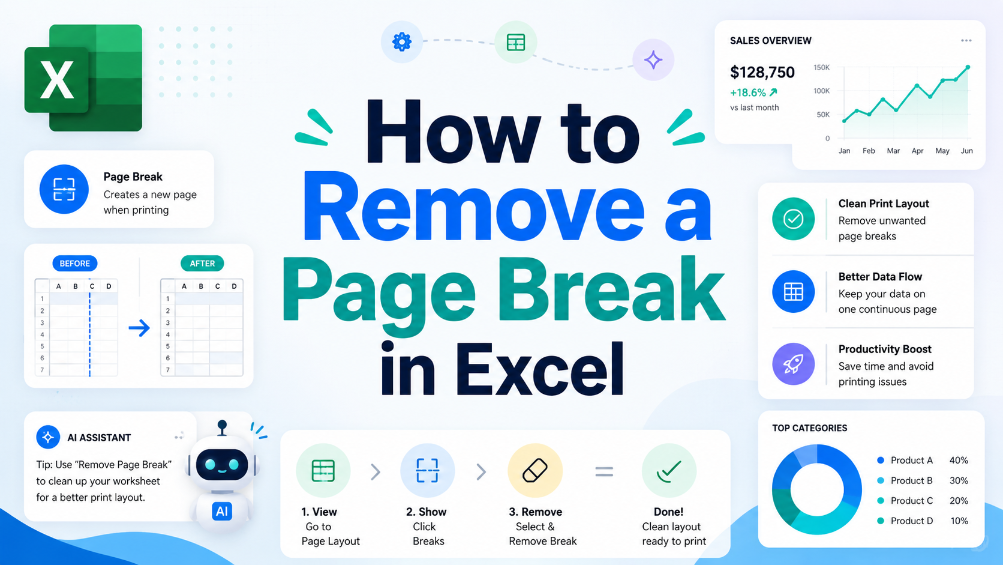
How to Remove a Page Break in Excel
Understand what page breaks are and why they matter in Excel, follow step-by-step instructions to remove them, and learn useful tips to manage page breaks effectively in spreadsheets.
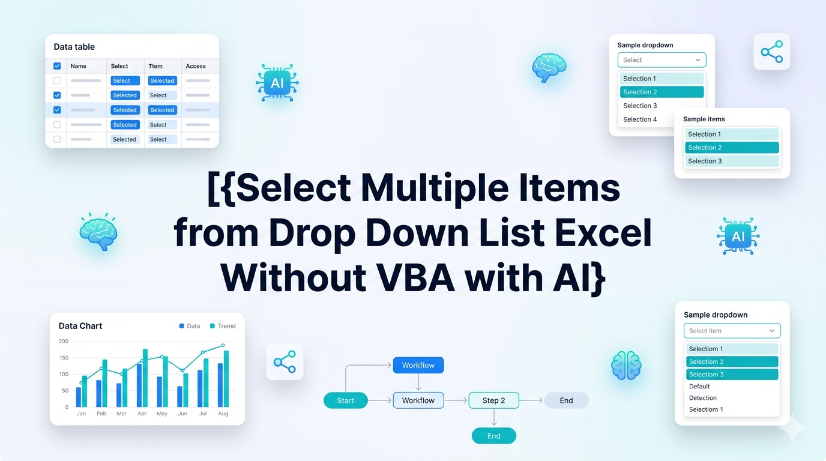
Select Multiple Items from Drop Down List Excel Without VBA with AI
Eliminate VBA dependency: reduce maintenance overhead by 100% and avoid macro security warnings across enterprise deployments. Cut data entry time by up to 60% when users can pick multiple values from a single dropdown without manual concatenation or helper columns. Enable real-time synchronization of dropdown choices from scanned PDFs or images using AI OCR, removing manual transcription errors. Standardize multi-select data into normalized tables compatible with Power Query, Pivot Tables, and structured references without formula corruption.

Two Efficient Ways to Create an Excel Drop Down List
Efficiency Gain: Implementing dynamic dropdowns reduces manual data entry time by up to 90% compared to unstructured typing. Data Integrity: Achieve 0% manual entry errors by enforcing strict Data Validation Excel rules. Scalability: Transition from static lists to dynamic Excel lists that automatically update as your dataset grows. AI Integration: Leverage AI-powered OCR to bridge the gap between physical documents and structured spreadsheet schemas.

How to Unlock Excel Sheet Without Knowing the Password
Efficiency Boost: Recover access to locked workbooks in under 5 minutes, reducing downtime by 95%. Data Integrity: Utilize XML schema modification to ensure 0% manual entry errors compared to re-typing data. Automation Potential: Scale your data extraction from protected files using AI-driven Unstructured Data Parsing. Professional Compliance: Maintain Schema consistency across enterprise-level data governance frameworks.
Stop Manual Data Entry – Extract Tables in Seconds
Convert any image or PDF table to Excel instantly with 99.9% accuracy. TabliSync's AI-powered OCR handles handwritten forms, receipts, and complex tables – then syncs directly to Google Sheets, Notion, or Airtable
Try TabliSync Free Now