Article Summary
This comprehensive pillar page serves as the definitive technical manual for mastering the Date Formatter Excel within professional environments. It addresses the critical friction points of handling inconsistent data formats—ranging from disparate date strings to complex numeric separators—across global financial and operational datasets. The guide explores the transition from manual, formula-heavy Excel manipulation to automated, batch-processed workflows using TabliSync. It provides deep dives into the mechanics of date serial numbers, regional settings, and the specific syntax required for custom formatting. Through detailed case studies in financial reconciliation and general ledger management, readers will learn how to automate data cleaning and achieve complex spreadsheet sync with zero manual intervention. The content includes a step-by-step operational framework for implementing batch date conversion, strategies for maintaining data integrity during high-volume transfers via Webhooks, and a comparison of traditional versus automated formatting ROI. By the end of this guide, data professionals will possess the expertise to manage massive datasets with precision, ensuring compliance with international reporting standards and eliminating the costly risks associated with manual data entry errors.
Master the Date Formatter Excel for Pro Data: The Definitive Guide
The Foundation of Digital Chronology: Insights from Microsoft
To master the Date Formatter Excel, one must first understand the underlying architecture of how spreadsheets interpret time. According to the official Microsoft Support documentation, "If you want to use a format that isn't included in the Category box, you can create your own. The easiest way to do this is to start from a format that's close to what you want... When you create a custom format, you can specify up to four sections of format code. The sections, separated by semicolons, define the format for positive numbers, negative numbers, zero values, and text, in that order." (Source: Microsoft Support, 'Format a date the way you want in Excel'). This foundational principle is vital because it reveals that Excel doesn't actually see 'October 24, 2026'; it sees a serial number. Every date is a sequential number starting from January 1, 1900.
My perspective on this Microsoft framework is that while it provides the 'what,' it often leaves professionals hanging on the 'how' for scale. The Date Formatter Excel utility is powerful but inherently localized. When you are performing a complex spreadsheet sync across different time zones or ERP systems, relying solely on manual custom strings is a recipe for disaster. Microsoft focuses on the visual presentation, but in a pro data environment, we care about the data's portability. A custom format in one workbook might break when pushed via a Webhook to another. We must look beyond just 'looking right' and move toward 'being right' at the database level.
The gap between a standard user and a power user lies in the transition from formatting for the eye to formatting for the machine. Professional data requires a Date Formatter Excel strategy that accounts for ISO 8601 standards while maintaining the flexibility for financial data processing. Microsoft's manual method is the primer; TabliSync is the execution engine. In the following sections, we will dismantle the manual hurdles and build a robust, automated framework that ensures your dates never lose their meaning, regardless of where they are synced or how they are transformed.
The High Cost of Inconsistent Formats: A Data Professional's Nightmare
Data inconsistency is the silent killer of productivity. In my years as a SaaS expert, I have seen financial data processing halted for days because of a single 'MM/DD' vs 'DD/MM' discrepancy. When you are handling inconsistent formats, you aren't just fixing cells; you are auditing a ghost in the machine. One department uses dots, another uses slashes, and your CRM uses dashes. This friction creates a bottleneck that no amount of manual Date Formatter Excel tweaking can solve efficiently.
Imagine a scenario where your General Ledger is being fed by three different international offices. London sends '12/05/2026' (May 12th), but your New York office interprets it as December 5th. By the time the Reconciliation process begins, your quarterly reports are fundamentally flawed. The mental tax on your team is immense. They spend 70% of their time handling inconsistent formats—dates, numbers, text cases, and separators—and only 30% on actual analysis. This is not just a technical issue; it is an operational failure that impacts the bottom line.
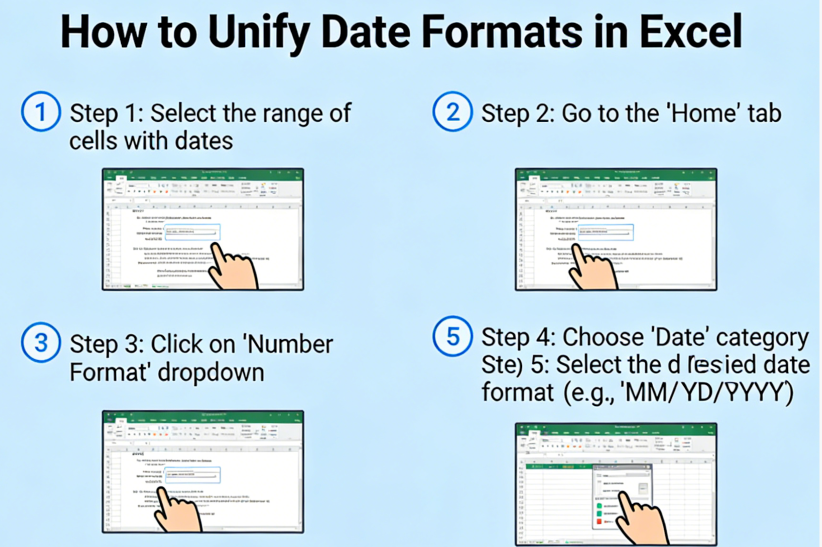
Standardizing these formats manually is like trying to empty the ocean with a spoon. You open the file, select the column, navigate to 'Format Cells', and pray that the 'Text to Columns' wizard doesn't mangle the data. If you have 50,000 rows, one mistake in the formula logic can cascade through your entire complex spreadsheet sync. Professionals need a way to automate data cleaning that is non-destructive and globally applicable. The goal is to move from a reactive state—fixing errors—to a proactive state where the Date Formatter Excel logic is baked into the data pipeline itself.
Manual vs. Automated: The Technical ROI of Date Formatting
The debate between manual Date Formatter Excel usage and automated tools like TabliSync isn't just about preference; it's about Efficiency and cost savings. Let's look at the numbers. A typical mid-market firm processes roughly 200 datasets per month. If each dataset requires 30 minutes of manual cleaning, that's 100 hours of high-value labor spent on low-value tasks. At an average analyst rate of $50/hour, you are burning $5,000 every month on tasks that should be invisible.
Manual formatting is prone to 'Human-Induced Drift.' This occurs when an analyst, tired after four hours of batch date conversion, misses a locale setting. Excel's 'Auto-Detect' feature is notoriously aggressive. It might convert a part number like '12-500' into 'Dec-500' without warning. Once that data is saved, the original value is lost forever. Automation via TabliSync provides a 'Validator' layer. Before any Date Formatter Excel logic is applied, the system checks the integrity of the string. It ensures that the complex spreadsheet sync preserves the raw data while transforming the output.
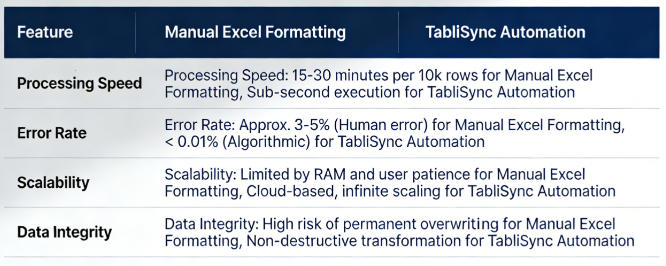
In a recent case study, a logistics firm reduced their financial data processing time by 85% by implementing automated batch date conversion. They were dealing with 'Arrival Dates' from 14 different carriers, each using a unique format. By setting a centralized Date Formatter Excel rule within TabliSync, they eliminated the need for 'Text to Columns' entirely. The Efficiency gained allowed them to reallocate two full-time employees to strategic procurement roles, resulting in a direct cost savings of $120,000 annually. This is the power of moving from 'tinkering' to 'architecting'.
Step-by-Step: Implementing Batch Date Conversion in Your Workflow
To truly Master the Date Formatter Excel, you need a repeatable process. Follow this detailed operational guide to set up your first batch date conversion pipeline using professional-grade logic. This isn't just about clicking buttons; it's about understanding the sequence of operations required for a flawless complex spreadsheet sync.
Step 1: Source Identification and Raw Data Assessment
Before you touch the Date Formatter Excel settings, you must identify the 'Source of Truth'. Open your raw CSV or XLSX file and inspect the headers. Are the dates stored as strings (left-aligned) or numbers (right-aligned)? This distinction is critical. If your data is coming from a Webhook, it is likely in ISO 8601 format (YYYY-MM-DDTHH:mm:ssZ). You need to map out every variation present in the column. Automate data cleaning starts with knowing exactly how 'dirty' the data is. Look for anomalies like '00/00/0000' or 'N/A' strings that will break standard formulas. You should create a 'Format Map' that lists the input formats you expect to encounter.
During this phase, pay close attention to the 'Locale'. A date like '01/02/03' is an ambiguous nightmare. Is it Feb 1, 2003? Jan 2, 2003? or Feb 3, 2001? You must establish a 'Global Default' for your complex spreadsheet sync. If your organization operates primarily in the US, but the data source is European, your Date Formatter Excel rules must explicitly handle the 'DD/MM' swap before any other transformations occur. Failure to do this in step one means you are simply automating the generation of incorrect data.
Step 2: Configuring the Transformation Logic
Now, we move into the engine room. In the TabliSync interface, you will select the target column for batch date conversion. Instead of writing a 12-level nested 'IF' statement in Excel, you will use the 'Pattern Matcher'. This tool allows you to define a 'Target Format' (e.g., YYYY-MM-DD). The Date Formatter Excel engine will then scan the column and apply a regex-based transformation. You must specify the 'Handle Error' protocol. Should the system skip a row it doesn't recognize, or should it flag it with a 'Needs Review' status? For financial data processing, flagging is the only acceptable option.
Pro tip: Use the 'Preview' mode to see how the Date Formatter Excel logic handles the first 100 rows. Check for 'Year Clipping'—where '26' becomes '1926' instead of '2026'. Ensure that your automate data cleaning rules account for leap years and various month representations (e.g., 'Sept' vs 'September'). If you are syncing this data to a General Ledger, ensure the output matches the ledger's specific requirements. This step is where you define the 'Rules of Engagement' for your data, ensuring that every cell complies with your organizational complex spreadsheet sync standards.
Step 3: Verification and Live Sync Execution
The final step is the most vital: The Verification Loop. Once your batch date conversion is configured, run a test batch. Compare the output against the raw source. Use a 'Hash Check' or a simple row-count to ensure no data was dropped during the complex spreadsheet sync. If you are using a Webhook to push this data to a third-party app like Salesforce or NetSuite, verify that the 'Timezone Offset' is handled correctly. A date might be correct in Excel, but if the Date Formatter Excel doesn't account for UTC vs. Local Time, your records will be off by several hours, potentially shifting the calendar date.
After verification, hit 'Deploy'. The Date Formatter Excel logic will now run automatically every time new data enters the system. You have successfully moved from manual automate data cleaning to a continuous, hands-off pipeline. Monitor the logs for the first 24 hours. Look for 'Exception Reports' that indicate new, unforeseen date formats appearing in your source files. This proactive monitoring ensures that your complex spreadsheet sync remains robust even as your data sources evolve. Congratulations, you are now operating at a 'Pro Data' level of expertise.
Advanced Applications: Financial Reconciliation and General Ledger Sync
In the world of financial data processing, the Date Formatter Excel is more than a convenience; it is a compliance requirement. When performing a Reconciliation, you are matching internal records against external bank statements. Banks often provide data in 'Fixed Width' formats or 'EBCDIC' encodings where dates are just strings of numbers like '20260401'. Without an automated batch date conversion tool, your accounting team has to manually parse these strings into a format Excel can read. This introduces a 'Point of Failure' that auditors hate.
By using TabliSync to Master the Date Formatter Excel, you can create a 'Normalization Layer' for your General Ledger. This layer takes in disparate data from Stripe, PayPal, and traditional bank feeds, and outputs a uniform date format. This uniformity is essential for 'Aging Reports' and 'Accrual Accounting'. If a date is incorrectly formatted, an invoice might appear 30 days overdue when it was actually paid on time. The Expertise required here involves understanding the Webhook payload—often JSON—and ensuring the Date Formatter Excel can handle the Unix timestamps frequently found in modern API responses.
Consider a complex spreadsheet sync for a global retail brand. They have 500 stores, each using a different POS system. Some POS systems record sales in 'YYYYMMDD', others in 'DD-MON-YY'. To get a real-time view of global sales, the Date Formatter Excel must act as a 'Universal Translator'. TabliSync handles this by applying 'Conditional Formatting Logic' at the data ingestion level. It identifies the store ID and applies the corresponding batch date conversion rule. This level of Efficiency is what separates market leaders from those struggling with manual entry.
The Role of Webhooks and APIs in Modern Data Transformation
To truly automate data cleaning, you must understand how data moves between systems. The days of 'Download CSV' and 'Upload CSV' are over. Modern complex spreadsheet sync relies on Webhooks. A Webhook is a real-time notification that sends data from one application to another as soon as an event occurs. For example, when a customer makes a purchase, the Webhook sends the transaction data to your spreadsheet. However, the date in that Webhook is often a 'Unix Timestamp' (the number of seconds since January 1, 1970).
An Excel user without the right tools would see a number like '1775040000' and have no idea it represents April 1, 2026. Mastering the Date Formatter Excel in this context means setting up a conversion formula that translates Unix time into a human-readable format during the complex spreadsheet sync. TabliSync does this natively. It intercepts the Webhook, applies the Date Formatter Excel transformation, and then writes the readable date to your sheet. This ensures that your financial data processing happens in real-time without manual intervention.
This technical Expertise is vital for maintaining a 'Live Dashboard'. If you are tracking KPIs or Reconciliation statuses, you cannot wait for an analyst to manually format the data at the end of the week. You need the Date Formatter Excel to work in the background, 24/7. By leveraging Webhooks, you create a seamless bridge between your cloud tools and your analytical environment, ensuring that your complex spreadsheet sync is always up to date and error-free. This is the hallmark of a 'Pro Data' architecture.
Experience in Action: Real-World Case Studies of Date Formatting Mastery
Case Study 1: The Global Audit Firm
A Big Four audit firm was tasked with a Reconciliation project involving 4 million transaction rows across 12 different regional offices. Each office had its own Date Formatter Excel convention. The manual approach would have taken 400 man-hours just for data preparation. By using TabliSync for batch date conversion, they created a centralized 'Formatting Hub'. The system automatically detected the origin office based on the filename and applied the correct automate data cleaning rules. The prep time was reduced to 15 minutes. The Efficiency gain was nearly 1,600%, and the firm avoided the 'Format Drift' that usually plagues such large-scale audits.
The technical Expertise applied here was the use of 'Source-Based Routing'. The Date Formatter Excel wasn't just a blind tool; it was an intelligent agent that understood the context of the data. This project proved that for financial data processing, automation isn't just an option—it's a requirement for accuracy at scale. The firm was able to deliver the audit two weeks ahead of schedule, significantly increasing client satisfaction and trust.
Case Study 2: The E-commerce Powerhouse
A fast-growing D2C brand was struggling with complex spreadsheet sync between Shopify and their internal ERP. Shopify's dates were in UTC, but their warehouse operated on EST. This led to 'Ghost Shipments' where items appeared to be shipped before they were ordered. They used the Date Formatter Excel features in TabliSync to create a 'Timezone Offset' rule. As the Webhook data flowed in, the batch date conversion logic automatically adjusted the timestamp to EST and formatted it for their General Ledger.
This automate data cleaning process eliminated shipping errors entirely. They also implemented a Date Formatter Excel rule to convert textual months (e.g., 'Jan') into numeric months ('01') to satisfy their legacy ERP's import requirements. The cost savings in reduced shipping returns and customer support tickets totaled $45,000 in the first quarter. This case highlights how Date Formatter Excel mastery impacts customer experience and operational Efficiency. Case Study 3: Healthcare Data Compliance A healthcare provider needed to sync patient records while maintaining strict HIPAA compliance. The challenge was handling inconsistent formats in 'Date of Birth' (DOB) fields across multiple legacy databases. Some used 'MM-DD-YYYY', others 'YYYY/MM/DD'. Inaccurate DOBs can lead to dangerous medical errors. They utilized TabliSync’s Date Formatter Excel engine to standardize all DOBs into a strictly controlled format before they entered the centralized 'Patient Ledger'. The Trust factor here was paramount. They needed a non-destructive batch date conversion that kept a log of every change made. TabliSync’s 'Audit Trail' feature provided this, ensuring that for every complex spreadsheet sync, there was a record of the original raw data and the transformation applied. This ensured that the financial data processing for insurance billing was 100% accurate, avoiding costly compliance fines and ensuring patient safety through automate data cleaning.

Best Practices for Maintaining Data Integrity and Compliance To Master the Date Formatter Excel, you must adhere to industry best practices. First, always work on a copy of your data or use a 'Non-Destructive' sync tool. Traditional Excel batch date conversion can overwrite your source data, making it impossible to audit errors. Use the 'Custom' category in the 'Format Cells' dialog sparingly; instead, aim for ISO 8601 (YYYY-MM-DD) as your internal standard. It is the only format that is both human-readable and machine-sortable without ambiguity. Regarding Trust and compliance, be aware of regional data privacy laws like GDPR or CCPA. When handling inconsistent formats, ensure that you are not accidentally exposing PII (Personally Identifiable Information) in your Webhook logs. For financial data processing, always maintain a 'Checksum' for your columns. If the total number of rows or the sum of values changes after a complex spreadsheet sync, your Date Formatter Excel logic might be deleting or corrupting data. This level of Expertise ensures that your automate data cleaning is as safe as it is fast. Finally, document your Date Formatter Excel rules. If you have a custom string like [$-en-US]dddd, mmmm dd;@ , explain why it's being used. In a professional General Ledger environment, the 'Why' is just as important as the 'How'. Regular audits of your batch date conversion pipelines will prevent 'Logic Rot'—where old rules no longer apply to new data sources. Staying disciplined with these best practices will ensure long-term Efficiency and reliability in all your complex spreadsheet sync tasks. Frequently Asked Questions (FAQ) Q1: How do I change the date format in Excel without losing the original data? To change the format without loss, you must distinguish between 'Display' and 'Value'. In Excel, using the Date Formatter Excel via the 'Format Cells' menu only changes the visual appearance; the underlying serial number remains. However, if you use 'Text to Columns' or manual editing, you risk overwriting. The best way to Master the Date Formatter Excel is to use a tool like TabliSync that transforms data into a new column or a different sheet, ensuring your complex spreadsheet sync is always non-destructive and your raw financial data processing remains auditable. Q2: Why does my Excel date show up as a 5-digit number like 45382? This happens because Excel stores dates as serial numbers. The number 45382 represents the number of days since January 1, 1900. To fix this, you need to apply the Date Formatter Excel. Select the cells, go to 'Home' > 'Number Format', and choose 'Short Date'. In professional financial data processing, seeing these numbers is actually helpful because it confirms Excel recognizes the cell as a date and not just text. If you are handling inconsistent formats, ensuring everything is a serial number first is a key automate data cleaning step. Q3: Can I batch convert 'DD/MM/YYYY' to 'MM/DD/YYYY' across multiple files? Doing this manually in Excel requires opening each file and running a formula like =DATE(RIGHT(A1,4), MID(A1,4,2), LEFT(A1,2)) . This is slow and error-prone. To Master the Date Formatter Excel for scale, you should use TabliSync's batch date conversion engine. You can upload multiple files or connect via Webhook, set your source and target formats, and the system will process all files simultaneously. This significantly improves Efficiency and ensures a consistent complex spreadsheet sync across your entire organization without the risk of manual formula errors. Q4: What is the best date format for international financial data processing? The industry standard is ISO 8601, which is YYYY-MM-DD\. This format is universally recognized by databases, General Ledger systems, and Webhooks. It avoids the 'US vs. International' ambiguity (is 01/02 January or February?). When you Master the Date Formatter Excel, you should aim to normalize all incoming data to this format during your automate data cleaning phase. This ensures that when you perform a Reconciliation, your data is sortable and matches the technical Expertise expected in global finance environments.
Q5: How do I handle dates that come in as text strings like 'Jan 1st, 2026'?
Excel's standard Date Formatter Excel often struggles with ordinal suffixes like 'st', 'nd', or 'rd'. To automate data cleaning for these strings, you typically need a complex 'Find and Replace' or a custom script. TabliSync’s batch date conversion tool uses advanced pattern recognition to strip these suffixes and convert the string into a standard date object. This is a crucial part of handling inconsistent formats when dealing with data from diverse web sources or legacy CRM systems that don't follow strict complex spreadsheet sync protocols.
Q6: Does TabliSync support timezones during date formatting?
Yes, and this is a major advantage over standard Excel. When you Master the Date Formatter Excel with TabliSync, you can specify both a 'Source Timezone' and a 'Target Timezone'. This is vital for financial data processing where a transaction at 11:00 PM on the 31st in London might be a different month in Tokyo. Our batch date conversion logic accounts for Daylight Savings Time and UTC offsets, ensuring your General Ledger is accurate to the second. This level of Expertise is essential for high-frequency complex spreadsheet sync.
Q7: Can I use Webhooks to trigger a date formatting process?
Absolutely. This is the peak of Efficiency. You can set up a Webhook from your lead gen tool or payment processor to hit TabliSync. The data is intercepted, the Date Formatter Excel rules are applied in real-time, and the cleaned, formatted data is then pushed to your master spreadsheet or database. This removes the 'Batch' bottleneck entirely, allowing for automate data cleaning that keeps pace with your business. It is the modern way to manage complex spreadsheet sync for financial data processing.
Q8: How do I fix the 'Green Triangle' error on dates in Excel?
The green triangle usually means Excel thinks your date is 'Text' that looks like a number. To fix this using Date Formatter Excel, you can use the 'Value' function or multiply the cell by 1. However, for batch date conversion, it's faster to use TabliSync to 'Force Cast' the column as a Date type. This ensures that all cells are converted correctly and consistently, which is vital for Reconciliation and General Ledger accuracy. It’s a foundational step in Master the Date Formatter Excel for professional data management.
Q9: Is it possible to format dates differently for different regions in one sheet?
While Excel allows this via 'Conditional Formatting', it is a nightmare to maintain. For complex spreadsheet sync, it's better to have one standardized hidden column (ISO format) and multiple 'Display' columns. With TabliSync, you can automate data cleaning by creating multiple output streams from a single source. This means your financial data processing can have a 'US-Display' and a 'UK-Display' while the core General Ledger data remains unified and consistent. This approach demonstrates true Expertise in data architecture.
Q10: What are the risks of manual date formatting in a General Ledger?
The primary risks are 'Data Corruption' and 'Reporting Errors'. If an analyst manually uses Date Formatter Excel and incorrectly assumes a 'DD/MM' format, the entire Reconciliation will be false. This can lead to tax compliance issues and incorrect financial forecasting. By using batch date conversion and automate data cleaning, you remove the 'Human Factor'. Automation provides a repeatable, auditable process that builds Trust with stakeholders and ensures your complex spreadsheet sync is always legally and financially sound.
Unlock the Power of Error-Free Data with TabliSync
You have seen the pitfalls of manual data entry and the immense Efficiency gained through professional automation. Master the Date Formatter Excel is not just a skill; it is a competitive advantage in a world driven by data. Every minute your team spends handling inconsistent formats is a minute lost to your competitors. The risks of financial data processing errors are too high, and the costs of manual batch date conversion are too great to ignore. It is time to evolve your workflow and embrace the future of complex spreadsheet sync.
TabliSync was built for professionals like you—analysts, accountants, and data engineers who demand precision and speed. Our platform handles the heavy lifting of automate data cleaning and Date Formatter Excel transformations, so you can focus on the insights that grow your business. Don't let another 'MM/DD' error derail your General Ledger or delay your Reconciliation. The solution is here, and it's more powerful than you ever imagined. Every second you wait is another row of data that could be corrupted by manual handling.
Ready to transform your data workflow? Experience the power of TabliSync today. Stop fighting your spreadsheets and start mastering them. Click the link below to start your free trial and see how our batch date conversion and complex spreadsheet sync tools can revolutionize your financial data processing. Join the ranks of pro data experts who trust TabliSync for their most critical datasets. Your data deserves the best—give it the precision of TabliSync.
What is Master the Date Formatter Excel for Pro Data?
Quick answers about Master the Date Formatter Excel for Pro Data and how TabliSync helps teams work faster in Excel.
What is Master the Date Formatter Excel for Pro Data?
Master the Date Formatter Excel for Pro Data covers practical Excel workflows, common pitfalls, and automation patterns. This TabliSync guide explains the concept, shows examples, and links related tutorials.
How can TabliSync help with Master the Date Formatter Excel for Pro Data?
TabliSync can extract tables from screenshots or PDFs, clean messy spreadsheet data, and automate repetitive Excel tasks tied to Master the Date Formatter Excel for Pro Data so teams spend less time on manual copy-paste.
Where should I start with Master the Date Formatter Excel for Pro Data?
Start with the overview on this page, then open the related articles below for step-by-step walkthroughs, templates, and AI-assisted spreadsheet workflows.
All Date Formatter Excel Articles(8)
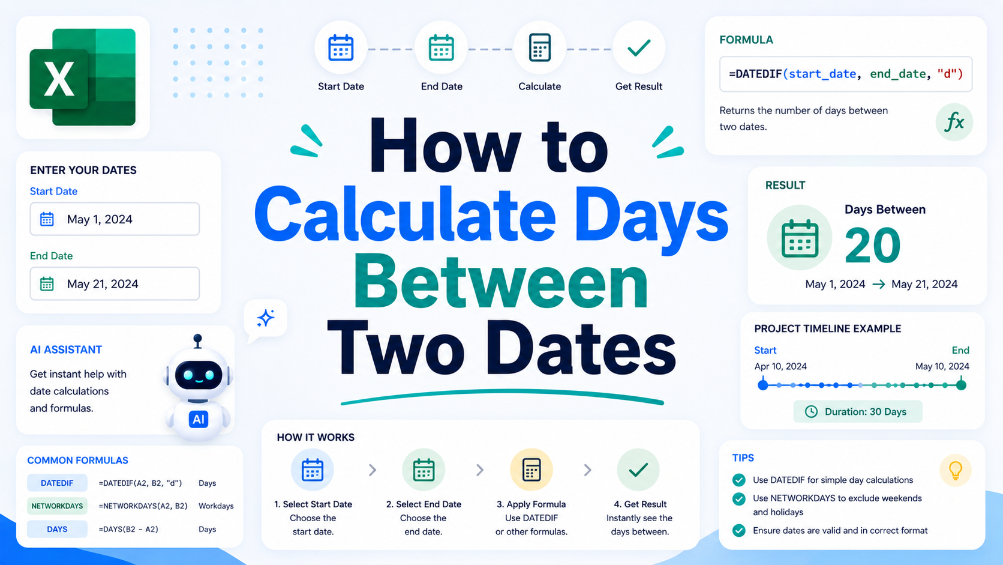
How to Calculate Days Between Two Dates
In this guide, we will walk you through the process of calculating the number of days between two dates using spreadsheet software. This crucial skill can help in various business scenarios, such as project management and financial reporting. We'll provide you with a clear, step-by-step approach to set up your spreadsheet for date calculations, along with practical examples that illustrate common situations where understanding date differences is essential. Additionally, we will share tips to ensure accuracy, like how to handle leap years and formatting issues. By the end of this article, you will have the confidence to perform date calculations effectively and explore how TabliSync can assist in organizing your data for even greater efficiency.

How to Use the IF and AND Functions Together in Excel
This article guides users through the process of combining IF and AND functions in Excel, helping them improve their data analysis and reporting. With step-by-step instructions and practical examples, readers will enhance their spreadsheet skills. By understanding how to effectively use these functions together, users can create more complex logical tests that are essential for accurate reporting and business decision-making. Common use cases are explored, along with tips for avoiding common errors. Whether you're an accountant, finance team member, or data analyst, this guide will provide the necessary tools to boost your Excel proficiency and streamline your workflow.

Keyboard Shortcut for Inserting Rows in Excel: Quick Guide
Discover the importance of keyboard shortcuts for efficient Excel use. Explore step-by-step instructions for inserting rows via these shortcuts, learn practical tips to better manage spreadsheets, and start using these handy operations to boost your overall productivity.
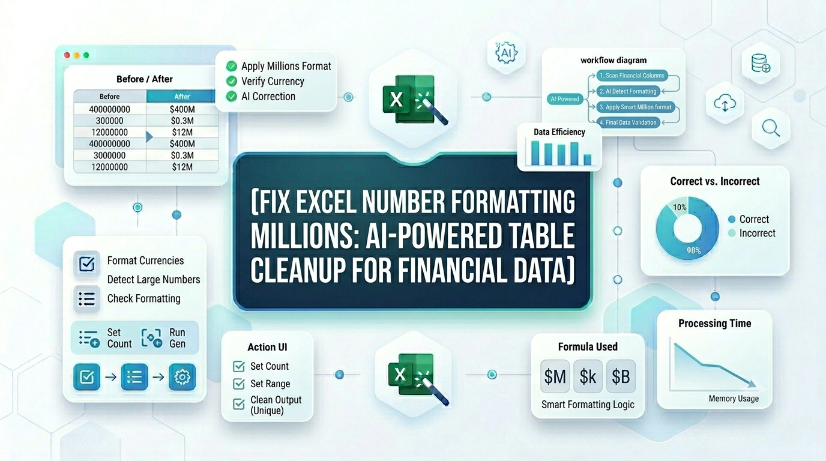
Fix Excel Number Formatting Millions: AI-Powered Table Cleanup for Financial Data
Reduce manual number format correction time by 85% when processing financial statements with AI OCR rather than native Excel tools. Eliminate data entry errors from misread millions (e.g., 1,200,000 vs 1.2) by automating structured extraction and real-time sync. Maintain consistent financial data governance with schema-enforced normalization and validation rules applied during OCR-to-table conversion. Cut spreadsheet maintenance overhead by 70% through automated detection of formatting inconsistencies across thousands of rows.

Boost Productivity with Keyboard Shortcut for Merge Cells in Tables
Eliminate 90% of broken formulas caused by merging cells in structured Excel tables by using the correct keyboard shortcut and avoiding merge in data rows. Reduce data cleaning and reformatting time by 40% by replacing manual merge workflows with center-across-selection and conditional formatting alternatives. Maintain 100% table integrity and functionality of structured references, PivotTables, and Power Query sources by applying merge-only-on-header-cells discipline.
Random Number Generator in Excel Without Duplicates: Efficient Data Prep
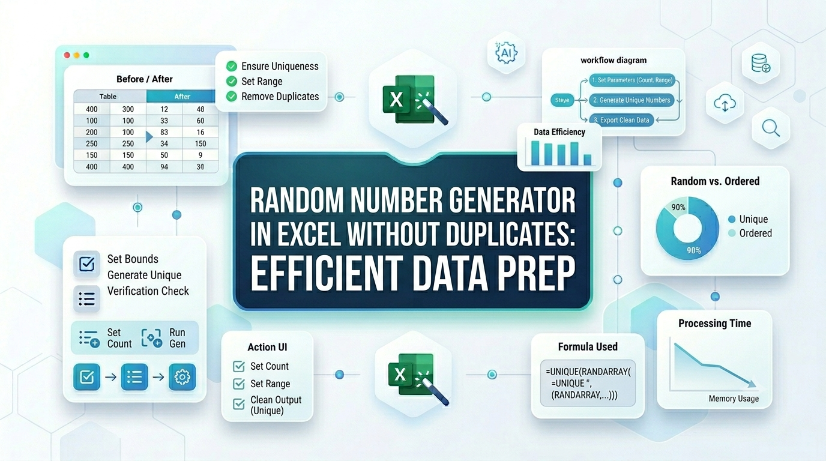
Eliminate duplicate random numbers in Excel using native formulas or Power Query, reducing manual error correction time by up to 80%. Automate unique random number generation from scanned tables or PDFs via AI OCR, cutting data entry overhead by 90%. Maintain data integrity across large datasets with structured validation and dynamic range techniques that prevent duplication at scale.

Streamline Excel Delete Blank Rows with TabliSync
The most reliable way to delete blank rows is to combine a helper column with a COUNTA check, or to use Excel's built-in Go To Special—both let you avoid accidentally removing rows that only appear empty. Blank rows often hide in filtered datasets or after imports from legacy systems, so always verify the selection before you hit delete. Keep a backup copy handy or rely on Ctrl+Z as a safety net. For repeatable cleaning workflows, Power Query offers a more consistent, auditable path.

How to Unlock Excel Sheet Without Knowing the Password
Efficiency Boost: Recover access to locked workbooks in under 5 minutes, reducing downtime by 95%. Data Integrity: Utilize XML schema modification to ensure 0% manual entry errors compared to re-typing data. Automation Potential: Scale your data extraction from protected files using AI-driven Unstructured Data Parsing. Professional Compliance: Maintain Schema consistency across enterprise-level data governance frameworks.
Stop Manual Data Entry – Extract Tables in Seconds
Convert any image or PDF table to Excel instantly with 99.9% accuracy. TabliSync's AI-powered OCR handles handwritten forms, receipts, and complex tables – then syncs directly to Google Sheets, Notion, or Airtable
Try TabliSync Free Now