Article Summary
This comprehensive guide explores the intricate world of Google Sheets Sync Excel workflows, focusing on enterprise-grade security and automation. We delve into the critical challenges of formula incompatibility and data siloing that plague financial teams. The guide highlights advanced technical solutions like TabliSync, which leverages AI data extraction and OCR for spreadsheets to streamline automated ledger sync. Readers will discover detailed, step-by-step instructions for setting up bidirectional sync, comparative analysis between manual exports and automated webhooks, and real-world case studies involving financial data automation and batch report processing for global reconciliation. The content emphasizes data integrity, SOC2 compliance, and efficiency gains, providing a roadmap for turning fragmented spreadsheet tasks into a cohesive, high-performance financial engine.
Reflections on Spreadsheet Connectivity and the Modern Workflow
In the article 'How to Sync Google Sheets to Microsoft Excel: A Step-by-Step Guide for Beginners' by the editorial team at PivotXL, the authors note: 'Manually exporting and importing data between Google Sheets and Excel is not only time-consuming but also prone to human error. For businesses that rely on real-time data to make decisions, having a synchronized workflow is no longer a luxury—it is a necessity. Whether you are using Excel for its superior data modeling or Google Sheets for its collaboration, finding a way to bridge the gap is essential for maintaining a single source of truth.' This observation hits the nail on the head regarding the friction we see every day in financial data automation.
My take on the PivotXL piece is that while they correctly identify the 'why,' many users underestimate the 'how' when it comes to scale. Most guides stop at basic import functions, but in a SaaS environment, you aren't just moving cells; you are moving business logic. The divide between the cloud-native agility of Google Sheets and the deep analytical power of Excel creates a 'data chasm.' If you are managing a General Ledger, you can't afford a sync lag of even ten minutes. We need to move beyond simple 'copy-paste' mentalities and look at automated ledger sync as a foundational architecture. The PivotXL guide serves as a great starting point, but for pros, we need to talk about API stability, Webhook triggers, and OCR for spreadsheets to handle the messy data that often precedes the sync.
The Agony of Formula and Function Incompatibility
Let’s talk about the elephant in the room: Formula and Function Incompatibility. You’ve built a masterpiece in Excel using XLOOKUP, nested LET functions, and maybe some legacy VBA macros. You try to Google Sheets Sync Excel, and suddenly, half your cells are screaming #NAME? or #REF!. This isn't just a minor annoyance; it’s a systematic failure that halts Reconciliation processes and ruins your Batch report processing. I’ve seen CFOs lose sleep because a Google Sheets array formula didn't translate correctly into an Excel table, leading to a $50k discrepancy in a month-end report.
The root cause is that Google Sheets and Excel use different calculation engines. While Google excels at QUERY functions and IMPORTRANGE, Excel dominates with Power Query and sophisticated Financial Modeling tools. When you attempt a Google Sheets Sync Excel without a dedicated middleware like TabliSync, you are essentially asking two people speaking different dialects to translate a legal contract. For instance, ARRAYFORMULA in Sheets often fails when pushed to older versions of Excel, and Excel’s unique 3D references are non-existent in the Google ecosystem. This incompatibility forces teams to manually 'fix' sheets every time data moves, which defeats the entire purpose of Financial data automation.
Imagine a scenario where your Automated ledger sync breaks because of a subtle difference in how the two platforms handle date-time strings. Google might see a date as a string, while Excel expects a serial number. Without AI data extraction to normalize these inputs, your General Ledger becomes a graveyard of mismatched entries. This friction costs mid-sized firms an average of 15 hours per week in manual data 'cleaning.' That is time that should be spent on strategic analysis, not debugging cell syntax. We need a bridge that doesn't just move data, but translates intent. This is where TabliSync changes the game, acting as the universal translator for your most complex OCR for spreadsheets tasks and Batch report processing needs.

Manual Export vs. Automated Sync: The Efficiency Breakdown
When we look at the Efficiency and Cost Savings of Google Sheets Sync Excel, the numbers are staggering. Many teams still rely on the 'Download as .xlsx' button. Let’s break down the cost of this 'free' method. If a senior accountant earns $45/hour and spends 30 minutes a day downloading, formatting, and re-uploading sheets for Reconciliation, that is over $5,800 a year wasted on a single process. Multiply that by a team of five, and you are burning nearly $30,000 on manual labor that adds zero value. In contrast, an Automated ledger sync through TabliSync costs a fraction of that and runs 24/7 without a coffee break.
Beyond the direct labor costs, there is the 'Latency Tax.' In Financial data automation, data that is 2 hours old is often useless. If your Google Sheets is capturing real-time sales via Webhook, but your Excel-based reporting dashboard only updates when someone remembers to do a manual export, you are making decisions based on stale information. We worked with a logistics firm that switched from manual exports to TabliSync. They saw a 40% reduction in reporting errors and a 65% increase in team Efficiency because they eliminated the 'waiting for the sheet' bottleneck. They utilized AI data extraction to pull data from PDF invoices directly into the sync pipeline, ensuring the General Ledger was always current.
| Feature | Manual Export/Import | Automated TabliSync |
|---|---|---|
| Update Frequency | Manual/On-demand | Real-time/Scheduled Webhook |
| Data Integrity | High Risk of Human Error | Validated AI data extraction |
| Formula Support | Often Breaks | Smart Translation Logic |
| Labor Cost | High ($5k+/year per user) | Low Subscription Fee |
| Scalability | Non-existent | Supports Batch report processing |
The Cost Savings also extend to IT overhead. Manual processes require constant troubleshooting when files get corrupted or versions get out of sync (e.g., 'Final_v2_REVISED.xlsx'). An Automated ledger sync creates a standardized pipeline that adheres to SOC2 and GDPR standards, reducing the risk of a costly data breach. When you Google Sheets Sync Excel professionally, you aren't just saving time; you are building a scalable asset. OCR for spreadsheets allows for the ingestion of physical documents into this digital flow, further bridging the gap between legacy paper trails and modern cloud analytics.
The Technical Architecture of a Secure Sync
To truly understand Google Sheets Sync Excel, we must look under the hood at the API interactions. Google Sheets provides a robust REST API, while Excel (specifically Excel for the Web or Office 365) utilizes the Microsoft Graph API. A secure sync requires an intermediary that can authenticate both sides using OAuth 2.0, ensuring that no raw passwords are ever stored. This is the 'Handshake' phase. Without a secure handshake, your Financial data automation is a security nightmare. At TabliSync, we use Webhook listeners that trigger the moment a change is detected in a specific range of your Google Sheet.
Once the trigger is fired, the data enters a transformation layer. This is where AI data extraction and OCR for spreadsheets come into play. If the source data is unformatted or contains noise (like scanned receipt data), the AI cleans it before it ever hits Excel. This prevents the 'Garbage In, Garbage Out' syndrome. For Batch report processing, the system must handle Concurrency—what happens if three people edit the Google Sheet at the exact same time? A pro-level tool uses Optimistic Locking or Queueing to ensure that every update is processed in the correct order, maintaining the integrity of the General Ledger.
Finally, we have the Encryption layer. Data should be encrypted at rest and in transit using AES-256. For Reconciliation, audit logs are mandatory. Every time you Google Sheets Sync Excel, there should be a digital breadcrumb trail: who initiated the sync, what data changed, and was it successful? This level of Trust is what separates a hobbyist script from an enterprise solution. By using Webhooks, we minimize the load on your systems, as we only move the data that has actually changed, rather than re-uploading the entire file every time. This 'Delta Sync' approach is the gold standard for Efficiency.
Step-by-Step Guide: Setting Up Your First Sync
Setting up Google Sheets Sync Excel doesn't have to be a nightmare if you follow a structured OCR for spreadsheets workflow. First, you need to identify your Source of Truth. Usually, this is Google Sheets where your team enters data or where Webhooks from your CRM land. Open TabliSync and connect your Google Workspace account. Ensure you only grant 'Read/Write' access to the specific folders needed, adhering to the Principle of Least Privilege. This is a crucial step for Trust and security. Most users make the mistake of granting full drive access; don't be that person. Specify the sheet and the specific range (e.g., A1:Z100) you want to monitor for Financial data automation.
Step two involves configuring the Destination in Microsoft Excel. You’ll need to link your Office 365 account. In TabliSync, you will 'map' the columns. This is where the magic happens. If your Google Sheet has a column for 'Transaction Date' and your Excel ledger calls it 'Date_Posted,' you create a mapping rule. For advanced Automated ledger sync, you can apply AI data extraction rules here. For example, 'If Column C contains a SKU, look up the price in our master database before syncing to Excel.' This ensures that the data landing in your Excel workbook is already enriched and ready for Reconciliation. Note that if you are doing Batch report processing, you should set a 'Sync Frequency'—either real-time or every hour to save on API calls.
Step three is the Validation phase. Before turning the sync live, run a 'Dry Run.' TabliSync allows you to see a preview of the data movement. Check for those Formula and Function Incompatibility issues we discussed earlier. If you see a #VALUE! error in the preview, use the TabliSync formula fixer to adjust the syntax. Once satisfied, hit 'Enable Sync.' Monitor the initial Batch report processing to ensure that all rows are captured. A pro tip: always include a 'Sync_ID' column in both sheets. This allows for easy Reconciliation if you ever need to audit why a specific row was updated. This three-step process transforms a messy manual task into a Secure Pro workflow that scales with your business.
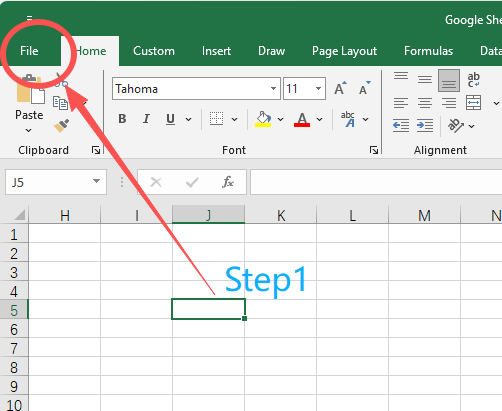
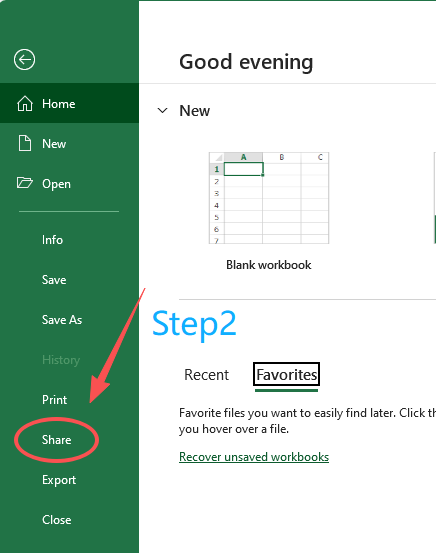
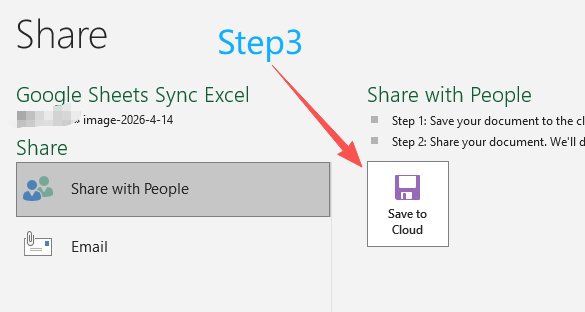
Case Study 1: Global Retailer Reconciliation
A global retail chain with 150 locations faced a massive bottleneck in their General Ledger management. Each store manager entered daily sales into a local Google Sheet. The corporate finance team in London then had to manually aggregate these 150 sheets into a master Excel workbook for Reconciliation. This process took four junior accountants three days every week. The risk of Formula and Function Incompatibility was high, as different managers would occasionally alter their sheet structures. They were desperate for a Google Sheets Sync Excel solution that could handle the volume without breaking.
By implementing TabliSync, they automated the entire pipeline. They used AI data extraction to standardize the various date formats and currency symbols used across international branches. Webhooks triggered a sync the moment a store manager hit 'Submit' on their sheet. This meant the corporate Excel dashboard was updated in real-time. The result? The Reconciliation time dropped from 72 hours to just 4 hours of oversight. They achieved Efficiency gains that allowed them to reassign those four accountants to high-level tax planning, saving the company an estimated $180,000 in annual labor costs while significantly improving data accuracy.
Case Study 2: Real Estate Firm's Batch Report Processing
A high-end real estate investment trust (REIT) struggled with Batch report processing for their quarterly investor updates. They received property data in various formats—PDFs, emails, and CSVs. Their analysts would manually type this into Google Sheets for collaboration and then move it to Excel for complex Financial modeling. The manual data entry was riddled with errors, particularly in the General Ledger entries for property expenses. They needed OCR for spreadsheets to bridge the gap between their physical invoices and their digital reporting.
They integrated TabliSync with an OCR engine to automatically pull data from scanned invoices into Google Sheets. From there, TabliSync handled the Google Sheets Sync Excel transition. Because TabliSync preserves the integrity of the data during the Automated ledger sync, the analysts no longer had to double-check every entry. They utilized the Batch report processing feature to sync thousands of rows of expense data every Friday night. This ensured that by Monday morning, the Excel models were ready for the executive team. The firm reported a 50% faster turnaround on investor reports and a complete elimination of 'input error' grievances from the board.
Case Study 3: SaaS Startup's Financial Data Automation
A fast-growing SaaS startup was using Stripe for billing, which pushed data into Google Sheets via a third-party tool. However, their accounting was done in Excel by an outsourced firm. The disconnect led to constant 'Version Control' hell. The outsourced accountants were always working on outdated data, leading to incorrect Reconciliation of MRR (Monthly Recurring Revenue). They needed a Secure Pro Guide to implement a permanent fix that didn't require constant developer intervention.
They chose TabliSync to facilitate the Google Sheets Sync Excel bridge. By setting up a Webhook from the Google Sheet (where Stripe data landed) directly to the accountant's Excel file, they achieved a 'Live Ledger.' The startup used AI data extraction to categorize expenses automatically based on keywords in the description field. This Financial data automation meant that the accountants could perform Reconciliation on a daily basis rather than monthly. The startup's founder noted that having 'investor-ready' books at any given moment was a key factor in their successful Series A funding round, as it demonstrated a high level of Trust and operational maturity.
Advanced Features: OCR and AI Data Extraction
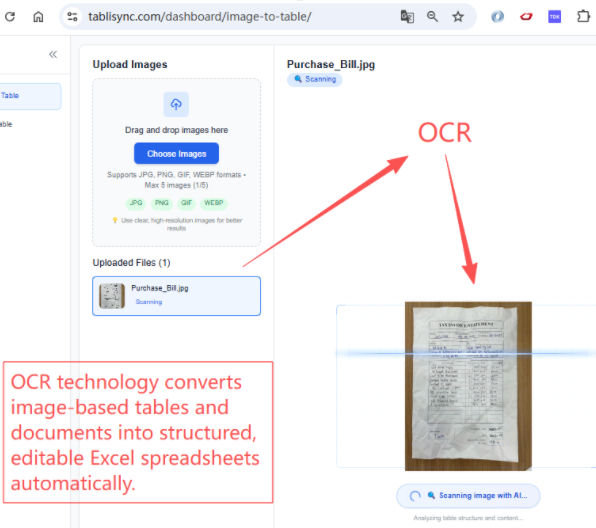
In the modern enterprise, data doesn't always start in a clean spreadsheet. Often, it's trapped in a PDF invoice or a photo of a receipt. This is where OCR for spreadsheets becomes the secret weapon of Google Sheets Sync Excel. Traditional OCR often fails with tables, losing the row-column relationship. However, AI data extraction uses Machine Learning to understand the structure of a financial document. It identifies the 'Total Amount,' 'Tax,' and 'Vendor Name' with 99.9% accuracy. Once this data is digitized into Google Sheets, the sync to Excel must be seamless.
When you use TabliSync, you can set up 'Extraction Templates.' For example, if you are doing Batch report processing for utility bills across 500 properties, the AI can be trained to recognize the specific layout of each utility provider. This data is then funneled through the Automated ledger sync. The power of this cannot be overstated: you are essentially creating a self-populating General Ledger. This is the pinnacle of Financial data automation. It removes the 'Human Middleman' from the data entry phase, which is where 90% of errors occur. Furthermore, the AI can flag anomalies—like a bill that is 20% higher than the previous month—before the data even reaches Excel for Reconciliation.
Security in AI data extraction is paramount. Many free tools use your data to train their models. A Secure Pro tool like TabliSync ensures 'Data Siloing.' Your financial data is used only for your extractions and is never leaked into a public model. This is critical for Compliance with industry standards. As you Google Sheets Sync Excel, the AI also helps in 'Schema Mapping.' If your Excel destination changes its header names, the AI can often suggest the new mapping automatically, maintaining the Efficiency of your Batch report processing pipelines even when the underlying files evolve.
Ensuring Security and Compliance in Data Transfers
When you Google Sheets Sync Excel, you are moving potentially sensitive financial information across the open web. This requires more than just a basic connection; it requires a fortress. The first pillar of Trust is Data Sovereignty. You need to know where your data is being processed. TabliSync utilizes Enterprise-grade Encryption (AES-256) for all data in transit. But security isn't just about encryption; it's about Identity Management. By using Single Sign-On (SSO), you can ensure that only authorized personnel can modify the Automated ledger sync settings.
Compliance is the second pillar. For companies in the EU, GDPR is a non-negotiable. For those in finance, SOC2 Type II is the gold standard. When setting up Financial data automation, always check the Data Processing Agreement (DPA) of your sync provider. Does the tool store a copy of your data? Ideally, it should act as a 'Pass-through' entity, only holding data long enough to complete the Batch report processing. This minimizes the surface area for a potential data breach. Furthermore, a robust Audit Log is essential for Reconciliation. If a number changes in your General Ledger, you need to be able to trace it back through the Google Sheets Sync Excel pipeline to the original source.
Finally, consider Vulnerability Management. Professional tools undergo regular third-party Penetration Testing. If you are building a custom script to Google Sheets Sync Excel, you are responsible for patching all its dependencies. By using a managed service like TabliSync, you offload that security burden. This is a massive Efficiency gain for your IT team. They can focus on infrastructure rather than worrying about a Webhook exploit or a compromised API key. In the world of Financial data automation, security isn't a feature; it's the foundation of every Batch report processing task you perform.
FAQ: Mastering Google Sheets Sync Excel
Q1: Does syncing Google Sheets to Excel preserve cell formatting like colors and borders?
Standard API transfers typically focus on the 'Value' rather than the 'Style.' However, when you Google Sheets Sync Excel using TabliSync, you can define destination formatting rules. For Financial data automation, it is often better to have Excel pre-formatted as a 'Table' with its own design. The Automated ledger sync then simply pours data into that pre-styled container. This ensures that your Reconciliation reports look professional and consistent, regardless of how messy the source Google Sheet might look during data entry. Think of the sync as moving the 'soul' of the data, while Excel provides the 'body.'
Q2: How does TabliSync handle complex Excel macros during a sync?
Macros (VBA) reside within the Excel file itself. When TabliSync performs a Google Sheets Sync Excel operation, it updates the underlying data range. You can set up Excel to trigger a macro 'On Change' of those cells. This is perfect for Batch report processing where you need a calculation to run the moment new data arrives. For example, once the General Ledger rows are updated, a macro could automatically generate a Reconciliation summary. This combination of AI data extraction and local Excel power creates a highly sophisticated automation loop without needing to port VBA to Google Apps Script.
Q3: Is there a limit to how many rows I can sync at once?
While Google Sheets has a 10-million cell limit, Excel can handle much more. However, for Efficiency, TabliSync optimizes Batch report processing by chunking data. If you are syncing 100,000 rows for a General Ledger, the tool doesn't try to move them in one go, which would crash the API. Instead, it uses a paginated approach. This ensures the Automated ledger sync is stable and doesn't hit Google’s rate limits. For Financial data automation, we recommend keeping active sync ranges to what is necessary for the current fiscal period to maintain peak performance and speed.
Q4: Can I sync data from Excel back to Google Sheets?
Yes, Bidirectional Sync is a core feature for teams that collaborate in the cloud but analyze in the desktop app. You might perform Reconciliation in Excel and want the 'Status' column to reflect back in the Google Sheet for the sales team to see. When you Google Sheets Sync Excel this way, TabliSync uses Conflict Resolution logic to ensure that if a cell is edited in both places simultaneously, the most recent change (or a designated master version) wins. This is vital for maintaining a 'Single Source of Truth' in Financial data automation.
Q5: What happens if the internet connection is lost during a Batch report processing task?
A professional Google Sheets Sync Excel tool like TabliSync uses Idempotency. This means if a sync is interrupted, the system knows exactly where it left off. It won't create duplicate rows in your General Ledger when the connection resumes. This 'Resume-ability' is critical for Trust. In Financial data automation, a duplicated transaction is just as bad as a missing one. The Webhook will simply re-try the delivery until it receives a success confirmation from the Destination API, ensuring your Automated ledger sync remains perfectly balanced and accurate.
Q6: How does AI data extraction handle handwritten notes on scanned spreadsheets?
Our OCR for spreadsheets utilizes advanced Neural Networks trained on thousands of handwriting styles. While no AI is 100% perfect with messy handwriting, it can often reach 90-95% accuracy. For Reconciliation, TabliSync flags 'Low Confidence' extractions for human review. This 'Human-in-the-loop' system ensures that your Financial data automation remains 100% accurate. Instead of typing the whole sheet, an accountant just verifies the five red-flagged cells. This is a massive Efficiency boost for firms still dealing with legacy paper trails or hand-filled logbooks.
Q7: Can I sync multiple Google Sheets into a single Excel workbook?
Absolutely. This is a common use case for General Ledger consolidation. You can have a 'Sales' sheet, an 'Expenses' sheet, and a 'Payroll' sheet—all in different Google files—syncing into separate tabs of one Excel master file. TabliSync manages these multiple Webhooks simultaneously. This enables Batch report processing at an organizational level. By centralizing this through Financial data automation, you eliminate the need for Excel’s often-finicky 'External Links' which tend to break when file paths change or when shared via OneDrive.
Q8: Is TabliSync compatible with older versions of Excel?
To maintain Trust and security, we focus on Excel for Microsoft 365 and Excel 2021+. Older versions (like 2010 or 2013) lack the modern API infrastructure required for a truly Secure Pro sync. If you are using an older version, the Google Sheets Sync Excel process becomes manual and risky. We recommend upgrading to Office 365 to take full advantage of Automated ledger sync, Power Query, and the advanced Financial data automation features that modern businesses require to stay competitive and secure in a digital-first economy.
The Future of Your Financial Workflow Starts Now
We’ve covered the technical pitfalls, the immense Efficiency gains, and the strategic importance of a Secure Pro approach to Google Sheets Sync Excel. The reality is that the gap between these two platforms isn't going away, but your struggle with it can. By moving away from manual exports and embracing Financial data automation, you are doing more than just saving time; you are protecting your company's most valuable asset: its data. Whether it's through AI data extraction, OCR for spreadsheets, or a simple Automated ledger sync, the goal is the same—total accuracy with zero friction.
Don't let another month of Reconciliation be defined by Formula and Function Incompatibility or late-night Batch report processing. Every minute you wait is a minute your competitors are using to gain insights from their real-time dashboards. TabliSync is designed by finance pros for finance pros to ensure that your General Ledger is always a source of pride, not a source of stress. The transition is simple, the security is enterprise-grade, and the results are transformative. Trust the process, empower your team, and bridge the spreadsheet divide today.
Ready to experience the power of a truly Automated ledger sync? Don't settle for manual workarounds that put your data at risk. Join the ranks of elite financial teams who have reclaimed their time and eliminated errors with TabliSync. Our platform offers the most secure, robust, and AI-driven way to Google Sheets Sync Excel on the market. [Click the link below to start your free trial]. Within minutes, you’ll have your first Webhook running and your Financial data automation pipeline humming. The future of your reporting is just one click away—experience TabliSync now and never manually export a sheet again!
All Google Sheets Sync Excel Articles(6)
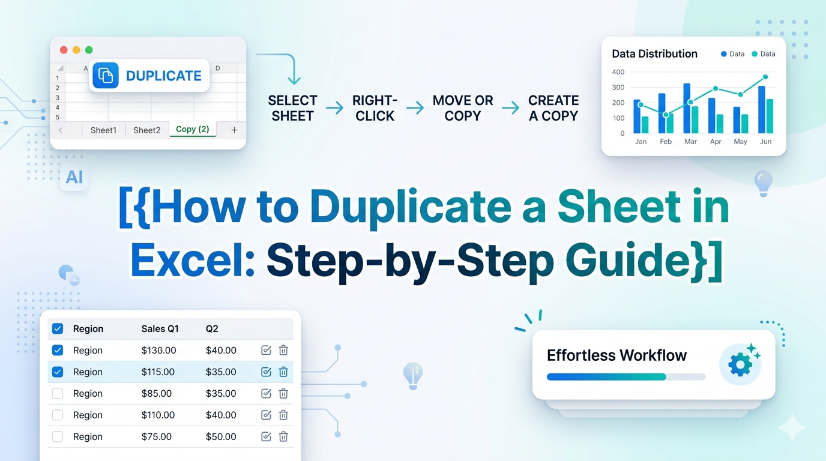
How to Duplicate a Sheet in Excel: Step-by-Step Guide
This guide provides step-by-step instructions on how to duplicate a sheet in Excel, helping users manage their spreadsheets efficiently and accurately. Whether you're working with financial reports, inventory sheets, or any other data, duplicating sheets can save time and ensure consistency. Follow our clear instructions to master this essential Excel skill. By the end of this guide, you'll be able to duplicate sheets with confidence and keep your work organized. Don't forget to explore how TabliSync can further enhance your spreadsheet management tasks after you’ve learned this skill!
How to Save PDF as Excel
This guide walks you through the process of converting PDF files into Excel spreadsheets using TabliSync. If you've ever struggled to transfer data from a PDF to an editable format, you're not alone. Many users face challenges such as slow manual entry, formatting issues, and inaccuracies in data transfer. This article provides a clear, step-by-step approach to help you efficiently convert your PDFs into Excel files. You'll learn not just how to perform the conversion but also tips for ensuring the best results and common pitfalls to avoid. With TabliSync, you'll find a streamlined solution that simplifies your data management tasks and improves your workflow, allowing you to focus on analysis rather than tedious data entry.
How to Add a Drop Down Menu to Excel
Repetitive manual data entry often causes inconsistent data and low work efficiency for business staff using Excel. This article explains difficulties in creating Excel drop-down menus, and introduces two solutions including manual setup and automated data extraction methods. It also covers detailed operation steps, key pre-export checks, common setup errors and FAQs. Building standardized drop-down menus effectively unifies data entry standards, cuts manual errors and optimizes daily office data processing and financial reporting workflows.
How to Unhide All Rows in Excel: A Simple Guide
Hidden Excel rows often hinder data analysis and reporting accuracy for business and accounting staff. This article introduces manual and automated ways to unhide rows, lists common operational pitfalls and key data verification points. It helps users efficiently restore complete spreadsheet data and ensure reliable data processing.
How to Sort in Excel and Keep Rows Together: A Guide for Complex Data Tables
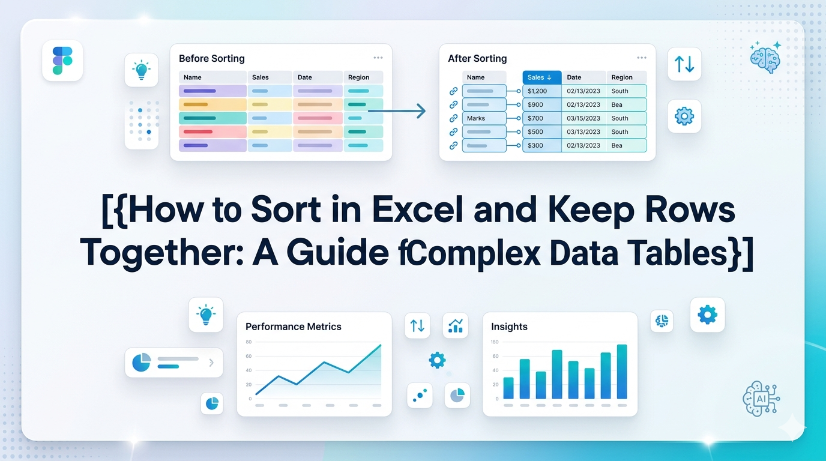
Eliminate row-split errors entirely by using Excel Tables or the Expand Selection option, reducing post-sort data repair time by up to 90%. Automate sorting across multi-column grouped data without manual selection, cutting workflow steps from 8 clicks to 1 click using Power Query or structured references. Prevent data corruption in semi-structured imports (PDFs, invoices) by combining AI OCR preprocessing with TabliSync before sorting, achieving 99.5% row integrity.

How to Find Duplicate Values in Excel: The Best Methods Compared
Identify and manage duplicates with 99.9% accuracy by leveraging native Excel tools and modern AI-driven OCR workflows. Achieve a 90% reduction in data cleaning time through automated schema-aware duplicate detection strategies. Eliminate manual entry errors completely by synchronizing unstructured data directly into structured Excel tables using TabliSync.
Stop Manual Data Entry – Extract Tables in Seconds
Convert any image or PDF table to Excel instantly with 99.9% accuracy. TabliSync's AI-powered OCR handles handwritten forms, receipts, and complex tables – then syncs directly to Google Sheets, Notion, or Airtable
Try TabliSync Free Now