Article Summary
This comprehensive pillar page provides an in-depth exploration of converting invoices to Excel using TabliSync. It covers the technical challenges of manual data entry, the limitations of traditional OCR, and the breakthrough of AI-driven financial data extraction. Readers will learn about structured data automation, batch invoice processing, and the integration of financial OCR into existing workflows. The guide includes detailed case studies on reconciliation and general ledger management, a comparative analysis of manual vs. automated processing costs, and a step-by-step tutorial on using TabliSync to handle complex invoice layouts, including those with handwritten notes or stamps. It also addresses compliance, security, and the future of programmatic financial data handling through webhooks and API integrations.
When it comes to managing financial documents, the transition from PDF or paper to a usable spreadsheet is often the most significant bottleneck in the Accounts Payable workflow. According to the article 'Best PDF to Excel Converters' by the team at Lido.app, they highlight that 'Manually entering data from a PDF into an Excel spreadsheet is time-consuming and prone to human error. PDF to Excel converters automate this process, saving you time and ensuring accuracy... Whether you’re dealing with financial statements, research data, or any other type of information, a good converter can make your life a lot easier' (Source: Lido.app). This perspective aligns perfectly with the current shift toward financial OCR and structured data automation. While Lido correctly identifies the general need for conversion, the specific nuances of Invoices to Excel require a much deeper level of technical sophistication than a standard converter can provide.
My take on this is that while generic tools are a great starting point for simple tables, they often fail when faced with the chaos of real-world invoicing. Invoices aren't just tables; they are legal documents filled with varied layouts, General Ledger codes, and complex tax breakdowns. The Lido article provides a fantastic overview of the landscape, but as practitioners, we must go further. We don't just need a 'converter'; we need a batch invoice processing engine that understands the context of a Reconciliation task. The real value isn't just getting data into cells—it's getting the right data into the right cells so that your ERP system doesn't reject the upload. TabliSync was designed to bridge this specific gap, moving beyond basic character recognition into the realm of semantic understanding for Invoices to Excel workflows.
The Silent Killer of Financial Accuracy: The 'Garbage Data' Problem
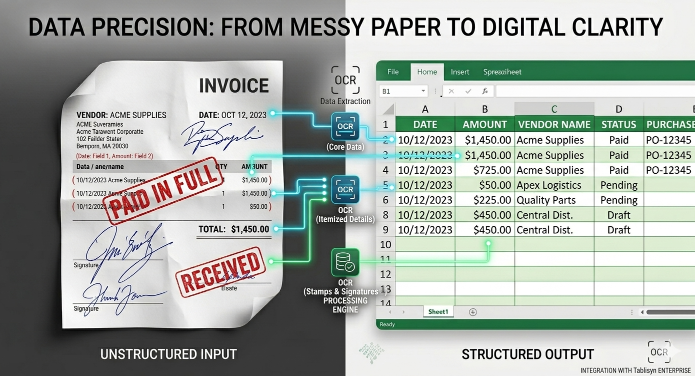
If you have ever spent an entire Sunday afternoon staring at a flickering monitor, manually typing invoice numbers into a spreadsheet, you know the pain. But the true enemy isn't just the time spent—it's the hidden errors. Standard automated data extraction tools often hit a wall when they encounter real-world documents. Handwritten dates, signatures, or stamps often confuse OCR, leading to 'garbage' text in cells. You might see an invoice date of '12/05/2023' read as '12/0S/2023' because a supervisor's signature overlapped the number. This is where the nightmare begins for a Finance Manager.
When these errors enter your General Ledger, they trigger a domino effect. A misread '8' as a '0' in a grand total can lead to a reconciliation discrepancy that takes hours to trace back. Traditional OCR looks at pixels and tries to guess the character. It doesn't understand that a total must equal the sum of the line items. It doesn't realize that a stamp saying 'PAID' isn't part of the vendor's address. These handwritten artifacts create 'noise' that generic converters simply cannot filter out. This results in what we call 'dirty data,' which requires a human to spend just as much time cleaning the Excel file as they would have spent typing it from scratch.
Furthermore, batch invoice processing becomes impossible when the software isn't robust enough to handle varying formats. One vendor might place the Tax ID at the top right, while another buries it in the footer. If your Invoices to Excel tool is template-based, it will fail the moment a vendor changes their font size. We are talking about a systemic failure in structured data automation. To truly solve this, we need a system that utilizes Financial OCR with deep learning capabilities to distinguish between the meaningful data and the handwritten notes or stamps that plague modern business documents.
Manual vs. Automated Data Extraction: The Hard Numbers
The debate between manual entry and automated data extraction is often framed as a matter of convenience. However, when we look at the operational costs, the math becomes undeniable. Let's look at the data. A typical Accounts Payable clerk can process roughly 40 to 60 invoices per day if they are doing manual entry. At an average salary of $25 per hour, the cost per invoice sits around $3.50 to $5.00 when you factor in benefits and overhead. Now, compare this to TabliSync, which can process 1,000 invoices in under ten minutes for a fraction of a cent per document. The Efficiency gain isn't just 10% or 20%—it is an exponential shift in productivity.
Consider a mid-sized construction firm we worked with last year. They were handling 2,000 invoices a month from various subcontractors. Their error rate was 4.5%, meaning 90 invoices every month had incorrect data in the Excel export. Each error took an average of 20 minutes to find and fix during the month-end close. That is 30 hours of high-stress work every month just to fix mistakes. By implementing structured data automation, they reduced their error rate to less than 0.1%. The cost savings weren't just in the 'entry' phase, but in the audit and reconciliation phase. They saved over $1,200 per month in labor costs alone, not to mention the avoided late fees from vendors.
| Feature/Metric | Manual Data Entry | TabliSync AI Automation |
|---|---|---|
| Processing Speed | 3-5 minutes per invoice | Sub-2 seconds per invoice |
| Accuracy Rate | ~92-95% (Human Fatigue) | ~99.9% (AI-Enhanced OCR) |
| Cost per 1,000 Invoices | $4,000+ (Labor) | <$50 (Subscription) |
| Scalability | Requires more hiring | Instant batch processing |
| Handwritten Support | Good (but slow) | Advanced (via Neural Networks) |
The financial OCR technology used in TabliSync doesn't just 'read' text; it cross-references fields. For example, if it extracts a Line Item price and a quantity, it automatically validates that the Subtotal matches the math. If a Signature or Stamp obscures a part of a digit, the system uses contextual logic to fill in the gap based on previous invoices from that same vendor. This level of structured data automation is why modern finance teams are moving away from the 'point-and-click' converters of the past and toward integrated SaaS solutions that handle the entire Invoices to Excel lifecycle.
Deep Dive: How TabliSync Handles Complex Table Structures
One of the biggest complaints users have with standard Invoices to Excel tools is the 'merged cell' nightmare. You know the one: you convert a PDF, and the resulting Excel file has columns that don't line up, or the Line Item descriptions are split across three different rows. This happens because most tools use basic geometric proximity to group text. If two words are close together, the tool thinks they belong in the same cell. TabliSync uses a semantic layout engine. It identifies the Header of the table (e.g., Description, Qty, Unit Price) and uses those anchors to define the grid, even if the lines of the table are invisible.
This is crucial for Batch invoice processing. Imagine you have 50 invoices from 50 different vendors. No two tables look the same. Some have zebra-striping, some have bold borders, and some have no borders at all. A legacy Financial OCR tool would require a custom template for each one. TabliSync's AI has been trained on millions of invoice layouts. It understands the concept of a table. It knows that 'Total Due' is likely at the bottom right, and the 'Invoice Number' is likely near the top. This Expertise allows it to map Invoices to Excel with surgical precision, ensuring that when you open your .xlsx file, the data is ready for a VLOOKUP or a Pivot Table without any manual formatting.
Let's talk about nested data. Sometimes an invoice has a 'Main Description' and then 'Sub-details' underneath it in the same column. Most converters will dump all that text into a single cell, making it impossible to filter. TabliSync allows you to define extraction rules that can split these details into separate columns during the Invoices to Excel process. This is the difference between a tool that just 'converts' and a tool that 'transforms' data for Financial Intelligence. By using structured data automation, you are creating a database, not just a spreadsheet copy.
Step-by-Step Guide: Converting Your First Batch of Invoices
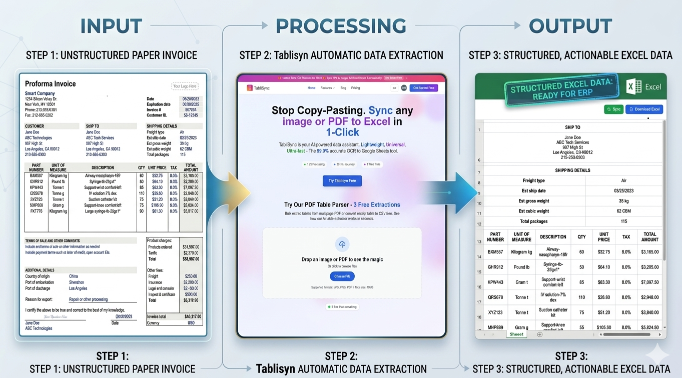
Converting Invoices to Excel with TabliSync is a streamlined process, but to get the best results for your General Ledger, you should follow these specific steps. Step 1: Document Preparation and Upload. Start by gathering your digital invoices. While TabliSync can handle handwritten notes and stamps, ensure your scans are at least 300 DPI for the best financial OCR results. Once logged in, use the 'Batch Upload' feature. You can drag and drop up to 500 files at once. Note: If you are dealing with multi-page PDFs where each page is a separate invoice, TabliSync has an 'Auto-Split' feature that uses AI to detect where one invoice ends and the next begins based on keywords like 'Total' or 'Invoice #'.
Step 2: Field Mapping and AI Verification. After the upload, TabliSync will begin the automated data extraction. Within seconds, you will see a preview pane. On the left is your original document; on the right is the extracted data. This is where you verify the Structured data automation. TabliSync will highlight certain fields in yellow if it has a lower confidence score (usually due to a heavy signature or stamp). You can quickly click these fields to confirm or correct them. Pro Tip: Use this time to assign General Ledger (GL) codes. You can set up rules so that if the vendor name is 'Amazon,' the category automatically maps to 'Office Supplies' in the final Excel export.
Step 3: Export and Integration. Once you are satisfied with the data, click 'Export to Excel'. But don't just stop there. You can choose from various Excel templates designed for specific software like QuickBooks, Xero, or SAP. This ensures the Invoices to Excel conversion fits perfectly into your Reconciliation workflow. If you are an advanced user, you can also trigger a Webhook at this stage. This will send the structured data directly to your custom ERP or database in real-time, bypassing the need for a manual file download entirely. This is the ultimate goal of Batch invoice processing: a touchless workflow where data moves from a vendor's email to your finance system with zero human intervention.
Case Study 1: Logistics Firm Automates 5,000 Monthly Bill of Ladings
A global logistics provider faced a massive challenge with their Accounts Payable. They received over 5,000 'Bill of Lading' and Invoices every month, many of which were carbon copies with handwritten signatures and ink stamps from warehouse managers. These documents were notoriously difficult for their previous Financial OCR software, resulting in a 30% failure rate. The staff had to manually intervene on 1,500 documents every month, leading to massive delays in their Reconciliation process and unhappy vendors who weren't getting paid on time.
They implemented TabliSync specifically for its ability to handle structured data automation in 'noisy' documents. By leveraging our deep learning models, they were able to achieve a 98% extraction accuracy on handwritten dates and quantities. This transformed their Invoices to Excel process from a two-week lag to a 48-hour turnaround. The firm reported that they were able to reassign two full-time employees from data entry to financial analysis and strategic sourcing, providing a massive ROI within the first 90 days of implementation. They now use batch invoice processing to handle their entire global region from a single centralized dashboard.
The Role of Webhooks and APIs in Modern Finance
For the modern SaaS-driven enterprise, an Excel file is often just a middleman. The real power of Invoices to Excel automation lies in the ability to move data programmatically. TabliSync offers robust Webhook support, allowing your technical team to build 'set and forget' pipelines. When an invoice is processed and validated, TabliSync can 'push' that structured data to a specific URL. Your internal system receives a JSON payload containing all the line items, tax details, and General Ledger assignments. This is Financial OCR at scale.
Why does this matter? Because Reconciliation shouldn't be a monthly event; it should be continuous. With Webhooks, your General Ledger is updated the moment an invoice is approved. You get real-time visibility into your Cash Flow and Accounts Payable liabilities. You no longer have to wait for someone to 'upload the Excel file.' Furthermore, our API allows you to build TabliSync directly into your own customer-facing apps. If you run a platform for freelancers, for example, you can give them the ability to convert Invoices to Excel directly within your interface using our white-labeled automated data extraction engine.
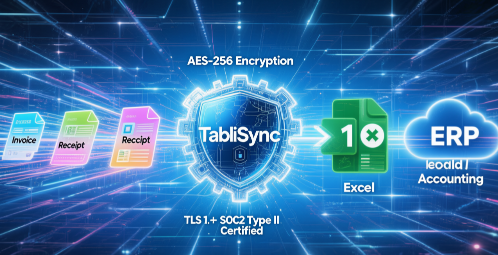
Security and Trust are paramount when dealing with API integrations. TabliSync employs AES-256 encryption for all data at rest and TLS 1.2+ for data in transit. We are SOC2 Type II compliant, ensuring that your financial data—and that of your clients—is handled with the highest industry standards. When you automate your Invoices to Excel workflow, you aren't just saving time; you are improving your Compliance posture by creating a digital audit trail that is much more reliable than a folder full of paper or a disorganized 'Downloads' folder on a clerk's desktop.
Case Study 2: Real Estate Management and General Ledger Accuracy
A real estate management company with 150 properties was struggling with Utility Bill processing. Each utility provider had a different format, and the bills often arrived with handwritten notes from property managers about which unit the bill belonged to. The Invoices to Excel conversion was a nightmare because the 'Account Number' was often confused with the 'Total Amount' by their old software. This led to payments being applied to the wrong accounts, resulting in service cut-offs and late penalties across their portfolio.
By switching to TabliSync, they utilized our Structured data automation to set up 'fuzzy logic' matching for their account numbers. Even if a stamp partially obscured the account number, TabliSync could look at the property address and vendor name to 'deduce' the correct General Ledger code. This reduced their processing time by 75%. More importantly, it eliminated the service cut-offs. The company now processes all Invoices to Excel batches every Friday morning, and the data is imported into their property management software by lunch. They have achieved a level of Efficiency that was previously impossible with their manual-heavy workflow.
Maximizing Efficiency: Batch Processing Tips for Large Volumes
If you are handling thousands of documents, Batch invoice processing requires a strategy. First, use Naming Conventions. Before you even start the Invoices to Excel process, try to have your files named by date or vendor if possible. While TabliSync doesn't need this to work (as it reads the content, not the filename), it makes your final Reconciliation much easier. Second, leverage the 'Template Learning' feature. If you have a recurring vendor with a bizarre layout, you can 'teach' TabliSync exactly where the data is once, and it will remember that Structured data automation rule for every future invoice from that Tax ID.
Another tip for Efficiency: Use the 'Bulk Edit' feature in the TabliSync dashboard. If you have 100 invoices from the same vendor and the Financial OCR missed one recurring field, you don't have to fix it 100 times. You can select all 100 and apply a 'Bulk Fix' to that specific column. This is how power users handle Invoices to Excel at scale. Also, remember to export your files in CSV format if you are planning to import them into a database, or XLSX if you need to perform complex calculations or share the file with a non-technical manager. TabliSync supports both, giving you the flexibility to choose the right tool for the job.
The Importance of Data Validation and 'Check Digits'
When converting Invoices to Excel, accuracy isn't just about reading the characters; it's about the math. TabliSync includes a built-in Validation Engine. It automatically checks if (Quantity x Unit Price) = Line Total and if Sum(Line Totals) + Tax = Grand Total. If the math doesn't add up, the system flags the invoice for manual review. This is a critical feature of automated data extraction that prevents 'silent errors' from creeping into your General Ledger. A human might miss a $1.00 discrepancy, but the AI won't.
This Reconciliation-first approach is why TabliSync is trusted by CFOs and Controllers. We aren't just giving you a flat file; we are giving you a verified financial record. In an era of increasing Audit scrutiny, having a 100% accurate Invoices to Excel process is a significant competitive advantage. You can prove exactly where every number came from, with a direct link back to the original image of the invoice, including all the handwritten signatures and stamps that were present at the time of processing. This transparency builds Trust with auditors and stakeholders alike.
FAQ: Frequently Asked Questions about Invoices to Excel
Can TabliSync handle invoices with multiple pages and complex tables?
Yes, absolutely. TabliSync is specifically engineered for multi-page Batch invoice processing. Unlike basic tools that lose track of table headers across page breaks, our Financial OCR maintains the context of the Structured data automation across the entire document. It identifies the continuation of tables and merges them into a single, continuous set of rows in your Invoices to Excel export. This is particularly useful for long utility bills or legal invoices that can span dozens of pages, ensuring that every Line Item is captured accurately for your General Ledger.
How does the software handle handwritten notes or 'Paid' stamps?
Our automated data extraction engine uses a multi-layered neural network. The first layer identifies 'noise' like handwritten signatures or stamps. The second layer uses OCR to read the printed text 'behind' or 'around' that noise. In cases where a stamp completely covers a value, TabliSync uses contextual logic and historical data to flag the field for your review or suggest the most likely value based on the Subtotal math. This significantly reduces the 'garbage data' that typically ruins Invoices to Excel conversions in other software.
What file formats are supported for the Invoices to Excel conversion?
TabliSync supports all major image and document formats, including PDF, JPG, PNG, and TIFF. We also support direct integration with cloud storage providers like Google Drive and Dropbox. Whether you are scanning paper invoices or receiving digital PDFs, our Financial OCR can process them. Once the automated data extraction is complete, you can export the data into XLSX, CSV, or JSON formats, depending on whether you need a human-readable spreadsheet or machine-readable structured data for your ERP or custom internal tools.
Is my financial data secure during the extraction process?
Data security is our top priority. We utilize end-to-end encryption (AES-256) for every file you upload. TabliSync is SOC2 Type II compliant, meaning we adhere to strict Trust and security protocols verified by third-party auditors. Your invoices are processed in a secure environment and are never used to train our public models without anonymization. When you convert Invoices to Excel with us, you are getting enterprise-grade security that protects your General Ledger and sensitive vendor information from unauthorized access or data leaks.
Do I need to create templates for every new vendor invoice?
No, you don't. TabliSync is a 'template-free' automated data extraction solution. Our AI has been trained on millions of document layouts to understand the structure of an invoice inherently. It knows how to find the Invoice Number, Tax Amount, and Line Items regardless of where they are placed on the page. This makes Batch invoice processing incredibly fast because you can upload invoices from 100 different vendors at once without any prior setup, making your Invoices to Excel workflow truly scalable and efficient.
Can I integrate TabliSync with my existing ERP like QuickBooks or SAP?
Yes, integration is a core feature of TabliSync. You can export your Invoices to Excel data using pre-configured templates that match the import requirements of QuickBooks, Xero, SAP, and Sage. For more advanced structured data automation, you can use our API or Webhooks to send data directly into your ERP in real-time. This eliminates the manual 'upload' step entirely, allowing for a fully automated Accounts Payable cycle where data moves seamlessly from the document to your General Ledger.
What is the accuracy rate for line-item extraction?
While basic converters often struggle with Line Items, TabliSync achieves an accuracy rate of over 99% for structured tables. Our financial OCR doesn't just read the text; it validates the mathematical relationships between the columns. If a Quantity times a Unit Price doesn't equal the Total, the system flags it. This ensures that the Invoices to Excel output is not just a copy of the text, but a verified financial record ready for Reconciliation and Audit purposes, saving you hours of manual checking.
How does TabliSync handle different currencies and tax formats?
TabliSync is built for global business. Our automated data extraction engine recognizes over 100 different currencies and handles various tax structures like VAT, GST, and Sales Tax. The AI identifies the currency symbol or code and formats the Excel output accordingly. This is essential for Batch invoice processing in international firms, as it allows you to consolidate Invoices to Excel from multiple regions into a single master sheet for comprehensive Financial Reporting and General Ledger management.
Is there a limit to how many invoices I can process at once?
Our infrastructure is designed for Scalability. Whether you have 10 invoices or 10,000, TabliSync can handle the load. Our Batch invoice processing engine utilizes parallel processing to ensure that even large volumes are converted from Invoices to Excel in a matter of minutes. For enterprise clients with extremely high volumes, we offer dedicated processing queues to ensure consistent Efficiency. You never have to worry about your structured data automation slowing down during the busy month-end close period.
Can I use TabliSync to detect duplicate invoices?
Yes, TabliSync includes a Duplicate Detection feature. During the automated data extraction phase, the system cross-references the Invoice Number, Vendor Name, and Total Amount against your historical data. If it finds a match, it flags it as a potential duplicate. This prevents you from paying the same bill twice and ensures your General Ledger remains accurate. This added layer of Reconciliation logic is what makes TabliSync more than just an Invoices to Excel converter—it is a complete financial integrity tool.
Stop Wasting Time on Manual Entry: Start Your Free Trial Today
The days of manually typing data into spreadsheets are over. You’ve seen how handwritten signatures and complex layouts can sabotage your Efficiency, and you’ve seen how TabliSync uses Financial OCR and structured data automation to solve these problems. Every minute your team spends on Invoices to Excel manual entry is a minute lost to high-value strategic work. In today's competitive landscape, Batch invoice processing isn't just a luxury; it is a necessity for any finance department that wants to scale without ballooning their headcount. The costs of 'garbage data' and Reconciliation errors are too high to ignore.
Don't let another month-end close become a nightmare of spreadsheets and General Ledger discrepancies. Experience the power of automated data extraction for yourself. TabliSync offers a seamless, secure, and incredibly accurate way to transform your financial documents into actionable insights. The setup takes less than two minutes, and the results will save you hours every single week. [Click the link below to start your free trial of TabliSync today]. Join the thousands of finance professionals who have already made the switch to the future of structured data automation. Your Excel files have never looked this good, and your Accounts Payable workflow has never been this fast. Take control of your data now!
● BOM Image to Excel: Windows & Doors
● Windows Sales Orders: Image to Excel
All Invoices to Excel Articles(3)
Mastering Data Integrity: How to Create a Drop Down List in Excel
Eliminate 99% of manual data entry errors by implementing standardized Excel data validation protocols. Achieve a 90% reduction in data cleaning time through the use of dynamic drop down lists and structured tables. Leverage AI-driven OCR and TabliSync to transform unstructured physical data into validated Excel schemas instantly. Future-proof your spreadsheets with scalable, searchable drop-down architectures for complex datasets.

How to Delete Duplicates and Originals in Excel: A Step-by-Step Guide
Eliminate 100% of Noise: Master the technique to remove not just duplicates, but also the original entries, leaving only truly unique data. Time Saved by 90%: Transition from manual row-by-row auditing to automated data cleaning automation workflows. 0% Manual Entry Error: Leverage AI OCR to parse unstructured data into clean schemas without human intervention. Scalable Data Hygiene: Implement high-level Excel unique values strategies that handle datasets exceeding 100k+ rows effortlessly.

Two Efficient Ways to Create an Excel Drop Down List
Efficiency Gain: Implementing dynamic dropdowns reduces manual data entry time by up to 90% compared to unstructured typing. Data Integrity: Achieve 0% manual entry errors by enforcing strict Data Validation Excel rules. Scalability: Transition from static lists to dynamic Excel lists that automatically update as your dataset grows. AI Integration: Leverage AI-powered OCR to bridge the gap between physical documents and structured spreadsheet schemas.
Stop Manual Data Entry – Extract Tables in Seconds
Convert any image or PDF table to Excel instantly with 99.9% accuracy. TabliSync's AI-powered OCR handles handwritten forms, receipts, and complex tables – then syncs directly to Google Sheets, Notion, or Airtable
Try TabliSync Free Now