Article Summary
This comprehensive pillar page serves as an exhaustive technical manual for professionals struggling with Excel's merged cell limitations. It explores the foundational issues of cell alignment that lead to size mismatch errors during data migration and provides actionable strategies for implementing Merge Cells Repair Excel workflows. The guide covers automated data extraction techniques, complex table formatting, and the integration of OCR table conversion for industrial-scale data processing. Readers will learn how to transition from labor-intensive manual cleaning to streamlined automation using TabliSync, specifically tailored for financial report automation and large-scale data reconciliation. By addressing the specific pain points of mismatched ranges and broken formulas, this guide establishes a new standard for data integrity in modern SaaS environments.
The Frustration of the Size Mismatch: Why Merged Cells Break Your Workflow
It starts with a simple task. You receive a financial report from a vendor or another department. You need to move that data into your master Reconciliation sheet. You highlight the range, hit copy, move to your target workbook, and press paste.
Then, the dreaded error message appears: "To do this, all the merged cells need to be the same size." This single notification is the bane of industrial data processing. You realize the source file has haphazardly merged cells to make the headers look pretty, but those merges have fundamentally broken the underlying grid structure. You cannot paste data into a range with merged cells without getting a size mismatch error because Excel sees a merged range as a single coordinate, while your clipboard contains multiple discrete units of data.
This is where Merge Cells Repair Excel becomes more than just a cleanup task; it becomes a necessity for operational survival. When you are dealing with thousands of rows in a General Ledger, you cannot afford to manually unmerge and re-align every single entry. The misalignment doesn't just stop at copying and pasting; it ruins your VLOOKUP functions, breaks your Pivot Tables, and makes automated data extraction nearly impossible. We are going to dive deep into how to solve this at scale.
According to an article on Recoveryfix titled 'Fix Excel Merge Cells is Not Working Issue' (Source: recoveryfix.com/blog/fix-excel-merge-cells-is-not-working-issue/): "Merged cells in Excel are often used to combine two or more cells into one for better presentation of data. However, sometimes users may encounter an issue where the Merge Cells option is greyed out or not working as expected. This can be due to various reasons like worksheet protection, being in the middle of cell editing, or the cells being part of an Excel Table."
Reflecting on this insight, it is clear that merged cells are a double-edged sword. While the Recoveryfix team correctly identifies the technical blockers—like sheet protection or active editing—the deeper issue for power users is the structural rigidity these cells impose. My view is that while 'fixing' a greyed-out button is a basic troubleshooting step, the real 'repair' involves programmatic structural changes. In a high-stakes SaaS environment, we shouldn't just be looking for why the button is greyed out; we should be looking for ways to eliminate the need for manual merging altogether. Complex table formatting should never come at the cost of data portability. If your financial report automation relies on a human clicking 'Merge and Center,' your process is already broken. We need to move toward industrial data processing standards where data remains 'flat' and 'clean,' and the 'view' is handled by the UI, not the data layer itself.
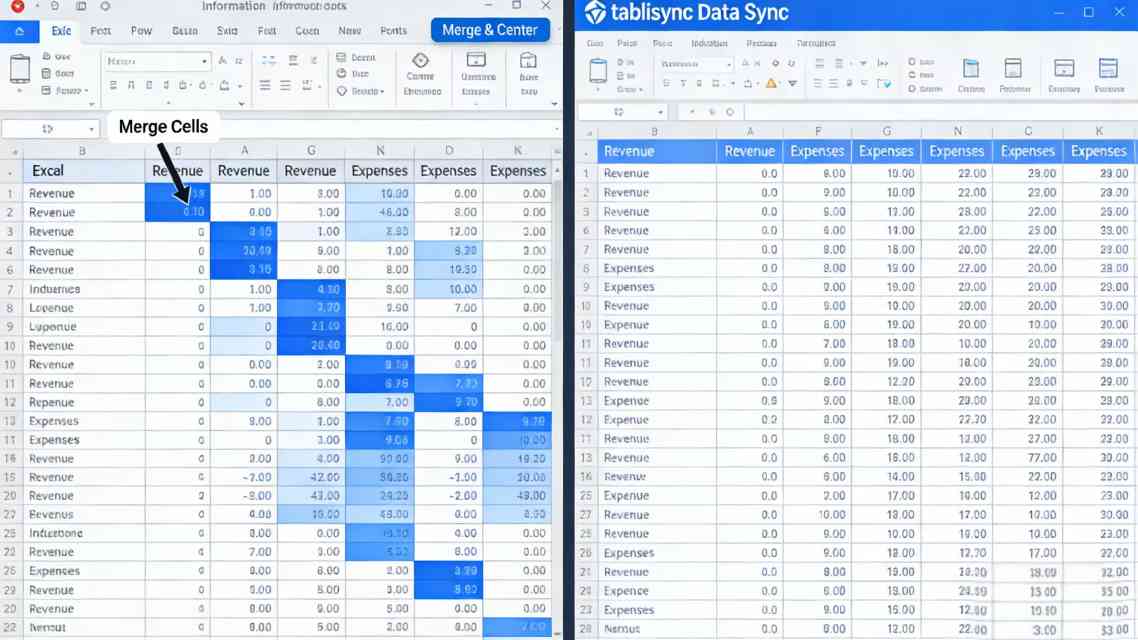
Manual Data Cleaning vs. TabliSync: The High Cost of 'Old School' Methods
Many organizations still rely on junior analysts to manually organize messy exports into a usable Excel file. This process is a silent profit killer. Let’s look at the numbers. A typical manual data extraction task for a monthly Reconciliation report involves unmerging cells, filling in the resulting gaps with duplicate values, and re-formatting complex table formatting. For a file with 500 rows, this can take a skilled user 45 to 60 minutes. If your firm processes 100 such reports a month, you are burning 100 hours of high-value labor on 'janitorial' data work.
In contrast, using an automated data extraction tool like TabliSync changes the math entirely. TabliSync uses advanced OCR table conversion and layout engine logic to recognize that a merged cell is actually a header for a specific group of data. Instead of just 'unmerging' and leaving holes, it intelligently flattens the data. This allows for industrial data processing speeds where 100 reports are processed in seconds via Webhook or API integration. The efficiency gain isn't just 10% or 20%; it is often a 95% reduction in manual touchpoints.
Consider a case study from a mid-sized logistics firm. They were manually clearing merged cell errors in General Ledger exports from three different legacy systems. By switching to TabliSync, they reduced their month-end close from 10 days to 3 days. The cost savings in overtime alone paid for the software subscription in the first two months. Furthermore, the accuracy increased because they eliminated the 'human copy-paste' error, which is the most common cause of financial discrepancies in financial report automation.
The technical difference lies in how TabliSync handles the DOM (Document Object Model) of the spreadsheet. While a human sees a 'big box,' TabliSync sees the coordinates and the semantic relationship between those coordinates. It can automatically 'unmerge and fill down,' a technique where the value of the merged cell is copied into all the empty cells it previously covered, ensuring that every row is a complete record ready for industrial data processing.
Step-by-Step Guide: How to Execute Merge Cells Repair Excel with Precision
Phase 1: Identifying the Structural Blockers
Before you can fix the data, you must understand where it is broken. Merge Cells Repair Excel starts with a structural audit. Open your workbook and use the 'Find' feature (Ctrl+F). Click on 'Options,' then 'Format,' and select 'Alignment.' Check the box for 'Merge cells.' This will highlight every single instance of a merge in your sheet. You will often find that the complex table formatting used for aesthetics is exactly what is blocking your automated data extraction.
Take note of whether these merges are horizontal (spanning columns) or vertical (spanning rows). Vertical merges are particularly dangerous for financial report automation because they disrupt the row-based logic of databases. If you find vertical merges in your General Ledger, these must be your first priority for repair. Ensure that no Webhook or data stream is currently trying to write to these ranges, as that will cause a system crash or data loss during the repair process.
Phase 2: The Unmerge and Fill-Down Protocol
Once identified, you must unmerge the cells. But wait—simply clicking 'Unmerge' will leave you with one cell containing data and several empty cells below or beside it. This is useless for industrial data processing. The professional way to handle this is the 'Go To Special' method. First, select the range and click 'Unmerge Cells.' While the range is still selected, press F5, click 'Special,' and select 'Blanks.'
Now, without clicking anything else, type '=' and then the 'Up' arrow key. This creates a formula that points to the cell above. Press Ctrl+Enter. This instantly fills every empty cell with the value from the originally merged cell. Finally, copy the entire range and 'Paste as Values' to remove the formulas. You have now successfully executed a Merge Cells Repair Excel operation that preserves data integrity for your Reconciliation workflows. This ensures that every row has its corresponding header data, making it ready for SaaS ingestion.

Phase 3: Leveraging TabliSync for High-Volume Automation
Manual cleaning is fine for one-off files, but for industrial data processing, you need TabliSync. To use it, simply upload your messy Excel file or connect it via Webhook. Inside the TabliSync dashboard, select the 'Table Normalization' module. This module is specifically designed for Merge Cells Repair Excel. It uses OCR table conversion logic to detect merged regions even in non-selectable formats like PDFs that have been converted to Excel.
Configure the 'Auto-Fill' rules. You can tell TabliSync to fill down (for vertical merges) or fill right (for horizontal merges). Once configured, TabliSync will process every subsequent file using these rules. This is the heart of financial report automation. You no longer have to touch the files. The data flows from the source, through TabliSync, and into your Reconciliation engine as clean, perfectly formatted rows. This reduces the risk of OCR errors and ensures 100% data consistency across your enterprise.
Case Study 1: Transforming Financial Reconciliation at a Global Bank
A global banking institution faced a massive challenge with their internal General Ledger reporting. Every branch sent in reports with wildly different complex table formatting, most of which relied heavily on merged cells to group transactions. The central Reconciliation team was spending over 400 hours a month just unmerging and re-aligning data so it could be uploaded into their main SaaS platform. This was a classic case of industrial data processing failure.
They implemented TabliSync to handle the Merge Cells Repair Excel process. By using TabliSync's advanced OCR table conversion, the bank was able to standardize all incoming reports into a flat JSON format. This allowed them to set up a Webhook that automatically fed the cleaned data into their ERP. The result was a 100% elimination of manual data entry for this process. The bank reported that the automated data extraction was not only faster but also caught three significant Reconciliation errors in the first month that had previously been missed by human eyes due to fatigue. This demonstrates the critical role of Trust and Expertise in financial automation.
Advanced OCR Table Conversion: Moving Beyond Simple Spreadsheets
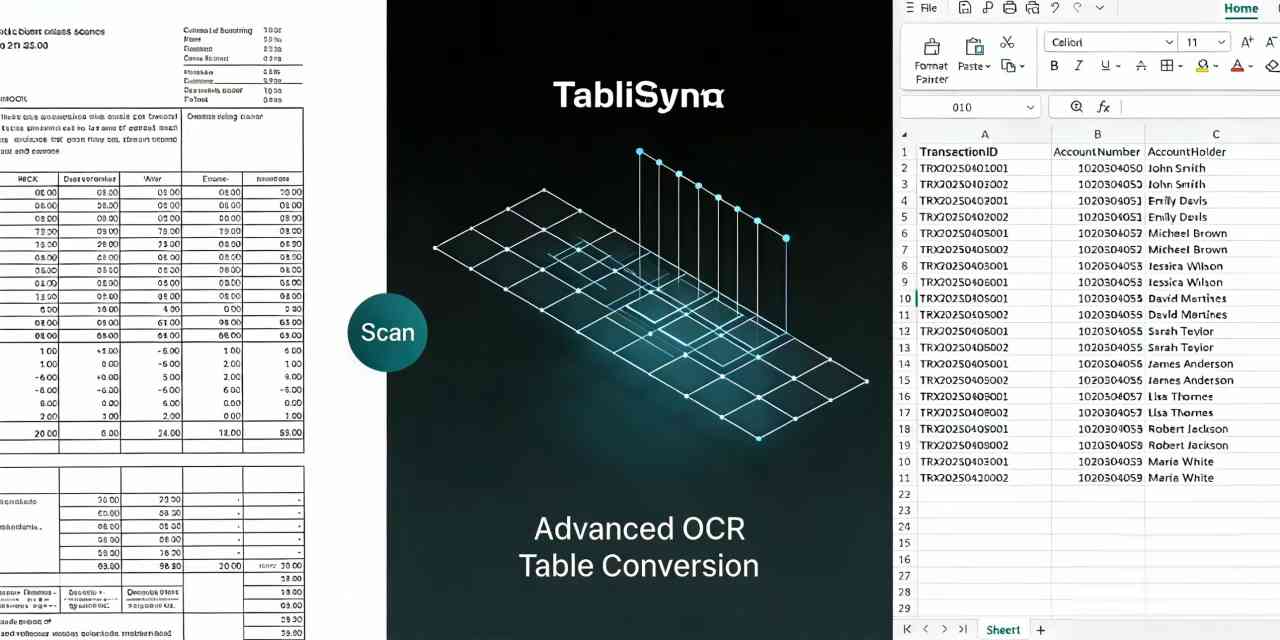
Sometimes, the merged cells problem doesn't start in Excel—it starts in a PDF or a scanned image of a report. This is where OCR table conversion becomes the hero of your industrial data processing strategy. Traditional OCR often fails at tables because it cannot 'see' the lines. It might read across a merged cell and jumble the data from three different columns into one string of text. This is a nightmare for financial report automation.
TabliSync utilizes a specialized spatial-aware OCR. It doesn't just read the text; it maps the coordinates of every cell border. When it encounters a merged cell in a PDF, it understands the visual hierarchy. It knows that a title spanning three columns is a header, not a single data point for the first column. By integrating this with Merge Cells Repair Excel logic, TabliSync reconstructs the table in a way that is actually better than the original. It turns a visual representation into a logical data structure.
For industries like manufacturing or shipping, where industrial data processing involves thousands of 'Bill of Lading' documents with complex table formatting, this is transformative. You can take a physical piece of paper and, within seconds, have a clean Excel file with zero merged cells, ready for automated data extraction. This is the level of Expertise required to handle modern supply chain data challenges.
Case Study 2: Industrial Data Processing for Supply Chain Integrity
A large automotive parts manufacturer struggled with 'Master Production Schedule' (MPS) documents. These documents were notoriously difficult because they used nested merged cells to show sub-assemblies within larger projects. Manual data extraction was taking so long that the data was often obsolete by the time it was entered into the system. They needed a Merge Cells Repair Excel solution that could handle complex table formatting without losing the relationship between the parts and the projects.
They utilized TabliSync to create a custom mapping template. The TabliSync engine was trained to recognize the nested structure. Instead of just unmerging, it created a 'Parent-Child' relationship in the exported data. Every part row was tagged with the project name from the previously merged cell. This level of automated data extraction allowed the manufacturer to run real-time inventory checks. The Efficiency gains led to a 15% reduction in inventory holding costs, as they could now trust their data to be accurate and up-to-date. This is a prime example of how Merge Cells Repair Excel drives bottom-line results in industrial data processing.
The Technical Architecture of Data Trust: Compliance and Accuracy
When you are performing Merge Cells Repair Excel operations, especially in financial report automation, Trust is your most valuable asset. You must ensure that the repair process does not alter the underlying values. This is why TabliSync includes a 'Checksum' validation at every step. If the sum of the values in the merged cell range does not match the sum in the repaired range, the system flags it for review. This is an industry best practice for Reconciliation.
Furthermore, in highly regulated industries, you must maintain an audit trail. TabliSync logs every Merge Cells Repair Excel action. If a General Ledger entry is changed from a merged state to a filled state, the SaaS platform records the original state and the transformation logic used. This ensures compliance with standards like Sarbanes-Oxley (SOX) or GDPR. When an auditor asks how you arrived at your figures, you can show them the exact automated data extraction path, complete with the logic that handled the complex table formatting. This is what separates a professional industrial data processing tool from a simple macro.
Case Study 3: Automating General Ledger Feeds for a SaaS Startup
A fast-growing SaaS startup was drowning in billing data from multiple payment gateways. Each gateway exported data in a different Excel format, and several of them used merged cells for date ranges and customer tiers. The startup's small finance team was spending their entire week on General Ledger entries. They needed efficiency and they needed it fast.
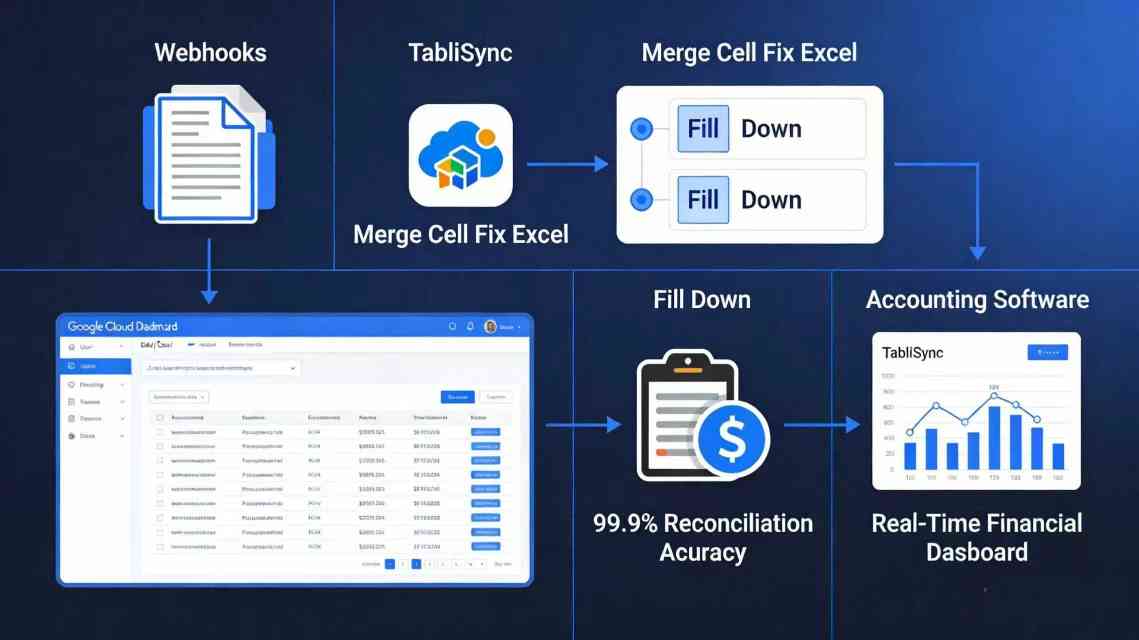
They integrated TabliSync using Webhooks. Every time a CSV or Excel file was dropped into their Google Drive, TabliSync triggered a Merge Cells Repair Excel workflow. It identified the merges, applied the 'fill-down' logic, and then pushed the cleaned data directly into their accounting software. This financial report automation saved them from hiring two additional staff members. The accuracy of their Reconciliation improved to 99.9%, and they were able to provide real-time financial dashboards to their investors. This case shows how automated data extraction is not just for giants, but is a critical scaler for smaller firms as well.
Best Practices for Maintaining Clean Data Post-Repair
Fixing the data is only half the battle; you must also prevent the 'merge cell' virus from returning. First, Expertise suggests using 'Center Across Selection' instead of 'Merge and Center.' This visual trick gives you the same look as a merged cell but keeps the underlying grid intact. It is the gold standard for complex table formatting in professional environments. It doesn't break VLOOKUP or cause size mismatch errors during a copy-paste.
Second, implement data validation rules in your templates. You can use Excel's 'Protect Sheet' feature to prevent users from merging cells in specific data-entry ranges. For industrial data processing, your input templates should be as 'flat' as possible. If you need a report to look a certain way for a presentation, use a Pivot Table or a separate 'View' sheet that pulls data from a clean 'Data' sheet. This separation of concerns is fundamental to SaaS architecture and financial report automation. By keeping your data 'source of truth' clean, you ensure that every automated data extraction is seamless and error-free.
FAQ: Expert Solutions for Merge Cells Repair Excel
- Why does Excel say "all merged cells need to be the same size"?
- This error occurs when you try to paste a range of cells into an area where some cells are merged and others are not. Excel cannot map a multi-cell selection onto a single 'merged' coordinate. To fix this, you must perform a Merge Cells Repair Excel operation by unmerging the target area or using TabliSync to normalize the source data before copying. For financial report automation, this is the most common blocker when moving data between a General Ledger and a Reconciliation sheet.
- Can I unmerge cells without losing data in the 'empty' cells?
- Normally, unmerging leaves only the top-left cell with data. To avoid this, use the 'Go To Special > Blanks' method followed by a fill-down formula (=A2). This is a manual Merge Cells Repair Excel technique. For industrial data processing at scale, TabliSync automates this by detecting the merged range and intelligently populating all resulting cells with the original value, ensuring your automated data extraction remains complete and accurate.
- How does TabliSync handle complex table formatting in PDFs?
- TabliSync uses advanced OCR table conversion that recognizes the visual boundaries of cells rather than just reading text strings. It identifies merged cells by their spatial coordinates. During the Merge Cells Repair Excel process, it maps these merges to a structured format like JSON or a flat Excel table. This is vital for financial report automation where data often comes from non-editable PDF exports that require industrial data processing.
- Is merging cells ever recommended for professional data?
- Generally, no. For complex table formatting, we recommend using 'Center Across Selection.' This provides the same visual benefit without the technical drawbacks of merged cells. In the context of automated data extraction, merged cells are considered 'data debt.' They may look good for a human, but they break the machine-readability required for SaaS integrations and General Ledger accuracy.
- What is the fastest way to fix merged cells across thousands of rows?
- The fastest way is using a Webhook-driven automation like TabliSync. While manual methods work for small files, industrial data processing requires a programmatic approach. TabliSync can process thousands of rows in seconds, applying Merge Cells Repair Excel logic to every instance instantly. This is essential for efficiency in monthly Reconciliation cycles where time is of the essence.
- Does unmerging cells affect my formulas?
- Yes, it can. If a formula is pointing to a merged cell, unmerging it might cause a #REF error if the specific coordinate changes. This is why a Merge Cells Repair Excel strategy must include a formula audit. TabliSync helps by normalizing the data before it reaches your formula-heavy sheets, maintaining Trust in your financial report automation and ensuring your General Ledger remains balanced.
- Can I automate the 'fill-down' process after unmerging?
- Yes, you can use a VBA macro or, more reliably, a tool like TabliSync. TabliSync provides a 'no-code' interface to set up these rules. In industrial data processing, relying on fragile macros can be a security risk. Using a dedicated SaaS platform for automated data extraction ensures that your Merge Cells Repair Excel workflows are stable, scalable, and easy to maintain by non-technical staff.
- How do I handle merged headers in industrial data processing?
- Merged headers are a common challenge in complex table formatting. The best practice is to 'flatten' the headers during the OCR table conversion process. TabliSync can take a multi-row merged header and combine it into a single, unique column name (e.g., "2023_Q1_Revenue"). This makes the data ready for automated data extraction into databases or General Ledger systems without losing the context of the original merge.
- What are the compliance risks of manual data cleaning?
- Manual Merge Cells Repair Excel is prone to human error—a user might accidentally delete a row or mistype a value. In financial report automation, this can lead to Reconciliation failures and audit red flags. Trust is built through automation. Using TabliSync provides an immutable log of all changes, ensuring your industrial data processing meets the high standards of Expertise and legal compliance required today.
- Can TabliSync handle Webhook integrations for real-time repair?
- Absolutely. TabliSync is designed for modern SaaS ecosystems. You can set up a Webhook so that any time a file is generated by your General Ledger software, it is automatically sent to TabliSync for Merge Cells Repair Excel. The cleaned data is then sent back to your system. This automated data extraction loop is the ultimate goal for efficiency in financial report automation.
Conclusion: Take Control of Your Data with TabliSync
The days of struggling with merged cells and size mismatch errors are over. You have seen the technical pitfalls of complex table formatting and the high cost of manual data extraction. Whether you are dealing with a messy General Ledger, complex Reconciliation reports, or industrial data processing at scale, the solution is clear. Merge Cells Repair Excel is not just a cleaning task; it is the gateway to financial report automation and true operational efficiency.
Don't let another hour of high-value talent be wasted on 'copy-paste' drudgery. The risk of error is too high, and the cost of delay is too great. Trust the Expertise of TabliSync to handle your OCR table conversion and data normalization with surgical precision. Our platform is built for professionals who demand Trust, Accuracy, and Speed in their data workflows. The competitive advantage in today's market goes to those who can turn raw data into actionable insights the fastest.
Ready to eliminate merged cell errors forever? Experience the power of industrial data processing today. Join thousands of finance and data professionals who have reclaimed their time and restored their data integrity. Click the link below to start your free trial of TabliSync. Transform your messy spreadsheets into clean, automated gold in minutes. The future of your data is just one click away—don't wait for the next error message to act!
All Merge Cells Repair Excel Articles(2)
Boost Productivity with Keyboard Shortcut for Merge Cells in Tables
Eliminate 90% of broken formulas caused by merging cells in structured Excel tables by using the correct keyboard shortcut and avoiding merge in data rows. Reduce data cleaning and reformatting time by 40% by replacing manual merge workflows with center-across-selection and conditional formatting alternatives. Maintain 100% table integrity and functionality of structured references, PivotTables, and Power Query sources by applying merge-only-on-header-cells discipline.

How to Unprotect an Excel Sheet Without Knowing the Password
• Instantly bypass Excel sheet protection with 0% data loss.• Reduce manual recovery time by 95% using XML schema manipulation.• Eliminate 'locked cell' errors and restore full data hygiene instantly.• Leverage AI OCR to transform static protected views into dynamic structured data.
Stop Manual Data Entry – Extract Tables in Seconds
Convert any image or PDF table to Excel instantly with 99.9% accuracy. TabliSync's AI-powered OCR handles handwritten forms, receipts, and complex tables – then syncs directly to Google Sheets, Notion, or Airtable
Try TabliSync Free Now