Article Summary
This comprehensive guide serves as a detailed roadmap for businesses seeking to leverage Online OCR Editors to eliminate manual data entry and streamline complex table extraction. It addresses the significant pain points associated with accurate data capture from diverse documents like invoices and receipts, particularly high costs, errors, and inefficiencies in financial reconciliation. The content provides a deep dive into the evolution of OCR, comparing cloud-based Online OCR Editors with traditional manual methods and desktop software, highlighting the advantages of efficiency, cost savings, and collaborative features. Step-by-step instructions on mastering features like region selection, table recognition, and validation are presented, alongside a technical deep dive into data structuring, handling complex multi-page tables, and leveraging webhooks and APIs for seamless integration with ERP and accounting systems. Real-world case studies demonstrate tangible ROI. Essential considerations for security, compliance, and training are covered, and an extensive FAQ section addresses common queries, positioning Online OCR Editors as crucial tools for agile, data-driven organizations.
Mastering Any Online OCR Editor for Data: A Comprehensive Guide to Reducing Manual Entry and Automating Complex Table Extraction
Finding efficient ways to process information is crucial. GetApp recently highlighted a significant shift in their 2024 Accounting Software Trends Report, stating that "48% of small business leaders say their accounting software is currently cloud-based, up from 36% in 2023... Furthermore, 61% of respondents plan to increase their spending on accounting software in the next 12 months." (GetApp, "Accounting Software Trends Report 2024", www.getapp.com). This surge in cloud adoption underscores a growing demand for streamlined, accessible financial management solutions. While not directly referencing an Online OCR Editor, this trend highlights the intense pressure businesses are under to optimize their financial workflows, which is where technologies like OCR truly shine. My perspective, based on years of observing technology's impact on business processes, is that this shift towards the cloud is not just about convenience; it's a strategic imperative. The desire for cloud-based systems is intrinsically linked to the need for better data access, real-time reporting, and seamless integration – all areas that are severely hampered by the traditional bottleneck of manual data entry from physical or static digital documents. Investing in robust accounting software is a great step, but without automating the data capture process that feeds it, businesses are essentially running a powerful engine on inefficient fuel. Integrating a powerful Online OCR Editor like TabliSync directly addresses this foundational efficiency gap, ensuring that the valuable accounting software can operate at peak performance with timely, accurate data.
This guides you through mastering any Online OCR Editor, focusing on practical techniques to reduce manual data entry, excel at complex table extraction, and automate financial document OCR for maximum efficiency.
Understanding the True Cost of Manual Data Entry
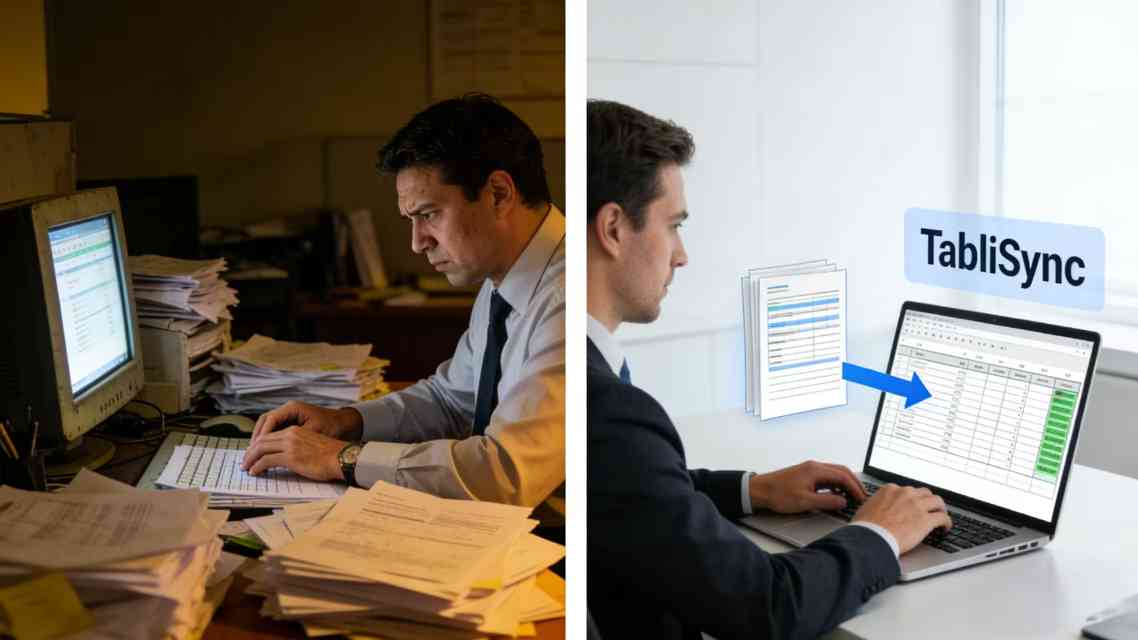
Manual data entry is a significant drain on resources. We all know it's slow. It is also incredibly prone to errors. These are not just simple typos. They can have major financial consequences. Think about keying in an invoice amount incorrectly. One extra zero can create massive problems in reconciliation. It leads to overpayments. It delays vendor payments. It messes up cash flow forecasts.
- Errors are not random; they tend to happen more on complex documents.
- Imagine a 100-line invoice with subtle variations in formatting. The chance of missing a single entry or misinterpreting a digit is high.
- The time spent correcting an error is often multiples of the time it took to make it. You have to trace the error, reverse the incorrect entry, re-enter the data, and possibly communicate with stakeholders.
- This repetitive, low-value work stifles employee morale. Smart professionals didn't go to school to manually type data from paper all day.
- It distracts valuable personnel from analyzing data, identifying trends, and contributing to strategic initiatives. The hidden cost in lost productivity and strategic opportunity is staggering.
Consider a small business processing 500 invoices a month. Each takes 5 minutes to manually enter. That's over 40 hours just for data entry. Now factor in the error rate – even a 1% error rate is 5 invoices needing complex correction. A robust Online OCR Editor can reduce this significantly, freeing up time and protecting against costly mistakes. This isn't just theory; we see clients recovering dozens of hours *weekly* by automating financial document OCR.
What is an Online OCR Editor and Why is It Different Now?
OCR technology itself is not new. Desktop applications have existed for decades. However, the shift to Online OCR Editors is a game-changer. These platforms move beyond simple conversion. They provide a dynamic, collaborative interface for managing the entire data capture lifecycle.
Traditional OCR often provided a single output file (like a searchable PDF or a minimally formatted Excel sheet). An Online OCR Editor offers much more:
Direct Verification and Editing: The core of the 'editor' concept is crucial. You don't just 'convert and hope.' You actively participate in confirming the extracted data. Highlighting areas for attention, adding missing fields, or correcting minor misinterpretations happens right within the interface.
Cloud-Based Collaboration: Multiple team members can access and process documents simultaneously. An accountant can review extracted data for accuracy before it's pushed to the General Ledger. A manager can approve captured invoice amounts. This eliminates bottlenecks associated with single-user desktop licenses.
Intelligent Table Extraction: Modern Online OCR Editors are far better at understanding structure. They don't just read words; they grasp relationships. This is vital for complex table extraction. They can identify rows, columns, headers, and totals even when formatting is non-standard.
API and Integration: Leading platforms don't operate in a vacuum. They are designed for automated data processing. You can often integrate them directly with other business applications via APIs or webhooks, making them a central part of your data workflow.
Consider a team receiving sensitive financial documents from various global regions. A desktop solution would require complex file sharing and potential security risks. An Online OCR Editor provides a secure, centralized location where everyone can access the relevant files with appropriate permissions, making automated data processing truly efficient.
The Strategic Advantage: Why You Need to Master Your OCR Editor
Mastering your Online OCR Editor isn't just about speed. It's about gaining a strategic edge. Accurate data is the lifeblood of modern business. When your data capture is flawed, every subsequent analysis and decision is suspect.
By effectively utilizing features like automated data processing, businesses can:
- Improve Data Integrity: Ensuring that data in your General Ledger or ERP is trustworthy is paramount. A mastered OCR editor gives you the tools to validate information at the source, dramatically reducing the downstream impact of errors.
- Accelerate Financial Cycles: Month-end close, account reconciliation, and financial reporting all depend on processed data. Reducing the time spent on manual input allows you to complete these cycles faster, giving leadership more timely insights.
- Enhance Audit Readiness: A well-documented, automated OCR workflow provides a clear trail. Auditors love consistency and verifiable processes. You can demonstrate exactly how data was captured, reviewed, and approved, making audits smoother and less stressful.
- Scale Operations without Linear Headcount Growth: As your business grows, the volume of documents to process will increase. Relying solely on manual data entry means you have to hire more people. A mastered Online OCR Editor allows you to scale up data processing significantly with minimal additional personnel.
- Redirect Talent: Moving employees from mundane data entry to high-impact activities like financial analysis, vendor negotiation, and process improvement can have a profound impact on overall business performance and employee satisfaction.
Think about the competitive advantage. If your competitor takes three weeks to generate monthly financial reports and you take three days because you've mastered automated data processing, who can make faster, more informed decisions? Who is better equipped to spot opportunities or address issues?
A Step-by-Step Guide: Mastering Any Online OCR Editor
Let's get practical. While different platforms have unique nuances, the core process for maximizing efficiency is remarkably consistent. Mastery comes from understanding each stage deeply and utilizing all available tools effectively.
Step 1: Document Preparation and Initial Setup
Quality in, quality out. This is the golden rule of OCR. Even the best Online OCR Editor will struggle with poor-quality inputs. Before you even upload, consider your documents.
- Resolution Matters: Ensure scanned documents are at least 300 DPI (dots per inch). Higher resolution provides clearer characters and better structure definition for the OCR engine. For digital documents like PDFs, this is generally less of an issue, but for physical documents, it's critical.
- Straightness and Clarity: Avoid uploading heavily skewed or creased documents. While modern OCR is surprisingly good at correcting slight rotation, excessive skew significantly impacts character recognition and table layout understanding. Flatten out creases and ensure documents are reasonably straight before scanning.
- Focus and Lighting: For photos of documents, ensure good, even lighting without harsh shadows or glare. The image should be in sharp focus. Blurred images are the nemesis of accurate character recognition.
- Check for Consistency: If you're processing large volumes of similar documents (e.g., invoices from the same vendor), consistency in scanning settings can dramatically improve initial extraction results over time, as the OCR engine learns the predictable format.
Within the Online OCR Editor itself, take a few minutes for initial configuration. Define default extraction zones or fields if possible. Some platforms allow you to create templates for recurring document types, which is incredibly powerful for automated data processing.
Step 2: Upload and Intelligent Initial Extraction
Upload your prepared documents. Most platforms offer drag-and-drop functionality, making it easy to add one or many files. Once uploaded, the OCR process automatically begins.
- Observe the Pre-processing: Pay attention to any auto-correct features. Modern editors often perform image enhancement, such as binarization (converting to black and white), noise reduction, and auto-rotation, *before* the actual OCR. Understanding what corrections are made automatically helps you assess input quality.
- Watch the Initial Result: Don't just click away. Observe how the Online OCR Editor initially interprets the document. Where does it succeed instantly? Where does it struggle? This immediate feedback loop is crucial for the learning process, both for you and, in many advanced systems, the OCR engine itself.
- Handling Multiple Files: If processing batches, check if the system allows you to define processing parameters for the whole batch or requires individual attention. Effective batch processing is key to achieving true efficiency in financial document OCR.
- Understanding Field Extraction vs. Table Extraction: Recognize that many platforms treat general field extraction (like invoice number, date, total amount) and complex table extraction (line items, descriptions, unit prices) as distinct tasks. Observe how the editor segments these different types of information.
Step 3: Direct Verification and Refining Complex Table Extraction
This is where the 'editor' part really shines, and where true mastery is achieved. It's not about accepting the default; it's about actively guiding the Online OCR Editor to perfection, especially for complex table extraction.
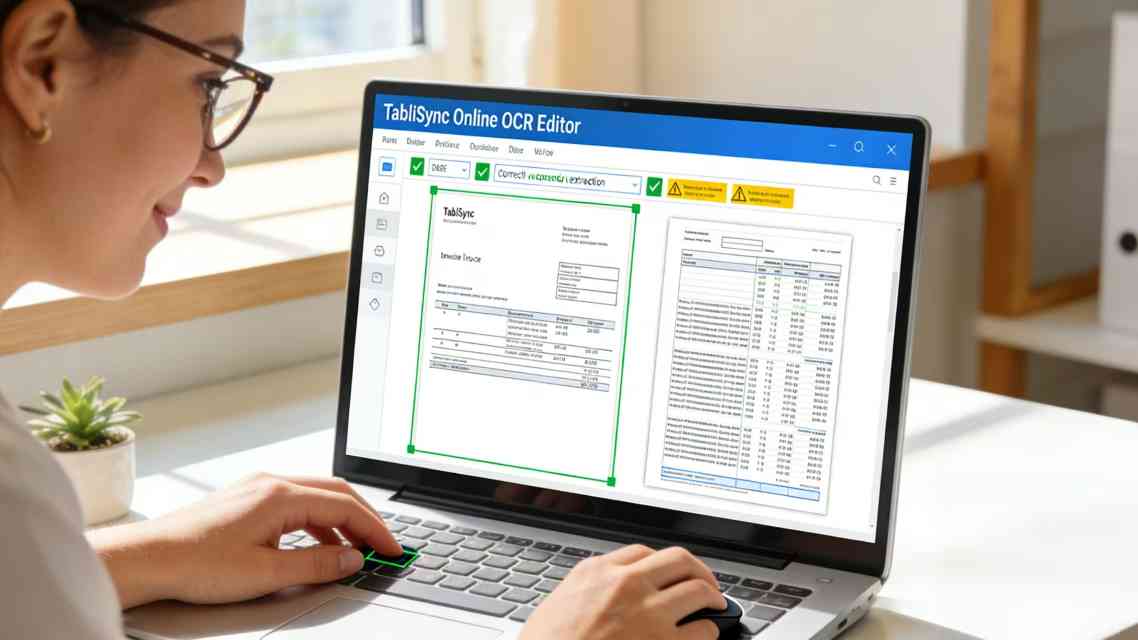
- Interact with Extracted Data: Navigate the extracted data within the editor. Click on individual fields or table cells. Notice how the corresponding region on the original document image is highlighted. This visual link is your best tool for validation.
- Refining Region Selection: If the editor missed a critical piece of information or misinterpreted a field boundary, you can typically adjust the extraction zone manually. Drag boundaries, resize boxes, or even draw new extraction areas entirely. This is crucial for non-standard documents.
- Mastering Table Recognition Tools: For complex table extraction, many editors offer specific tools to help you define table structure more precisely. You might be able to manually add, delete, or merge column and row separators. Some platforms let you explicitly define headers, ensuring data is mapped correctly even with complex multi-row headers.
- Validation Rules and Confidence Scores: Leverage the platform's intelligent features. Look for color-coded fields indicating low confidence scores. Some advanced Online OCR Editors allow you to set up validation rules (e.g., 'Ensure Invoice Date is not in the future', 'Validate that Total Amount = Subtotal + Tax'). Utilizing these dramatically improves data quality with minimal manual effort.
- Adding Missing Context: Sometimes an invoice might miss a key piece of information you need for internal processing (e.g., specific cost center). A good editor lets you add custom fields and manually input this data right alongside the extracted information, creating a complete, processed record.
Step 4: Structuring Data and Exporting to Downstream Systems
The final step in the process is transforming the verified information into a usable format and pushing it to where it needs to go. This isn't just about downloading an Excel file; it's about seamless integration and automation.
- Formatting and Cleansing: Some platforms allow you to perform basic data cleaning before export, such as standardizing date formats or removing unwanted characters. This ensures the data is ready for immediate use in your accounting software or ERP.
- Mapping to Internal Systems: If integrating directly with accounting software, you'll need to map the extracted fields to the corresponding fields in your target system. For example, the extracted 'Invoice Number' must be linked to the 'Vendor Invoice Number' field in your accounting application. Spend time setting this mapping up correctly; it's a one-time effort that pays huge dividends.
- Choosing the Right Export Format: While Excel and CSV are common, consider XML or JSON formats for more complex data structures, especially if you're using APIs for integration. Some systems even support direct export to popular cloud accounting platforms like QuickBooks or Xero.
- Automating the Push: The ultimate goal is automated data processing. Many Online OCR Editors can be configured to automatically push verified data to a connected application via webhooks or APIs, completely eliminating the final manual step of data transfer.
- Reviewing Processing Logs: Especially in automated setups, periodically review processing logs. These provide invaluable insights into extraction performance, identifying recurring issues or documents requiring more attention, and allowing for continuous process improvement.
By following these detailed steps, you can move from simply using an OCR tool to truly *mastering* your Online OCR Editor, transforming it into a vital component of your automated data management ecosystem.
Real-World Scenarios and Expert Insights
Let's elevate this discussion from feature sets to real-world application. True mastery requires understanding how to apply these tools to specific, complex business challenges. We'll examine practical examples where a powerful Online OCR Editor makes a tangible difference.
Case Study 1: Resolving Complex Table Extraction Challenges in International Shipping
Imagine a global logistics company receiving hundreds of international bills of lading daily. These documents are notoriously varied, containing complex table extraction challenges with multi-row item descriptions, diverse currency symbols, and unpredictable layouts.
- The Challenge: Manually keying this data into their freight management system was a nightmare. Misinterpreting a single digit in a weight or dimension column could result in significant billing errors and customs issues.
- The OCR Editor Solution: By deploying an Online OCR Editor with advanced complex table extraction capabilities, they could define specific validation rules based on expected patterns for container numbers and weight formats.
- The Result: They achieved over 90% accuracy on table extraction for their primary carriers. The time spent processing a single bill of lading dropped from 15 minutes to under 3 minutes, dramatically increasing throughout and reducing billing disputes.
Case Study 2: Streamlining High-Volume Accounts Payable in Retail
A rapidly growing retail chain faced a deluge of diverse invoices from thousands of vendors. Their accounts payable team was swamped, and late payments were damaging vendor relationships.
- The Challenge: Consistency was non-existent. Invoices came in different languages, formats, and currencies. Identifying the core data points (invoice number, total amount, line item details for inventory reconciliation) required tedious manual effort.
- The OCR Editor Solution: They implemented an Online OCR Editor and utilized its template creation features for their top 50 vendors. For other vendors, they trained their staff to use the interactive verification tools to quickly validate critical fields.
- The Result: The AP team was able to process three times the invoice volume with the same headcount. Early payment discounts, previously missed due to slow processing, became achievable, resulting in substantial financial savings. Vendor queries about payment status plummeted.
Case Study 3: Automating Expense Reconciliation in Professional Services
A large consulting firm needed to reconcile thousands of employee expense receipts with corporate credit card statements. These receipts ranged from wrinkled taxi slips to detailed restaurant invoices, all presenting a significant financial document OCR challenge.
- The Challenge: Manual reconciliation was insanely time-consuming and prone to errors. Matching blurred or non-standard receipts to corresponding card transactions was highly subjective and often inaccurate.
- The OCR Editor Solution: Employees uploaded photos of their receipts to a central Online OCR Editor. The editor automatically extracted date, merchant name, total amount, and even tax details.
- The Result: The reconciliation process was transformed. The system could automatically match extracted receipt data to the corresponding digital credit card transaction in many cases. The overall reconciliation time was halved, and the accuracy of expense categorization improved dramatically, leading to better cost analysis and tax compliance.
These scenarios illustrate that the power of an Online OCR Editor is unlocked when applied intelligently to specific business processes. It's not just about converting images to text; it's about solving real-world data capture problems.
Technical Deep Dive: The Engine Under the Hood
Mastering any tool requires understanding how it *actually* works, at least on a conceptual level. This knowledge empowers you to troubleshoot issues, optimize usage, and truly leverage advanced features.
- Layout Analysis and Zoning: Before recognizing any text, the OCR engine first attempts to understand the document's physical structure. It identifies blocks of text, lines, paragraphs, and critical table structures. Advanced Online OCR Editors excel at this, utilizing sophisticated algorithms to differentiate between headers, body text, and tabular data. Understanding that zoning happens *first* helps explain why correcting region boundaries is such a critical manual intervention.
- Character Recognition Engines: The core text extraction relies on multiple algorithms, often combining pattern matching (comparing shapes to known character templates) and feature extraction (analyzing specific strokes and angles). Modern systems often employ ensemble methods, where multiple OCR engines run in parallel and their results are combined, with higher weight given to the more confident engines. This drastically improves accuracy.
- Neural Networks and Machine Learning: The most significant advancements in OCR are driven by Deep Learning and Convolutional Neural Networks (CNNs). These systems are trained on vast datasets of diverse documents, allowing them to 'learn' language patterns, font variations, and even handwriting to some extent. This is why automated data processing capabilities continue to improve over time.
- Post-processing and Natural Language Processing (NLP): The initial character recognition is often refined using language models and dictionary lookups. For example, if the system reads 'lnvoce', the NLP component might confidently correct it to 'Invoice' based on contextual cues. Some advanced platforms even offer basic semantic understanding, distinguishing, for instance, between a bill-to address and a ship-to address.
- API and Webhook Architecture: Integration is key to automated data processing. APIs (Application Programming Interfaces) allow other systems to programmatically upload documents and retrieve extracted data. Webhooks offer a push mechanism, where the Online OCR Editor can automatically send a notification (e.g., as a JSON payload) to a pre-defined URL whenever a document is fully processed and verified. Mastering these integration points is crucial for building scalable, end-to-end automation workflows.
By grasping these underlying concepts, you can better understand the strengths and limitations of your chosen Online OCR Editor, allowing you to troubleshoot unexpected results and optimize your processes for maximum efficiency.
Maximizing Efficiency: Data Structuring and Automation Workflows
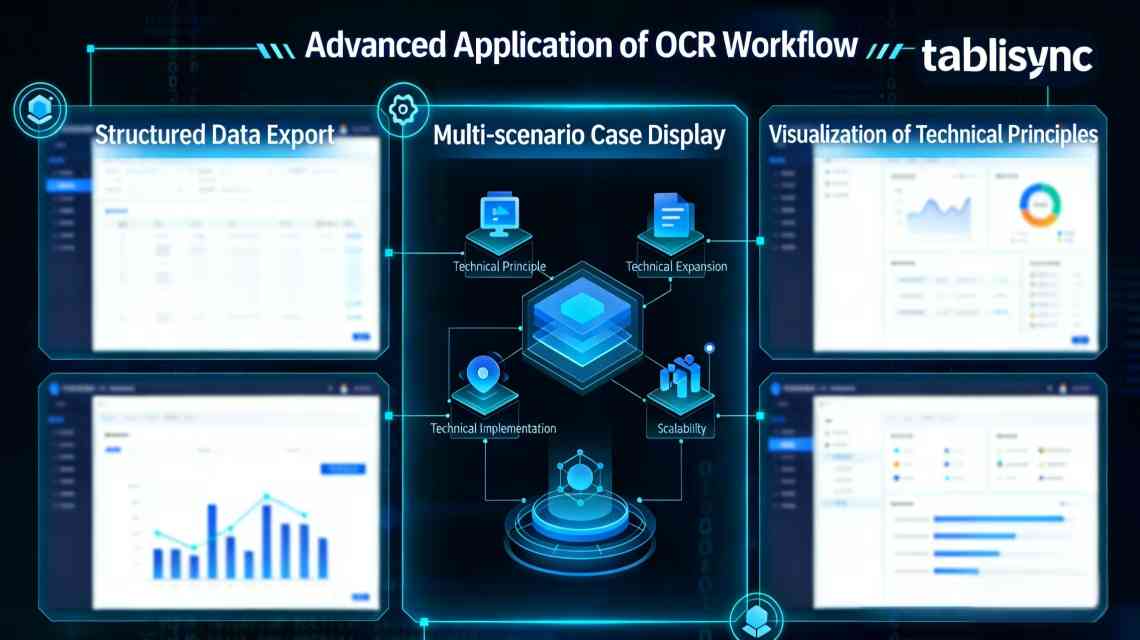
The true power of a mastered Online OCR Editor is realized when it becomes a seamless part of a larger, automated data ecosystem. It's not just about getting text; it's about getting *structured* data and placing it exactly where it's needed with minimal intervention.
Standardizing Data Structures: Different documents use varying terms (e.g., 'Total Amount', 'Grand Total', 'Amount Due'). A key aspect of mastering your OCR editor is configuring it to always output data in a consistent, standardized format that matches your internal systems' requirements. For example, ensuring all dates are consistently formatted as 'YYYY-MM-DD'. This formatting work should be automated within the platform whenever possible.
Creating Powerful Automation Workflows: Go beyond simple batch uploads. Design end-to-end workflows. For instance:
- A document is received via a dedicated email address.
- An automation tool (like Zapier or an internal script) automatically sends the document to your Online OCR Editor via API.
- The OCR engine performs initial extraction, flagging any low-confidence fields for manual verification.
- Your AP team reviews and validates only the flagged documents.
- Once verified, the editor uses a webhook to push the structured JSON data (including standardized fields and detailed line items for complex table extraction) to your accounting system's API for General Ledger posting.
This level of integration transforms the Online OCR Editor from a productivity tool for individuals into a critical piece of enterprise infrastructure. Mastery here involves understanding the capabilities of your platform's APIs and webhooks and potentially collaborating with your IT or development team to build robust, scalable automation workflows.
Continuous Process Improvement: Don't treat your workflows as static. Regularly analyze performance. Where do manual interventions most often occur? Which vendors always seem to have low confidence scores? Use these insights to refine extraction zones, update templates, and possibly even give feedback to scanning personnel. A mastered process is a continuously optimized process.
Security, Compliance, and Trust in Online OCR
When dealing with sensitive documents like financial records, trust is non-negotiable. Mastering an Online OCR Editor requires a thorough understanding of its security and compliance posture. You must be confident that your data is protected.
- Data Encryption: Ensure the platform utilizes robust encryption methods, both in transit (e.g., HTTPS/TLS) and at rest (e.g., AES-256). This protects data from unauthorized access while it's being uploaded, processed, and stored.
- Compliance Standards: Look for compliance with relevant data privacy regulations like GDPR (General Data Protection Regulation) or CCPA (California Consumer Privacy Act), depending on your location and customer base. For healthcare-related documents, HIPAA compliance is critical. For financial data, adherence to standards like SOC 2 Type II demonstrates a strong commitment to security controls.
- Role-Based Access Control (RBAC): Implement strict access controls within the platform. Not everyone needs to see every document. Mastering your Online OCR Editor involves defining clear user roles with appropriate permissions, ensuring that sensitive financial information is only accessible to authorized personnel.
- Data Retention and Deletion Policies: Understand how long your data is stored and ensure the platform provides tools for automated data deletion according to your business's compliance requirements. A good editor should have clear policies and provide easy ways to purge old data.
- Audit Trails and Logging: Robust auditing is essential for security and compliance. Ensure the platform maintains detailed logs of all user activities, including logins, document uploads, data edits, and exports. This provides accountability and a clear trail for security reviews or audits.
By prioritizing these security and compliance aspects, you build a foundation of trust. This allows your team to confidently use the Online OCR Editor for even the most sensitive financial document OCR tasks, knowing that data integrity and privacy are protected.
The Human Element: Training, Adoption, and Change Management
Even the most powerful technology fails without proper human adoption. Mastering an Online OCR Editor is as much about people as it is about technology. Resistance to change is natural, especially when automation feels like it might threaten job security.
- Frame Automation Positively: Don't position automated data processing as a replacement for people. Instead, frame it as a tool that empowers them. It eliminates the boring, repetitive parts of their job, freeing them up for more rewarding and high-value work.
- Provide Comprehensive Training: Don't just give people a login and hope for the best. Offer structured training sessions, focusing not just on basic features but on mastering the interactive verification and complex table extraction tools. Provide clear guides and ongoing support.
- Identify and Empower Champions: Find employees who are enthusiastic about technology and empower them to become power users and internal advocates for the new system. They can help train their colleagues and troubleshoot minor issues, driving overall adoption.
- Solicit Feedback Regularly: Actively encourage feedback from users. They are the ones interacting with the platform daily. Their insights into usability issues, recurring extraction errors, or suggestions for improvement are invaluable for continuously optimizing your workflows and ensuring long-term success.
- Celebrate Success and Quantify Impact: Don't just focus on the implementation; track and communicate the results. Show your team how much time has been saved, how many errors have been reduced, and how these improvements contribute to broader company goals. Quantifying the impact builds buy-in and encourages continued engagement.
By focusing on these human elements, you ensure that your investment in an Online OCR Editor leads to real, sustainable improvements in efficiency and employee satisfaction.
Conclusion: Unleashing the Full Potential of Your Online OCR Editor
We've journeyed through the intricacies of mastering an Online OCR Editor, from initial setup to technical details and human adoption. We've seen how it can fundamentally transform your data capture processes, dramatically reducing manual effort, enhancing accuracy, and accelerating critical business cycles. It's clear that true mastery isn't just about knowing where to click; it's about strategically applying this powerful technology to solve specific business problems, build scalable automation, and foster a data-driven culture.
By effectively leveraging features like automated data processing, complex table extraction, and seamless integrations, you move beyond simply 'doing OCR' to truly mastering your data flow. This isn't just an efficiency play; it's a strategic imperative in today's fast-paced, information-heavy business landscape. Accurate, timely data is the cornerstone of informed decision-making, and a mastered Online OCR Editor is the key to unlocking that invaluable resource. So, don't just use your editor – master it, integrate it, and unleash its full potential to propel your business forward.
FAQ: Common Questions About Mastering Online OCR Editors
- How accurate is complex table extraction with an Online OCR Editor?
- Accuracy varies significantly based on the platform's sophistication and document quality. Leading solutions like TabliSync employ advanced machine learning and can achieve highly accurate results (often 90%+) on structured tables, especially when you've mastered the interactive tools for refining extraction zones and defining headers. For challenging documents, the real power lies in the editor's interactive verification features, allowing for quick and easy manual correction. For example, if a multi-page shipping invoice has dozens of line items, a good editor will likely get most of it right, but a human review is still advisable for that final 10% accuracy assurance, which is still vastly faster than manual entry.
- What security measures should I look for?
- Prioritize platforms offering robust encryption (data-in-transit via HTTPS/TLS, data-at-rest via AES-256), compliance with data privacy standards like GDPR/CCPA, and ideally, certifications like SOC 2 Type II. Detailed audit logging and granular role-based access control are also critical. Mastering security here means actively configuring these features to restrict data access and purge old documents according to your retention policies.
- Can these tools handle handwritten data?
- While significant progress has been made, handwritten text recognition (HTR) remains inherently more challenging than machine-printed text OCR. Accuracy levels are generally lower and highly dependent on legibility. For critical fields involving handwriting, expect to utilize the Online OCR Editor's verification tools extensively to ensure accuracy. If your primary need is processing handwritten forms, you'll need to carefully evaluate and train any platform, and realistic expectations regarding manual review are crucial.
- What are the limitations of an Online OCR Editor?
- While incredibly powerful, they are not infallible. Accuracy drops with extremely poor input quality (very low resolution, excessive skew, heavily wrinkled documents). Understanding complex multi-page table layouts that shift dramatically can also present challenges. Furthermore, extremely high processing volumes might require considering the API's rate limits and ensuring your automation workflows can handle the load. Mastering the tool means knowing these limitations and designing workflows that incorporate human verification for edge cases and optimize input document quality.
- How do I train my team effectively?
- Move beyond basic feature overviews. Focus on practical, scenario-based training. Have employees practice refining extraction zones on real, varied documents. Show them how to leverage validation rules and address low-confidence scores. Create clear, concise documentation and provide ongoing support. Emphasize how automated data processing directly benefits them by reducing mundane tasks. Identifying and empowering internal champions is also key to driving adoption and sustainable mastery.
- Can I integrate an Online OCR Editor with my existing ERP or accounting software?
- Absolutely, and this is crucial for true automated data processing. Most reputable Online OCR Editors offer either pre-built integrations with popular cloud accounting platforms (like QuickBooks or Xero) or robust APIs and webhooks that allow your technical team to build custom integrations with virtually any system, pushing structured data (JSON/XML) directly into your General Ledger or relevant module.
- What is the ROI of mastering an Online OCR Editor?
- The ROI can be significant and multifaceted. Direct cost savings from reduced manual labor and avoided input errors are easily quantifiable. Accelerated financial cycles, improved cash flow, better vendor relationships due to faster payments, and enhanced audit readiness provide further value. Increased employee morale and the strategic benefit of having faster access to accurate data for analysis contribute to a powerful overall return on investment, often achieving payback within a few months of full adoption.
- How do Online OCR Editors handle different languages and currencies?
- Many modern platforms support a wide range of global languages and currencies. However, accuracy can vary. It's essential to check the supported language list for your chosen editor and thoroughly test it with your specific document types. Some systems are better at recognizing diverse currency symbols and formatting conventions. Mastering a multilingual setup involves validating that the extracted data is correctly mapped and ensuring any needed currency conversion or standardizing is handled within your downstream systems.
- Is there a learning curve for using an Online OCR Editor effectively?
- Yes, there is always a learning curve when adopting new technology and optimizing processes. While basic data extraction is straightforward, truly mastering the features for complex table extraction, creating templates, and setting up automated workflows requires time, training, and practice. However, the interactive nature of modern editors and powerful support resources significantly reduce this curve, and the long-term benefits in efficiency far outweigh the initial investment in learning.
Ready to reclaim your time and put an end to the inaccuracies of manual data entry? The future of efficient automated data processing is within reach. Don't let your valuable resources be consumed by mundane, error-prone tasks. Experience the transformative power of a truly advanced, interactive Online OCR Editortablisync.comthat is designed to excel at financial document OCR and handle even the most complex table extraction with ease. Take the first step towards a more agile, accurate, and profitable data workflow by trying TabliSync today. Sign up for our free trial and see firsthand how quickly you can start reducing manual data entry and gaining faster, more accurate insights from your documents. There's no reason to wait – start optimizing your data capture process right now and give your business the efficiency boost it deserves. Your accurate data, streamlined operations, and more productive team are just a click away.
All Online OCR Editor Articles(9)
How to Duplicate a Sheet in Excel: Step-by-Step Guide
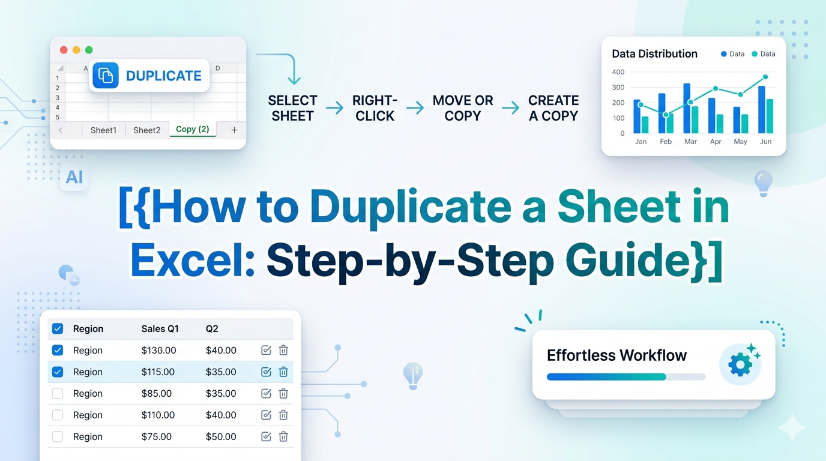
This guide provides step-by-step instructions on how to duplicate a sheet in Excel, helping users manage their spreadsheets efficiently and accurately. Whether you're working with financial reports, inventory sheets, or any other data, duplicating sheets can save time and ensure consistency. Follow our clear instructions to master this essential Excel skill. By the end of this guide, you'll be able to duplicate sheets with confidence and keep your work organized. Don't forget to explore how TabliSync can further enhance your spreadsheet management tasks after you’ve learned this skill!

How to Make Pie Chart with Percentages in Excel
In today's data-driven world, effectively visualizing information is crucial for business success. This article provides a clear and practical guide on creating pie charts in Excel using percentage data. Whether you're an accountant working with financial reports or an analyst translating sales data into visual formats, pie charts can enhance understanding and presentation. Follow the outlined steps to create pie charts that accurately reflect your data, and discover tips for customization to improve clarity and impact. Additionally, learn how TabliSync can assist in preparing your data for these visual representations, making the process smoother and more efficient. By the end of this article, you'll have the skills to present your data visually, ensuring you convey information effectively and make informed decisions based on accurate representations.
How to Add a Drop Down Menu to Excel
Repetitive manual data entry often causes inconsistent data and low work efficiency for business staff using Excel. This article explains difficulties in creating Excel drop-down menus, and introduces two solutions including manual setup and automated data extraction methods. It also covers detailed operation steps, key pre-export checks, common setup errors and FAQs. Building standardized drop-down menus effectively unifies data entry standards, cuts manual errors and optimizes daily office data processing and financial reporting workflows.

How to Unhide All Rows in Excel: A Simple Guide
Hidden Excel rows often hinder data analysis and reporting accuracy for business and accounting staff. This article introduces manual and automated ways to unhide rows, lists common operational pitfalls and key data verification points. It helps users efficiently restore complete spreadsheet data and ensure reliable data processing.
How to Use Keyboard Shortcuts Paste Values to Clean Complex Spreadsheet Data
Reduce data cleaning time by up to 80% using direct keyboard shortcuts paste values instead of manual formatting removal. Eliminate hidden formatting errors, broken formulas, and inconsistent data types from imported or legacy datasets. Maintain a clean, reproducible data pipeline without macros or VBA — just native Excel keystrokes. Bridge structured and unstructured data workflows by combining paste values with extraction tools like TabliSync.
PDF Bank Statement to Excel
This comprehensive guide explores how TabliSync's AI-driven OCR technology transforms messy PDF bank statements into structured Excel data. Learn how to automate reconciliation, ensure 100% data security, and eliminate manual entry for tax season.
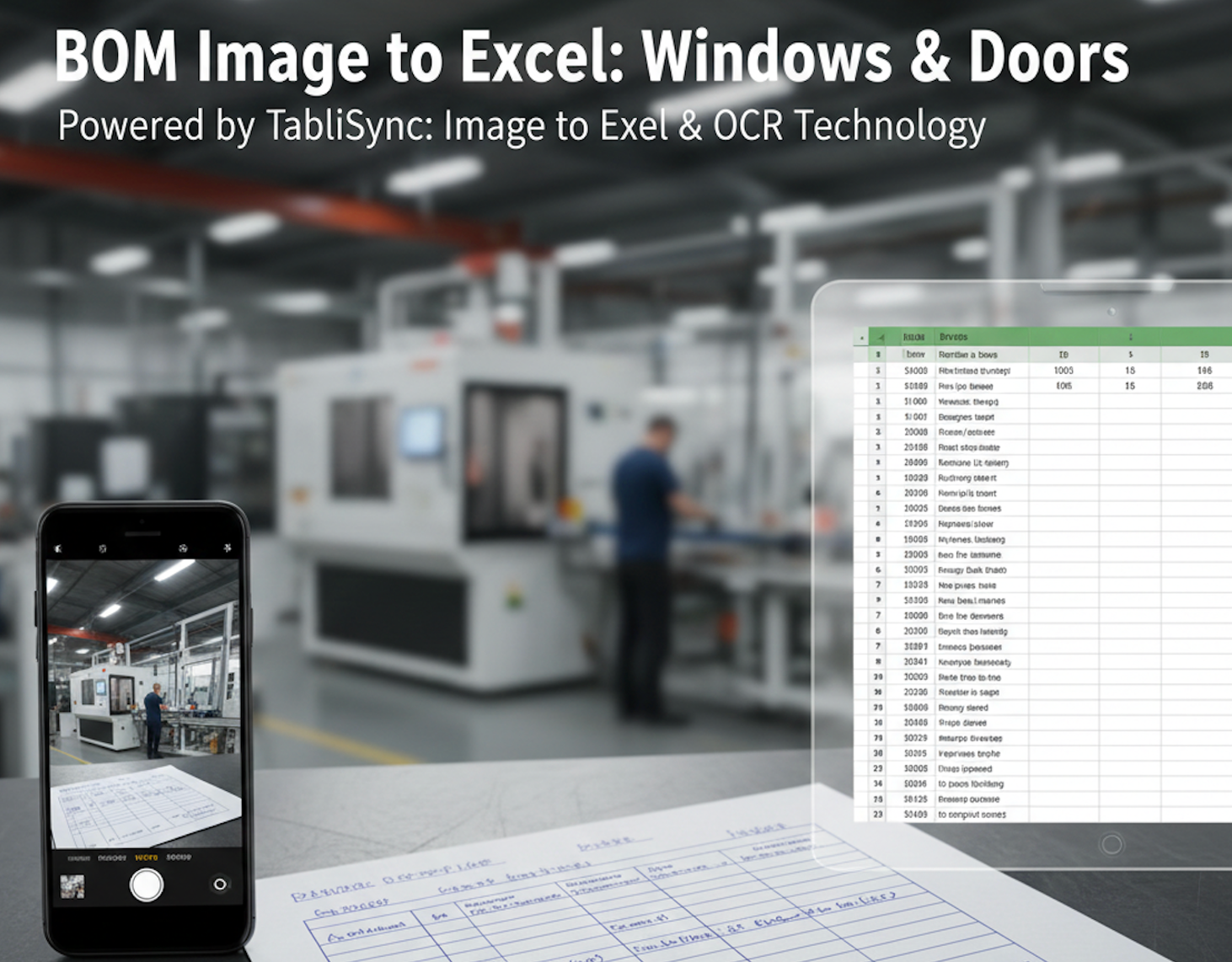
BOM Image to Excel: Windows & Doors
In the high-precision world of window and door manufacturing, the distance between a field measurement and the cutting machine is often a piece of crumpled paper. For decades, the "Handwritten Sales Order" has been both the lifeblood and the bottleneck of the industry. Dealers, contractors, and site managers often rely on hand-drawn sketches and manually filled Bill of Materials (BOM) to communicate complex specifications like frame dimensions, glass types, and hardware finishes. However, manual data entry is a silent profit killer. One typo during the transcription of a JPG to Excel task can lead to an entire batch of miscut profiles or incorrectly sized double-glazed units. This is why forward-thinking factories are turning to TabliSync. By leveraging advanced Image to Excel and PDF to Excel AI technology, manufacturing leaders are digitizing their workflows, ensuring that what is written on the clipboard is perfectly synced with their production software in seconds.
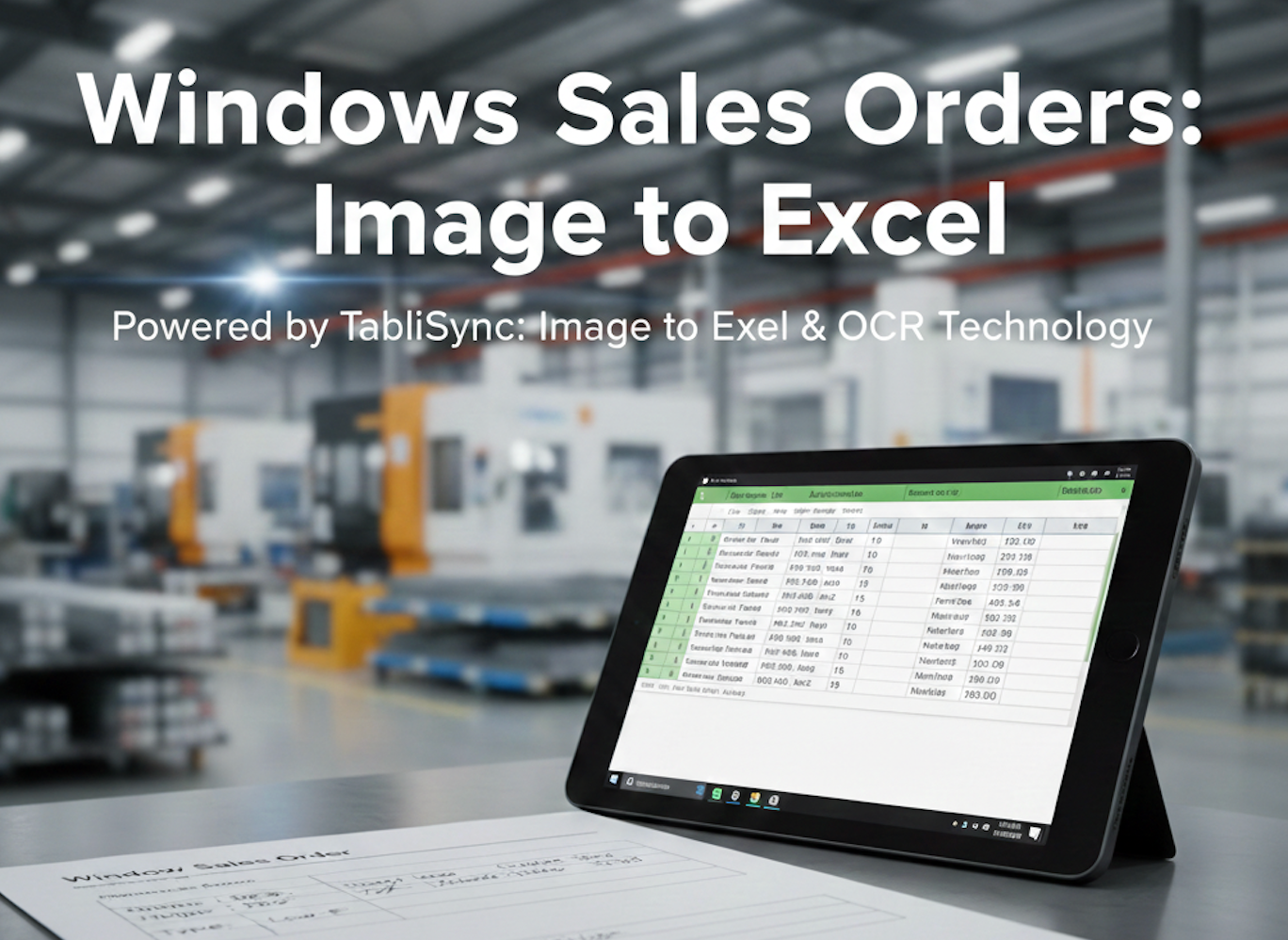
Windows Sales Orders: Image to Excel
The window and door manufacturing industry is built on precision, but its administrative backbone is often buried in paper. From handwritten sales orders and sketched-out Bill of Materials (BOM) to complex PDF quotes sent by dealers, the data entry bottleneck is real. For a production supervisor, retyping these measurements into a centralized ERP or Excel sheet isn't just tedious—it’s a liability. One typo in a "JPG to Excel" manual transcription can lead to a miscut glass unit costing thousands in wasted material and shipping delays. In this guide, we explore how modern AI-driven OCR (Optical Character Recognition) is transforming the shop floor. By leveraging TabliSync’s specialized Image to Excel and PDF to Excel capabilities, manufacturers are digitizing their workflows, ensuring that what is written on the clipboard is exactly what ends up in the production schedule.
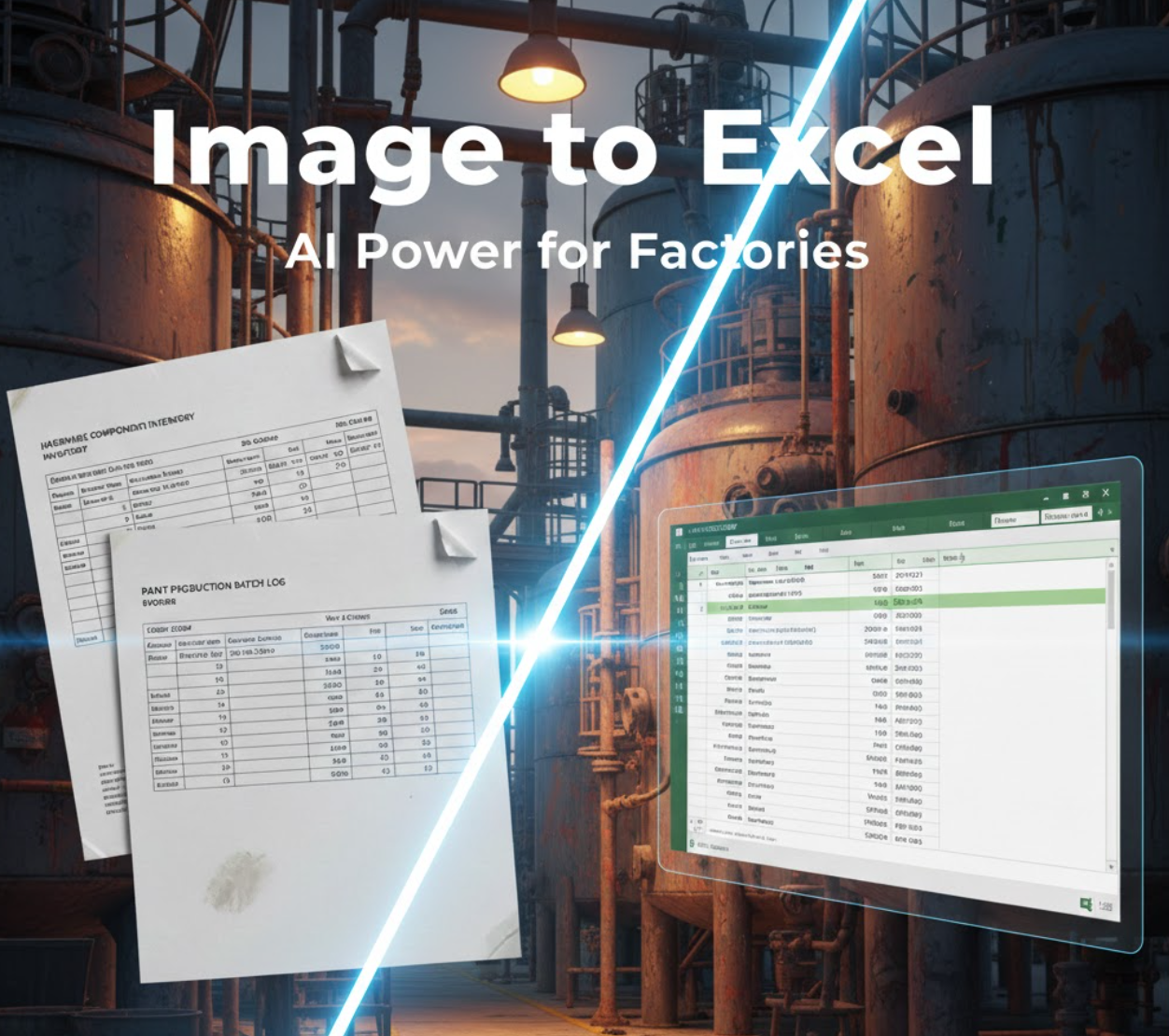
Convert Factory Images to Excel with TabliSync AI
Discover how to digitize paper-based factory records using TabliSync. This guide covers the end-to-end process of transforming images from hardware, paint, or paper mills into organized Excel spreadsheets using AI.
Stop Manual Data Entry – Extract Tables in Seconds
Convert any image or PDF table to Excel instantly with 99.9% accuracy. TabliSync's AI-powered OCR handles handwritten forms, receipts, and complex tables – then syncs directly to Google Sheets, Notion, or Airtable
Try TabliSync Free Now