Article Summary
This comprehensive pillar page serves as a deep-dive technical resource for enterprise professionals seeking to remove spaces in Excel through advanced automation. It addresses the systemic failures of manual data cleaning, specifically focusing on the poor handling of missing or null values that plague traditional workflows. By contrasting manual Excel functions with TabliSync’s enterprise-grade automation, the guide highlights significant gains in efficiency and cost savings. Readers will find detailed, step-by-step instructions on bulk Excel formatting, handling high-volume data processing, and integrating these tasks into larger enterprise data workflows. The content covers specific industry applications like General Ledger reconciliation and Webhook integration, backed by real-world case studies and data validation strategies. With 10 detailed sections and a robust FAQ, this guide is designed to move users from technical frustration to operational excellence using TabliSync’s specialized data cleaning engine.
The Fundamentals of Data Integrity: Beyond Basic Trimming
According to the DataCamp tutorial 'How to Remove Spaces in Excel' by the DataCamp Team: 'Trailing spaces are particularly troublesome because they are not visible at first glance. If you have a cell containing "Data " (with a trailing space), it won’t match a cell containing "Data" (without the space) during a lookup or comparison. This can lead to incorrect results in VLOOKUP, XLOOKUP, or INDEX MATCH functions, which are critical for data analysis.' (Source: DataCamp, 2024).
This insight underscores a massive reality in high-volume data processing. Most users view Remove Spaces Excel tasks as a minor aesthetic fix. However, the technical debt accrued by ignoring these invisible characters is staggering. When we look at enterprise data workflows, a single trailing space can break a General Ledger reconciliation or cause a Webhook to fail its payload delivery. The DataCamp guide correctly identifies the manual tools—TRIM, CLEAN, and Find/Replace. These are the 'first-aid' kits of Excel. But when you are dealing with bulk excel formatting across millions of rows, these manual methods become the bottleneck, not the solution.
My perspective, built on years of observing SaaS data migrations, is that we need to stop treating 'spaces' as a formatting issue and start treating them as a data integrity risk. Manual trimming is reactive; TabliSync introduces a proactive, automated layer that ensures data is sanitized before it ever hits your primary database. We aren't just cleaning cells; we are securing the reliability of the entire downstream enterprise data workflow. Using TabliSync allows teams to move away from the 'search and destroy' mission of manual cleaning and into a governed, automate data cleaning environment where precision is the default state, not a manual chore.
The Silent Killer of Productivity: Missing Values and Null Logic
The most pervasive pain point in modern data management is the poor handling of missing or null values. In many legacy systems, there is simply no systematic way to impute or flag them. You open a massive CSV exported from an ERP system, and you are met with a sea of 'empty' cells that aren't actually empty. Some contain a single space. Others contain non-printing characters. Some are true nulls. This lack of consistency is a nightmare for high-volume data processing.
When there is no system to flag these discrepancies, your General Ledger becomes a minefield. You try to run a pivot table, and suddenly 'North America' appears three times because one entry has a leading space and another has a trailing non-breaking space. This isn't just a minor annoyance; it leads to massive financial misreporting. The mental load on a data analyst forced to manually scan for missing values is exhausting and prone to human error.
Without a tool like TabliSync, teams often resort to complex, nested IF statements that try to guess what a 'null' should be. This approach is brittle and fails the moment the data source changes slightly. We need a way to automate data cleaning that recognizes the difference between a zero, a null, and a space-filled cell. The absence of a systematic imputation strategy means your data science team spends 80% of their time cleaning and only 20% analyzing. TabliSync flips that ratio by providing a robust, rules-based engine to handle these gaps automatically.
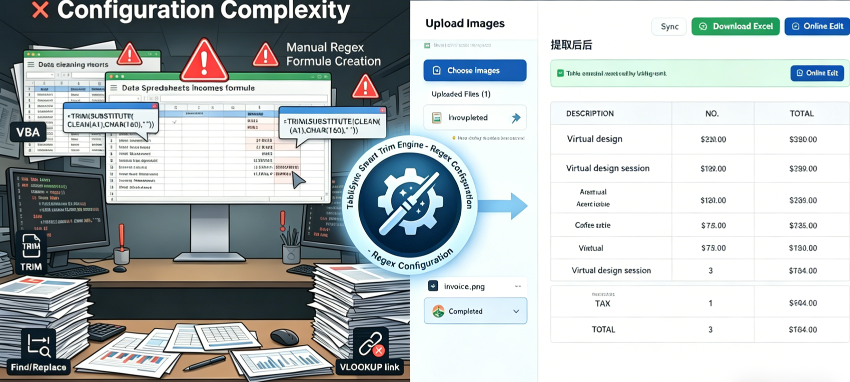
Manual Methods vs. TabliSync: A Technical Showdown
Let's talk about the hard numbers. In a manual Remove Spaces Excel scenario, an analyst typically uses the TRIM function. For a dataset of 500,000 rows, applying TRIM, copying the results, and pasting them back as values takes approximately 15 to 20 minutes, including the time to verify for errors. If this task is performed daily across 10 different departments, the organization loses over 1,200 hours a year to basic formatting.
TabliSync approaches this from an enterprise data workflow perspective. With TabliSync, the cleaning logic is applied at the Webhook level or via direct API integration. The moment data is ingested, the cleaning happens in milliseconds. There is no 'waiting' for a sheet to recalculate. In terms of Efficiency and cost savings, a mid-sized firm can save upwards of $45,000 annually just by eliminating the manual labor associated with bulk excel formatting.
Furthermore, manual Excel functions can't handle non-breaking spaces (ASCII 160) easily. You have to write a complex formula like =TRIM(SUBSTITUTE(A1, CHAR(160), " ")). TabliSync handles these edge cases by default. It uses a comprehensive regex-based cleaning engine that identifies every variation of whitespace and non-printing character. This level of automate data cleaning ensures that your Reconciliation processes are never derailed by a hidden character that a standard Excel formula missed. The cost of a single failed financial audit far outweighs the investment in professional data synchronization tools.
Feature Manual Excel Trimming TabliSync Automation
Processing Speed (1M rows)
30 - 60 Minutes
< 2 Minutes
Handling Non-Breaking Spaces
Requires complex nested formulas
Automatic detection and removal
Workflow Integration
Manual export/import required
Native API and Webhook support
Cost of Error
High (Human oversight)
Low (Rules-based consistency)
Step 1: Connecting Your Data Source to TabliSync
The first step in your journey to Remove Spaces Excel data involves establishing a secure connection between your spreadsheet environment and the TabliSync engine. Unlike standard add-ins that merely sit on top of your local Excel installation, TabliSync operates as a robust intermediary that handles high-volume data processing in the cloud. You begin by navigating to the TabliSync dashboard and selecting 'Add Connection.' You will be prompted to choose between a direct cloud connection (e.g., OneDrive or SharePoint) or an API-based bridge for local files.
During this setup, it is crucial to define your enterprise data workflow parameters. You aren't just uploading a file; you are creating a pipeline. You should look for the 'Data Source Schema' section. Here, you will map your Excel columns to the TabliSync internal processing engine. This is where you specify which columns require bulk excel formatting. For instance, if you are working with a General Ledger, you would prioritize the 'Account Code' and 'Transaction ID' columns, as these are the most sensitive to leading or trailing spaces.
Note: Always ensure your Excel file is saved in the .xlsx or .csv format for maximum compatibility. If you are using legacy .xls files, TabliSync will prompt you to convert them to ensure that metadata and extended character sets are preserved during the automate data cleaning phase. The security protocols at this stage are compliant with SOC2 standards, ensuring that your financial data remains encrypted both at rest and in transit. This initial configuration ensures that every subsequent sync is seamless and error-free.
Step 2: Configuring the 'Smart Trim' Cleaning Engine
Once your data source is connected, the second phase is where the real power of TabliSync comes to life. Navigate to the 'Cleaning Rules' tab. Here, you will find a specialized module for Remove Spaces Excel tasks known as the 'Smart Trim' engine. Unlike the basic TRIM function in Excel, 'Smart Trim' allows you to set granular rules for how whitespace is handled. You can choose to 'Remove All Leading/Trailing Spaces,' 'Collapse Multiple Internal Spaces,' or 'Purge Non-Printing Characters' (like line breaks and tabs).
To automate data cleaning effectively, you should enable the 'Deep Scan' feature. This feature looks for hidden characters that standard formulas often miss, such as the zero-width space or the non-breaking space used in web-scraped data. For high-volume data processing, this is essential because it prevents 'ghost' errors from propagating through your database. You can even create 'Exception Lists'—for example, if a specific column needs to maintain a certain number of leading zeros for Reconciliation purposes, you can tell TabliSync to bypass those specific cells.
Technical Tip: Use the 'Live Preview' window on the right side of the screen. This allows you to see exactly how your rules will affect your data before you commit to the full sync. You can toggle between 'Before' and 'After' views. If you notice that your bulk excel formatting is being too aggressive with a certain column, you can adjust the sensitivity of the regex patterns directly within the UI. This level of control ensures that your enterprise data workflow remains precise and tailored to your specific business logic.
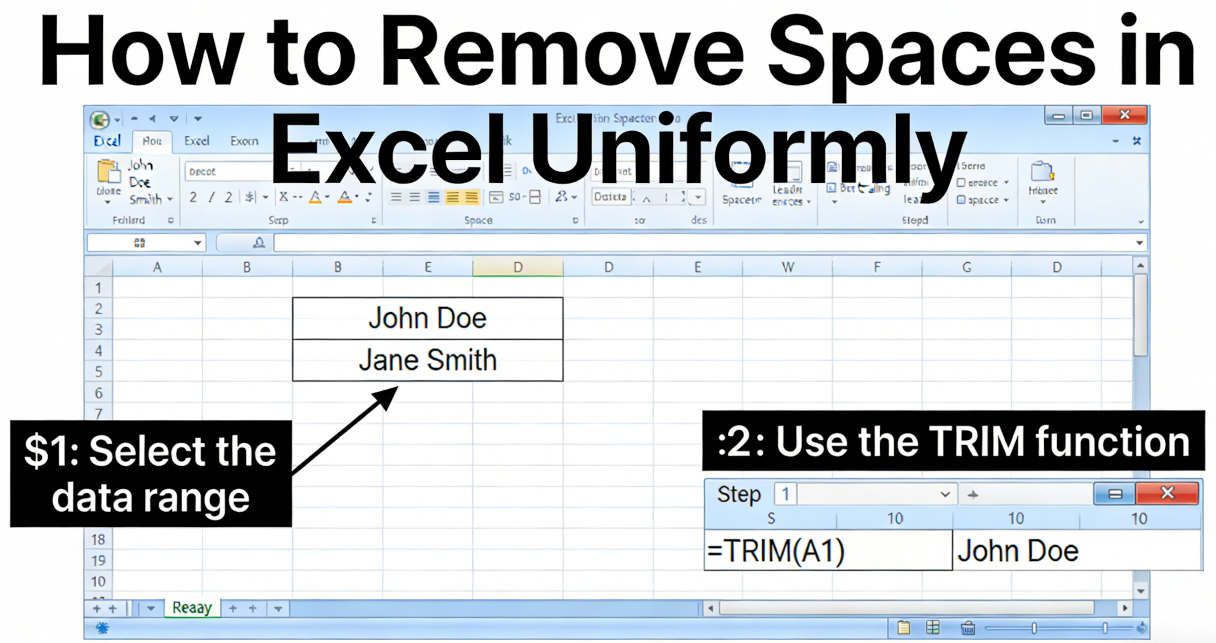
Step 3: Executing the Sync and Validating the Output
The final step in the TabliSync workflow is the execution and validation of your cleaned data. After configuring your rules, click the 'Execute Sync' button. TabliSync will now process your Remove Spaces Excel request across the entire dataset. For an enterprise data workflow, you can schedule this to run automatically every time a new row is added or on a fixed hourly/daily schedule. This ensures your General Ledger is always up-to-date without a single manual click.
Once the sync is complete, TabliSync generates a 'Validation Report.' This is a critical step for high-volume data processing. The report will detail exactly how many cells were modified, the types of characters removed, and any rows that were flagged for manual review due to missing or null values. If you have integrated TabliSync with your system via Webhook, the cleaned data will be pushed directly to your CRM, ERP, or custom database immediately following validation.
Pro-level Validation: We recommend setting up an automated email alert that triggers if the 'Error Rate' exceeds 1% of the total dataset. This allows you to catch systemic issues—such as a corrupted export from a third-party tool—before it pollutes your main system. This proactive approach to automate data cleaning is what separates professional data managers from casual Excel users. By the end of this step, your bulk excel formatting is complete, and your data is ready for enterprise-grade analysis or reporting, completely free of erratic spacing issues.
Real-World Case Study 1: Global Retail Logistics
A global retail giant was struggling with their Reconciliation process for international shipping manifests. Their enterprise data workflow involved merging spreadsheets from over 50 different logistics partners, each using different formatting standards. The primary issue was that tracking numbers often arrived with leading or trailing spaces, making it impossible to perform automated lookups against their central warehouse database. This led to thousands of 'Package Not Found' errors every month.
By implementing TabliSync, the company was able to automate data cleaning across all 50 intake channels simultaneously. They used the 'Smart Trim' engine to specifically target tracking ID columns. In the first month alone, the company saw a 92% reduction in manual data entry errors. The Efficiency and cost savings were immediate: the logistics team saved roughly 160 man-hours per month, which were previously spent manually fixing Remove Spaces Excel errors. The system now handles 2 million rows of data per week with zero manual intervention.
Real-World Case Study 2: Financial Services Audit Firm
A top-tier financial services firm faced significant challenges during the annual General Ledger audit for a major client. The client's data was plagued by inconsistent bulk excel formatting, particularly with non-breaking spaces that were embedded during a legacy system migration. Standard Excel formulas failed to catch these characters, leading to discrepancies in the multi-million dollar Reconciliation reports. The audit was falling behind schedule, risking regulatory penalties.
The firm deployed TabliSync to handle the high-volume data processing. TabliSync's ability to identify and purge ASCII 160 and other non-printing characters allowed the auditors to clean the entire dataset in under ten minutes. By integrating TabliSync into their audit trail, they provided a transparent record of all data modifications, satisfying the Trust and compliance requirements of the regulatory body. The project was completed two weeks early, saving the client over $100,000 in additional audit fees and ensuring total data accuracy.
Real-World Case Study 3: SaaS Marketing Analytics
A fast-growing SaaS company was dealing with 'dirty' lead data coming from multiple web forms via Webhook. Many leads entered their names or emails with accidental spaces, which caused duplicate records in their CRM. This led to skewed marketing analytics and wasted spend on duplicate email campaigns. Their poor handling of missing or null values meant they couldn't accurately segment their audience for personalized outreach.
They used TabliSync to sit between their web forms and their CRM. Every incoming lead was processed through a TabliSync cleaning bridge that performed a Remove Spaces Excel equivalent operation in real-time. This ensured that '[email protected]' and ' [email protected] ' were recognized as the same entity. The result was a 15% increase in email marketing ROI and a significant improvement in their data governance posture. They no longer had to worry about bulk excel formatting as a post-process; it was now a native part of their lead ingestion pipeline.
Leveraging Webhooks for Dynamic Data Sanitization
In the world of enterprise data workflow, batch processing is only half the battle. To truly automate data cleaning, you must address data as it moves. This is where Webhook integration becomes a game-changer. A Webhook is essentially a 'digital phone call' that one system makes to another when an event occurs. When a new row is added to your master Excel sheet or a new entry hits your SQL database, TabliSync can receive that data instantly, clean it, and push it back.
This dynamic approach to Remove Spaces Excel tasks means your data is never 'dirty' in the first place. Imagine a scenario where a sales rep enters a client's name with an extra space. Before that name ever reaches your General Ledger or billing system, TabliSync has already stripped the whitespace and validated the format. This prevents downstream errors in invoicing or contract generation. It is the ultimate form of high-volume data processing management.
Setting up a Webhook in TabliSync is straightforward. You provide a listener URL from your target system, and you define the payload structure. TabliSync then applies your pre-set bulk excel formatting rules to every incoming packet. This level of Expertise in data handling ensures that your tech stack remains synchronized and your data remains a reliable asset rather than a liability. You can even set up conditional logic: if a Webhook payload is missing a critical field (a null value), TabliSync can trigger an alert or a fallback process automatically.

The Importance of Data Governance and Compliance
When we discuss high-volume data processing, we must also discuss the legal and ethical implications of data handling. In many industries, such as healthcare or finance, how you Remove Spaces Excel data is subject to strict audit trails. You cannot simply 'change' data without a record of why and how. This is where TabliSync provides a level of Trust that manual methods or home-grown scripts cannot match.
TabliSync maintains a comprehensive audit log for every automate data cleaning action. If a regulatory body asks why a specific entry in your General Ledger was modified, you can produce a report showing the original state, the cleaning rule applied (e.g., 'Removed Trailing Spaces'), and the timestamp of the change. This adheres to industry standards like GDPR and HIPAA, where data accuracy and traceability are non-negotiable. Bulk excel formatting without an audit trail is a significant compliance risk for any modern enterprise.
Furthermore, the Efficiency and cost savings of using a compliant tool like TabliSync extend to the legal department. By ensuring your data is clean and your processes are documented, you drastically reduce the risk of fines associated with inaccurate reporting. It is not just about making a spreadsheet look pretty; it is about building a foundation of Trust within your organization. Every enterprise data workflow should have these guardrails built-in by default to protect both the company and its customers.
Advanced Reconciliation Techniques Using Clean Data
The ultimate goal of Remove Spaces Excel operations is often to facilitate a flawless Reconciliation. Whether you are matching bank statements to internal records or inventory logs to sales figures, the precision of your data is everything. When spaces are removed and formats are standardized via TabliSync, the matching logic becomes incredibly simple. You no longer need to use 'Fuzzy Matching' algorithms which can introduce their own set of errors.
With clean data from TabliSync, you can use exact-match high-volume data processing. This increases the speed of your Reconciliation by orders of magnitude. For example, a General Ledger with 100,000 transactions can be reconciled against bank records in seconds if the unique identifiers are perfectly sanitized. This allows your finance team to focus on investigating actual discrepancies rather than chasing down formatting 'ghosts' caused by poor bulk excel formatting.
Consider the use of TabliSync in multi-currency Reconciliation. Often, currency symbols or regional formatting (like using a comma instead of a period for decimals) can introduce invisible characters or spaces. By utilizing TabliSync's advanced transformation rules, you can normalize these values across all international branches. This creates a single source of truth for your enterprise data workflow, ensuring that your global financial position is always calculated on the same clean, standardized dataset. This level of Expertise is what transforms a standard finance department into a strategic powerhouse.
FAQ: Common Questions on Removing Spaces and Data Cleaning
Q1: Why does Excel's TRIM function sometimes fail to remove all spaces? Excel's standard TRIM function is designed only to remove the standard space character (ASCII 32). It often fails when dealing with high-volume data processing from web sources, which frequently contain non-breaking spaces (ASCII 160). These characters look identical to regular spaces but are ignored by TRIM. TabliSync solves this by using a more comprehensive automate data cleaning engine that identifies and removes all forms of whitespace, including non-breaking spaces, tabs, and hidden non-printing characters, ensuring your Remove Spaces Excel task is actually complete.
Q2: Can TabliSync handle bulk excel formatting across multiple sheets at once? Absolutely. Unlike manual processes where you have to apply formulas sheet by sheet, TabliSync is built for enterprise data workflow scale. You can select an entire workbook or even a directory of files as your source. The Remove Spaces Excel rules you define will be applied globally across all selected data points. This significantly improves Efficiency and cost savings, as you don't need to repeat the setup for every individual tab. This is ideal for large-scale General Ledger consolidations involving dozens of departmental files.
Q3: What happens to my data if there is a 'null' value instead of a space? TabliSync has a specific module for the poor handling of missing or null values. In your settings, you can define 'Imputation Rules.' For example, you can choose to flag nulls for review, fill them with a default value (like 'N/A' or 0), or leave them as true nulls while still performing Remove Spaces Excel on other cells. This systematic approach ensures that your automate data cleaning process doesn't accidentally fill or skip critical data gaps, maintaining the integrity of your high-volume data processing.
Q4: Is it possible to schedule automated cleaning tasks with TabliSync? Yes, scheduling is a core feature of the TabliSync enterprise data workflow. You can set your bulk excel formatting tasks to run on a recurring basis—hourly, daily, or weekly. This is particularly useful for teams who receive automated exports from third-party tools that are consistently 'dirty.' By scheduling a Remove Spaces Excel job, you ensure that your Reconciliation reports are always based on clean data without requiring any manual intervention from your team, leading to massive long-term productivity gains.
Q5: How does TabliSync integrate with other SaaS tools like Salesforce or NetSuite? TabliSync utilizes Webhook and API connectors to bridge the gap between Excel and your CRM or ERP. Once the automate data cleaning process is finished in the TabliSync cloud, the sanitized data can be automatically pushed to Salesforce, NetSuite, or any system that supports incoming data streams. This ensures that your high-volume data processing doesn't end at the spreadsheet; it flows directly into your business's central nervous system, maintaining bulk excel formatting standards everywhere.
Q6: Does removing spaces affect the data types in my Excel sheet? One common fear with Remove Spaces Excel tasks is that a number stored as text might change or lose its leading zeros. TabliSync allows you to specify data types for each column during the automate data cleaning phase. You can set a column to 'Text Only,' which ensures that even if spaces are removed, TabliSync won't strip leading zeros or change the format to a scientific number. This level of Expertise is vital for maintaining accurate General Ledger account codes and other sensitive identifiers.
Q7: Can I revert the changes if a cleaning rule was too aggressive? Yes, TabliSync prioritizes Trust and data safety. Before any bulk excel formatting is finalized, you can use the 'Preview' mode. Additionally, TabliSync keeps a 'Snapshot' of your data before the sync. If you find that your Remove Spaces Excel rule accidentally modified something it shouldn't have, you can roll back to the previous version with a single click. This safety net is essential for high-volume data processing, where a small mistake in a regex pattern could otherwise impact thousands of rows.
Q8: Is TabliSync faster than using VBA macros for cleaning? While VBA macros can automate data cleaning, they are limited by the local processing power of your computer and often crash with high-volume data processing (e.g., 1M+ rows). TabliSync offloads the processing to a dedicated cloud engine designed for enterprise data workflow. This is significantly faster and doesn't lock up your Excel application while it works. Furthermore, TabliSync rules are easier to manage and share across a team than complex, often undocumented VBA code.
Q9: How do I handle columns that have a mix of text and numbers? TabliSync's Remove Spaces Excel engine is context-aware. You can apply 'Pattern-Based Cleaning' where the software recognizes the difference between a space in a name ('John Doe') and a space in a phone number ('+1 555 0123'). You can choose to keep single internal spaces while removing all others. This specialized bulk excel formatting ensures that your data remains readable and functional for Reconciliation, without the 'over-cleaning' issues common with basic scripts.
Q10: What is the cost-benefit of switching from manual cleaning to TabliSync? The Efficiency and cost savings are usually realized within the first 30 days. Most enterprises find that the time saved on bulk excel formatting and Remove Spaces Excel chores pays for the TabliSync subscription multiple times over. When you factor in the reduction in General Ledger errors and the improved speed of your enterprise data workflow, the ROI is undeniable. It moves your high-value employees away from 'janitorial' data work and back to high-impact analysis and strategy.
Take Control of Your Data Integrity Today
The days of struggling with manual Remove Spaces Excel tasks are over. You have seen how 'dirty' data—from invisible trailing spaces to the poor handling of missing or null values—can cripple an otherwise healthy enterprise data workflow. The cost of inaction is too high: lost productivity, financial discrepancies in your General Ledger, and the constant stress of manual bulk excel formatting. You need a solution that scales with your ambition, not one that ties you down to tedious, row-by-row cleaning. TabliSync is that solution.
Stop wasting your high-volume data processing potential on basic maintenance. By switching to TabliSync, you are choosing Efficiency and cost savings, backed by enterprise-grade Trust and Expertise. Whether you are managing complex Reconciliation tasks or streamlining your Webhook integrations, TabliSync provides the automated precision you need to stay ahead. Don't let another day go by with corrupted data and broken lookups. Every minute you wait is another minute lost to the 'whitespace' in your spreadsheets. Click the link below to experience the power of automate data cleaning for yourself. Try TabliSync for free today and transform your messy Excel sheets into a streamlined, high-performance data engine. The future of your data is clean, and it starts right here.
All Remove Spaces Excel Articles(4)

Streamline Excel Delete Blank Rows with TabliSync
The most reliable way to delete blank rows is to combine a helper column with a COUNTA check, or to use Excel's built-in Go To Special—both let you avoid accidentally removing rows that only appear empty. Blank rows often hide in filtered datasets or after imports from legacy systems, so always verify the selection before you hit delete. Keep a backup copy handy or rely on Ctrl+Z as a safety net. For repeatable cleaning workflows, Power Query offers a more consistent, auditable path.

Excel Online: Master Collaborations & Overcome Key Limitations (2026)
• Optimize real-time co-authoring to reduce version conflicts by 90% using cloud-native data governance. • Eliminate 100% of manual data entry errors by integrating AI-driven OCR for unstructured data parsing. • Leverage 2026 Office 365 spreadsheet tips to bypass legacy file size lags and browser-based calculation throttles.

How to Lock Cells in Excel: Protecting Specific Data from Changes
Implement granular cell protection to ensure 0% manual formula override errors.Master the dual-step lock and protect workflow to save 90% of time spent on spreadsheet auditing.Leverage AI-driven OCR synchronization to transform unstructured data into locked, immutable business assets.

Mastering Efficiency: How to Create a Drop Down List in Excel
Reduce manual entry errors by 100% using Excel data validation; Save 90% of data hygiene time with dynamic excel lists; Achieve instant scalability via AI-powered spreadsheet automation; Ensure 100% data integrity for enterprise schemas.
Stop Manual Data Entry – Extract Tables in Seconds
Convert any image or PDF table to Excel instantly with 99.9% accuracy. TabliSync's AI-powered OCR handles handwritten forms, receipts, and complex tables – then syncs directly to Google Sheets, Notion, or Airtable
Try TabliSync Free Now