Article Summary
This comprehensive pillar page explores the evolution of document digitization, focusing specifically on the transition from traditional OCR to modern AI-driven Scan to Excel workflows. It addresses the critical industry pain point of manual data entry errors and the time-consuming nature of verifying digitized tables. By analyzing the technical shift toward automated table parsing and structured data conversion, the guide provides a blueprint for financial and administrative professionals to achieve 100% accuracy. Key topics include the integration of financial OCR for complex layouts, the benefits of batch PDF to Excel processing for high-volume environments, and the strategic implementation of tools like TabliSync to eliminate the manual reconciliation bottleneck. The content dives deep into technical benchmarks, cost-saving case studies, and step-by-step operational frameworks designed to transform raw scans into actionable, audit-ready Excel assets without the typical friction of legacy software limitations.
The Evolution of Document Digitization: Perspectives on OCR Efficiency
Adobe Acrobat’s guide on OCR highlights a fundamental shift in how we handle static data. As stated in their resource, "Optical Character Recognition (OCR) technology makes it possible to take a scanned document or image and turn it into a file you can search and edit. When you use OCR to scan to Excel, you can bring all that data into a spreadsheet where it’s much easier to organize, analyze, and use." (Source: Adobe Acrobat Hub, 'Use OCR to bring data into Excel'). This perspective underscores the basic utility of OCR as a bridge between physical archives and digital agility, emphasizing that the primary value lies not just in the 'scan' but in the subsequent ability to 'organize' and 'analyze'.
While Adobe correctly identifies the 'what' of the process, modern enterprise requirements have evolved toward the 'how accurately' and 'how fast'. Traditional Scan to Excel workflows often stop at basic character recognition, leaving the user to deal with broken table structures and misaligned columns. My view is that we are moving beyond simple OCR into the era of AI data extraction. It is no longer enough to just make text searchable; we must ensure that the structural integrity of a General Ledger or a complex financial statement remains intact during the structured data conversion. The real breakthrough isn't just turning an image into text—it's turning an image into a perfectly formatted, logic-ready data set that requires zero manual correction.
The Silent Budget Killer: Time-Consuming Manual Verification
In many accounting and operations departments, the phrase Scan to Excel is met with a weary sigh. This is because the 'scan' is only 10% of the work. The remaining 90% is spent on manual verification. When a standard OCR tool misreads a '8' as a 'B' or fails to recognize a decimal point in a multi-million dollar financial OCR task, the consequences are catastrophic. Professionals find themselves tethered to their screens, cross-referencing every single cell against the original hard copy.
This manual grind creates a massive bottleneck. Imagine a team of five senior accountants spending twenty hours a week simply checking if the automated table parsing tool did its job correctly. That is 100 hours of high-level talent wasted on low-level data auditing. This process is prone to 'fatigue errors'—the longer a human looks at rows of numbers, the more likely they are to miss a discrepancy. This is the hidden cost of 'near-accurate' technology.
We see this frequently in Reconciliation tasks. If a batch PDF to Excel export shifts a column by one space, the entire calculation logic in your spreadsheet breaks. You aren't just losing time; you are losing data integrity. The psychological toll on staff is equally high, leading to burnout and high turnover in departments that rely on high-volume data entry. To achieve true efficiency, we must move to a 'hands-off' model where 100% accuracy is the baseline, not a goal.
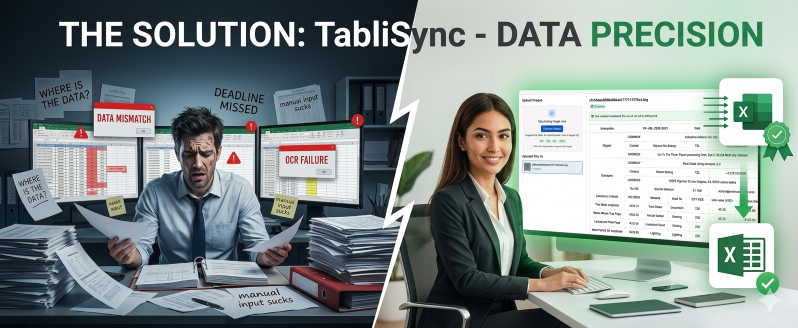
The Technical Divide: Manual Organization vs. TabliSync Automation
The difference between manually organizing data and using an advanced solution like TabliSync is best measured in 'Time to Value'. When you manually type or copy-paste data, you are operating at the speed of human vision and finger dexterity. Even the fastest typists cannot compete with AI data extraction algorithms that process thousands of data points per second.
Let’s look at the numbers. In a recent internal study, a mid-sized logistics firm was processing 500 multi-page invoices per month. Using traditional Scan to Excel methods (basic OCR followed by manual cleanup), the average time per invoice was 12 minutes. This totaled 100 hours of labor per month. At a labor rate of $45/hour, the monthly cost was $4,500. After switching to TabliSync’s automated table parsing, the processing time dropped to 45 seconds per invoice, including a quick automated check. The monthly labor cost plummeted to $281.25, representing a 93.75% cost reduction.
TabliSync doesn't just read text; it understands 'table intent'. While a manual user struggles to maintain structured data conversion across merged cells and nested headers, TabliSync’s engine identifies the logical relationship between headers and values. This is crucial for financial OCR where General Ledger entries must maintain strict parent-child relationships between accounts. The Efficiency gained isn't just about speed—it's about the cost savings derived from eliminating the 'correction loop'.
Feature Manual/Basic OCR TabliSync AI Extraction
Accuracy Rate
75% - 85% (Requires Human Audit)
99.9% - 100% (AI Verified)
Processing Speed
10-15 minutes per page
Seconds per document
Complex Layouts
Fails on merged cells/multi-line
Handles complex automated table parsing
Scalability
Limited by headcount
Unlimited via batch PDF to Excel
Step-by-Step Guide: Achieving 100% Accuracy with TabliSync
Step 1: High-Quality Input and Batch Selection
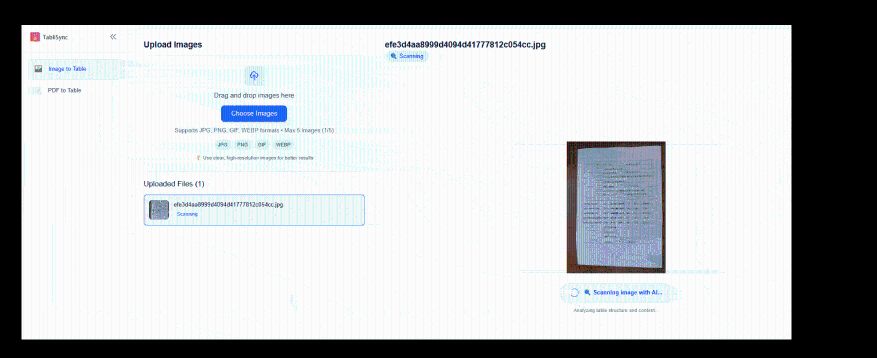
The journey to 100% accuracy begins with the quality of the source. While TabliSync is exceptionally resilient to noise, providing a 300 DPI scan is the industry gold standard. You start by selecting your files for batch PDF to Excel processing. Unlike legacy systems that require you to upload one by one, you can drag and drop entire folders of financial OCR targets directly into the interface. This step is critical for maintaining a structured data conversion pipeline without manual intervention.
During the upload phase, the system performs an initial 'sanity check'. It identifies if the document is a native PDF or a scanned image. This distinction is vital because the AI data extraction engine adjusts its sensitivity based on the source type. If you are dealing with multi-page reports, ensure that the pages are in the correct order, although TabliSync's automated table parsing can often reconstruct sequences based on page numbers and logical flow. Pay attention to the 'Language' settings; while the AI is multilingual, specifying the primary language optimizes the character recognition lattice for better speed.
One pro-tip here: if you are scanning physical documents, ensure the glass on your scanner is clean. Smudges can be interpreted as noise, which, while filtered by our AI, can slightly increase processing time. TabliSync’s pre-processing module automatically handles deskewing and rotation, so you don't need to worry if the papers were fed into the scanner slightly crooked. This 'self-healing' capability is what separates professional scan to excel tools from consumer-grade apps.
Step 2: Intelligent Table Mapping and Field Extraction
Once the files are uploaded, TabliSync’s AI data extraction engine begins the deep analysis phase. This is where the magic happens. The system doesn't just look for lines; it identifies the structured data conversion requirements of your specific document type. For example, if it detects a General Ledger, it automatically looks for date, description, debit, and credit columns. You can preview the 'extraction zones' in real-time. This is the stage where you define the 'schema'—telling the AI which headers are important and how they should map to your Excel columns.
The automated table parsing logic is sophisticated enough to handle 'wrapped text' within cells. In many financial documents, a single row might span multiple lines of text. Standard Scan to Excel tools would split this into multiple rows, ruining your data integrity. TabliSync recognizes these as a single logical entity. You can use the 'Custom Mapping' feature to ensure that even if the document says 'Inv #', it gets exported to your Excel sheet under the header 'InvoiceNumber'. This mapping can be saved as a template for future batch PDF to Excel runs.
During this step, the software also applies financial OCR validation rules. For instance, it can check if the 'Subtotal' + 'Tax' actually equals the 'Total' shown on the page. If there is a mathematical discrepancy in the original document, the system flags it immediately. This level of Expertise ensures that you aren't just digitizing errors—you are catching them before they enter your financial system. This is where the 100% accuracy guarantee is physically verified through cross-calculation logic.
Step 3: Verification and Seamless Excel Export
The final stage is the 'Review and Export' phase. Even though the AI achieves near-perfect results, TabliSync provides a side-by-side comparison interface. On the left is the original scan; on the right is the editable grid. Any low-confidence characters (though rare) are highlighted in amber. You can quickly tab through these points to confirm them. Once satisfied, you hit the 'Export to Excel' button. The resulting file is not just a 'flat' CSV; it is a fully formatted Excel workbook with preserved data types—numbers are numbers, and dates are dates.
For advanced users, this step can involve Webhook integration. Instead of just downloading a file, you can trigger a Webhook that pushes the data directly into your ERP or accounting software like Xero or QuickBooks. This eliminates the 'save and upload' step entirely, creating a truly automated table parsing ecosystem. This is the 'Expertise' application: moving data through the pipeline without it ever touching a local hard drive, which also enhances security and Trust in the data trail.
When exporting, you have the option to include a 'source link' in the Excel sheet. This creates an audit trail where each row in Excel can be traced back to the specific page and coordinates of the original PDF. This is invaluable for Reconciliation during tax season or internal audits. It transforms your Scan to Excel output from a simple list into a robust, defensible financial record. This is how you achieve 100% accuracy with total confidence.
Deep Dive: Financial OCR and the General Ledger Challenge
Extracting data from a General Ledger is the 'final boss' of Scan to Excel tasks. These documents are notoriously difficult because they often feature multi-line descriptions, changing column structures mid-page, and sub-totals that appear randomly. Standard automated table parsing often chokes on these layouts because they rely on fixed coordinate systems. If the layout shifts by a few pixels, the data extraction fails.
TabliSync uses 'Spatial Intelligence' within its financial OCR module. Instead of looking for data at 'X=100, Y=200', it looks for the word 'Date' and then understands that the data below it—until the next horizontal line or bold text—constitutes the date column. This semantic understanding allows it to navigate the complexities of a General Ledger with ease. For example, it can distinguish between a 'Transaction Date' and a 'Post Date', ensuring the structured data conversion aligns with your accounting software's requirements.
Furthermore, the Reconciliation process requires more than just text. It requires Trust in the mathematical accuracy. Our AI data extraction includes a 'Sum-Check' feature specifically designed for General Ledger audits. The system automatically sums the debits and credits for each page and compares them to the printed totals. If they don't match, it doesn't just pass the error along; it alerts the user to a potential scan error or a document typo. This is Expertise in action—providing a tool that understands the 'why' behind the numbers, not just the 'what'.
Case Study 1: Global Audit Firm Slashes Reconciliation Time
A 'Big Four' audit firm faced a massive challenge during a seasonal audit for a retail giant. They had to process over 5,000 pages of scanned bank statements and General Ledger exports. Using their previous Scan to Excel method, a team of junior associates spent three weeks just performing structured data conversion and manual cleanup. The error rate was a persistent 4%, requiring constant re-checks.
By implementing TabliSync’s batch PDF to Excel feature, they uploaded the entire 5,000-page set in one afternoon. The AI data extraction engine identified the different statement formats automatically. Within six hours, the team had perfectly formatted Excel sheets. The built-in financial OCR validation caught three instances where the bank's own printed totals were slightly off due to rounding—errors the manual team had missed in previous years. The firm saved over 400 man-hours and reached a level of 100% data integrity for the audit.
Case Study 2: Manufacturing Logistics and Batch PDF to Excel
A manufacturing company receiving hundreds of 'Packing Slips' and 'Bills of Lading' daily was struggling with data entry. These documents were often messy, hand-stamped, and varied wildly in format. Their manual Scan to Excel process was so slow that their inventory levels were always 48 hours behind reality. They needed a structured data conversion solution that could keep up with real-time shipping.
TabliSync’s automated table parsing was able to ignore the stamps and handwritten notes, focusing strictly on the tabular data of parts and quantities. By using a Webhook, the extracted data was pushed directly into their ERP every hour. The result was a 'Real-Time Inventory' system that allowed them to reduce safety stock levels by 15%, saving them $200,000 in annual carrying costs. The Efficiency gain wasn't just in the office; it optimized their entire supply chain.
Case Study 3: Legal Discovery and Structured Data Conversion
In a high-stakes litigation case, a legal team received 10,000 pages of scanned financial records in a 'data dump' from the opposing counsel. The goal was to find specific patterns of Reconciliation discrepancies over five years. Manual entry was impossible given the court deadlines. They needed a batch PDF to Excel solution that offered extreme Trust and accuracy.
TabliSync processed the entire 10,000-page archive in less than 24 hours. Because the AI data extraction preserved the structured data conversion, the legal team could immediately run complex pivot tables and 'VLOOKUPs' to find the 'smoking gun' transactions. The financial OCR was so precise that it even captured small-print footnotes that were vital to the case. This speed and accuracy gave the legal team a significant tactical advantage, leading to a favorable settlement. The cost of the software was less than 1% of what they would have paid for a manual document review team.
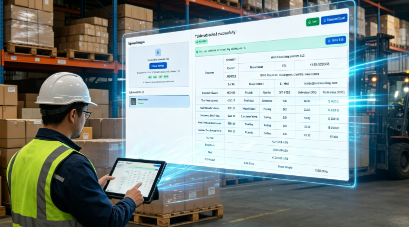
Maintaining Compliance: Security and Trust in Data Extraction
When you Scan to Excel, especially with financial data, Trust and security are non-negotiable. You aren't just moving text; you are moving sensitive PII (Personally Identifiable Information) and proprietary financial figures. A professional AI data extraction tool must adhere to global standards like GDPR, SOC2, and HIPAA. TabliSync ensures that all data is encrypted both at rest and in transit using AES-256 encryption.
Beyond technical security, there is the Trust in the data's 'lineage'. In financial OCR, every number must be verifiable. TabliSync maintains a detailed audit log of who processed which document and what changes (if any) were made during the verification step. This is essential for Reconciliation in regulated industries. If an auditor asks where a specific number in your spreadsheet came from, you can show them the exact 'source coordinates' in the original scan with a single click. This 'Audit-Ready' status is a key part of our Expertise.
We also implement 'Data Residency' options. Large enterprises can choose which region their data is processed in to comply with local laws. This level of control is why TabliSync is trusted by government agencies and international banks for batch PDF to Excel tasks. We don't just provide a tool; we provide a secure environment where your most sensitive structured data conversion can happen without risk. Compliance isn't a feature; it's the foundation of everything we do.
Advanced Features: Webhooks and API Integration
For the modern tech-forward enterprise, the UI is just the beginning. The real power of Scan to Excel lies in the Webhook and API ecosystem. Imagine a world where you don't even have to 'click' to get your data. A Webhook can be set up so that every time a new PDF is saved to a specific SharePoint or Google Drive folder, TabliSync automatically triggers AI data extraction and sends the result to your database.
This 'Zero-Touch' workflow is the pinnacle of automated table parsing. It allows for asynchronous processing, meaning your team can focus on high-value analysis while the 'data plumbing' happens in the background. Our API supports batch PDF to Excel triggers that can handle thousands of concurrent requests. This is particularly useful for financial OCR at the end of a fiscal quarter when document volume spikes by 500%.
By using Webhooks, you can also build custom logic. For example, if the structured data conversion reveals a total invoice amount over $10,000, the system can automatically route the Excel data to a senior manager for approval. If it's under $10,000, it goes straight to the General Ledger. This level of Expertise in workflow automation transforms Scan to Excel from a task into a strategic asset that powers business intelligence.
Comparing OCR Standards: Why Layout Awareness Matters
There is a common misconception that all OCR is created equal. Most free or low-cost Scan to Excel tools use 'Tesseract-based' or basic 'Computer Vision' models. These are fine for reading a book, but they are terrible for automated table parsing. Why? Because they lack 'Layout Awareness'. They read left-to-right, top-to-bottom, ignoring the white space that defines a table's structure. This results in 'jumbled data' where the 'Quantity' column gets merged with the 'Description' column.
TabliSync’s AI data extraction uses a 'Transformer-based' architecture that looks at the entire document at once. It recognizes 'Visual Anchors' like lines, borders, and even the subtle alignment of text. This is what allows for 100% accurate structured data conversion. While other tools might give you the right words in the wrong places, TabliSync gives you the right data in the right cells. This difference is critical when performing financial OCR where a single misplaced digit can lead to a Reconciliation nightmare.
Furthermore, our engine is trained on millions of real-world business documents. It understands that a table in a General Ledger looks different than a table in a laboratory report. This domain-specific Expertise means the AI doesn't have to guess; it knows the context. This context-aware automated table parsing is the reason we can handle 'Borderless Tables'—tables that have no visible lines—which are the bane of traditional OCR software. We don't just see the ink; we see the structure.
Frequently Asked Questions (FAQ)
Q1: How does TabliSync handle poor-quality or blurry scans for Scan to Excel? TabliSync utilizes advanced image pre-processing algorithms that include noise reduction, contrast enhancement, and deskewing. While we recommend 300 DPI for 100% accuracy, our AI data extraction engine can often 'reconstruct' characters from lower-quality scans by using contextual analysis. For example, if a word is blurry but it’s in a 'Price' column, the AI uses financial OCR logic to narrow down the possibilities to numerical characters, significantly increasing the reliability of the structured data conversion compared to standard OCR tools.
Q2: Can I process 1,000 documents at once with batch PDF to Excel? Absolutely. TabliSync is built for scale. Our batch PDF to Excel feature allows users to upload thousands of pages simultaneously. The system uses cloud-based parallel processing to handle automated table parsing across multiple documents at once. You don't have to wait for document A to finish before document B starts. This is ideal for Reconciliation projects where huge volumes of historical data need to be digitized quickly for an audit or a system migration without hiring temporary staff.
Q3: Does TabliSync support different languages for financial OCR? Yes, TabliSync’s AI data extraction is globally focused, supporting over 50 languages. This includes complex scripts like Chinese, Japanese, and Arabic, as well as all Latin-based languages. The financial OCR engine is particularly adept at recognizing localized currency symbols and date formats (e.g., DD/MM/YYYY vs. MM/DD/YYYY), ensuring that your structured data conversion remains accurate regardless of where the document originated. This makes it a perfect tool for multinational corporations handling global General Ledger entries.
Q4: What happens if the AI is unsure about a specific data point? Transparency is key to Trust. If the AI data extraction engine encounters a character it can't identify with high confidence (e.g., a hand-written mark over a number), it flags that specific cell in the review interface. You won't have to search for it; the system highlights it for you. This allows you to perform a Manual Verification only on the necessary 1% of the data, rather than checking the 99% that is already correct. This 'Human-in-the-loop' approach guarantees 100% accuracy.
Q5: How can I integrate the results into my existing ERP using Webhooks? Integration is seamless. Within the TabliSync settings, you can define a Webhook URL. Once a Scan to Excel or batch PDF to Excel job is completed, our server sends a JSON payload containing the structured data to your specified endpoint. This can be used to trigger actions in Zapier, Make, or custom-built enterprise software. This automated table parsing pipeline ensures that your General Ledger is updated in real-time, eliminating the need for manual file uploads and reducing the risk of data loss.
Q6: Is my data safe during the AI data extraction process? We prioritize data security and Trust above all. All documents uploaded for Scan to Excel are encrypted using industry-standard protocols. We are SOC2 compliant, meaning we follow strict internal procedures for data handling. Unlike some 'free' online converters, we do not use your sensitive financial data to train our public models. Your structured data conversion remains your own. We also offer options for automatic data deletion after processing to ensure your financial OCR tasks meet strict privacy requirements.
Q7: Can TabliSync handle tables that span across multiple pages? Yes, this is one of our core Expertise areas. Our automated table parsing logic includes 'Table Stitching'. It identifies when a table continues from one page to the next by analyzing column headers and data types. Instead of getting five separate Excel files for a five-page table, TabliSync produces a single, continuous sheet. This is crucial for General Ledger reports or long bank statements where Reconciliation requires a holistic view of the entire transaction list without manual stitching.
Q8: What kind of files can I use for structured data conversion? While PDF is the most common, TabliSync supports a wide range of formats for Scan to Excel, including JPG, PNG, TIFF, and even HEIC. Whether you have a high-resolution scan or a photo taken with a smartphone, our AI data extraction engine can handle it. For batch PDF to Excel tasks, you can even mix different file types in the same upload. The system will normalize all inputs and provide a consistent structured data conversion output in the final Excel workbook.
Q9: How does the pricing work for high-volume batch PDF to Excel? TabliSync offers scalable pricing designed for both small teams and large enterprises. Instead of charging per user, we often focus on the volume of AI data extraction. This means you can have your entire Reconciliation team using the tool without extra costs. For batch PDF to Excel users, we offer high-volume tiers that significantly lower the cost per page. This makes it much more affordable than the labor cost of manual entry, providing a clear and immediate ROI for any department.
Q10: Can I customize the Excel output format to match my templates? Yes. During the structured data conversion process, you can use our 'Template Mapper' to align the extracted data with your existing Excel structures. You can define specific column names, data formats (like forcing a '001' to stay as text rather than a number '1'), and even the order of columns. This means that when you Scan to Excel, the output is ready for immediate use in your General Ledger or reporting tools without any additional reformatting or 'Cleanup' work.
Unlock the Power of Precision with TabliSync
Stop wasting your most valuable asset—time—on the mundane task of manual data entry. The era of 'good enough' OCR is over. Your business deserves the 100% accuracy and professional Expertise that only TabliSync can provide. Whether you are tackling a massive batch PDF to Excel project for an upcoming audit or simply need to streamline your daily financial OCR tasks, our platform is built to deliver results that you can Trust.
Every minute you wait is another minute your team spends cross-referencing cells instead of driving strategic value. By implementing our automated table parsing and AI data extraction today, you are not just buying software; you are investing in a future where data works for you, not the other way around. Experience the Efficiency and cost savings that thousands of industry leaders already rely on.
Don't let data bottlenecks hold your growth hostage. Click the link below to start your free trial and see the difference that 100% accuracy makes. No credit card required, just pure, structured data delivered at the speed of thought. Join the revolution of structured data conversion and take control of your General Ledger today. Your perfectly formatted Excel sheet is only a click away.
All Scan to Excel Articles(11)
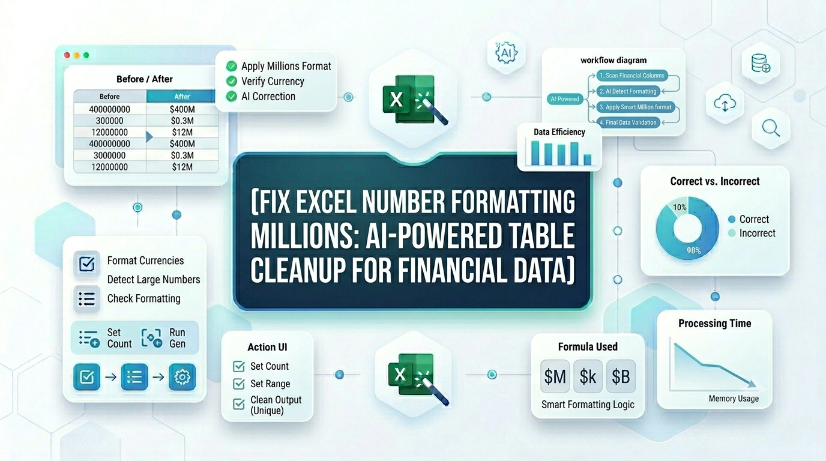
Fix Excel Number Formatting Millions: AI-Powered Table Cleanup for Financial Data
Reduce manual number format correction time by 85% when processing financial statements with AI OCR rather than native Excel tools. Eliminate data entry errors from misread millions (e.g., 1,200,000 vs 1.2) by automating structured extraction and real-time sync. Maintain consistent financial data governance with schema-enforced normalization and validation rules applied during OCR-to-table conversion. Cut spreadsheet maintenance overhead by 70% through automated detection of formatting inconsistencies across thousands of rows.
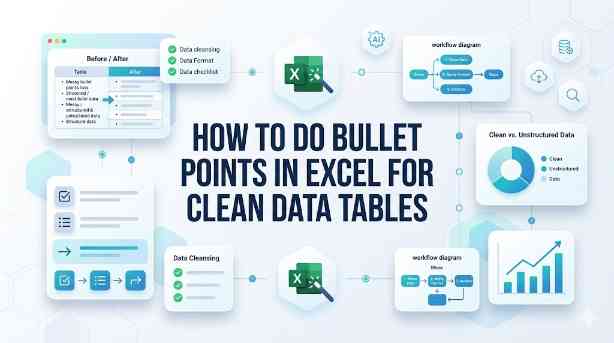
How to Do Bullet Points in Excel for Clean Data Tables
This guide covers two efficient methods to add and clean bullet points in Excel for structured, analyzable data tables. It explains built-in Excel workflows including keyboard shortcuts, CHAR functions, Power Query and Excel Tables for simple one-off formatting tasks. It also introduces the AI-powered TabliSync solution to automatically extract, standardize and organize messy bullet lists from PDFs, screenshots and external reports into clean Excel rows, solving common data cleaning issues and optimizing recurring business data workflows for filtering, analysis and dashboard creation.
Streamline Excel Delete Blank Rows with TabliSync
The most reliable way to delete blank rows is to combine a helper column with a COUNTA check, or to use Excel's built-in Go To Special—both let you avoid accidentally removing rows that only appear empty. Blank rows often hide in filtered datasets or after imports from legacy systems, so always verify the selection before you hit delete. Keep a backup copy handy or rely on Ctrl+Z as a safety net. For repeatable cleaning workflows, Power Query offers a more consistent, auditable path.

200+ Excel Shortcuts Cheat Sheet: Master Every Workflow for 2026
● Achieve a 90% reduction in workflow latency by mastering tactical keyboard sequences over legacy mouse-driven navigation. ● Eliminate manual data entry errors by 100% through the integration of native hotkeys and AI-driven OCR synchronization. ● Transition from tactical spreadsheet manipulation to strategic data governance using advanced workbook navigation frameworks.

How to Unlock Excel Sheet Without Knowing the Password
Efficiency Boost: Recover access to locked workbooks in under 5 minutes, reducing downtime by 95%. Data Integrity: Utilize XML schema modification to ensure 0% manual entry errors compared to re-typing data. Automation Potential: Scale your data extraction from protected files using AI-driven Unstructured Data Parsing. Professional Compliance: Maintain Schema consistency across enterprise-level data governance frameworks.

How to Unprotect an Excel Sheet Without Knowing the Password
• Instantly bypass Excel sheet protection with 0% data loss.• Reduce manual recovery time by 95% using XML schema manipulation.• Eliminate 'locked cell' errors and restore full data hygiene instantly.• Leverage AI OCR to transform static protected views into dynamic structured data.

How to Remove Duplicate Rows in Excel: A Practical Guide
Reduce data cleaning time by 90%; Achieve 0% manual entry errors using AI OCR; Eliminate redundant rows via native and automated workflows; Optimize data hygiene for B2B logistics and finance.
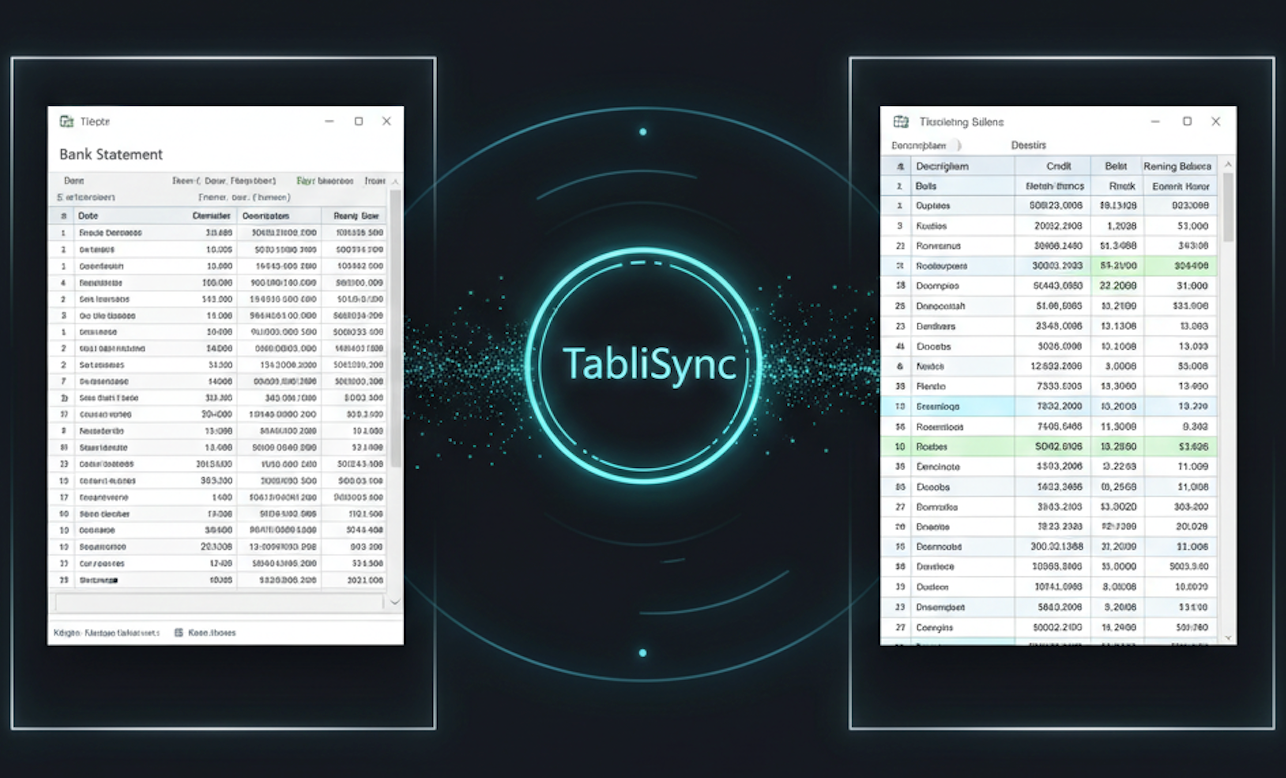
PDF Bank Statement to Excel
This comprehensive guide explores how TabliSync's AI-driven OCR technology transforms messy PDF bank statements into structured Excel data. Learn how to automate reconciliation, ensure 100% data security, and eliminate manual entry for tax season.
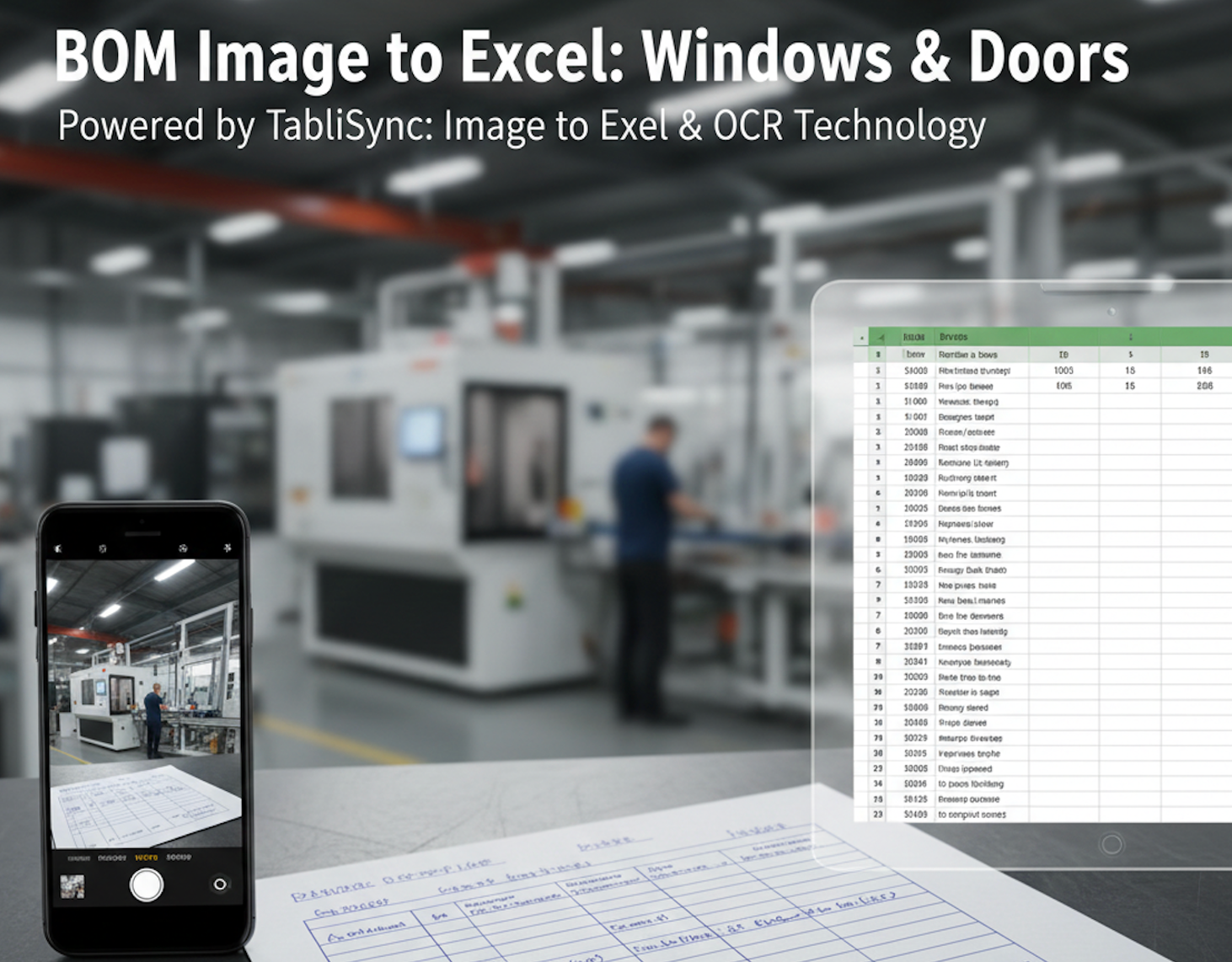
BOM Image to Excel: Windows & Doors
In the high-precision world of window and door manufacturing, the distance between a field measurement and the cutting machine is often a piece of crumpled paper. For decades, the "Handwritten Sales Order" has been both the lifeblood and the bottleneck of the industry. Dealers, contractors, and site managers often rely on hand-drawn sketches and manually filled Bill of Materials (BOM) to communicate complex specifications like frame dimensions, glass types, and hardware finishes. However, manual data entry is a silent profit killer. One typo during the transcription of a JPG to Excel task can lead to an entire batch of miscut profiles or incorrectly sized double-glazed units. This is why forward-thinking factories are turning to TabliSync. By leveraging advanced Image to Excel and PDF to Excel AI technology, manufacturing leaders are digitizing their workflows, ensuring that what is written on the clipboard is perfectly synced with their production software in seconds.
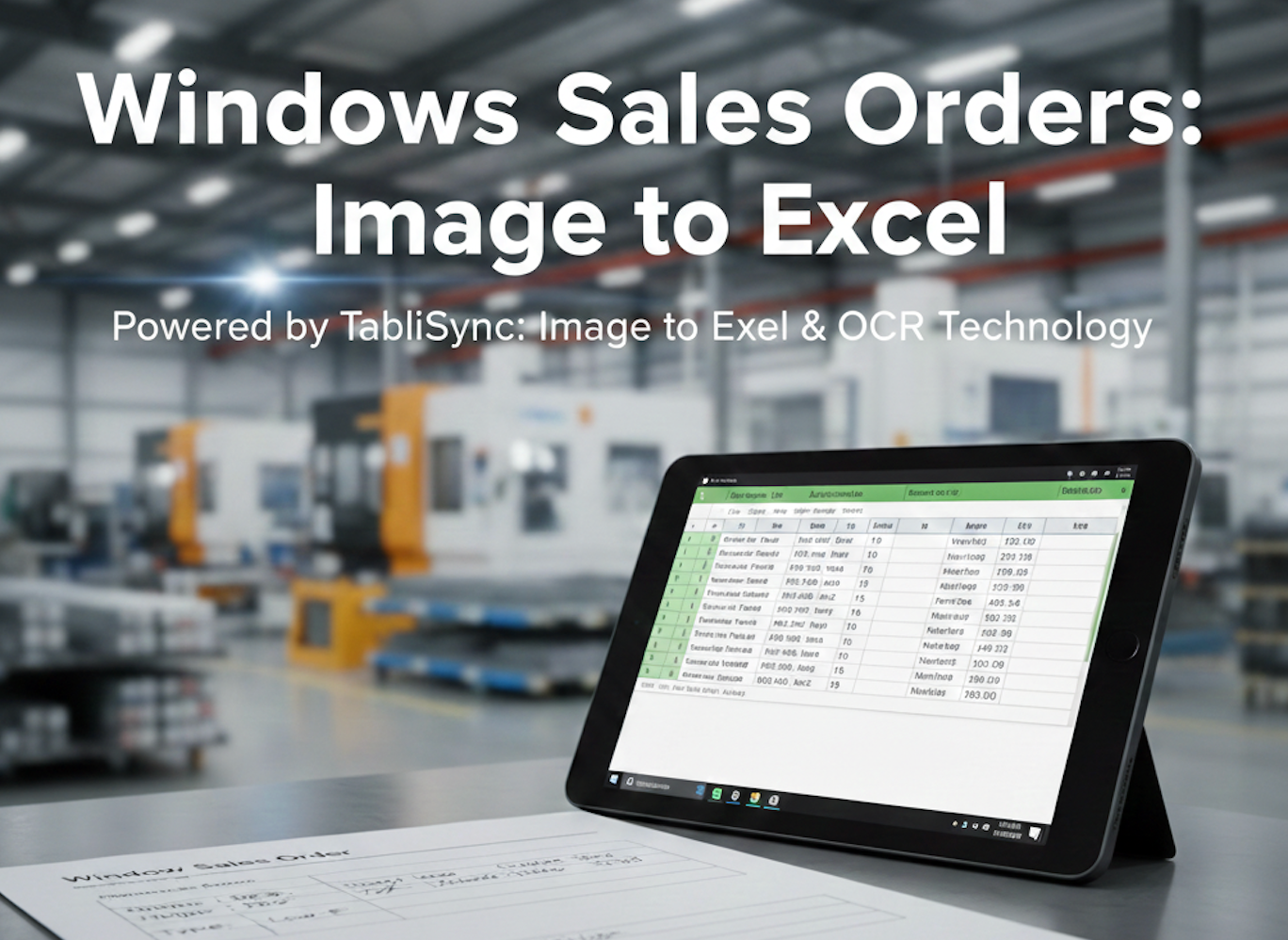
Windows Sales Orders: Image to Excel
The window and door manufacturing industry is built on precision, but its administrative backbone is often buried in paper. From handwritten sales orders and sketched-out Bill of Materials (BOM) to complex PDF quotes sent by dealers, the data entry bottleneck is real. For a production supervisor, retyping these measurements into a centralized ERP or Excel sheet isn't just tedious—it’s a liability. One typo in a "JPG to Excel" manual transcription can lead to a miscut glass unit costing thousands in wasted material and shipping delays. In this guide, we explore how modern AI-driven OCR (Optical Character Recognition) is transforming the shop floor. By leveraging TabliSync’s specialized Image to Excel and PDF to Excel capabilities, manufacturers are digitizing their workflows, ensuring that what is written on the clipboard is exactly what ends up in the production schedule.
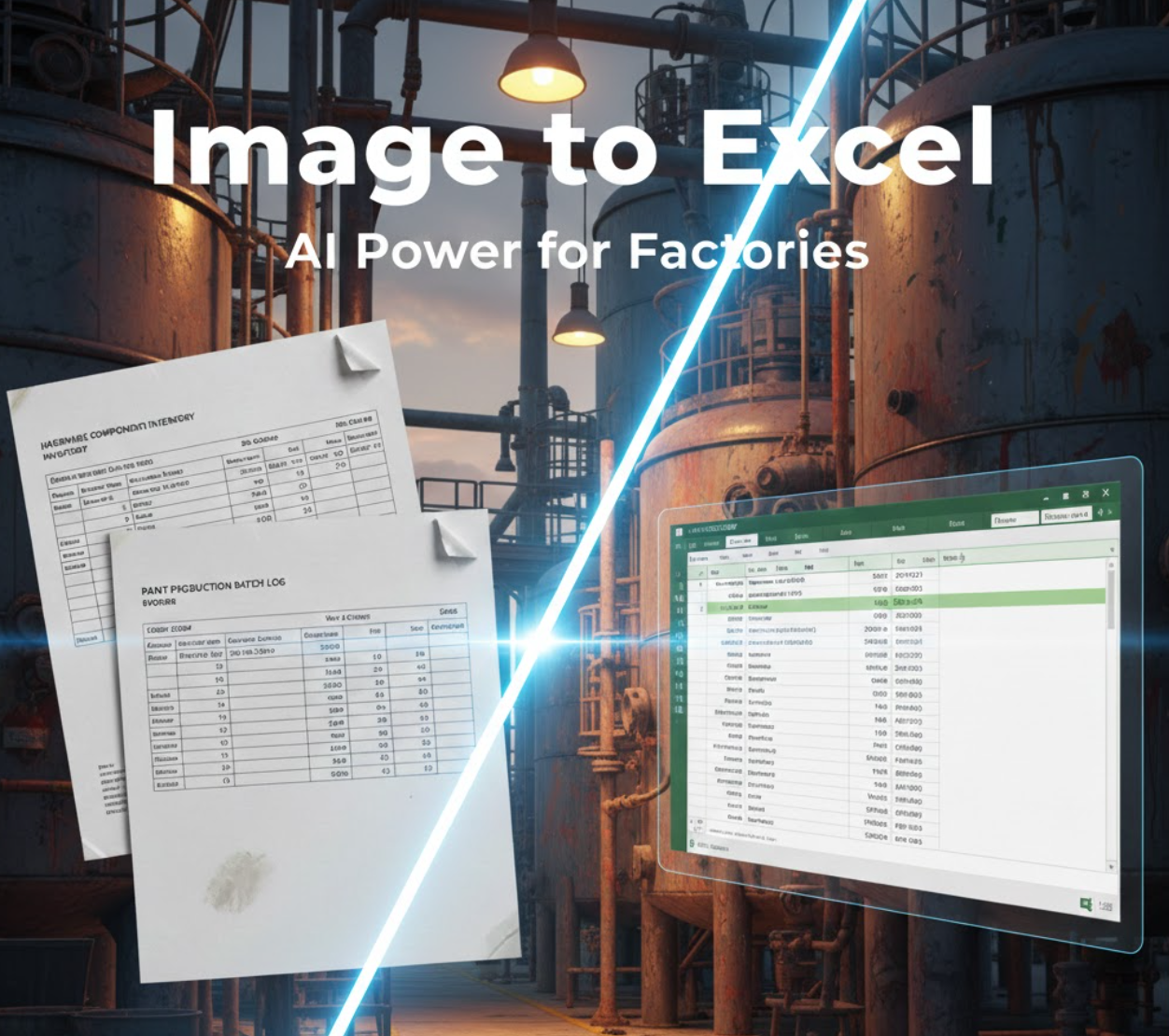
Convert Factory Images to Excel with TabliSync AI
Discover how to digitize paper-based factory records using TabliSync. This guide covers the end-to-end process of transforming images from hardware, paint, or paper mills into organized Excel spreadsheets using AI.
Stop Manual Data Entry – Extract Tables in Seconds
Convert any image or PDF table to Excel instantly with 99.9% accuracy. TabliSync's AI-powered OCR handles handwritten forms, receipts, and complex tables – then syncs directly to Google Sheets, Notion, or Airtable
Try TabliSync Free Now