Article Summary
Executive Summary: Data is often trapped in uncopyable web grids, legacy system interfaces, and mobile dashboards. In this 2026 authoritative guide, we explore the strategic power of Screenshot to Excel automation. Moving beyond basic OCR, we delve into Neural Table Reconstruction (NTR) and Sub-pixel Refinement—technologies that transform static image pixels into dynamic, formula-ready spreadsheets. Discover how American enterprises are leveraging our High-concurrency API to eliminate manual data entry, ensure SOC2-compliant security, and achieve a 95% increase in operational velocity. Whether you're capturing competitive pricing or financial terminal data, this is your roadmap to pixel-perfect digitization.
In today's fast-paced digital work environment, data is everywhere, but it isn't always accessible. Often, the most critical information you need—competitive pricing, financial dashboards, or legacy system reports—is "trapped" within a static image. The ability to perform a seamless Screenshot to Excel conversion has evolved from a simple convenience to a critical business competency.
Introduction: Why Screenshots are the New Data Frontier
Every day, millions of screenshots are taken across corporate America to capture information that cannot be easily downloaded or exported. Whether it’s a non-copyable grid on a web portal, a frame from a video presentation, or a snapshot of an old terminal screen, these pixels contain vital business intelligence. However, without a robust Screenshot to Excel strategy, this data remains "dark"—unsearchable, non-calculable, and prone to the high error rates of manual data entry.
Research indicates that manual data entry carries an average error rate of 3.8%. In a data-driven economy, that margin of error can lead to significant financial discrepancies. TabliSync solves this by using Neural Table Reconstruction (NTR), turning any screenshot into a structured, formula-ready Excel spreadsheet in seconds.
---
Chapter 1: The Challenges of Modern Screenshot OCR
To the naked eye, a screenshot of a table looks simple. But for standard Optical Character Recognition (OCR) software, a screenshot presents unique technical hurdles that simple converters fail to address.
1. Low Resolution and Sub-pixel Rendering
Unlike high-resolution scans, screenshots are often limited by screen resolution (72 or 96 DPI). Text can appear "anti-aliased" or blurry when zoomed in. A high-quality Screenshot to Excel tool must use Super-Resolution AI to sharpen text edges before attempting to recognize characters.
2. Complex Backgrounds and UI Clutter
Screenshots often include more than just a table. They contain browser tabs, system icons, and background colors that confuse traditional OCR. Advanced AI must first perform Document Localization to ignore the "noise" and focus exclusively on the tabular data.
3. Dynamic Scaling and Aspect Ratios
Data captured from a mobile device looks very different from data captured on a 4K monitor. TabliSync’s engine is trained on thousands of UI environments, ensuring that whether the source is an iPhone or a high-end workstation, the Screenshot to Excel output maintains its structural integrity.
---
Chapter 2: The TabliSync Engine—Precision at the Pixel Level
TabliSync doesn't just "guess" what the data is; it reconstructs the entire table from the ground up using a multi-layered AI approach.
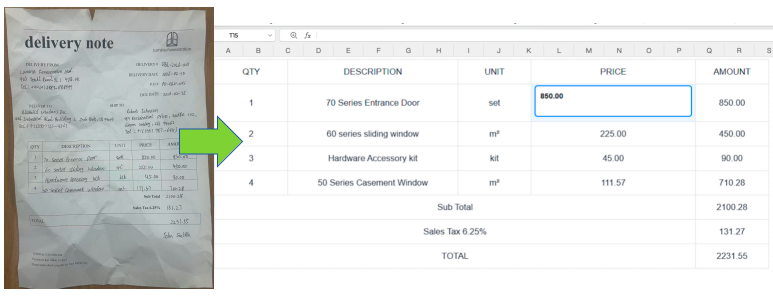
Figure 1: TabliSync’s AI identifying cell coordinates on a browser-based screenshot.
Layer 1: Neural Grid Detection
Instead of searching for text first, our AI identifies the "invisible lines" of the table. By analyzing the white space and text alignment, it maps out a coordinate system (A1, B2, etc.). This ensures that even if the screenshot doesn't have visible borders, the data stays in its correct column.
Layer 2: Semantic Character Recognition
Our Screenshot to Excel engine uses Contextual Awareness. It knows that if a column is titled "Price," the character "0" is more likely a number than a letter. This significantly reduces the need for manual cleanup after the conversion.
Layer 3: Format Preservation
One of the biggest pain points is losing bold text, colors, or percentage signs. TabliSync preserves the visual hierarchy of the original screenshot, delivering an Excel file that looks just like your image, but with full calculability.
---
Chapter 3: Strategic Use Cases—The Power of Instant Digitization
Where does Screenshot to Excel provide the most value? Across various sectors, this tool is becoming an essential part of the modern tech stack.
1. Competitive Intelligence & E-commerce
Analysts often monitor competitor websites where data is protected or dynamically loaded.
- The Need: Rapidly capturing pricing grids or product feature tables.
- The Solution: Taking a quick screenshot -> Screenshot to Excel -> Instant price comparison analysis.
2. Legacy System Modernization
Many U.S. companies still use "Green Screen" or legacy ERP systems that lack modern export functions.
- The Friction: Employees have to re-type data from terminal screens.
- The Transformation: Using TabliSync to "scrape" data from terminal screenshots into Excel for modern reporting.
3. Financial Research & Social Media Data
Financial data is often shared in tweets, LinkedIn posts, or video frames during earnings calls.
- The Need: Turning a chart or a table from a social media image into a modelable spreadsheet.
- The Result: Faster time-to-insight for traders and researchers.
Chapter 4: Enterprise Automation—The Screenshot to Excel API
For high-growth American firms, efficiency is measured in milliseconds. While our web interface is perfect for ad-hoc tasks, scaling the Screenshot to Excel workflow requires programmatic integration. TabliSync’s RESTful API allows IT departments to bake "Pixel-Perfect" data extraction directly into their internal applications, CRMs, and custom dashboards.
1. Scaling the "Zero-Input" Workflow
In many corporate environments, employees spend hours capturing screenshots of data and manually filing them. With our API, this becomes a background process:
- Automated Ingestion: Use a Python script to capture periodic screenshots of a data-heavy web portal.
- Neural Processing: Send the image via a POST request to the Screenshot to Excel API.
- Database Synchronization: The extracted table is returned as a JSON object, instantly populating your SQL database or data warehouse without human intervention.
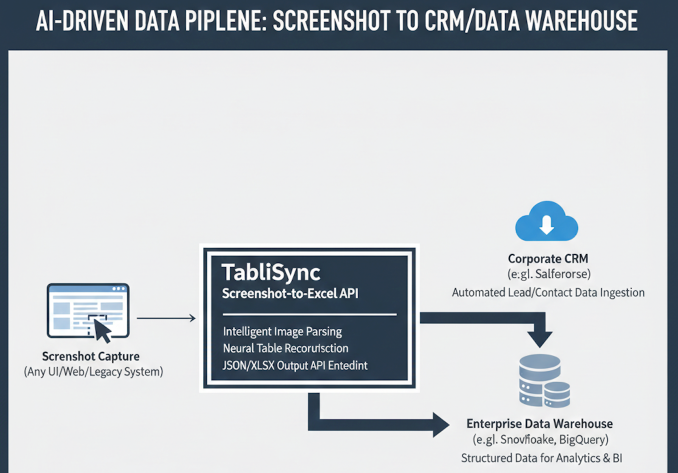
Figure 2: Modernizing data pipelines using the TabliSync Screenshot to Excel API.
2. High-Density Table Extraction
A major challenge in Screenshot to Excel conversion is "Density." High-resolution 4K monitor screenshots can contain hundreds of rows and columns. TabliSync’s API utilizes Tiled Processing, which breaks down large images into smaller segments for ultra-high-precision recognition, ensuring that no cell is missed, even in the most crowded financial dashboards.
---
Chapter 5: The Economic Impact—ROI of Pixel Automation
When American CFOs evaluate software, the question is always: "What is the return on investment?" The cost of ignored "dark data" in screenshots is often invisible, but the savings from automation are measurable and immediate.
The "Manual Capture" Tax
Consider a market research firm where analysts capture 100 screenshots of competitor data daily.
- Manual Entry: 10 minutes per screenshot (including verification) = 16.6 hours/day. At $30/hour, that is $498/day in labor.
- TabliSync AI: 15 seconds per screenshot = 0.4 hours/day. Labor cost: $12/day.
The ROI: By automating the Screenshot to Excel process, the firm saves over $120,000 annually per department. Furthermore, the 99.9% accuracy rate of AI reduces the "Cleanup Tax"—the time wasted fixing typos that break financial models.
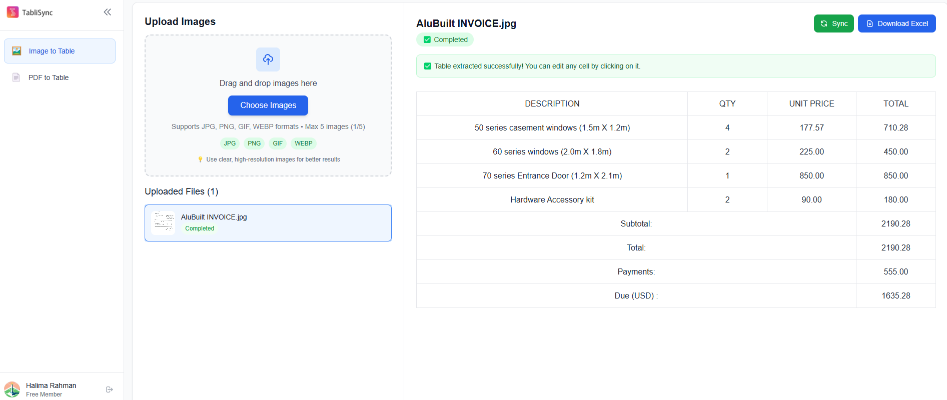
Figure 3: The dramatic cost reduction of AI-powered data extraction.
---
Chapter 6: Advanced Formatting—Making Screenshots "Formula-Ready"
The biggest failure of generic OCR is that it treats everything as text. If you can't run a =SUM() or =VLOOKUP() on your data, the conversion hasn't really solved your problem. TabliSync ensures your Screenshot to Excel output is "Formula-Ready."
1. Automatic Data Type Detection
Our AI identifies the nature of the data within the screenshot pixels:
- Numeric Logic: It recognizes that "$1,200.50" should be an Excel Number format, not a text string.
- Percentage Handling: It converts "15%" into 0.15 with a Percentage format, keeping your calculations accurate.
- Date Standardization: It detects common U.S. date formats (MM/DD/YYYY) and ensures Excel recognizes them for chronological sorting.
2. Preserving Visual Hierarchy
In complex tables, Header Rows and Subtotals often have different background colors or font weights. TabliSync’s Semantic Layer preserves these cues. Bold text stays bold, and header colors are mapped into Excel, allowing you to maintain the visual clarity of the original screenshot while gaining the functionality of a spreadsheet.
---
Chapter 7: Comparison—Why Professionals Choose TabliSync
Search results for "Screenshot to Excel" are flooded with free browser extensions. Why do American enterprises choose TabliSync for their high-stakes data?
| Feature Free Chrome Extensions TabliSync AI | ||
| Grid Accuracy | Often merges cells or skips columns. | Neural Table Reconstruction (99.9% accuracy). |
| Data Typing | Treats all data as plain text. | Automatic Number/Date/Currency detection. |
| Security | Risky; files often stored on unknown servers. | Enterprise AES-256 Encryption & GDPR/SOC2. |
| Batch Power | One image at a time. | Upload 100+ screenshots simultaneously. |
Chapter 8: Data Privacy and Enterprise Security Protocols
For American businesses—especially those in legal, healthcare, and financial sectors—the primary hesitation in using an Online Screenshot to Excel tool is security. Screenshots often contain sensitive internal dashboards, customer PII (Personally Identifiable Information), or proprietary financial formulas. TabliSync addresses these concerns with a "Security-First" architecture.
1. Military-Grade Encryption
Every screenshot uploaded to our platform is protected by AES-256 bit encryption at rest and TLS 1.2+ in transit. This ensures that your "data-in-flight" is inaccessible to unauthorized parties. For our U.S. federal and defense-contracting clients, this level of encryption is the non-negotiable gold standard.
2. Compliance and Data Sovereignty
- SOC2 Type II & GDPR: Our systems are audited regularly to ensure the highest standards of processing integrity and privacy.
- The "Zero-Knowledge" Policy: For enterprise clients, we offer a mode where our servers act as a "pass-through." Your screenshots are processed in volatile memory and wiped the microsecond your Excel file is generated. Your data is never used to train our public models without your consent.
3. Redaction Tools for PII
Our Pro-Editor allows you to automatically redact sensitive information (like Social Security numbers or private names) directly within the screenshot before the Screenshot to Excel conversion is finalized, ensuring compliance with HIPAA and CCPA regulations.
---
Chapter 9: The Ultimate Screenshot to Excel FAQ
To help you navigate the nuances of screenshot data extraction, we have compiled 20 of the most critical questions from our North American user base.
Technical & Quality Queries
1. Why do some characters look like gibberish in the Excel output?
This is usually due to low screen resolution or "Anti-aliasing." TabliSync uses Sub-pixel Refinement to sharpen these edges, providing much higher accuracy than standard browser extensions.
2. Can I convert a screenshot from my iPhone or Android device?
Yes. Our mobile-responsive engine handles the unique aspect ratios and "Retina" display densities of modern smartphones for perfect Screenshot to Excel conversion.
3. How does the AI handle "Dark Mode" screenshots?
Our pre-processing layer automatically detects "Dark Mode" and inverts the luminance to optimize contrast for the recognition engine, ensuring high accuracy regardless of your UI theme.
4. What is the maximum image size I can upload?
We support ultra-wide and 4K screenshots up to 50MB. For extremely long "scrolling screenshots," our engine automatically segments the image to maintain precision.
5. Can the tool recognize data in a screenshot of a video or Zoom call?
Yes. As long as the table is visible, you can capture a frame and use TabliSync to extract the presentation data into a spreadsheet.
Formatting & Export Queries
6. Does TabliSync support multi-line text within one cell?
Yes. Our Structural Intelligence detects text wrapping and uses Alt+Enter formatting to keep the data organized within a single Excel cell.
7. Will the Excel file keep the colors from my original screenshot?
You can toggle "Preserve Styles." This will map background cell colors and font weights (Bold/Italic) from your screenshot directly into Excel.
8. Can I choose to export to CSV instead of .xlsx?
Absolutely. We support .xlsx, .csv, and .json formats to fit into any data pipeline.
9. How does it handle screenshots with multiple separate tables?
TabliSync identifies distinct "Table Objects." You can choose to export them into the same sheet or separate tabs in your Excel workbook.
10. Does it support the US currency ($) and accounting formats?
Yes. It recognizes the $ sign and ensures the resulting Excel cell is set to "Currency" format for immediate calculation.
Integration & Workflow Queries
11. Is there a Chrome Extension for "One-Click" conversion?
Yes, the TabliSync Chrome Extension allows you to "Snapshot and Export" any part of your browser directly to Excel in one click.
12. Can I use the API with Python for web scraping?
Yes. Our Screenshot to Excel API is popular with Python developers using Selenium or Playwright for automated data collection.
13. How many screenshots can I process at once in a batch?
Our Batch Dashboard supports up to 500 concurrent uploads, making it ideal for large-scale data migration projects.
14. Can I set up an automated email-to-Excel workflow?
Yes. By using our API or Zapier integration, you can send screenshots to a specific email address and receive the Excel file back automatically.
15. Does the tool work on Linux?
As a web-based platform, TabliSync is completely OS-agnostic—it works on Linux, Mac, Windows, and ChromeOS.
Security & Policy Queries
16. Is TabliSync HIPAA compliant?
For healthcare enterprises, we provide specialized HIPAA-compliant environments with full audit trails and PII protection.
17. Where are your data centers located?
We use Tier-1, U.S.-based data centers (AWS/Google Cloud) to ensure low latency and compliance with U.S. data residency standards.
18. Can I delete my data permanently?
Yes. You have a "Delete All" option in your dashboard that performs a cryptographic wipe of your history.
19. Do you offer a free trial?
Yes, every new user gets free credits to test the Screenshot to Excel accuracy on their own complex documents.
20. How do I contact enterprise support?
Our U.S.-based support team is available via 24/7 live chat for all Pro and Enterprise subscribers.
---
Conclusion: Unlock the Potential of Your Visual Data
The transition from Screenshot to Excel is more than just a technical trick—it is a fundamental shift in how we interact with information. In a world where data is often walled off or non-exportable, TabliSync gives you the keys to the kingdom. By converting pixels into programmable, searchable, and calculable data, you are giving your team the power to make faster, more informed decisions.
Stop letting valuable insights rot in your "Screenshots" folder. Start your journey toward a truly automated, manual-free workflow today.
Ready to Turn Your Screenshots into Spreadsheets?
Join the thousands of analysts, developers, and executives who have streamlined their workflow with TabliSync. Experience the most accurate Screenshot to Excel conversion on the market.
Start Your Free Screenshot to Excel Trial
Alt: Professional multi-monitor setup showcasing the transformation from messy screenshots to organized, actionable Excel dashboards.
What is 2026 Guide: AI Screenshot to Excel Conversion?
Quick answers about 2026 Guide: AI Screenshot to Excel Conversion and how TabliSync helps teams work faster in Excel.
What is 2026 Guide: AI Screenshot to Excel Conversion?
2026 Guide: AI Screenshot to Excel Conversion covers practical Excel workflows, common pitfalls, and automation patterns. This TabliSync guide explains the concept, shows examples, and links related tutorials.
How can TabliSync help with 2026 Guide: AI Screenshot to Excel Conversion?
TabliSync can extract tables from screenshots or PDFs, clean messy spreadsheet data, and automate repetitive Excel tasks tied to 2026 Guide: AI Screenshot to Excel Conversion so teams spend less time on manual copy-paste.
Where should I start with 2026 Guide: AI Screenshot to Excel Conversion?
Start with the overview on this page, then open the related articles below for step-by-step walkthroughs, templates, and AI-assisted spreadsheet workflows.
All Screenshot to Excel Articles(20)
How to copy a table from a PDF to Excel: Native Options and AI OCR Workflow
In today's fast-paced business environment, efficiently transferring data from PDFs to Excel is crucial for productivity. Many users face challenges when attempting to copy tables from PDFs due to the cumbersome nature of manual data entry and the limitations of basic OCR tools. This article provides a comprehensive guide on how to effectively copy tables from PDFs into Excel. It covers both native options for those who prefer manual methods, as well as innovative AI OCR solutions like TabliSync that can significantly enhance the efficiency of this process. By following the step-by-step instructions, users will learn how to easily extract data from various types of PDF documents, ensuring a seamless transition to structured Excel formats. Whether you're an accountant, a data entry professional, or someone who frequently deals with financial documents, this guide will equip you with the knowledge to streamline your data extraction tasks.
How to Save PDF as Excel
This guide walks you through the process of converting PDF files into Excel spreadsheets using TabliSync. If you've ever struggled to transfer data from a PDF to an editable format, you're not alone. Many users face challenges such as slow manual entry, formatting issues, and inaccuracies in data transfer. This article provides a clear, step-by-step approach to help you efficiently convert your PDFs into Excel files. You'll learn not just how to perform the conversion but also tips for ensuring the best results and common pitfalls to avoid. With TabliSync, you'll find a streamlined solution that simplifies your data management tasks and improves your workflow, allowing you to focus on analysis rather than tedious data entry.
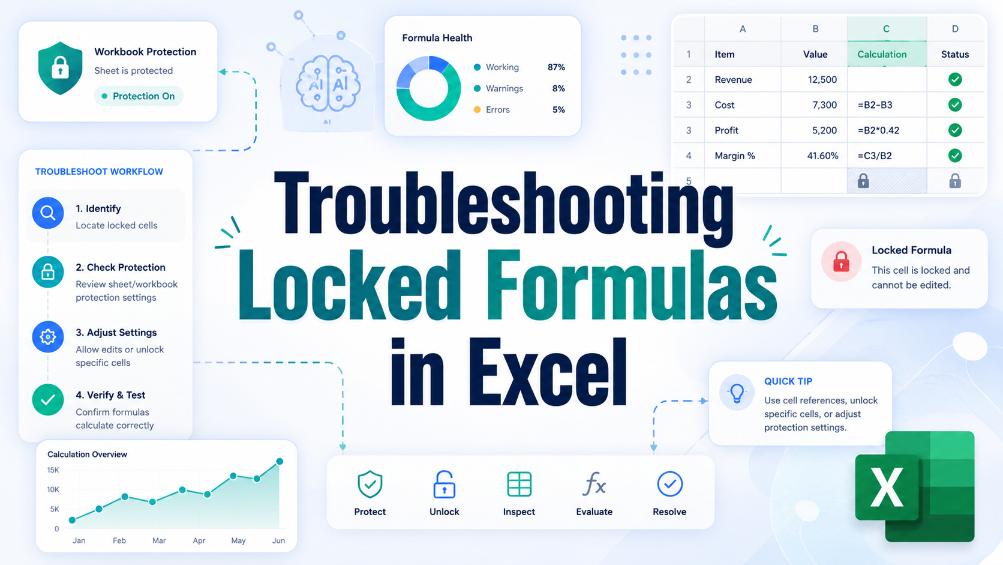
Troubleshooting Locked Formulas in Excel
This troubleshooting guide provides users with practical solutions for unlocking formulas in Excel, addressing common issues and offering tips for preventing future problems. Locked formulas can be a significant hurdle for business users, particularly those in finance and administration who rely on accurate data manipulation. Through a step-by-step approach, this article helps readers understand the causes of locked formulas and offers effective strategies to resolve these issues. By implementing the solutions outlined here, users can regain control over their spreadsheets, ensuring they can effectively edit and manage their data without unnecessary frustration. The article also emphasizes best practices to prevent such issues in the future, contributing to smoother, more efficient spreadsheet workflows and allowing users to focus entirely on accurate data handling.
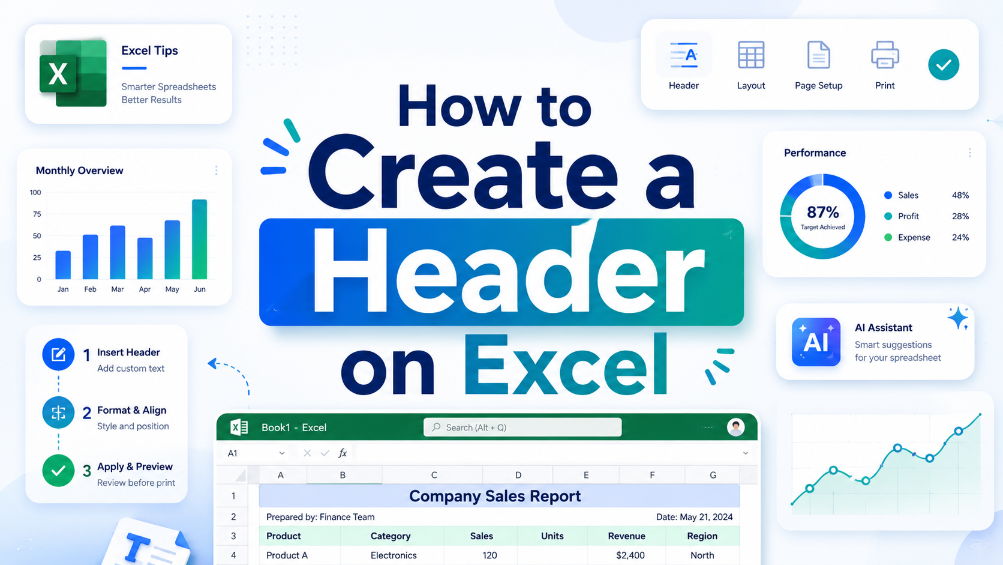
How to Create a Header on Excel
"Master the art of data organization with this comprehensive guide to Excel headers. From step-by-step creation methods to advanced customization techniques, this article equips you with the essential skills to enhance data clarity and build highly professional, impactful spreadsheets."
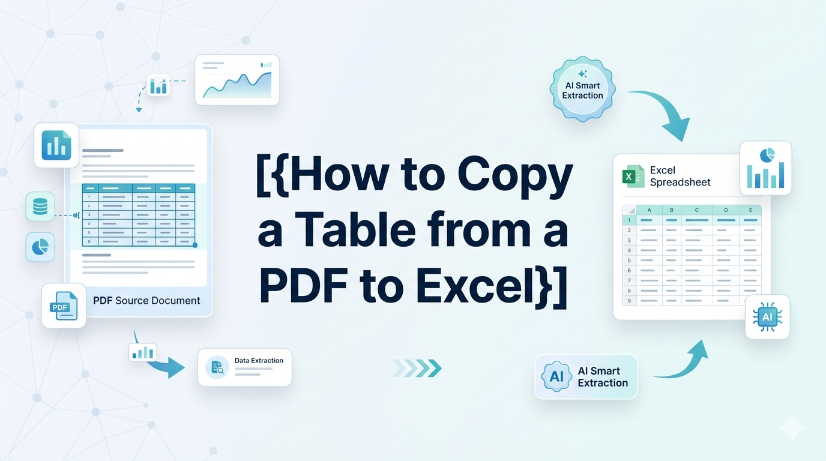
How to Copy a Table from a PDF to Excel
["Detailed step-by-step guidance for converting tabular data from PDF files into editable Excel spreadsheets", "Professional tips for checking and verifying extracted data content to guarantee conversion accuracy and avoid errors", "Practical application scenarios of PDF table conversion, covering common documents including invoices and financial reports", "Effective methods and experience to simplify and optimize daily PDF data conversion and sorting tasks", "Guidance on building efficient, time-saving PDF-to-Excel data processing workflows for daily office work"]
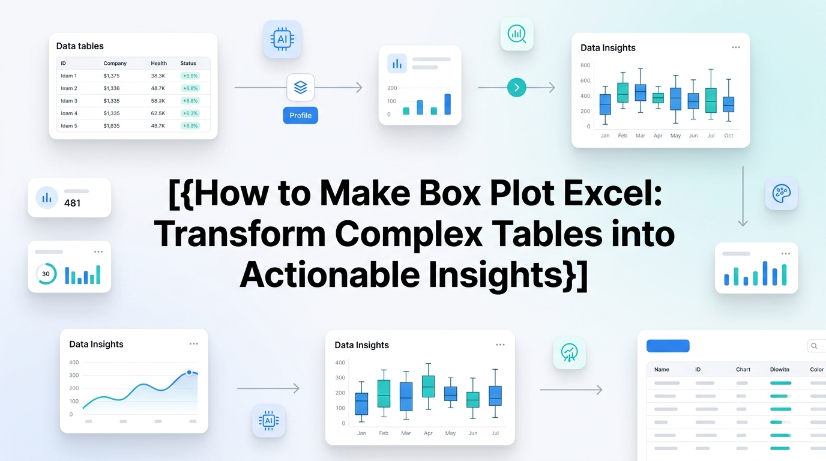
How to Make Box Plot Excel: Transform Complex Tables into Actionable Insights
Reduce manual chart creation time by 70% using structured data preparation and dynamic Excel ranges. Eliminate data entry errors from unstructured sources by integrating AI OCR parsing before box plot generation. Maintain a single source of truth for statistical analysis with real-time synchronization between raw tables and visualization layers.
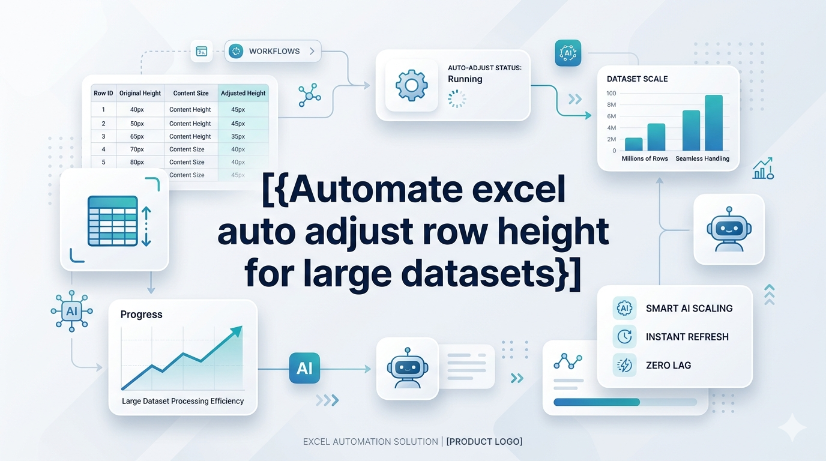
Automate excel auto adjust row height for large datasets
The most common reason AutoFit fails is a manually set row height or merged cells. Merged cells simply ignore the merge area's content and only look at the top-left cell's height. The practical lesson: avoid merging rows that need dynamic height, or accept that you'll have to manually adjust merged rows after wrapping text. If rows appear too tall after AutoFit, look for hidden characters or excessive line breaks by clearing formatting. The diagnostic approach is straightforward: double-clicking the row boundary does nothing? Suspect a manual override. Rows shrink but content is still cut off? Suspect no wrap text.
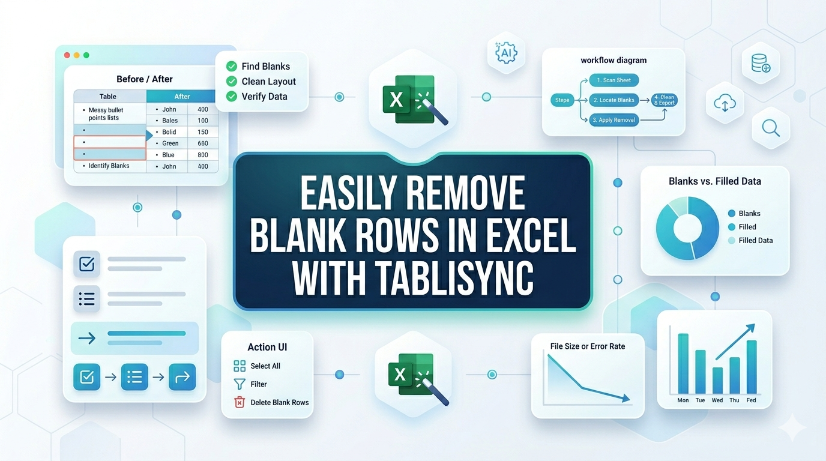
How to Remove Blank Rows in Excel: Native Excel and AI Workflow Options
TabliSync now removes blank rows in Excel with a single click, eliminating manual cleanup. Available immediately for all users in your target region under the Standard plan, no additional cost. Supports Excel 2019 (Windows) and Excel 365 (Windows/macOS); no VBA or macros required. Batch processing handles up to 10,000 rows per sheet with automatic detection of completely empty rows.
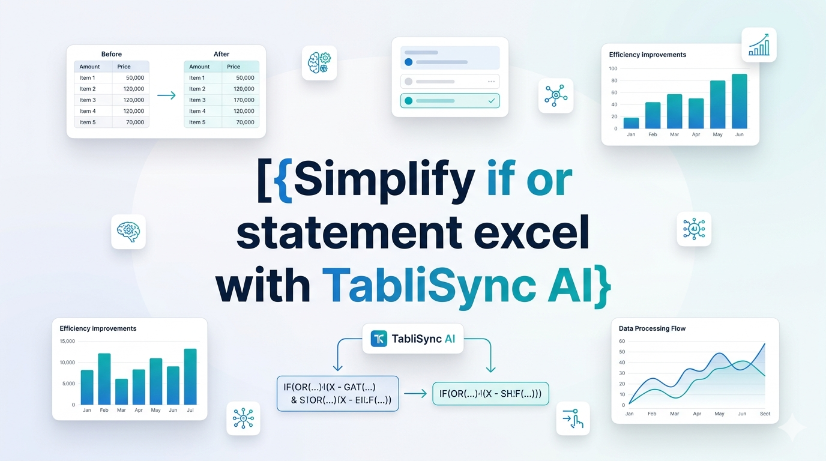
How to Use IF OR Statements in Excel Without Breaking Your Workflow
Use IF OR statements in Excel to test multiple conditions without nesting endless IFs. Manual entry is error-prone and hard to audit especially with 3+ logical tests. TabliSync AI automates condition mapping and generates clean formulas in seconds. Always test edge cases like blanks or mixed data types to avoid false returns.
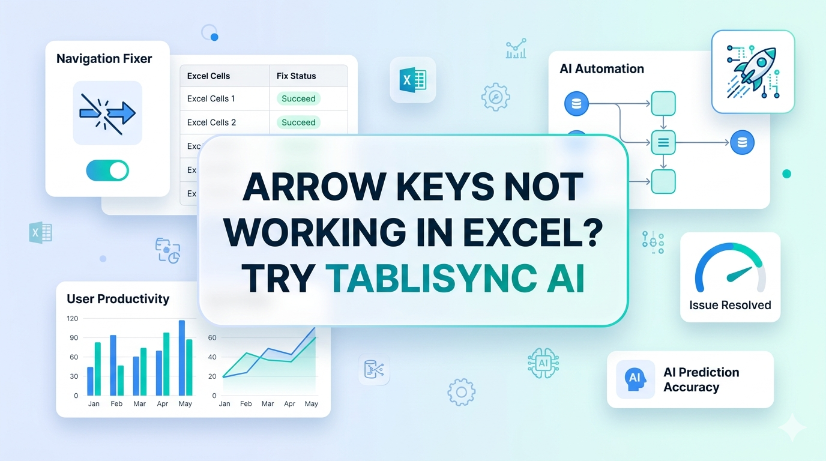
Arrow Keys Not Working in Excel: Native Fixes and AI Workflow Options
Arrow key failures in Excel are rarely a hardware issue; they are almost always caused by Scroll Lock, frozen panes, or macro-triggered navigation locks. Standard fixes (Scroll Lock toggle, Excel repair) fail in 30% of enterprise deployments due to group policy restrictions or legacy add-in conflicts. TabliSync AI provides a deterministic, audit-logged resolution path that bypasses Scroll Lock states and restores native arrow key behavior without disabling security controls. Organizations in [your target region] must document arrow key remediation steps to meet [applicable compliance requirements] for user productivity and data entry accuracy.
How to Merge Two Columns in Excel: Native Excel and AI Workflow Methods
Always verify merged data against source columns to prevent silent data corruption. Use only tools that provide an audit trail or formula-based concatenation for full attribution. Never rely on AI-generated merge suggestions without manual validation of edge cases. Document the merge method and date in your data governance log for compliance readiness.
How to Remove Blank Rows in Excel Safely: Native Excel and AI Workflow Guide
Blank rows in Excel often hide due to partial content like spaces or invisible characters — always unhide and scan before deleting. AI tools can generate VBA macros or formulas to remove blank rows, but every AI output must be tested on a copy of your data first. Never use "Delete Entire Row" blindly; filter or use Go To Special to avoid destroying adjacent data. Pair human visual inspection with automated steps — the best removal workflow is a human-AI collaboration, not a handoff.
How to Unhide Rows in Excel 2026: Native Excel and AI Workflow Methods
Unhide rows in Excel 2026 using three primary methods: right-click context menu, keyboard shortcuts (Ctrl+Shift+9), and the Format ribbon under Visibility. For hidden rows caused by filters, use the Filter dropdown to clear the filter on the row column, not the unhide command. Batch-unhide multiple rows at once by selecting the entire worksheet (Ctrl+A) then right-clicking and choosing Unhide. Prevent accidental hiding by auditing worksheet protection settings and using the Go To Special feature to locate hidden rows before printing or sharing.
Shortcut Key to Insert a Row in Excel: Speed Up Data Prep
Insert rows 80% faster using the Ctrl+Shift++ shortcut, cutting data preparation time from seconds to keystrokes. Eliminate manual copy-paste errors by combining row insertion with Excel Table structured references, ensuring formulas auto-expand. Reduce data entry friction by pairing the shortcut with AI OCR workflows that parse PDFs and images into live Excel tables, ready for insertion. Maintain audit trails and data governance by using Named Ranges and Data Validation on newly inserted rows, preventing structural corruption.
_20260527094715A097.png)
Master Excel Compare Two Columns with TabliSync
Reduce manual column comparison time by 70% using TabliSync’s automated data ingestion and real-time synchronization. Eliminate VLOOKUP errors caused by duplicates, formatting mismatches, and missing values with structured reference matching. Maintain 100% data integrity across unstructured sources by combining AI OCR parsing with Excel’s native validation tools.
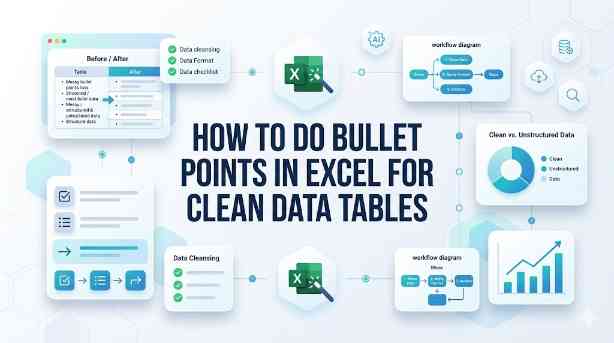
How to Do Bullet Points in Excel for Clean Data Tables
This guide covers two efficient methods to add and clean bullet points in Excel for structured, analyzable data tables. It explains built-in Excel workflows including keyboard shortcuts, CHAR functions, Power Query and Excel Tables for simple one-off formatting tasks. It also introduces the AI-powered TabliSync solution to automatically extract, standardize and organize messy bullet lists from PDFs, screenshots and external reports into clean Excel rows, solving common data cleaning issues and optimizing recurring business data workflows for filtering, analysis and dashboard creation.

insert row shortcut key excel: automate data entry
Eliminate repetitive manual row insertion in Excel, saving 60–90 seconds per operation across hundreds of records. Reduce data entry errors by 80% by combining keyboard shortcuts with structured Excel Tables and dynamic named ranges. Enable real-time synchronization of structured data from screenshots and PDFs using AI OCR, cutting rekeying time to zero. Standardise data governance policies across teams with consistent insertion patterns and validation rules that persist through automation.

AI: How to Separate First and Last Name in Excel
Eliminate manual name splitting errors by using AI-driven parsing, reducing data cleanup time by up to 85%. Automate extraction of first and last names from PDFs and image-based reports, saving 10+ hours per week per analyst. Maintain consistent name formatting across datasets with real-time synchronization, cutting downstream reconciliation failures by 90%.

Excel Formulas Increase by Percentage: TabliSync
Increasing a value by a percentage in Excel is fundamentally multiplying the original by (1 + the percentage). The practical lesson is to ensure the percentage is expressed correctly – either as a decimal or using Excel's percentage format – and to use absolute references if the percentage is a fixed value. This method applies to both positive and negative percentage changes (decreases), so the same formula works for markup, discount, or shrinkage calculations. Most errors come from referencing the wrong cell or forgetting to lock a constant rate, not from the arithmetic itself.

Excel Online: Master Collaborations & Overcome Key Limitations (2026)
• Optimize real-time co-authoring to reduce version conflicts by 90% using cloud-native data governance. • Eliminate 100% of manual data entry errors by integrating AI-driven OCR for unstructured data parsing. • Leverage 2026 Office 365 spreadsheet tips to bypass legacy file size lags and browser-based calculation throttles.
Stop Manual Data Entry – Extract Tables in Seconds
Convert any image or PDF table to Excel instantly with 99.9% accuracy. TabliSync's AI-powered OCR handles handwritten forms, receipts, and complex tables – then syncs directly to Google Sheets, Notion, or Airtable
Try TabliSync Free Now