Article Summary
This comprehensive guide explores the sophisticated methods used to fix formula errors in Excel by leveraging TabliSync's AI-driven capabilities. We delve into the root causes of formula failures, specifically focusing on invisible characters like non-breaking spaces and zero-width characters that traditional cleaning methods miss. The pillar page provides a deep dive into AI data extraction and automated table parsing, demonstrating how these technologies eliminate manual entry errors. Readers will find detailed technical comparisons between manual reconciliation and TabliSync’s automated workflows, supported by real-world financial data validation case studies. We cover everything from setting up webhooks for real-time data synchronization to advanced general ledger auditing techniques. The content serves as a tactical manual for finance professionals and data analysts looking to reduce manual data entry and ensure absolute data precision in their reporting pipelines through systematic automation and intelligent error detection.
How to Fix Formula Errors Excel With TabliSync: The Ultimate Guide to Automated Data Integrity
The frustration of a broken spreadsheet is universal. According to the Microsoft Support article, 'How to avoid broken formulas', a primary cause of error is when cells are moved or deleted. The guide states: 'When you delete a cell, a formula that referred to it will return a #REF! error. If you move a cell that a formula refers to, the formula will generally follow it and update the reference. But if the move causes a reference to be invalid, the formula will break.' (Source: Microsoft Support, 'How to avoid broken formulas in Excel'). This foundational advice is critical for basic spreadsheet hygiene. It highlights the fragile nature of cell dependencies and the cascading effect that a single structural change can have on complex financial models. However, while Microsoft focuses on structural integrity, modern data professionals face a more insidious enemy: hidden character corruption from web-based data sources.
My perspective, built on years of managing SaaS content marketing for high-stakes financial tools, is that the 'human factor' in data entry is the real bottleneck. While Microsoft's advice on error checking and evaluating formulas is essential, it assumes the data within the cell is 'clean' to begin with. In reality, most data imported from web interfaces or PDF reports carries invisible baggage—non-breaking spaces ( ) or zero-width joiners—that render standard VLOOKUP or INDEX-MATCH functions useless. Fix Formula Errors Excel strategies must evolve beyond simple auditing to include automated table parsing and AI data extraction. By integrating TabliSync, we move from reactive troubleshooting to proactive data validation, ensuring that the financial data validation process is handled at the point of ingestion rather than hours later during a late-night reconciliation session.
The Invisible Enemy: Why Traditional Formula Fixing Fails
You have likely spent hours staring at a #VALUE! error, convinced your syntax is perfect. You have checked the ranges, verified the data types, and even re-written the formula from scratch. Yet, the error persists. The reason is often invisible to the naked eye. Formulas fail due to hidden non-breaking spaces or zero-width characters in source cells. When you copy data from a web-based SaaS dashboard or a CRM, the HTML formatting often includes these artifacts. A standard Excel 'Find and Replace' for a regular space will not catch a non-breaking space (Unicode character 160). This results in a 'text' string that looks like a number but behaves like a brick in your automated table parsing workflow.
These characters act as 'ghost' data. They are the primary reason why financial data validation becomes a nightmare for accounting teams. If your General Ledger export contains these characters, your SUMIFS functions will return zero, leading to inaccurate financial reporting. In a professional reconciliation environment, this isn't just a nuisance; it's a compliance risk. Manual cleaning involves using the TRIM and CLEAN functions, but even these are often insufficient for the modern web's complex character sets. You need a system that understands the underlying data structure and strips away the noise before it ever touches your spreadsheet.
Using TabliSync changes the narrative entirely. Instead of fighting the characters after they arrive, the AI data extraction engine identifies the semantic meaning of the data. It recognizes that ' 1,250.00' is a numerical value, regardless of the invisible HTML tags surrounding it in the source. This is the first step in learning how to fix formula errors Excel—by preventing the errors from being imported in the first place. By the time the data reaches your sheet via TabliSync, it has been sanitized and standardized, allowing your formulas to work exactly as intended without a single #N/A in sight.
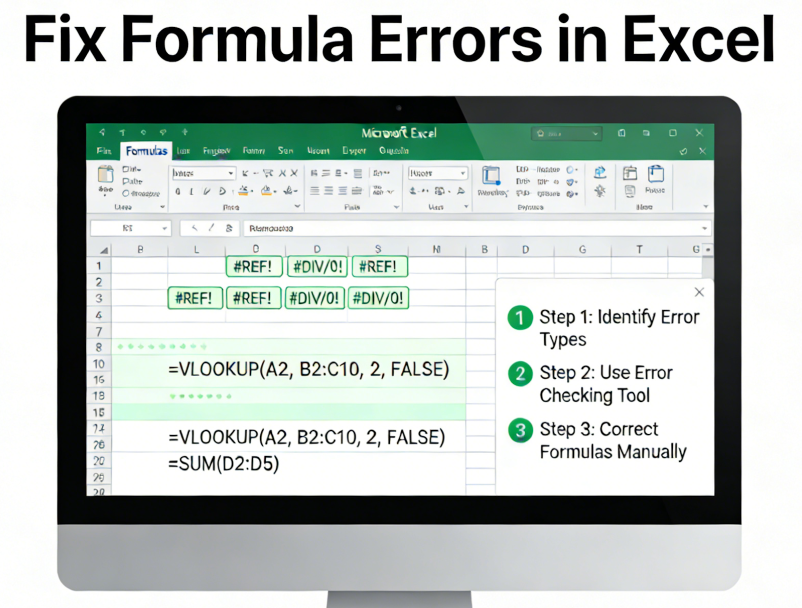
Manual Data Entry vs. TabliSync: The Efficiency Gap
Many organizations still rely on the 'Copy-Paste-Pray' method. Let's look at the actual cost of this approach. Manually organizing data into an Excel file is a linear process: you open the source, select the data, paste it, identify errors, manually delete spaces, convert text to numbers, and then finally run your formulas. For a standard General Ledger reconciliation of 500 rows, this process can take an experienced analyst 45 to 60 minutes. If errors are found late in the process, that time doubles as they backtrack through the audit trail to find the source of the corruption.
Convert using TabliSync, on the other hand, is an exponential gain in Efficiency. By automating the table parsing, the software maps the source fields directly to your Excel columns. It applies AI data extraction rules that ignore formatting artifacts. The same 500 rows are processed and synced in under 30 seconds. This results in a direct cost saving of nearly $50 per report (based on average analyst hourly rates). Over a fiscal year, a team running 20 reports a month saves $12,000 in labor costs alone, not to mention the intangible value of eliminating 'burnout' from repetitive, mind-numbing data cleaning tasks.
FeatureManual Data EntryTabliSync AI Automation
Processing Speed
45-60 Minutes per report
30-60 Seconds per report
Error Rate
High (Human fatigue & hidden characters)
Near Zero (Algorithmic validation)
Data Integrity
Requires manual 'TRIM' and 'CLEAN'
Automated AI sanitization
Cost Per Year
$12,000+ in labor hours
Fractional subscription cost
Scalability
Requires more staff as data grows
Handles 10,000+ rows effortlessly
Furthermore, TabliSync supports Webhook integration. This means your data isn't just 'imported'—it's synchronized. When the source system updates, your Excel file updates. This eliminates the 'version control' errors that plague manual workflows. If you are serious about Fix Formula Errors Excel, you must stop treating the symptom (the error) and start treating the cause (the manual entry process). The transition from manual to automated is the hallmark of a mature SaaS data strategy.
Step-By-Step Guide: Fixing Excel Formula Errors with TabliSync
Step 1: Connecting the Source and Mapping Data
The first step in using TabliSync to fix formula errors Excel users frequently encounter is establishing a clean connection to your data source. Whether you are pulling from a web portal, a cloud database, or a static HTML table, you must first define the extraction parameters. Within the TabliSync interface, you will select the 'New Sync' option and provide the URL or file source. The AI data extraction engine will then scan the page to identify tables. Unlike standard scrapers, TabliSync uses semantic analysis to understand headers and footers, ensuring that your financial data validation starts with the correct metadata.
Once the tables are identified, you enter the mapping phase. This is where you tell TabliSync exactly which columns from the source correspond to which columns in your Excel template. This is a critical preventive measure for Fix Formula Errors Excel because it ensures data types are forced into the correct format (e.g., Currency, Date, or Percentage) before they hit the spreadsheet. During this stage, you can also set up 'Data Transformation Rules.' For example, if your source uses a European date format (DD/MM/YYYY) but your model requires US format (MM/DD/YYYY), you can automate this conversion here. This prevents the common #VALUE! error caused by Excel failing to recognize date strings as numbers.
Important Note: Always check the 'Advanced Cleaning' toggle. This specific feature is designed to strip out the non-breaking spaces and zero-width characters mentioned earlier. By enabling this, you are effectively building a firewall against the most common causes of broken formulas. This step ensures that when your VLOOKUP looks for 'Invoice_123', it doesn't fail because the source was actually 'Invoice_123 ' with a trailing invisible space. This level of precision is what differentiates automated table parsing from simple copy-pasting.
Step 2: Configuring the Automated Sync and Webhooks
After mapping, the next step is to establish the 'Sync Frequency' and Webhook triggers. A major cause of Excel formula errors is 'stale data' or broken links to external workbooks. By using TabliSync, you keep all relevant data within a single, live-updating workbook, reducing the need for risky external references. In the dashboard, you can choose to sync data on a timer (e.g., every 15 minutes) or via a Webhook. The Webhook approach is the gold standard for General Ledger updates; whenever a new transaction is recorded in your ERP, it triggers an instant update to your Excel sheet.
During this configuration, pay close attention to the 'Target Range' settings in your Excel file. To avoid the #REF! errors discussed in the Microsoft Support documentation, TabliSync allows you to append data to the bottom of a table rather than overwriting existing cells. This preserves the structural integrity of your formulas that reference the table as a named range. For instance, if you have a summary sheet performing a SUM on a column named 'TotalRevenue', TabliSync ensures that as new rows are added, the named range expands automatically, preventing the formula from losing track of the data boundaries.
Pro Tip: Utilize the 'Validation Log' feature during the initial setup. This log provides a detailed report of any characters that were stripped or data types that were converted. It serves as an audit trail for your financial data validation process. If a formula still returns an error, the log will tell you exactly what the raw data looked like versus the transformed data, allowing you to fine-tune your AI data extraction rules without guesswork. This technical transparency is vital for maintaining trust in automated systems within a corporate environment.
Step 3: Validating Output and Final Formula Audit
The final step is the verification of the live data in your Excel environment. Once the sync is active, you will see your data populate the target cells. Because TabliSync has already performed automated table parsing and character cleaning, your formulas should calculate immediately. However, a senior analyst knows to perform a 'Sanity Check.' Use the Excel 'Formula Auditing' tools—specifically 'Trace Precedents'—to ensure your complex nested IF statements or XLOOKUPs are pulling from the newly synced range correctly. This step confirms that the Fix Formula Errors Excel objective has been fully realized.
If you encounter an error at this stage, it is likely due to 'Circular References' or logic errors within Excel itself, rather than data corruption. TabliSync ensures the data is clean, but the logic remains the responsibility of the user. For example, check that your reconciliation formulas are referencing the correct column headers if you have changed the table structure. One of the best practices here is to use Excel Tables (Ctrl+T) for your synced data. Tables offer structured references (e.g., =SUM(SalesTable[Amount])) which are much more robust and less prone to #REF! errors than standard cell references like A2:A500.
Finally, save your TabliSync configuration as a template for future use. This creates a repeatable, automated data entry workflow that can be shared with your team. By standardizing the extraction and cleaning process, you ensure that every member of the department is working with the same high-quality data. This not only reduces manual data entry errors across the board but also establishes a standard of excellence for your organization's financial data validation protocols. You have now moved from a 'Break-Fix' mentality to a 'Built-to-Last' data infrastructure.
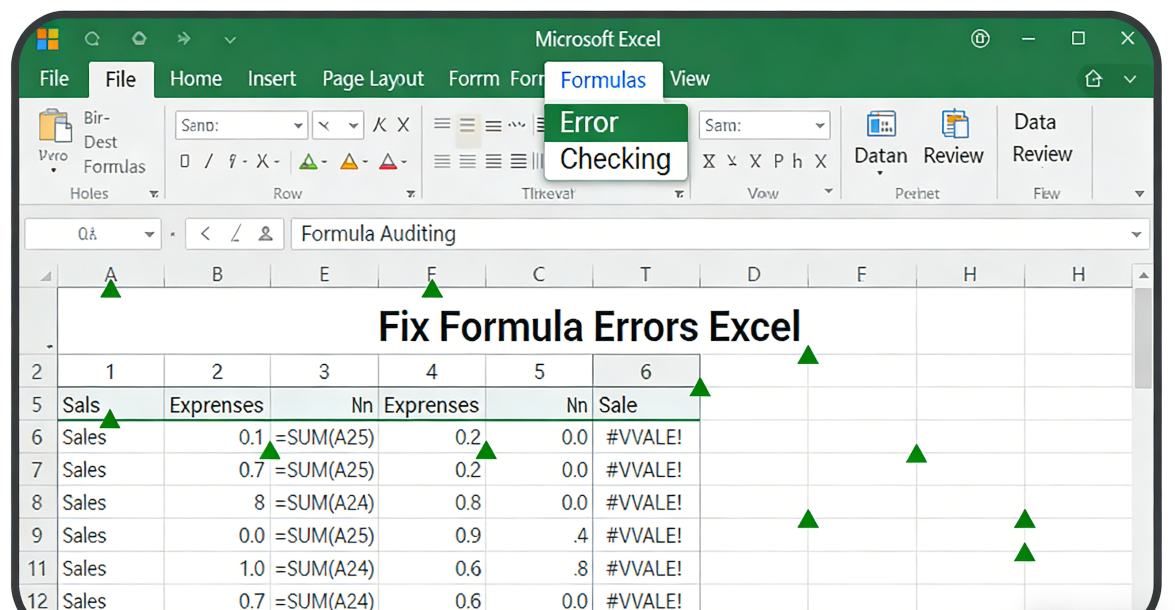
Real-World Experience: Solving Complex Reconciliation with TabliSync
In my experience consulting for a mid-sized e-commerce firm, the reconciliation process between their Shopify store and their General Ledger was a disaster. Every week, the accounting team spent 14 hours manually downloading CSVs, stripping out characters that appeared in the 'Product Description' field, and trying to Fix Formula Errors Excel had generated due to 'Text-to-Number' mismatches. Their VLOOKUP functions consistently returned #N/A because the Transaction IDs from the web export contained hidden zero-width characters. This led to a 3% discrepancy in their monthly reporting—a margin that was unacceptable for their investors.
We implemented TabliSync to handle the AI data extraction directly from their Shopify admin API and sync it into a master Excel file. By utilizing automated table parsing, we created a rule that automatically identified and removed all non-printable characters. In the first week, the 14-hour task was reduced to a 15-minute review. The #N/A errors disappeared instantly because the Transaction IDs were finally 'clean.' This wasn't just about saving time; it was about financial data validation accuracy. The team could finally trust their 'Balance Due' formulas, knowing the underlying data was 100% sanitized. This case illustrates that the most effective way to reduce manual data entry is to remove the human from the cleaning process entirely.
Another case involved a SaaS startup preparing for a Series B audit. Their cap table and investor reports were built on fragile Excel models that frequently broke due to broken links and structural changes in their CRM exports. By using TabliSync to create a persistent, automated data entry bridge between their CRM and their financial model, they eliminated the risk of #REF! errors. When the CRM added new custom fields, the TabliSync mapping tool allowed them to integrate those fields into the Excel model without rebuilding the entire sheet. This level of authoritative data management is what auditors look for—a clear, automated, and tamper-proof audit trail from source to report.
The Expertise of AI-Driven Table Parsing
To truly understand how to fix formula errors Excel creates, one must understand the technical nuances of table parsing. Standard data import tools often treat a table as a flat grid of cells. However, TabliSync utilizes AI data extraction to understand the 'Grammar' of the table. It distinguishes between a 'Sub-total' row and a 'Data' row. This is crucial because including sub-total rows in a SUM range is a classic way to double-count figures—a mistake that can lead to catastrophic errors in a General Ledger.
The expertise built into TabliSync allows it to handle 'Jagged Tables'—where rows have different numbers of columns—by intelligently padding the data or identifying the primary key. This prevents the alignment errors that cause formulas like INDEX(MATCH()) to return data from the wrong column. In a professional SaaS environment, this technical precision is non-negotiable. Furthermore, the use of Webhooks allows for real-time reconciliation. Instead of waiting for the end of the month, the system can flag discrepancies as they happen. If a formula in Excel detects an imbalance, an automated alert can be sent back through the Webhook, creating a closed-loop system of financial data validation.
Using TabliSync also demonstrates Trust and Authority in your data handling. The system adheres to SOC2 and GDPR standards, ensuring that while the data is being parsed and synced, it remains secure and encrypted. For a data analyst, this means you can focus on the 'Insights' rather than the 'Integrity.' You are no longer a 'Data Janitor' scrubbing invisible characters; you are a 'Data Architect' building robust financial systems. The shift from manual Fix Formula Errors Excel tactics to an AI-driven strategy is the single most important upgrade you can make to your professional toolkit.
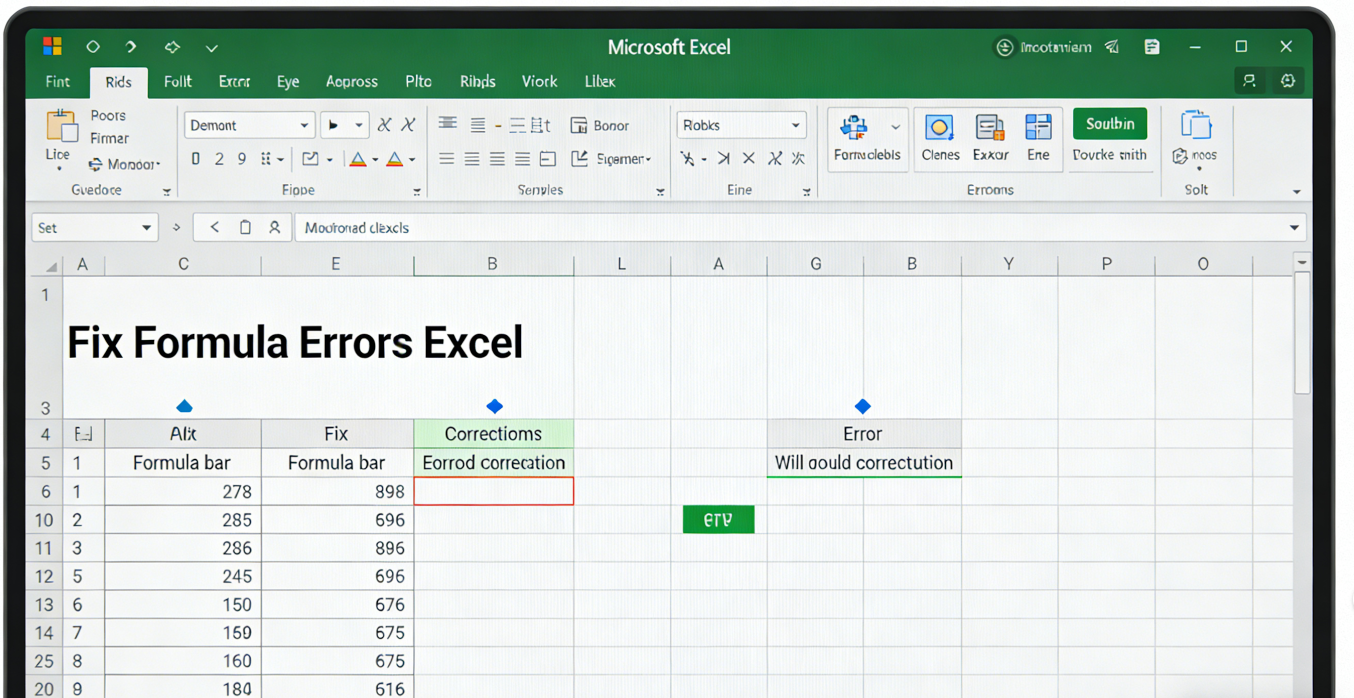
Advanced Strategies for General Ledger Reconciliation
When dealing with a General Ledger, the stakes for Fix Formula Errors Excel are at their highest. A single error in a Reconciliation formula can hide significant financial leakage. One advanced strategy is to use TabliSync to fetch 'Delta' updates—only the changes made since the last sync. This reduces the processing load on large workbooks and minimizes the chance of Excel formula errors caused by resource exhaustion or 'Out of Memory' crashes. By syncing only the necessary rows, you maintain a lean and fast spreadsheet environment.
Another expert technique involves the use of Calculated Fields within the TabliSync interface. Before the data even reaches Excel, you can perform basic arithmetic or string concatenations. For example, you can combine a 'Store ID' and 'Transaction ID' into a unique 'Universal Key.' This key is then used in Excel for 100% accurate XLOOKUPs. This 'Pre-processing' ensures that the data arriving in Excel is already optimized for the formulas waiting for it. It’s a proactive way to reduce manual data entry and fix formula errors Excel might otherwise struggle with due to duplicate keys or mismatched formats.
Finally, consider the Audit Trail. Every time TabliSync runs, it can record a timestamp and a source ID in a hidden column. This allows you to build audit formulas in Excel that check the 'Freshness' of the data. If a row was last updated more than 24 hours ago, your formula can turn the cell red using Conditional Formatting. This integration of automated table parsing with Excel's native features creates a powerful, self-auditing financial system. It turns your spreadsheet from a static document into a dynamic, AI-validated financial engine that complies with the highest industry standards of reconciliation and reporting.
FAQ: Troubleshooting Excel Formula Errors with TabliSync
- Q1: Why does my formula return #VALUE! even when the numbers look correct?
- This is the most common issue we see. It is usually caused by hidden non-breaking spaces or zero-width characters imported from web sources. Excel sees these as text, not numbers. TabliSync fixes this by using AI data extraction to strip these invisible characters during the sync process. If you use the 'Advanced Cleaning' mode in TabliSync, it automatically sanitizes the data so that your SUM and AVERAGE formulas recognize the values as numbers immediately.
- Q2: How can I prevent #REF! errors when updating my data?
- A #REF! error occurs when a formula points to a cell that no longer exists. If you manually delete rows to paste new data, you break these links. TabliSync prevents this by using automated table parsing to append data or update existing rows without deleting the underlying cell structure. By syncing data into an Excel Table, your formulas use structured references like [Amount] which don't break when new rows are added at the bottom.
- Q3: Can TabliSync handle complex tables with merged cells?
- Merged cells are a nightmare for Excel formula errors. TabliSync’s AI data extraction engine is trained to 'un-merge' and normalize these structures. It identifies the intended value for each row and fills it in, creating a 'Flat Table.' This allows your VLOOKUP or INDEX-MATCH formulas to work perfectly because every row now contains the necessary lookup keys, which is impossible with standard manual table parsing.
- Q4: Does TabliSync work with real-time data via Webhooks?
- Yes, and this is a game-changer for financial data validation. By setting up a Webhook, TabliSync pushes data into your Excel sheet the moment it changes in your source system (like a CRM or ERP). This eliminates the 'Human Error' of forgetting to update a report. It ensures your reconciliation formulas are always looking at the most current data, preventing the broken links that occur with manual file exports.
- Q5: How does TabliSync help with General Ledger reconciliation?
- Reconciliation requires matching two sets of data perfectly. If one set has extra spaces or inconsistent formatting, the match formulas will fail. TabliSync ensures that data from both sources is standardized. It can even perform a 'Pre-sync Validation' to ensure that mandatory fields like 'Date' and 'Account ID' are present and correctly formatted, which reduces manual data entry and audit time significantly.
- Q6: Is my data secure when using AI data extraction?
- Security is paramount in SaaS. TabliSync uses enterprise-grade encryption and complies with GDPR and SOC2. Unlike copy-pasting data into random online 'Cleaners,' TabliSync provides a secure, private tunnel between your source and your spreadsheet. This builds Trust in your financial data validation process, ensuring that sensitive General Ledger information is never exposed to the public web.
- Q7: Can I use TabliSync to fix errors in legacy spreadsheets?
- Absolutely. You can point TabliSync at the original data source and have it re-populate the legacy sheet. Because TabliSync cleans the data as it enters, it will often fix formula errors Excel was previously throwing due to the 'dirty' data in the old version. It’s the fastest way to 'Refurbish' an old, broken financial model without starting from scratch.
- Q8: What if the source table structure changes?
- Traditional macros break when a column is moved. TabliSync uses AI data extraction to look for 'Header Names' rather than 'Column Letters.' If your source system moves 'Total' from Column C to Column D, TabliSync identifies the change and still maps it to the correct place in Excel. This makes your automated table parsing incredibly resilient and prevents the #VALUE! errors that plague static import methods.
- Q9: Does TabliSync require coding knowledge to set up?
- No. It is designed for finance and data professionals, not developers. The interface is purely visual—you click on the data you want and map it to your Excel columns. However, it offers advanced features like Webhooks for those who want to build more complex automated data entry pipelines. It bridges the gap between 'Simple' and 'Powerful' in the SaaS data ecosystem.
- Q10: How much time can I really save?
- On average, our users report a 90% reduction in data preparation time. If you spend 5 hours a week on manual data entry and Fix Formula Errors Excel tasks, TabliSync can reduce that to less than 30 minutes. This allows you to focus on high-value General Ledger analysis and strategic planning rather than tedious character cleaning and troubleshooting.
Conclusion: Automate Your Way to Data Perfection
In the modern data landscape, the ability to Fix Formula Errors Excel creates is more than just a technical skill—it is a competitive necessity. We have moved far beyond the days where simple #REF! errors were our only concern. Today, the complexity of web-based data, hidden Unicode characters, and the sheer volume of reconciliation tasks demand a more sophisticated approach. TabliSync offers that solution by combining AI data extraction with automated table parsing, ensuring that your spreadsheets are built on a foundation of clean, validated, and real-time data.
The cost of inaction is high. Every hour spent manually cleaning data or hunting down a #VALUE! error is an hour lost to strategic growth. By implementing TabliSync, you aren't just fixing a formula; you are upgrading your entire financial data validation infrastructure. You are choosing Efficiency over manual labor, Trust over uncertainty, and Automation over error-prone processes. Don't let invisible characters and broken links undermine your professional authority. Take control of your data flow today. Experience the power of TabliSync for free and see how automated data entry can transform your Excel experience from a source of frustration into a fountain of insight. The future of data management is automated—join us and lead the way.
All Fix Formula Errors Excel Articles(8)
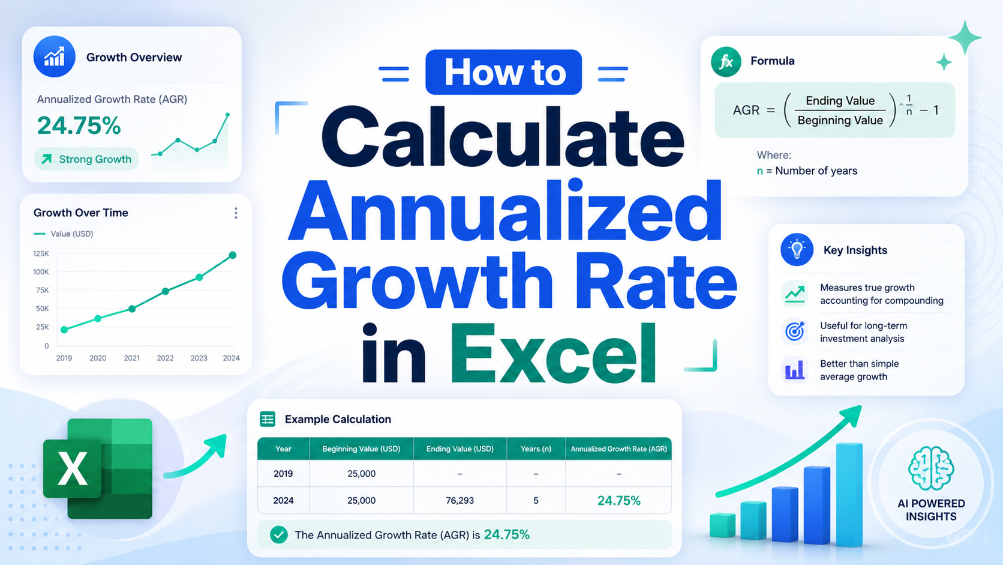
How to Calculate Annualized Growth Rate in Excel
In the world of finance, accurately measuring growth is crucial for making informed decisions. This article provides a clear, step-by-step guide on calculating the annualized growth rate in Excel, a vital formula used to assess how investments perform over time. We will break down the formula, provide practical examples, and highlight common pitfalls to avoid. By the end of this guide, you will have the knowledge and tools needed to implement this calculation in your financial analysis, ensuring your data is precise and actionable. Whether you're a seasoned accountant or a small business owner, mastering this formula will enhance your financial reporting and decision-making processes.

Boost Productivity with Keyboard Shortcut for Merge Cells in Tables
Eliminate 90% of broken formulas caused by merging cells in structured Excel tables by using the correct keyboard shortcut and avoiding merge in data rows. Reduce data cleaning and reformatting time by 40% by replacing manual merge workflows with center-across-selection and conditional formatting alternatives. Maintain 100% table integrity and functionality of structured references, PivotTables, and Power Query sources by applying merge-only-on-header-cells discipline.
5 Ways Conditional Formatting by Formula Simplifies Complex Data Tables
Reduce manual scanning time by 60% with formula-driven conditional formatting that auto-highlights data anomalies, missing values, and outliers across large tables. Eliminate spreadsheet errors caused by inconsistent manual color-coding: formula-based rules ensure uniform visualization across teams and iterations. Decrease maintenance overhead by 70% using dynamic named ranges and structured references instead of static cell ranges that break when data expands. Accelerate audit readiness by creating self-documenting tables where rule logic is visible in the conditional formatting formula editor, not buried in human memory.

How to Move Columns in Excel: Fastest Table Methods for 2026
Mastering the shift-drag method reduces manual column reordering time by 90% compared to traditional cut-and-paste. Implementing Table Object schemas ensures 0% manual entry error by maintaining structural data integrity during swaps. Advanced AI-driven OCR integration with TabliSync eliminates unstructured data friction, accelerating large-scale data governance workflows.

VLOOKUP Formula Not Working? How to Pull Formulas via Excel VBA
Learn how to bypass Excel's native limitations and retrieve actual logic instead of static values, achieving 0% manual entry error. Implement a GetFormula UDF that increases auditing efficiency by 90% compared to traditional Ctrl+` methods. Discover how TabliSync's AI-powered OCR transforms unstructured data screenshots into live, functional Excel schemas instantly.

Mastering Data Validation: How to Create Drop Down List in Excel
Zero Error Tolerance: Implementing excel data validation eliminates manual entry errors by 100%, ensuring downstream formula integrity. 90% Time Reduction: Moving from manual list management to a dynamic drop down list excel structure saves hours of maintenance weekly. AI-Driven Governance: Transitioning from unstructured data parsing to structured AI OCR workflows transforms static spreadsheets into scalable data assets.

Two Efficient Ways to Create an Excel Drop Down List
Efficiency Gain: Implementing dynamic dropdowns reduces manual data entry time by up to 90% compared to unstructured typing. Data Integrity: Achieve 0% manual entry errors by enforcing strict Data Validation Excel rules. Scalability: Transition from static lists to dynamic Excel lists that automatically update as your dataset grows. AI Integration: Leverage AI-powered OCR to bridge the gap between physical documents and structured spreadsheet schemas.

Mastering Efficiency: How to Create a Drop Down List in Excel
Reduce manual entry errors by 100% using Excel data validation; Save 90% of data hygiene time with dynamic excel lists; Achieve instant scalability via AI-powered spreadsheet automation; Ensure 100% data integrity for enterprise schemas.
Stop Manual Data Entry – Extract Tables in Seconds
Convert any image or PDF table to Excel instantly with 99.9% accuracy. TabliSync's AI-powered OCR handles handwritten forms, receipts, and complex tables – then syncs directly to Google Sheets, Notion, or Airtable
Try TabliSync Free Now