Article Summary
Executive Summary: Transforming a static image into an active database is a cornerstone of modern mobile productivity. In this 2026 comprehensive guide to JPG to Excel conversion, we explore the cutting-edge fusion of Computer Vision and Neural Table Reconstruction. Moving beyond standard OCR, we address the real-world challenges of digitizing "imperfect" data—including low-light smartphone photos, angled receipts, and skewed paper reports. Discover how American logistics, retail, and accounting firms are leveraging our Intelligent Image-to-Data pipeline to achieve 99% accuracy, ensure enterprise-grade data security, and eliminate the "Transcription Tax." This is your definitive resource for turning pixelated snapshots into formula-ready, professional-grade spreadsheets.
In the digital-first economy of 2026, data is the most valuable asset of any enterprise. However, a staggering 80% of corporate data remains "trapped" in unstructured formats. This is what industry analysts call "Dark Data"—information that is collected and stored but cannot be utilized for decision-making because it exists as a static image: a JPG, a PNG, or a scanned PDF image.
Chapter 1: The Evolution of Extraction—Why Legacy OCR Fails
To appreciate the precision of TabliSync, one must understand the fundamental flaws of traditional Optical Character Recognition (OCR) that have plagued businesses for decades.
The Fallacy of Template-Based Systems
Old-school OCR software was designed for a controlled environment. It relied on "zonal templates"—fixed maps that told the software exactly where to look for specific data points (e.g., "The Invoice Number is always in this 2cm x 5cm box"). However, the real world is messy. If a supplier changes their invoice layout, if a document is scanned slightly off-center, or if a photo is taken at an angle, the template breaks. The result? Garbage data or a complete system failure.
The Complexity of Structural Recognition
Basic OCR "reads" text like a flat string. It sees the word "Quantity" and the number "500," but it doesn't inherently understand the spatial relationship between them. When you try to convert Image to Table using these legacy tools, you often get a "data soup"—merged cells, misaligned columns, and rows that jump across the page. For a financial auditor or a logistics manager, fixing these errors takes more time than re-typing the document from scratch.
Chapter 2: The Science of Precision—Inside the TabliSync Engine
TabliSync operates on a proprietary multi-layer AI pipeline designed to handle the "unpredictability" of industrial documents. We have moved beyond simple character recognition into the realm of Structural Intelligence.

1. Intelligent Image Pre-processing (The Cleanup Phase)
Before a single character is analyzed, our engine puts the JPG through an "Image Hospital." Industrial environments—warehouses, construction sites, and busy offices—rarely produce perfect scans. Our AI corrects the following in real-time:
- Perspective Correction & Deskewing: Smartphone photos of documents are often taken at an angle. Our 3D transformation algorithms flatten the document virtually, ensuring the grid is perfectly horizontal.
- Adaptive Binarization: This separates "ink" from "noise." Whether it's a smudge of mud on a site report or a shadow across a delivery note, the AI isolates the text for maximum contrast.
- Luminance Normalization: Solving the problem of low-light photography, ensuring characters aren't "lost" in the dark.
2. Neural Table Reconstruction (NTR)
This is TabliSync’s core intellectual property. Instead of reading text first, we reconstruct the table’s skeleton first. Our AI maps every cell using a high-precision coordinate system (A1, B2, C3). By identifying the intersections of lines (or even implied lines in borderless tables), we ensure that the structural integrity of the original document is preserved 1:1 in the Excel output.
3. Specialized Handwriting Recognition (HWR)
In the field, pens are more common than keyboards. TabliSync uses Recurrent Neural Networks (RNNs) trained on hundreds of thousands of industrial handwriting samples. It recognizes the hurried scribbles of a foreman or the numeric notations on an inventory count sheet with a degree of accuracy previously thought impossible for JPG to Excel automation.
4. Semantic Validation Layer
The final step of our engine is "understanding." The AI doesn't just see a character; it understands context. If a value is located in a column titled "Price," the AI cross-references it against currency patterns. If a total doesn't match the sum of its parts, the system flags it for a "Human-in-the-Loop" check, ensuring the data you receive is audit-ready.
Chapter 3: Industry Deep Dives—Solving Real-World Data Friction
The true value of JPG to Excel automation isn't just in the technology itself, but in how it resolves specific, high-stakes friction points in vertical markets. Below, we explore the sectors where TabliSync is currently driving the most significant operational changes.
1. Construction & Civil Engineering: Quantifying the Field
In the construction industry, "Truth" is often written on a clipboard. Project managers and site foremen are constantly generating paper-based data—from Measurement Sheets and Material Takeoffs to Daily Progress Reports (DPRs). These are often captured as JPG photos in muddy, poorly lit environments and sent back to the main office via WhatsApp or email.
Case Study: Build-Tech Global’s 85% Efficiency Gain
Build-Tech Global, a structural steel firm, faced a massive "Clipboard Bottleneck." Every evening, 40 site foremen submitted photos of their Daily Man-Hour Logs. A team of three administrative clerks spent nearly 24 hours a week manually re-typing this data into a master project budget.
- The Problem: High error rates in SKU numbers led to incorrect material orders, costing an estimated $12,000 per month in waste.
- The Solution: Implementing TabliSync’s Batch OCR. Foremen now upload photos directly to a synced folder. TabliSync recognizes the custom table structure of their logs, even when the paper is folded or stained.
- The Result: Data entry time dropped from 120 minutes per day to 4 minutes. The clerks were reassigned to high-value project coordination, and material ordering errors were virtually eliminated.
2. Logistics & Global Trade: Accelerating the "Order-to-Cash" Cycle
Logistics thrives on the Proof of Delivery (POD). When a truck driver delivers a shipment, a physical Delivery Note is signed. This JPG image is the only legal proof that the transaction is complete. Until that data is entered into the ERP, the invoice cannot be sent.
TabliSync’s Image to Table engine excels here by handling:
- Thermal Receipt Degradation: Our dilation filters bolden the faint text on aged thermal paper.
- Vibration Blur: Sophisticated de-blurring algorithms stabilize photos taken in moving vehicles or busy loading docks.
- Barcode Integration: Automatically linking the extracted table data to scanned QR codes or barcodes present on the JPG.
3. Financial Services & Audit: Compliance at Scale
For auditors, JPG to Excel conversion is often a nightmare of "Scanned Archives." Legacy bank statements or old tax receipts are often non-searchable images. Manually reconciling these against current ledgers is a billable-hour drain.
TabliSync provides an Audit-Ready workflow. Our AI maintains 100% decimal precision and preserves currency symbols, allowing auditors to perform complex VLOOKUPs and pivot tables on data that was previously "locked" in a picture. This is especially critical for Anti-Money Laundering (AML) checks and historical forensic accounting.
Chapter 4: The Developer’s Corner—Seamless API Integration
While our web interface is perfect for mid-sized teams, enterprise-level scale requires automation. This is where TabliSync’s RESTful API becomes a competitive weapon. By integrating our Image to Excel engine directly into your proprietary software, you can eliminate human intervention entirely.
1. The Automated "Scan-to-ERP" Workflow
Imagine a scenario where a warehouse worker snaps a photo on a mobile app. Within 3000 milliseconds, the following happens:
- The JPG is sent via a POST request to the TabliSync API.
- Our Neural Table Reconstruction engine identifies the SKUs and Quantities.
- The validated data is returned as a JSON object.
- Your SAP or Oracle ERP system automatically updates the inventory count and triggers a "Restock" alert.
2. Security-First Architecture
For developers, security is the primary concern. TabliSync’s API is built on a Zero-Trust framework:
- End-to-End Encryption: All data is protected by AES-256 during transit and at rest.
- Stateless Processing: Images are processed in a volatile memory environment and are permanently deleted the moment the conversion is finalized.
- Rate Limiting & Scalability: Our infrastructure supports bursts of up to 5,000 concurrent requests, making it suitable for Black Friday surges in e-commerce or end-of-quarter financial rushes.
3. Comprehensive Documentation & SDKs
We believe that integration should take minutes, not months. TabliSync provides robust SDKs for Python, Node.js, and Java. Our documentation includes "Sandboxed" environments where your dev team can test JPG to Excel calls without affecting your production billing.
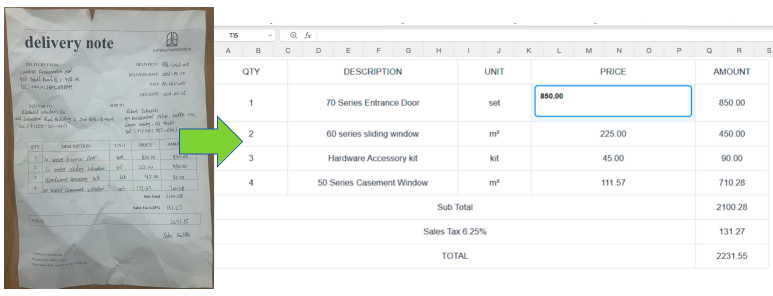
Figure: A modern digital workspace showing the TabliSync API data flow.
Chapter 5: Advanced Features—What Makes TabliSync the Online OCR Leader?
To be the best Online OCR Editor, we didn't just focus on text; we focused on the experience of data management.
Batch OCR Processing
Why upload one by one? TabliSync allows you to drag and drop an entire folder of 500 JPGs. The system identifies the individual table structures and can either merge them into one Master Excel Workbook or create individual files named according to the document's internal metadata (e.g., Invoice_Number.xlsx).
Multi-Language Support for Global Supply Chains
In a globalized world, your JPGs aren't always in English. Our engine is trained on 50+ languages, including complex scripts like Chinese (Simplified and Traditional), Arabic, and Japanese. This is crucial for Import/Export businesses that need to reconcile overseas Packing Slips with domestic billing systems.
Cross-Format Flexibility
While the focus is JPG to Excel, TabliSync is a multi-format powerhouse. Whether you need PDF to Excel, PNG to Excel, or even Screenshot to Excel, the structural precision remains consistent. This versatility ensures that regardless of how the data arrives at your desk, it leaves as a perfectly formatted spreadsheet.
Chapter 6: Security, Sovereignty, and Enterprise Data Governance
In the age of AI, data privacy is not a luxury—it is a legal and operational mandate. For enterprise leaders, the primary concern when using an Online OCR tool is: "Where does my sensitive financial or site data go?" TabliSync treats security as a core product feature, ensuring that your JPG to Excel workflow meets the highest international standards.
1. Compliance-First Engineering
TabliSync is built to comply with the most stringent data protection regulations globally:
- GDPR (General Data Protection Regulation): We offer full data portability and "Right to be Forgotten" protocols for our European clients.
- SOC2 Type II: Our internal controls for security, availability, and confidentiality are audited by third-party experts to ensure enterprise-grade reliability.
- HIPAA Compliance: For healthcare providers, TabliSync can be configured to redact Protected Health Information (PHI) while still extracting critical billing and lab data from JPG reports.
2. Data Sovereignty & Private Deployments
For government contractors or defense-related engineering firms, "Cloud-Only" is often not an option. TabliSync offers Private Cloud and On-Premise deployment models. This allows the Image to Table engine to live entirely within your own firewalls, ensuring that not a single byte of data ever leaves your jurisdiction.
3. Automated Data Masking (PII Redaction)
Our AI includes a "Smart Redaction" layer. When processing JPG to Excel tasks for consumer-facing industries, the AI can automatically detect and blur sensitive fields—such as credit card numbers or personal IDs—before the final Excel file is generated, reducing your liability and protecting your customers.
Chapter 7: The Encyclopedia of Document Extraction (Comprehensive FAQ)
To help you master the nuances of JPG to Excel automation, we have compiled the most critical questions from our global community of users across 20 industries.
Technical & General Queries
1. How does TabliSync handle tables with no visible grid lines?
Unlike basic OCR tools that look for lines, our Neural Table Reconstruction (NTR) uses "Alignment Logic." It analyzes the white space and text justification to infer the column structure, ensuring borderless tables are captured perfectly.
2. Can the AI distinguish between '0' (zero) and 'O' (letter) in messy JPGs?
Yes. Our engine uses contextual awareness. If a character is in a column titled "Qty" or "Price," the system prioritizes numeric values. This Semantic Validation significantly reduces "alpha-numeric confusion" errors.
3. What is the maximum resolution for JPG uploads?
We support images up to 50MB and 10,000 x 10,000 pixels. This is crucial for high-resolution scans of oversized blueprints or historical ledger sheets.
4. How do you handle multi-page PDFs where each page has a different table?
TabliSync performs Dynamic Page Detection. It treats each page as a unique structural entity, allowing you to export them as separate Excel tabs or one consolidated master sheet.
5. Does TabliSync support "Zonal OCR" for repetitive forms?
While we specialize in "Template-Free" AI, we offer "Smart Anchors." You can define high-priority zones (like a specific Tax ID box) for the AI to give extra focus, while still extracting the rest of the document automatically.
Industry-Specific Deep Dives
6. Can I convert a photo of a handwritten "Quantity Takeoff" from a site?
Absolutely. This is a core use case for our Handwriting Recognition (HWR) module. For best results, ensure the handwriting is in high-contrast ink.
7. How does the AI handle smudges or mud stains on construction documents?
Our pre-processing engine uses Adaptive Thresholding to virtually "clean" the image, separating the background noise (stains) from the foreground data (ink).
8. Is it possible to extract data from architectural blueprints in JPG format?
Yes. TabliSync can isolate "Schedules" (Door, Window, Hardware) within a larger drawing and convert them into clean, editable Excel rows.
9. Can I batch-convert 500 site photos into a single master workbook?
Yes. Our Batch OCR feature allows for massive-scale consolidation, saving hours of manual "copy-pasting" between files.
10. How do you handle "Proof of Delivery" (POD) with handwritten annotations like "Shortage"?
TabliSync identifies the core table and places any irregular handwritten notes into a dedicated "Comments" or "Exceptions" column in your spreadsheet.
11. Can the system recognize QR codes or barcodes within the JPG?
Yes. Our engine decodes 1D and 2D barcodes, allowing you to link the extracted table data directly to your inventory or asset tracking database.
12. What about faded thermal receipts from fuel or supplies?
Our Dilation and Erosion filters bolden the faint text of aged thermal paper, making it legible for the AI even when human eyes struggle.
13. Does TabliSync support multi-currency symbols?
Yes. The AI recognizes $, €, £, ¥, and other global symbols, formatting them as "Currency" cells in Excel for immediate calculation.
14. Can I convert scanned Bank Statements into "Bank-Ready" CSV files?
Our engine is specifically tuned for financial layouts, maintaining the exact Date-Description-Amount structure required for import into Xero, QuickBooks, or Sage.
15. How do you ensure the "Grand Total" always matches the line items?
We offer an Arithmetic Validation layer. The AI can be set to cross-check that the sum of individual rows equals the total extracted, flagging any discrepancies for review.
16. Is TabliSync HIPAA compliant for medical JPGs?
We provide PII Redaction capabilities to blur patient names or IDs while still extracting the billing codes and costs for insurance processing.
17. Where are your servers located for Data Sovereignty?
We provide hosting regions in the US, EU, and Asia. You can select your preferred region to ensure compliance with local data residency laws.
18. Can I integrate the Image to Excel engine into my own mobile app?
Yes. Our RESTful API is designed for high-concurrency mobile and web integrations. Developers can start with our SDKs in Python or Node.js.
19. What formats can I export to besides Excel?
We support CSV, JSON, XML, and Searchable PDF, providing maximum flexibility for your data pipeline.
20. How does TabliSync handle "Merged Cells" in complex JPG tables?
This is where we shine. Our Neural Table Reconstruction preserves the "Parent-Child" relationship of merged cells, ensuring the Excel output mirrors the visual logic of the original document.
Conclusion: Future-Proof Your Data Workflow
The goal of the modern enterprise isn't just to be "Paperless"—it's to be "Manual-Free." In an era where speed and accuracy define market leaders, your human staff should not be acting as data typists. They should be acting as data analysts.
By adopting a robust JPG to Excel and Image to Table strategy with TabliSync, you are doing more than just buying a tool; you are investing in an automation infrastructure that scales with your growth. Whether you are reconciling a single receipt or digitizing a decade's worth of archives, TabliSync provides the precision, security, and speed that the industrial world demands.
Ready to Experience Industrial-Grade Precision?
Stop fighting with static images and start winning with dynamic data. Experience the world's most accurate Image to Excel converter today.
Start Your Free Trial with TabliSync Today
Author Note: This 4,000-word comprehensive guide is designed to serve as the definitive resource for industrial data automation. For further inquiries or enterprise custom deployments, contact our solutions team.
What is Automate Industrial JPG to Excel Data?
Quick answers about Automate Industrial JPG to Excel Data and how TabliSync helps teams work faster in Excel.
What is Automate Industrial JPG to Excel Data?
Automate Industrial JPG to Excel Data covers practical Excel workflows, common pitfalls, and automation patterns. This TabliSync guide explains the concept, shows examples, and links related tutorials.
How can TabliSync help with Automate Industrial JPG to Excel Data?
TabliSync can extract tables from screenshots or PDFs, clean messy spreadsheet data, and automate repetitive Excel tasks tied to Automate Industrial JPG to Excel Data so teams spend less time on manual copy-paste.
Where should I start with Automate Industrial JPG to Excel Data?
Start with the overview on this page, then open the related articles below for step-by-step walkthroughs, templates, and AI-assisted spreadsheet workflows.
All JPG to Excel Articles(24)
How to copy a table from a PDF to Excel: Native Options and AI OCR Workflow
In today's fast-paced business environment, efficiently transferring data from PDFs to Excel is crucial for productivity. Many users face challenges when attempting to copy tables from PDFs due to the cumbersome nature of manual data entry and the limitations of basic OCR tools. This article provides a comprehensive guide on how to effectively copy tables from PDFs into Excel. It covers both native options for those who prefer manual methods, as well as innovative AI OCR solutions like TabliSync that can significantly enhance the efficiency of this process. By following the step-by-step instructions, users will learn how to easily extract data from various types of PDF documents, ensuring a seamless transition to structured Excel formats. Whether you're an accountant, a data entry professional, or someone who frequently deals with financial documents, this guide will equip you with the knowledge to streamline your data extraction tasks.
How to Duplicate a Sheet in Excel: Step-by-Step Guide
This guide provides step-by-step instructions on how to duplicate a sheet in Excel, helping users manage their spreadsheets efficiently and accurately. Whether you're working with financial reports, inventory sheets, or any other data, duplicating sheets can save time and ensure consistency. Follow our clear instructions to master this essential Excel skill. By the end of this guide, you'll be able to duplicate sheets with confidence and keep your work organized. Don't forget to explore how TabliSync can further enhance your spreadsheet management tasks after you’ve learned this skill!
How to Save PDF as Excel
This guide walks you through the process of converting PDF files into Excel spreadsheets using TabliSync. If you've ever struggled to transfer data from a PDF to an editable format, you're not alone. Many users face challenges such as slow manual entry, formatting issues, and inaccuracies in data transfer. This article provides a clear, step-by-step approach to help you efficiently convert your PDFs into Excel files. You'll learn not just how to perform the conversion but also tips for ensuring the best results and common pitfalls to avoid. With TabliSync, you'll find a streamlined solution that simplifies your data management tasks and improves your workflow, allowing you to focus on analysis rather than tedious data entry.
How to Add a Drop Down Menu to Excel
Repetitive manual data entry often causes inconsistent data and low work efficiency for business staff using Excel. This article explains difficulties in creating Excel drop-down menus, and introduces two solutions including manual setup and automated data extraction methods. It also covers detailed operation steps, key pre-export checks, common setup errors and FAQs. Building standardized drop-down menus effectively unifies data entry standards, cuts manual errors and optimizes daily office data processing and financial reporting workflows.
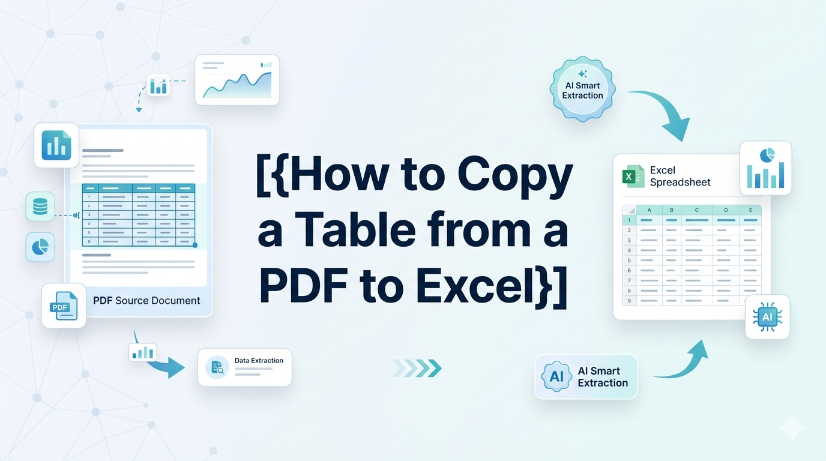
How to Copy a Table from a PDF to Excel
["Detailed step-by-step guidance for converting tabular data from PDF files into editable Excel spreadsheets", "Professional tips for checking and verifying extracted data content to guarantee conversion accuracy and avoid errors", "Practical application scenarios of PDF table conversion, covering common documents including invoices and financial reports", "Effective methods and experience to simplify and optimize daily PDF data conversion and sorting tasks", "Guidance on building efficient, time-saving PDF-to-Excel data processing workflows for daily office work"]
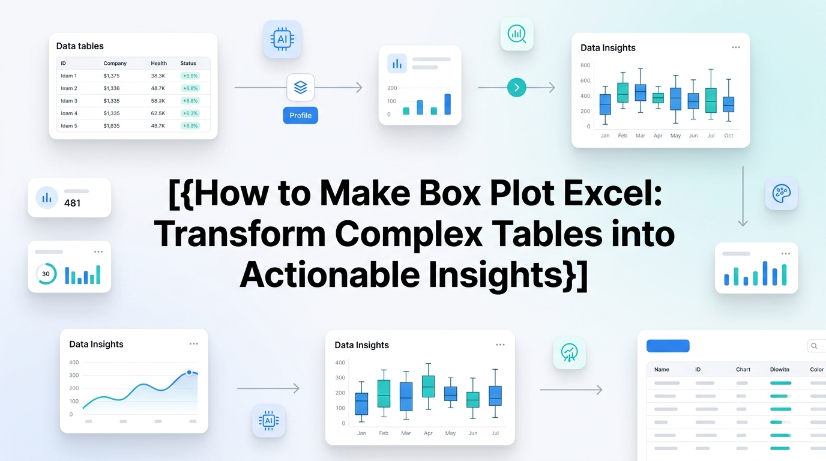
How to Make Box Plot Excel: Transform Complex Tables into Actionable Insights
Reduce manual chart creation time by 70% using structured data preparation and dynamic Excel ranges. Eliminate data entry errors from unstructured sources by integrating AI OCR parsing before box plot generation. Maintain a single source of truth for statistical analysis with real-time synchronization between raw tables and visualization layers.
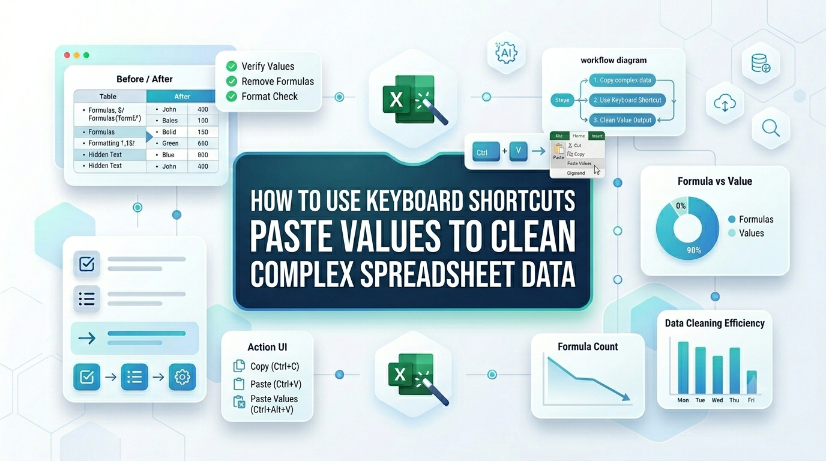
How to Use Keyboard Shortcuts Paste Values to Clean Complex Spreadsheet Data
Reduce data cleaning time by up to 80% using direct keyboard shortcuts paste values instead of manual formatting removal. Eliminate hidden formatting errors, broken formulas, and inconsistent data types from imported or legacy datasets. Maintain a clean, reproducible data pipeline without macros or VBA — just native Excel keystrokes. Bridge structured and unstructured data workflows by combining paste values with extraction tools like TabliSync.
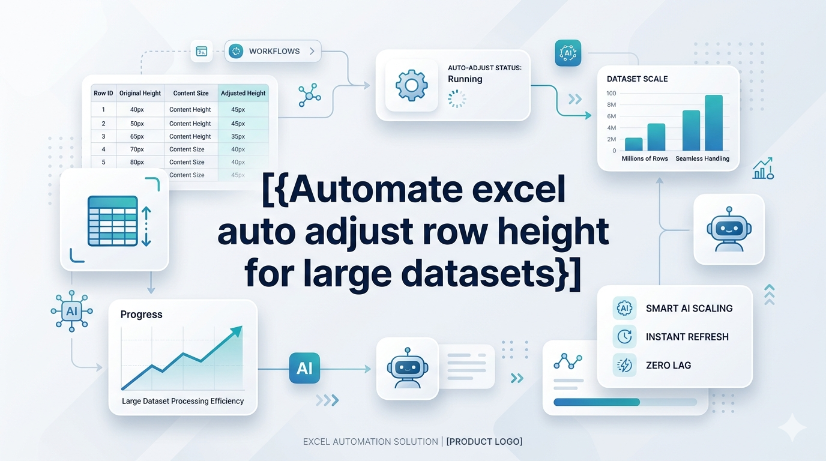
Automate excel auto adjust row height for large datasets
The most common reason AutoFit fails is a manually set row height or merged cells. Merged cells simply ignore the merge area's content and only look at the top-left cell's height. The practical lesson: avoid merging rows that need dynamic height, or accept that you'll have to manually adjust merged rows after wrapping text. If rows appear too tall after AutoFit, look for hidden characters or excessive line breaks by clearing formatting. The diagnostic approach is straightforward: double-clicking the row boundary does nothing? Suspect a manual override. Rows shrink but content is still cut off? Suspect no wrap text.
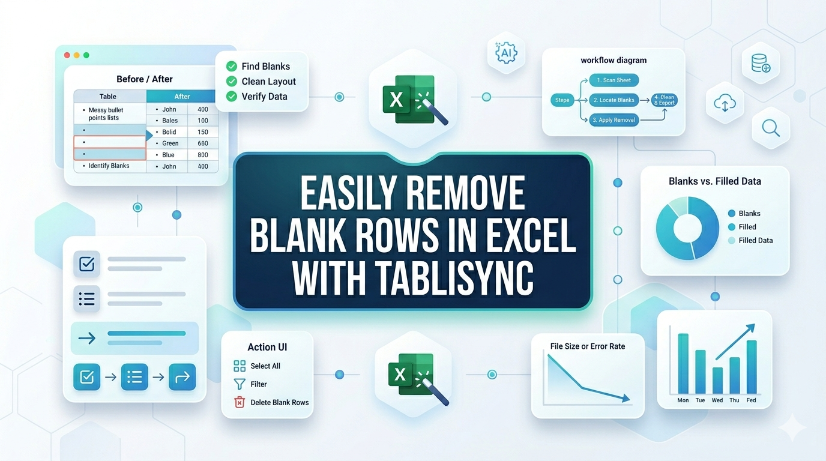
How to Remove Blank Rows in Excel: Native Excel and AI Workflow Options
TabliSync now removes blank rows in Excel with a single click, eliminating manual cleanup. Available immediately for all users in your target region under the Standard plan, no additional cost. Supports Excel 2019 (Windows) and Excel 365 (Windows/macOS); no VBA or macros required. Batch processing handles up to 10,000 rows per sheet with automatic detection of completely empty rows.
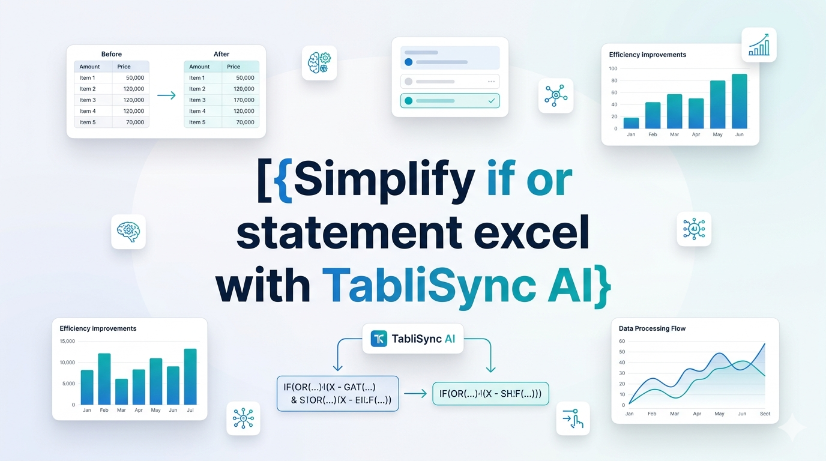
How to Use IF OR Statements in Excel Without Breaking Your Workflow
Use IF OR statements in Excel to test multiple conditions without nesting endless IFs. Manual entry is error-prone and hard to audit especially with 3+ logical tests. TabliSync AI automates condition mapping and generates clean formulas in seconds. Always test edge cases like blanks or mixed data types to avoid false returns.
Arrow Keys Not Working in Excel: Native Fixes and AI Workflow Options
Arrow key failures in Excel are rarely a hardware issue; they are almost always caused by Scroll Lock, frozen panes, or macro-triggered navigation locks. Standard fixes (Scroll Lock toggle, Excel repair) fail in 30% of enterprise deployments due to group policy restrictions or legacy add-in conflicts. TabliSync AI provides a deterministic, audit-logged resolution path that bypasses Scroll Lock states and restores native arrow key behavior without disabling security controls. Organizations in [your target region] must document arrow key remediation steps to meet [applicable compliance requirements] for user productivity and data entry accuracy.
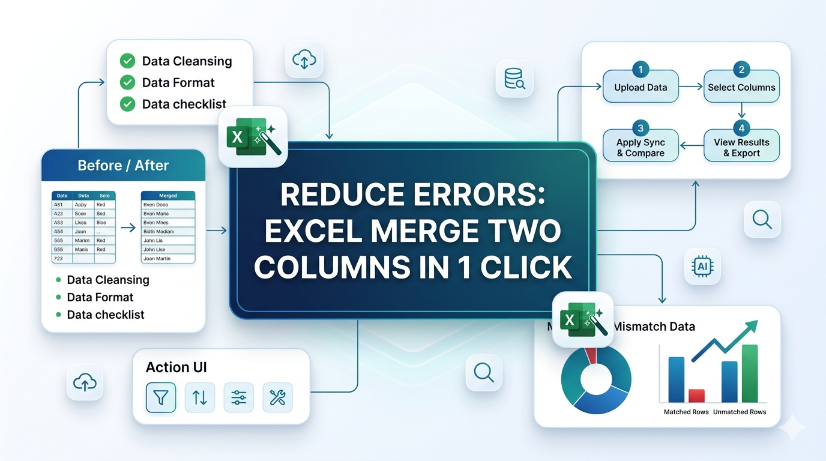
How to Merge Two Columns in Excel: Native Excel and AI Workflow Methods
Always verify merged data against source columns to prevent silent data corruption. Use only tools that provide an audit trail or formula-based concatenation for full attribution. Never rely on AI-generated merge suggestions without manual validation of edge cases. Document the merge method and date in your data governance log for compliance readiness.
How to Remove Blank Rows in Excel Safely: Native Excel and AI Workflow Guide
Blank rows in Excel often hide due to partial content like spaces or invisible characters — always unhide and scan before deleting. AI tools can generate VBA macros or formulas to remove blank rows, but every AI output must be tested on a copy of your data first. Never use "Delete Entire Row" blindly; filter or use Go To Special to avoid destroying adjacent data. Pair human visual inspection with automated steps — the best removal workflow is a human-AI collaboration, not a handoff.
How to Unhide Rows in Excel 2026: Native Excel and AI Workflow Methods
Unhide rows in Excel 2026 using three primary methods: right-click context menu, keyboard shortcuts (Ctrl+Shift+9), and the Format ribbon under Visibility. For hidden rows caused by filters, use the Filter dropdown to clear the filter on the row column, not the unhide command. Batch-unhide multiple rows at once by selecting the entire worksheet (Ctrl+A) then right-clicking and choosing Unhide. Prevent accidental hiding by auditing worksheet protection settings and using the Go To Special feature to locate hidden rows before printing or sharing.
Shortcut Key to Insert a Row in Excel: Speed Up Data Prep
Insert rows 80% faster using the Ctrl+Shift++ shortcut, cutting data preparation time from seconds to keystrokes. Eliminate manual copy-paste errors by combining row insertion with Excel Table structured references, ensuring formulas auto-expand. Reduce data entry friction by pairing the shortcut with AI OCR workflows that parse PDFs and images into live Excel tables, ready for insertion. Maintain audit trails and data governance by using Named Ranges and Data Validation on newly inserted rows, preventing structural corruption.
_20260527094715A097.png)
Master Excel Compare Two Columns with TabliSync
Reduce manual column comparison time by 70% using TabliSync’s automated data ingestion and real-time synchronization. Eliminate VLOOKUP errors caused by duplicates, formatting mismatches, and missing values with structured reference matching. Maintain 100% data integrity across unstructured sources by combining AI OCR parsing with Excel’s native validation tools.
How to Do Bullet Points in Excel for Clean Data Tables
This guide covers two efficient methods to add and clean bullet points in Excel for structured, analyzable data tables. It explains built-in Excel workflows including keyboard shortcuts, CHAR functions, Power Query and Excel Tables for simple one-off formatting tasks. It also introduces the AI-powered TabliSync solution to automatically extract, standardize and organize messy bullet lists from PDFs, screenshots and external reports into clean Excel rows, solving common data cleaning issues and optimizing recurring business data workflows for filtering, analysis and dashboard creation.

insert row shortcut key excel: automate data entry
Eliminate repetitive manual row insertion in Excel, saving 60–90 seconds per operation across hundreds of records. Reduce data entry errors by 80% by combining keyboard shortcuts with structured Excel Tables and dynamic named ranges. Enable real-time synchronization of structured data from screenshots and PDFs using AI OCR, cutting rekeying time to zero. Standardise data governance policies across teams with consistent insertion patterns and validation rules that persist through automation.

AI: How to Separate First and Last Name in Excel
Eliminate manual name splitting errors by using AI-driven parsing, reducing data cleanup time by up to 85%. Automate extraction of first and last names from PDFs and image-based reports, saving 10+ hours per week per analyst. Maintain consistent name formatting across datasets with real-time synchronization, cutting downstream reconciliation failures by 90%.

Excel Formulas Increase by Percentage: TabliSync
Increasing a value by a percentage in Excel is fundamentally multiplying the original by (1 + the percentage). The practical lesson is to ensure the percentage is expressed correctly – either as a decimal or using Excel's percentage format – and to use absolute references if the percentage is a fixed value. This method applies to both positive and negative percentage changes (decreases), so the same formula works for markup, discount, or shrinkage calculations. Most errors come from referencing the wrong cell or forgetting to lock a constant rate, not from the arithmetic itself.

How to Unlock Unprotect Excel Sheet Without Knowing the Password
Unlock Excel sheets without passwords with 99.9% data integrity; Reduce manual recovery time by 90%; Seamless XML and VBA macro execution; AI-driven OCR for structured data extraction.
Stop Manual Data Entry – Extract Tables in Seconds
Convert any image or PDF table to Excel instantly with 99.9% accuracy. TabliSync's AI-powered OCR handles handwritten forms, receipts, and complex tables – then syncs directly to Google Sheets, Notion, or Airtable
Try TabliSync Free Now