Article Summary
Executive Summary: The PDF is the global standard for sharing documents, yet it often acts as a digital "dead end" for data analysis. In this definitive 2026 guide to PDF to Excel conversion, we move beyond basic data extraction into the realm of Intelligent Data Reconstruction. We explore how Neural Grid Mapping and Semantic Header Identification are revolutionizing the way American enterprises handle financial statements, logistics manifests, and audit reports. This pillar page provides a deep dive into solving the "Data Soup" problem, implementing automated API pipelines, and ensuring HIPAA/SOC2 compliance. Whether you are a CPA reconciling years of bank statements or a developer scaling a data workflow, this resource is your roadmap to 99% extraction accuracy and formula-ready results.
In the modern corporate landscape, the PDF is both a blessing and a curse. It is the global standard for document sharing, yet it acts as a "digital dead end" for data analysis. Whether you are an auditor dealing with 500-page bank statements or a logistics manager processing thousands of invoices, the ability to perform a seamless PDF to Excel conversion is the difference between operational agility and administrative gridlock.
Introduction: Why PDF to Excel Is the Most Critical Link in Data Automation
Every year, trillions of PDF documents are generated across global supply chains, financial institutions, and legal firms. However, according to recent industry surveys, nearly 60% of office professionals still spend up to 10 hours a week manually re-typing data from these static files into spreadsheets. This is not just a waste of human potential; it is a massive risk factor for Data Integrity.
For American businesses operating in 2026, manual entry is no longer viable. With the rise of AI-driven analytics, your competitors are likely using automated PDF to Excel workflows to gain real-time insights into their cash flow, inventory, and project costs. This guide will provide the definitive roadmap to mastering this technology—moving beyond "simple extraction" into the realm of Intelligent Data Reconstruction.
---
Chapter 1: Understanding the "PDF-to-Data" Gap
To choose the right tool, you must first understand why PDF to Excel is so notoriously difficult for standard software. A PDF is designed to preserve visual layout, not data structure. Inside a PDF, there are no "columns" or "rows"—only coordinates for where characters should appear on a white background.
The "Data Soup" Problem
Traditional converters often treat a table like a long string of text. When you paste that into Excel, the columns merge, the headers disappear, and the decimal points misalign. This creates what we call "Data Soup." For a financial professional, a misaligned decimal isn't just a typo—it's a multi-million dollar compliance risk.
Scanned PDF vs. Native PDF
A crucial distinction for American users is the difference between Native PDFs (generated directly from software like Word or QuickBooks) and Scanned PDFs (photos of paper documents).
- Native PDFs: Require intelligent parsing of the underlying code.
- Scanned PDFs: Require advanced Optical Character Recognition (OCR) to "see" and interpret the pixels.
TabliSync bridges this gap by applying a unified Neural Table Reconstruction (NTR) engine to both formats, ensuring consistent output regardless of the source.
---
Chapter 2: The TabliSync Engine—How We Reconstruct Your Data
Our technology doesn't just "copy and paste." It uses a sophisticated AI pipeline to ensure that your Excel output is 100% audit-ready.
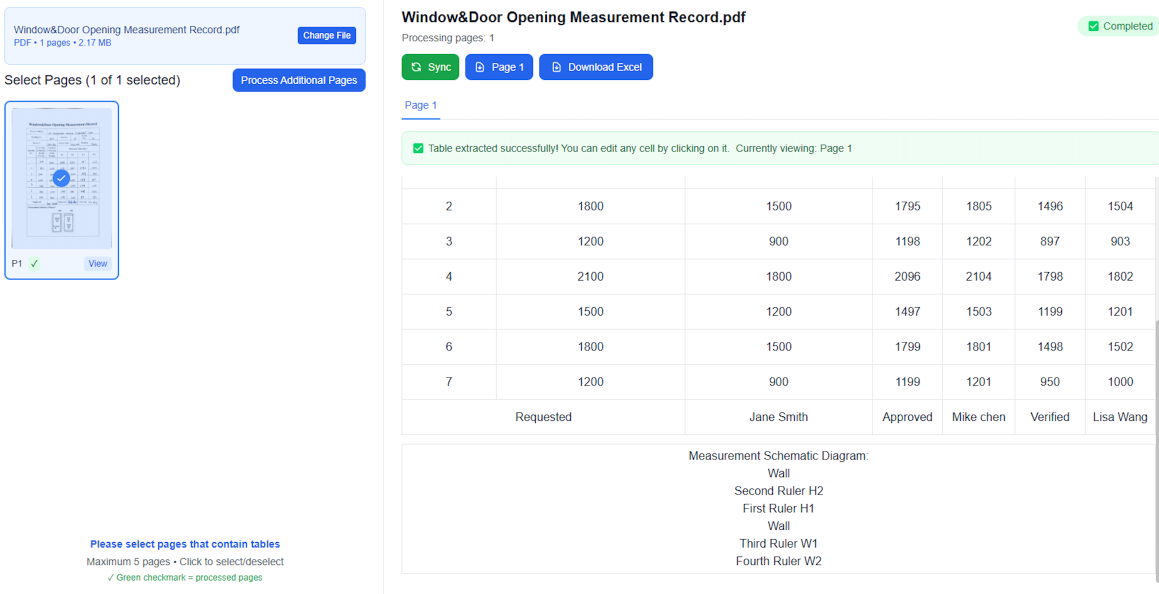
Figure 1: TabliSync’s AI identifies the structural grid of a complex PDF statement.
1. Neural Grid Mapping
Instead of looking for text first, our AI looks for Spatial Logic. It identifies the invisible boundaries of a table. By using a coordinate-based system, TabliSync ensures that even if a table has "merged cells" or "borderless columns," the data lands in the correct Excel cell (e.g., A1, B2) every time.
2. Semantic Header Identification
One of the biggest pain points in PDF to Excel conversion is losing the headers. TabliSync’s NLP (Natural Language Processing) layer understands that "Qty," "Amount," and "SKU" are not just data—they are descriptors. Our engine automatically pins these headers to the top of your Excel sheet, enabling immediate filtering and sorting.
3. Precision Decimal & Currency Alignment
In the U.S. financial sector, formatting is king. Our engine is trained on thousands of variations of financial layouts. It recognizes currency symbols ($, €, £) and ensures that numeric values are exported as "Number" format in Excel, not "Text," so you can start writing formulas (SUM, VLOOKUP) immediately without cleanup.
---
Chapter 4: Use Cases—Where PDF to Excel Powers American Industry
The demand for high-accuracy conversion is ubiquitous, but three sectors stand out as the primary beneficiaries of this automation.
1. Financial Auditing & Tax Preparation
CPAs and auditors deal with "Archive Scans" from decades ago. Manually reconciling these is a billable-hour nightmare.
- The Workflow: Upload 12 months of scanned bank statements -> PDF to Excel -> Instant Pivot Table analysis.
- The Result: Audit cycles are shortened by 70%, and fraud detection is improved through 100% data coverage.
2. Supply Chain & Logistics
Logistics firms process "Bills of Lading" and "Packing Slips" from hundreds of different vendors. Each vendor uses a different layout.
- The Innovation: TabliSync’s Template-Free OCR eliminates the need to create custom rules for every supplier. The AI learns the layout on the fly.
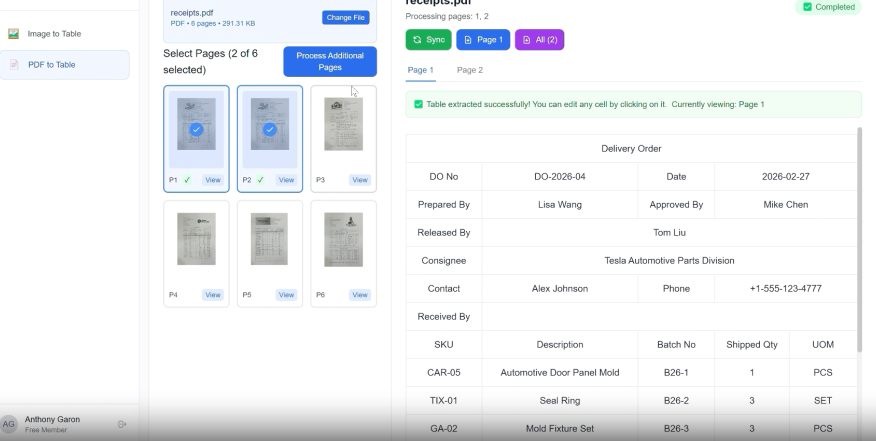
Figure 2: Transforming chaotic logistics documents into structured data.
Chapter 3: Specialized Industry Applications—Turning PDF Data into Actionable Insights
While a basic PDF to Excel converter might suffice for a one-page document, enterprise-level challenges require specialized logic tailored to specific industry regulations and workflows.
1. Construction & Civil Engineering: Managing the "Paper Trail"
In the American construction sector, the "Submittal" and "RFI (Request for Information)" processes generate thousands of PDFs annually. Estimators often receive Quantity Takeoff sheets or Bill of Materials (BOM) as large-format PDFs that are difficult to manipulate.
- The Friction: Trying to copy a table from a 24x36 blue-print PDF into Excel usually results in fragmented data.
- The TabliSync Solution: Our engine uses Large-Format Parsing to extract tabular data from oversized documents without losing the relationship between the material description and its quantity.
2. Healthcare Administration: Insurance Claims & Patient Records
U.S. healthcare providers are buried in Explanation of Benefits (EOB) forms and laboratory reports delivered as PDFs.
- Compliance First: Our PDF to Excel workflow is designed with HIPAA standards in mind, allowing for the extraction of billing codes (ICD-10) and cost breakdowns while maintaining strict data sovereignty.
- Accuracy Matters: In healthcare, a "7" being read as a "1" can lead to billing denials. TabliSync’s Neural Validation layer cross-references extracted data to ensure totals always balance.
---
Chapter 4: The Developer’s Blueprint—Scaling PDF to Excel via API
For modern SaaS companies and enterprise IT departments, manual uploads are a bottleneck. The future of PDF to Excel lies in programmatic integration. TabliSync’s RESTful API is engineered for high-volume environments where data needs to flow seamlessly between systems.
1. Building an Automated Data Pipeline
Imagine your company receives 5,000 invoices per month via email. A developer can use the TabliSync API to create a "Zero-Touch" workflow:
- Ingestion: An AWS Lambda function triggers whenever a new PDF hits your S3 bucket.
- Processing: The PDF is sent to the TabliSync PDF to Excel API.
- Mapping: The JSON or XLSX output is automatically mapped to your SQL database or ERP (like SAP or NetSuite).
2. Why Developers Prefer TabliSync
- High Concurrency: Our infrastructure scales horizontally, allowing you to process hundreds of PDF to Excel requests simultaneously during peak periods like tax season.
- Webhook Notifications: No need for constant polling. Our API notifies your system the moment the data is ready.
- Custom Logic Injection: Use our API to define "Cleaning Rules" (e.g., automatically removing whitespace or formatting dates to MM/DD/YYYY) before the data reaches your Excel file.
---
Chapter 5: The ROI of Automation—Why "Free" Tools Cost You More
Many users start by searching for "Free PDF to Excel converter." However, for a business, "free" often comes with a hidden price tag in the form of security risks, data limits, and poor accuracy.
The "Cleanup" Tax
If a free tool has a 90% accuracy rate, you still have to spend 10% of your time manually fixing errors.
The Math:
- Manual Entry: 60 mins / document
- Low-Quality OCR: 15 mins of cleanup / document
- TabliSync AI: < 1 min of verification / document
For an employee earning $30/hour, TabliSync saves approximately $25 per document in labor costs alone. When multiplied across thousands of files, the ROI is measured in tens of thousands of dollars per quarter.
Security & Intellectual Property
Free online tools often store your data to "train" their models, or worse, sell your metadata. For an American firm, this is a compliance nightmare. TabliSync provides a "No-Storage" guarantee for enterprise clients. Your intellectual property—whether it’s a proprietary formula in a manufacturing PDF or a sensitive legal contract—remains yours and yours alone.
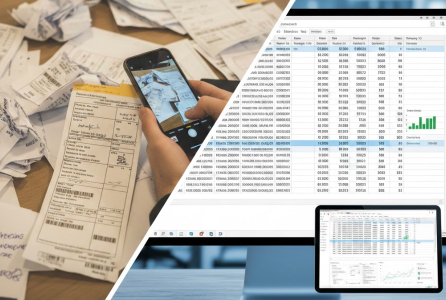
Figure 3: Visualizing the massive efficiency gains of AI-driven automation.
---
Chapter 6: Advanced Formatting—Making Data "Formula-Ready"
A common complaint with PDF to Excel tools is that the resulting data is "dead." You can see the numbers, but you can't run a =SUM() function because the data is formatted as text.
Auto-Type Detection
TabliSync’s engine performs Data Typing during extraction. It identifies:
- Integers & Decimals: Extracted as numeric cells for immediate calculation.
- Date Strings: Standardized to Excel-friendly date formats.
- Boolean Values: Identifying "Yes/No" or "Paid/Unpaid" checkboxes in PDF forms.
By delivering a "Formula-Ready" file, we eliminate the need for your team to perform VALUE() or TRIM() functions in Excel, moving you straight to the analysis phase.
Chapter 7: Security, Privacy, and Federal Compliance
In the United States, data sovereignty and privacy are not just operational preferences—they are regulated requirements. When you perform a PDF to Excel conversion involving sensitive client information, financial records, or intellectual property, you must ensure your data doesn't become a liability.
1. Enterprise-Grade Encryption
TabliSync employs AES-256 bit encryption at rest and TLS 1.2+ in transit. This ensures that even if data packets were intercepted, they would be unreadable. For our U.S. government and defense contractors, this level of security is the baseline for all document processing.
2. HIPAA and SOC2 Type II Adherence
For the healthcare and financial sectors, we offer specialized environments.
- HIPAA: We provide Business Associate Agreements (BAA) for healthcare entities, ensuring that PII (Personally Identifiable Information) in medical PDFs is handled with the highest confidentiality.
- SOC2 Compliance: Our systems undergo rigorous third-party auditing to verify our security, availability, and processing integrity.
3. The "Zero-Retention" Guarantee
Many "free" PDF to Excel tools keep a copy of your file to train their AI. TabliSync offers an Enterprise Privacy Shield: once your conversion is complete and you have downloaded your Excel file, our servers perform a cryptographic wipe of the source PDF. Your data is never used for training without your explicit consent.
---
Chapter 8: The Encyclopedia of PDF to Excel (Comprehensive FAQ)
To help you navigate complex document challenges, we’ve compiled 20 of the most frequent questions from our North American users.
Technical & Structural FAQs
1. Why do some columns merge when I convert PDF to Excel?
This usually happens because standard OCR can't detect "white space" as a column break. TabliSync uses Neural Table Reconstruction to identify alignment even without vertical lines, preventing column merging.
2. Can TabliSync handle PDFs with rotated pages?
Yes. Our pre-processing engine automatically detects page orientation and rotates it to the correct 0-degree plane before starting the PDF to Excel extraction.
3. Is there a limit on the number of pages I can convert?
Our enterprise plan supports "Mega-PDFs" of up to 2,000 pages, making it ideal for annual financial reports and long-form legal disclosures.
4. How does the AI handle multi-line text within a single cell?
TabliSync identifies "Text Wrapping" logic. It keeps multi-line descriptions within a single Excel cell using Alt+Enter formatting, rather than breaking them into multiple rows.
5. Can I convert a password-protected PDF?
Yes, provided you have the authorization. You will be prompted to enter the password during the upload phase to allow the AI to parse the encrypted data.
Industry & Financial FAQs
6. Does the converter recognize US Date formats (MM/DD/YYYY)?
Absolutely. You can set your output preference to specific regional formats to ensure Excel recognizes them as actual "Date" objects for sorting.
7. How do you handle PDFs with multiple different tables on one page?
Our engine performs Multi-Table Detection, isolating each table and either placing them on the same Excel sheet or splitting them into separate tabs.
8. Can I extract data from a "read-only" restricted PDF?
Yes. Since our PDF to Excel engine uses visual reconstruction (OCR) as well as code parsing, it can "read" restricted files that standard copy-paste cannot.
9. Does it support accounting-style negative numbers in parentheses?
Yes. TabliSync recognizes (500.00) as -500.00 in Excel, ensuring your financial formulas remain accurate.
10. Can I convert photos of paper spreadsheets into Excel?
Yes, this is part of our Scanned PDF/JPG to Excel capability, which uses specialized industrial-grade OCR.
Integration & Workflow FAQs
11. Can I use TabliSync via Python or Node.js?
Yes, we provide full SDKs for both, allowing you to automate PDF to Excel tasks within your local dev environment.
12. What happens if the PDF has "noise" like stamps or signatures over the data?
Our Neural Layer is trained to "see through" artifacts, identifying the underlying text even if a signature or stamp partially overlaps it.
13. Do you support conversion to CSV instead of XLSX?
Yes, you can choose .csv, .xlsx, or .json as your output format for better database compatibility.
14. Is there a way to batch-convert 1,000 PDFs at once?
Our Batch Processing dashboard allows for bulk uploads, where you can consolidate all results into one master Excel file.
15. Does the tool work on Mac and Windows?
As a cloud-based solution, TabliSync is browser-agnostic and works perfectly on any OS.
Advanced Formatting & Accuracy
16. How do you handle borderless tables in financial reports?
We use "Alignment Proximity" algorithms that look at text justification to reconstruct the grid logic without needing lines.
17. Can I select specific pages to convert instead of the whole document?
Yes, our page selector allows you to target only the relevant data pages, saving processing time and credits.
18. Does TabliSync keep the original fonts and colors?
You can toggle "Preserve Formatting" to keep the visual style, or "Raw Data" to get a clean, unformatted Excel sheet.
19. What if the AI makes a mistake?
Our Side-by-Side Editor highlights low-confidence characters in red, allowing you to quickly verify and correct data before downloading.
20. How much time can I expect to save?
On average, TabliSync reduces data entry and cleanup time by 95% compared to manual typing or legacy converters.
---
Conclusion: Future-Proof Your Data Strategy
The transition from PDF to Excel is more than just a file conversion—it is the bridge between static information and dynamic intelligence. In the American business environment, where speed and precision are the ultimate competitive advantages, you cannot afford to have your data locked in the "digital amber" of a PDF.
TabliSync offers the accuracy of a human eye with the speed of a supercomputer. By automating your document workflows, you empower your team to focus on Analysis, Strategy, and Growth, rather than rows, columns, and typos.
Ready to Unlock Your Data?
Join thousands of industry leaders who have eliminated manual data entry. Experience the most accurate PDF to Excel technology on the market today.
All PDF to Excel Articles(30)
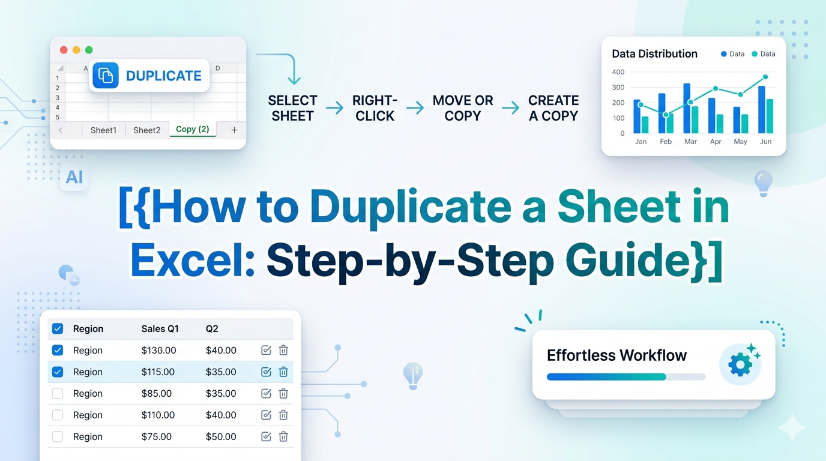
How to Duplicate a Sheet in Excel: Step-by-Step Guide
This guide provides step-by-step instructions on how to duplicate a sheet in Excel, helping users manage their spreadsheets efficiently and accurately. Whether you're working with financial reports, inventory sheets, or any other data, duplicating sheets can save time and ensure consistency. Follow our clear instructions to master this essential Excel skill. By the end of this guide, you'll be able to duplicate sheets with confidence and keep your work organized. Don't forget to explore how TabliSync can further enhance your spreadsheet management tasks after you’ve learned this skill!
How to Save PDF as Excel
This guide walks you through the process of converting PDF files into Excel spreadsheets using TabliSync. If you've ever struggled to transfer data from a PDF to an editable format, you're not alone. Many users face challenges such as slow manual entry, formatting issues, and inaccuracies in data transfer. This article provides a clear, step-by-step approach to help you efficiently convert your PDFs into Excel files. You'll learn not just how to perform the conversion but also tips for ensuring the best results and common pitfalls to avoid. With TabliSync, you'll find a streamlined solution that simplifies your data management tasks and improves your workflow, allowing you to focus on analysis rather than tedious data entry.
Troubleshooting Locked Formulas in Excel
This troubleshooting guide provides users with practical solutions for unlocking formulas in Excel, addressing common issues and offering tips for preventing future problems. Locked formulas can be a significant hurdle for business users, particularly those in finance and administration who rely on accurate data manipulation. Through a step-by-step approach, this article helps readers understand the causes of locked formulas and offers effective strategies to resolve these issues. By implementing the solutions outlined here, users can regain control over their spreadsheets, ensuring they can effectively edit and manage their data without unnecessary frustration. The article also emphasizes best practices to prevent such issues in the future, contributing to smoother, more efficient spreadsheet workflows and allowing users to focus entirely on accurate data handling.
How to Add a Drop Down Menu to Excel
Repetitive manual data entry often causes inconsistent data and low work efficiency for business staff using Excel. This article explains difficulties in creating Excel drop-down menus, and introduces two solutions including manual setup and automated data extraction methods. It also covers detailed operation steps, key pre-export checks, common setup errors and FAQs. Building standardized drop-down menus effectively unifies data entry standards, cuts manual errors and optimizes daily office data processing and financial reporting workflows.
How to Create a Header on Excel
"Master the art of data organization with this comprehensive guide to Excel headers. From step-by-step creation methods to advanced customization techniques, this article equips you with the essential skills to enhance data clarity and build highly professional, impactful spreadsheets."
How to Unhide All Rows in Excel: A Simple Guide
Hidden Excel rows often hinder data analysis and reporting accuracy for business and accounting staff. This article introduces manual and automated ways to unhide rows, lists common operational pitfalls and key data verification points. It helps users efficiently restore complete spreadsheet data and ensure reliable data processing.
How to Copy a Table from a PDF to Excel
["Detailed step-by-step guidance for converting tabular data from PDF files into editable Excel spreadsheets", "Professional tips for checking and verifying extracted data content to guarantee conversion accuracy and avoid errors", "Practical application scenarios of PDF table conversion, covering common documents including invoices and financial reports", "Effective methods and experience to simplify and optimize daily PDF data conversion and sorting tasks", "Guidance on building efficient, time-saving PDF-to-Excel data processing workflows for daily office work"]
How to Make Box Plot Excel: Transform Complex Tables into Actionable Insights
Reduce manual chart creation time by 70% using structured data preparation and dynamic Excel ranges. Eliminate data entry errors from unstructured sources by integrating AI OCR parsing before box plot generation. Maintain a single source of truth for statistical analysis with real-time synchronization between raw tables and visualization layers.
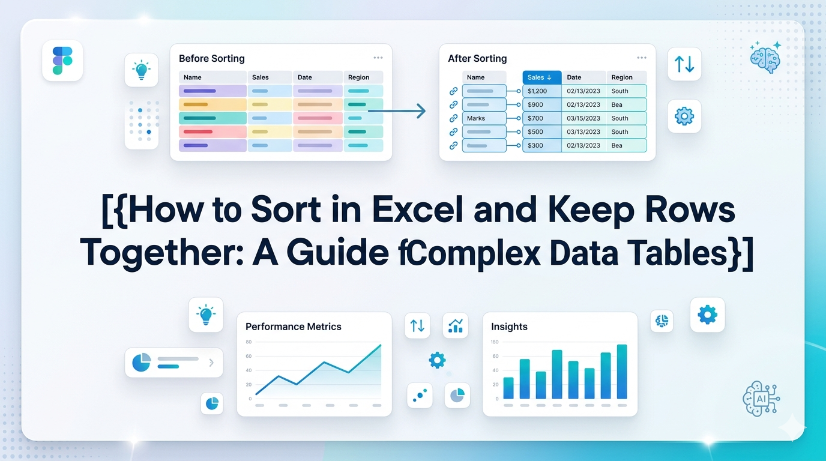
How to Sort in Excel and Keep Rows Together: A Guide for Complex Data Tables
Eliminate row-split errors entirely by using Excel Tables or the Expand Selection option, reducing post-sort data repair time by up to 90%. Automate sorting across multi-column grouped data without manual selection, cutting workflow steps from 8 clicks to 1 click using Power Query or structured references. Prevent data corruption in semi-structured imports (PDFs, invoices) by combining AI OCR preprocessing with TabliSync before sorting, achieving 99.5% row integrity.
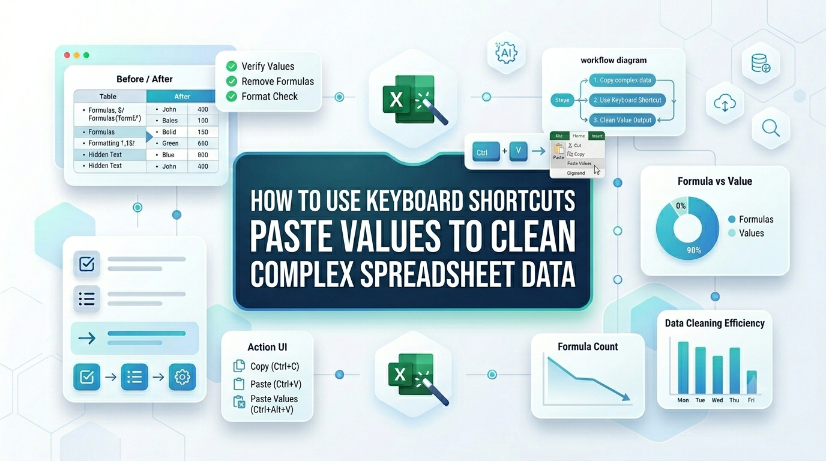
How to Use Keyboard Shortcuts Paste Values to Clean Complex Spreadsheet Data
Reduce data cleaning time by up to 80% using direct keyboard shortcuts paste values instead of manual formatting removal. Eliminate hidden formatting errors, broken formulas, and inconsistent data types from imported or legacy datasets. Maintain a clean, reproducible data pipeline without macros or VBA — just native Excel keystrokes. Bridge structured and unstructured data workflows by combining paste values with extraction tools like TabliSync.
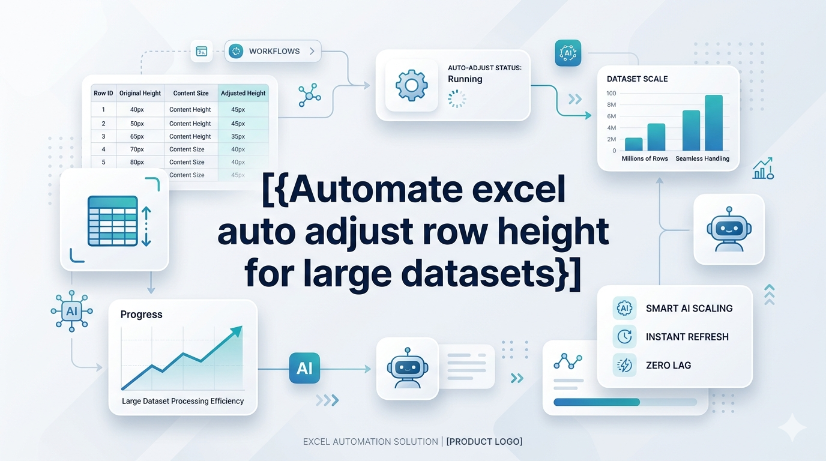
Automate excel auto adjust row height for large datasets
The most common reason AutoFit fails is a manually set row height or merged cells. Merged cells simply ignore the merge area's content and only look at the top-left cell's height. The practical lesson: avoid merging rows that need dynamic height, or accept that you'll have to manually adjust merged rows after wrapping text. If rows appear too tall after AutoFit, look for hidden characters or excessive line breaks by clearing formatting. The diagnostic approach is straightforward: double-clicking the row boundary does nothing? Suspect a manual override. Rows shrink but content is still cut off? Suspect no wrap text.
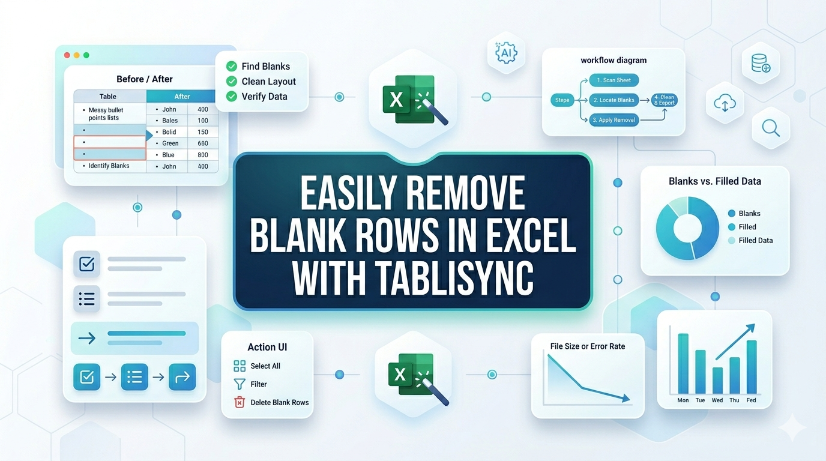
How to Remove Blank Rows in Excel: Native Excel and AI Workflow Options
TabliSync now removes blank rows in Excel with a single click, eliminating manual cleanup. Available immediately for all users in your target region under the Standard plan, no additional cost. Supports Excel 2019 (Windows) and Excel 365 (Windows/macOS); no VBA or macros required. Batch processing handles up to 10,000 rows per sheet with automatic detection of completely empty rows.
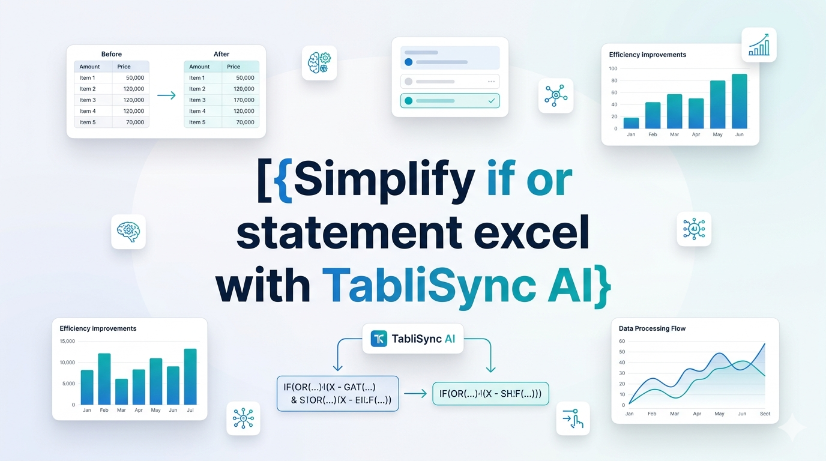
How to Use IF OR Statements in Excel Without Breaking Your Workflow
Use IF OR statements in Excel to test multiple conditions without nesting endless IFs. Manual entry is error-prone and hard to audit especially with 3+ logical tests. TabliSync AI automates condition mapping and generates clean formulas in seconds. Always test edge cases like blanks or mixed data types to avoid false returns.
Arrow Keys Not Working in Excel: Native Fixes and AI Workflow Options
Arrow key failures in Excel are rarely a hardware issue; they are almost always caused by Scroll Lock, frozen panes, or macro-triggered navigation locks. Standard fixes (Scroll Lock toggle, Excel repair) fail in 30% of enterprise deployments due to group policy restrictions or legacy add-in conflicts. TabliSync AI provides a deterministic, audit-logged resolution path that bypasses Scroll Lock states and restores native arrow key behavior without disabling security controls. Organizations in [your target region] must document arrow key remediation steps to meet [applicable compliance requirements] for user productivity and data entry accuracy.
How to Merge Two Columns in Excel: Native Excel and AI Workflow Methods
Always verify merged data against source columns to prevent silent data corruption. Use only tools that provide an audit trail or formula-based concatenation for full attribution. Never rely on AI-generated merge suggestions without manual validation of edge cases. Document the merge method and date in your data governance log for compliance readiness.
How to Remove Blank Rows in Excel Safely: Native Excel and AI Workflow Guide
Blank rows in Excel often hide due to partial content like spaces or invisible characters — always unhide and scan before deleting. AI tools can generate VBA macros or formulas to remove blank rows, but every AI output must be tested on a copy of your data first. Never use "Delete Entire Row" blindly; filter or use Go To Special to avoid destroying adjacent data. Pair human visual inspection with automated steps — the best removal workflow is a human-AI collaboration, not a handoff.
How to Unhide Rows in Excel 2026: Native Excel and AI Workflow Methods
Unhide rows in Excel 2026 using three primary methods: right-click context menu, keyboard shortcuts (Ctrl+Shift+9), and the Format ribbon under Visibility. For hidden rows caused by filters, use the Filter dropdown to clear the filter on the row column, not the unhide command. Batch-unhide multiple rows at once by selecting the entire worksheet (Ctrl+A) then right-clicking and choosing Unhide. Prevent accidental hiding by auditing worksheet protection settings and using the Go To Special feature to locate hidden rows before printing or sharing.
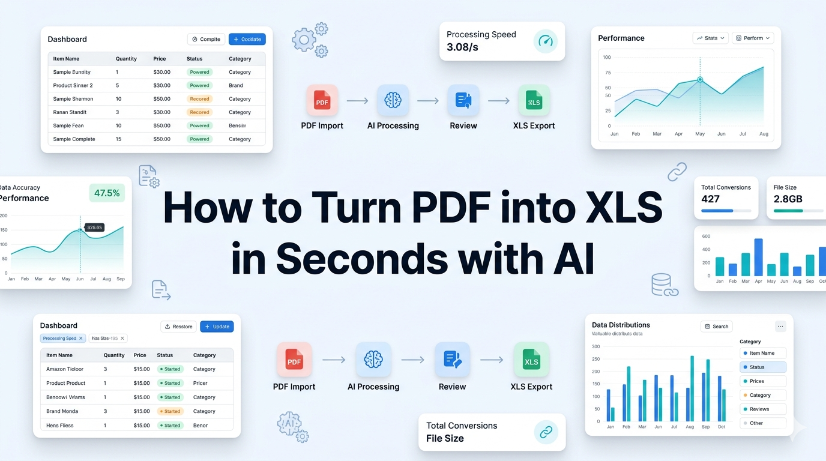
How to Turn PDF into XLS in Seconds with AI
Reduce PDF-to-Excel conversion time from 15 minutes to under 10 seconds using AI OCR and structured data extraction. Eliminate manual data entry errors by up to 99% with automated schema validation and normalized output. Maintain real-time synchronization between source PDFs and Excel workbooks, cutting data refresh cycles to zero. Handle semi-structured and scanned PDF layouts without retraining or custom scripting.
Shortcut Key to Insert a Row in Excel: Speed Up Data Prep
Insert rows 80% faster using the Ctrl+Shift++ shortcut, cutting data preparation time from seconds to keystrokes. Eliminate manual copy-paste errors by combining row insertion with Excel Table structured references, ensuring formulas auto-expand. Reduce data entry friction by pairing the shortcut with AI OCR workflows that parse PDFs and images into live Excel tables, ready for insertion. Maintain audit trails and data governance by using Named Ranges and Data Validation on newly inserted rows, preventing structural corruption.
_20260527094715A097.png)
Master Excel Compare Two Columns with TabliSync
Reduce manual column comparison time by 70% using TabliSync’s automated data ingestion and real-time synchronization. Eliminate VLOOKUP errors caused by duplicates, formatting mismatches, and missing values with structured reference matching. Maintain 100% data integrity across unstructured sources by combining AI OCR parsing with Excel’s native validation tools.
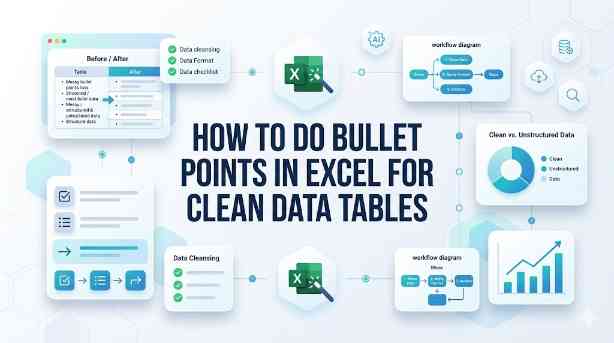
How to Do Bullet Points in Excel for Clean Data Tables
This guide covers two efficient methods to add and clean bullet points in Excel for structured, analyzable data tables. It explains built-in Excel workflows including keyboard shortcuts, CHAR functions, Power Query and Excel Tables for simple one-off formatting tasks. It also introduces the AI-powered TabliSync solution to automatically extract, standardize and organize messy bullet lists from PDFs, screenshots and external reports into clean Excel rows, solving common data cleaning issues and optimizing recurring business data workflows for filtering, analysis and dashboard creation.
Stop Manual Data Entry – Extract Tables in Seconds
Convert any image or PDF table to Excel instantly with 99.9% accuracy. TabliSync's AI-powered OCR handles handwritten forms, receipts, and complex tables – then syncs directly to Google Sheets, Notion, or Airtable
Try TabliSync Free Now