Article Summary
This comprehensive pillar page serves as a tactical roadmap for finance professionals and business owners looking to master their Business Expense Tracker Excel through advanced automation. We explore the critical transition from manual entry to automated data flows, highlighting the integration of Batch OCR processing and TabliSync. The guide covers deep technical comparisons between traditional manual bookkeeping and modern automated systems, emphasizing cost reduction and improved accuracy. Readers will find exhaustive, step-by-step instructions on implementing receipt to spreadsheet workflows, maintaining financial data hygiene, and ensuring tax audit compliance. With detailed case studies, expert commentary on reconciliation and general ledger maintenance, and a robust FAQ section, this content provides the practical knowledge necessary to eliminate manual data entry and scale financial operations efficiently.
Reframing the Spreadsheet: Moving Beyond Manual Entry
In the article '5 Steps for Easily Tracking Expenses in a Spreadsheet' by the team at Tiller, they emphasize a core philosophy: 'The more you automate the flow of your financial data, the more likely you are to stay on top of your budget and goals. Manual entry is the enemy of consistency.' (Source: Tiller, 2024). This insight highlights the fundamental friction point in modern accounting. When you rely on memory or physical paper, your Business Expense Tracker Excel becomes a source of stress rather than a source of truth.
Reflecting on Tiller's perspective, I believe the biggest hurdle isn't the spreadsheet itself—it's the automated data entry gap. Most users treat Excel as a digital version of a paper ledger. They wait until the end of the month to type in numbers. By then, the nuances of the transaction are forgotten, and financial data hygiene suffers. My view is that true efficiency comes from making the receipt to spreadsheet pipeline invisible. We shouldn't just be 'tracking' expenses; we should be orchestrating an automated ecosystem where the human only acts as a final reviewer, not a data entry clerk. This shift moves the Business Expense Tracker Excel from a reactive tool to a proactive financial engine.
The Critical Pain Point: Excel Cannot Hold Physical Receipts
Let's talk about the elephant in the room: Excel cannot 'hold' physical receipts. This is the single most common reason why a Business Expense Tracker Excel fails during a tax audit. You have a neat row in a cell that says you spent $450 on 'Office Equipment,' but where is the proof? When the IRS or a local tax authority comes knocking, they don't care about your clean font or your formatted borders. They want to see the original invoice. Users often lose the paper evidence needed for tax audits because physical paper is fragile, easily misplaced, and fades over time.
When you rely on a manual Business Expense Tracker Excel, you are essentially creating a house of cards. Every time a receipt goes into a shoebox or a car glove compartment, the risk of a financial discrepancy increases. This lack of a direct link between the digital record and the physical proof leads to 'Ghost Expenses'—transactions that look legitimate on the sheet but lack the underlying documentation to survive a reconciliation process. Without Batch OCR processing to digitize these documents immediately, your spreadsheet is just a collection of claims, not a verified financial record.
Furthermore, the mental load of managing paper is a hidden cost. Small business owners spend hours each week smoothing out crumpled thermal paper just to read a date or a total. This is not just a filing problem; it is a financial data hygiene crisis. If you cannot produce a receipt within seconds, your Business Expense Tracker Excel is functionally incomplete. The gap between the digital cell and the physical paper is where money leaks out of a business, through missed deductions and audit penalties.

Automated Data Entry vs. Manual Entry: The Technical Breakdown
The difference between manual entry and automated data entry is not just about speed; it is about the fundamental integrity of your General Ledger. Manual entry has an average error rate of about 1% to 3% for even the most diligent bookkeepers. While that seems small, in a Business Expense Tracker Excel with 1,000 transactions a year, that is 30 errors. These errors often involve transposed numbers—writing $89.50 as $98.50—which can take hours to find during reconciliation.
Batch OCR processing (Optical Character Recognition) changes the math entirely. By using algorithms to extract text from images, tools like TabliSync can achieve accuracy rates exceeding 99% for printed text. This isn't just about saving the 2 minutes it takes to type an entry; it's about saving the 2 hours it takes to find why your bank balance doesn't match your spreadsheet at the end of the quarter. When you automate, you are buying back your time and your sanity. Efficiency is the immediate result, but long-term cost savings come from the elimination of late fees and the maximization of tax-deductible items that would have otherwise been forgotten.
| Feature | Manual Excel Entry | Automated TabliSync + Excel |
|---|---|---|
| Input Speed | 60-90 seconds per item | 3-5 seconds per batch item |
| Data Accuracy | 97% (Human Error Prone) | 99.5% (OCR Precision) |
| Audit Readiness | Low (Paper often missing) | High (Digital image linked to row) |
| Searchability | Text only | Full-text search in attachments |
| Cost per Entry | High (Labor hours) | Fractional (Software subscription) |
Consider a case study of a mid-sized marketing agency. They were processing 200 receipts a month manually. At 2 minutes per receipt, that was 400 minutes (nearly 7 hours) of a project manager's time. By switching to a receipt to spreadsheet automation workflow, they reduced this to 15 minutes of total review time. The cost of the software was negligible compared to the $350/month in billable hours they recovered. This is the reality of automated data entry: it turns a cost center into an efficiency gain.
Mastering Financial Data Hygiene with Batch OCR Processing
What is financial data hygiene? It is the practice of ensuring your financial records are clean, consistent, and ready for analysis at any moment. A Business Expense Tracker Excel is only as good as the data you feed it. If you have multiple people entering data differently—one writing 'Starbucks' and another writing 'S-bucks'—your ability to categorize and analyze spending is ruined. Batch OCR processing enforces a standard. It extracts the vendor name exactly as it appears on the receipt every single time.
Standardization is the bedrock of reconciliation. When your bank statement says 'AMZN MKTP' and your manual entry says 'Amazon,' a human has to intervene to confirm they are the same. Advanced automated data entry tools can use Webhook technology to bridge these gaps, pulling in data from multiple sources and normalizing it before it ever hits your Business Expense Tracker Excel. This ensures that every line item is 'hygienic'—it has a date, a vendor, a category, a currency, and a tax amount, all in the correct format.
Poor data hygiene leads to 'Dirty Data,' which results in incorrect financial reports. If you are trying to make a pivot table to see your travel expenses but half your entries are missing the 'Category' tag because you were too tired to type it, the report is useless. Automation ensures that fields are mandatory. If the OCR can't find a date, it flags it for you. This proactive validation is what separates a professional Business Expense Tracker Excel from a hobbyist's list of spending. You need a system that refuses to accept junk data.
Step-by-Step Guide: Building Your Automated Receipt Pipeline
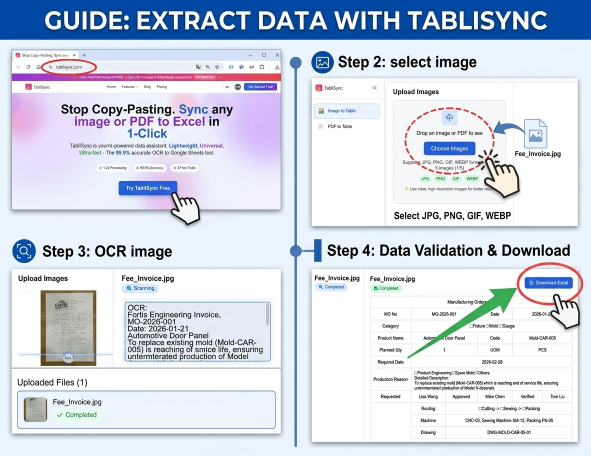
Step 1: Set Up Your Master Excel Structure. Before you even think about Batch OCR processing, you need a destination that can handle the data. Your Business Expense Tracker Excel should not just be columns and rows; it should be a formatted Table (Ctrl+T). This allows for structured references and automatic expansion as new data flows in. You need specific columns: Date, Vendor, Category, Sub-Category, Total Amount, Tax Amount, Currency, and most importantly, 'Link to Receipt.' Ensure your headers are clear and that you have a 'Data Validation' list for your categories to prevent typos during the review phase. This setup should take about 30 minutes, but it is the foundation of everything else.
Step 2: Configure the TabliSync Connection. This is where the automated data entry magic happens. You will connect your Business Expense Tracker Excel (hosted on OneDrive or SharePoint) to TabliSync. This setup involves granting permission for the tool to write to your specific spreadsheet. You will map the fields from the OCR engine to your Excel columns. For example, the 'Total' from the receipt should always go into Column G. You can also set up Webhook triggers here if you want to notify your Slack channel every time a high-value expense is processed. The key here is to test the connection with a single receipt first to ensure the data lands exactly where you want it.
Step 3: Execution and Verification. Now you are ready for Batch OCR processing. Gather a month's worth of receipts—either digital PDFs or photos of paper ones. Upload them in a single batch to TabliSync. The system will begin churning through the images, extracting data points with high precision. Once the processing is complete, do not just walk away. Spend 5 minutes in the 'Review' screen to verify any low-confidence flags. Once you hit 'Sync,' the data will populate your Business Expense Tracker Excel instantly. You now have a fully documented, audit-proof ledger without having typed a single digit. Make sure to archive the digital copies in a cloud folder that corresponds to the links in your spreadsheet for maximum financial data hygiene.
The Role of Reconciliation in Automated Spreadsheets
Reconciliation is the process of ensuring that two sets of records—usually your Business Expense Tracker Excel and your bank statement—are in agreement. In a manual world, this is a nightmare of ticking boxes and circling discrepancies. In an automated world, it becomes a simple 'True/False' check. Because automated data entry uses the actual data from the receipt, the chance of a mismatch between your spreadsheet and the bank is nearly zero, provided the receipt matches the transaction.
However, automation doesn't mean you ignore the process. You should still perform a monthly reconciliation to account for bank fees, interest, or transactions where a receipt might have been lost. The beauty of using a receipt to spreadsheet tool is that for 95% of your transactions, the date and amount will be identical to the penny. This allows you to focus your energy on the 5% of anomalies, such as disputed charges or accidental double-billings. This is a high-level Expertise move: using automation to highlight what is *wrong* rather than spending time confirming what is *right*.
Advanced users will integrate their Business Expense Tracker Excel with their General Ledger. By using consistent naming conventions for vendors, you can automate the 'Mapping' of expenses to specific accounts (e.g., '6000 - Office Supplies'). When the OCR identifies 'Staples,' the system can automatically assign that account code. This level of automation prepares you for high-level financial reporting and makes the year-end handoff to your CPA incredibly smooth. They will be impressed by the hygiene of your data and the presence of digital backup for every single entry.
Case Study 1: The Independent Consultant's Tax Shield
Sarah is a freelance consultant who travels extensively. Before using an automated Business Expense Tracker Excel, she kept her receipts in a folder. At tax time, she would spend three days typing data into a sheet. One year, she was audited and realized that many of her receipts had become unreadable due to the thermal paper fading. She lost over $4,000 in legitimate deductions because she couldn't prove the expenses. This was a wake-up call regarding the fragility of physical evidence.
Sarah implemented Batch OCR processing using TabliSync. Now, the moment she receives a receipt, she takes a photo with her phone. The automated data entry system pushes the data to her Excel sheet in real-time. During her next audit, she simply handed over her spreadsheet, which contained clickable links to every single digital receipt. The auditor was finished in two hours instead of two days. Sarah saved money not just on the deductions, but on the accounting fees she previously paid to have someone organize her mess. Her financial data hygiene is now her competitive advantage.
Case Study 2: Scaling a Small E-commerce Team
An e-commerce startup with five employees was struggling with 'Reimbursement Chaos.' Employees were buying small supplies and software subscriptions on their personal cards and emailing receipts to the founder. The founder was manually updating the Business Expense Tracker Excel every Sunday evening—a task he loathed. Important receipts were buried in email threads, and reconciliation was always three months behind. The business lacked a clear view of its burn rate because the data was never current.
They moved to a centralized receipt to spreadsheet system. Each employee was given access to a dedicated upload folder. TabliSync monitored this folder via a Webhook and automatically processed any new file. The founder’s role shifted from 'Data Entry Clerk' to 'Approver.' Every Monday morning, he would spend 10 minutes reviewing the new lines in the Business Expense Tracker Excel. The company now has a real-time view of its finances, allowing them to make faster hiring decisions and manage cash flow with 100% confidence. Automation didn't just save time; it provided the clarity needed to scale.

Case Study 3: Legal Compliance in a Non-Profit Organization
A local non-profit was required by law to maintain strict General Ledger standards to keep their tax-exempt status. Their manual Business Expense Tracker Excel was prone to 'rounding' errors and missing metadata, which put their funding at risk during an annual compliance review. They needed a way to prove that every dollar spent was in alignment with their mission. The transparency requirements were much higher than those of a standard for-profit business.
By adopting Batch OCR processing, they created an immutable digital trail. Every expense was timestamped, and the OCR extracted not just the total, but the line-item details. This allowed them to categorize expenses by 'Program' or 'Administrative' with extreme precision. When the board of directors or donors asked for a breakdown of spending, they could generate a report from their Business Expense Tracker Excel in seconds. This level of Trust and Authority helped them secure a major grant, as the grantors were confident in the organization’s financial integrity. Automation became their most powerful tool for accountability.
Advanced Tips for Your Business Expense Tracker Excel
To truly excel at financial data hygiene, you should implement 'Conditional Formatting' in your Excel sheet. Set rules to highlight any transaction over a certain amount, or any row where the 'Receipt Link' cell is empty. This provides an immediate visual cue if the automated data entry process was bypassed or if an expense requires senior-level approval. You can also use Excel’s 'Power Query' to merge your expense tracker with your bank’s CSV export, creating an automated reconciliation tool within the spreadsheet itself.
Another expert tip is to utilize 'Custom Categories' that align with your tax return forms (like Schedule C in the US). If your Business Expense Tracker Excel categories match your tax software, filing becomes a matter of copy-paste. When using Batch OCR processing, you can set up 'Keyword Mapping.' For example, if the vendor name contains 'Shell' or 'Exxon,' the system should automatically categorize it as 'Travel - Fuel.' This reduces the human review time even further, moving you closer to a 100% 'hands-off' financial system.
Finally, always maintain a backup. While cloud-based spreadsheets are reliable, financial data hygiene dictates that you should export a 'Flat File' (CSV) of your Business Expense Tracker Excel once a month and store it in a separate physical or cloud location. This ensures that even in the event of a service outage or accidental deletion, your General Ledger history is preserved. This is a standard industry best practice for any business that takes its financial health seriously.
FAQ: Mastering Your Automated Expense Tracker
Q1: What exactly is Batch OCR processing and how does it help my Excel sheet?
Batch OCR processing is a technology that allows you to upload dozens or even hundreds of receipts at once. The software 'reads' the text on these images and converts it into structured data like dates, totals, and vendor names. For your Business Expense Tracker Excel, this means you can skip the manual typing entirely. Instead of entering 50 receipts one by one, you upload the batch, and the software fills in 50 rows in your spreadsheet automatically. This significantly reduces the time spent on bookkeeping and virtually eliminates human typing errors, ensuring your General Ledger is always accurate.
Q2: Is it safe to connect my Business Expense Tracker Excel to a third-party tool like TabliSync?
Security is a top priority in financial data hygiene. When you connect TabliSync to your Business Expense Tracker Excel, the connection is handled via secure OAuth protocols, meaning the software never sees your password. Data is encrypted both in transit and at rest. Furthermore, using an automated tool is often *safer* than manual entry because it reduces the number of people who need direct access to your raw spreadsheet. You can set permissions so that the tool can only add new rows, not edit or delete existing data, maintaining a high level of Trust and integrity in your financial records.
Q3: How do I handle receipts in different currencies in my Business Expense Tracker Excel?
A sophisticated automated data entry system can detect the currency symbol on a receipt. When it pushes data to your Business Expense Tracker Excel, it can populate a 'Currency' column. For advanced users, you can use an Excel formula or a Webhook to call an exchange rate API, automatically converting foreign spending into your home currency based on the date of the receipt. This is a massive time-saver for international business travelers and ensures that your reconciliation with your home-currency bank statement is seamless and accurate to the daily exchange rate.
Q4: Will I still need to keep the original paper receipts for tax audits?
In many jurisdictions, including the US (IRS), digital copies of receipts are legally acceptable as long as they are legible and contain all the necessary information. This is why Batch OCR processing is so valuable—it creates a high-quality digital archive immediately. By linking these digital images directly to your Business Expense Tracker Excel, you create an audit-proof system. While you may choose to keep physical receipts for a short period, the goal of a receipt to spreadsheet workflow is to eliminate the reliance on fragile paper that can be lost or destroyed, thereby protecting you during a reconciliation audit.
Q5: Can I use this for both personal and business expenses in the same Excel sheet?
While you *can*, it is not a financial data hygiene best practice. It is highly recommended to maintain separate Business Expense Tracker Excel files for personal and business use to avoid 'commingling' funds, which can be a major red flag during tax audits. However, you can use the same TabliSync account to route receipts to different spreadsheets. For example, receipts from your personal email can go to your 'Personal Tracker,' while photos taken with a business-specific app can flow into your 'Corporate General Ledger.' This keeps your professional records clean and compliant.
Q6: What happens if the OCR misreads a number on a crumpled receipt?
No OCR is 100% perfect, which is why a 'human-in-the-loop' review is part of a good automated data entry workflow. Tools like TabliSync will often flag 'low-confidence' characters—for example, if it can't tell if a smudge is a '3' or an '8.' You will have a chance to quickly verify or correct these in a review screen before the data is synced to your Business Expense Tracker Excel. This combined approach of machine speed and human oversight is the gold standard for maintaining 100% accuracy in your financial records and reconciliation processes.
Q7: Can I automate the categorization of my expenses?
Yes, this is one of the most powerful features of an automated Business Expense Tracker Excel. By setting up 'Mapping Rules,' you can tell the system that any receipt from 'Amazon' should be categorized as 'Office Supplies,' or any receipt from 'Delta' should be 'Travel.' As the Batch OCR processing identifies the vendor, it applies these rules automatically. This ensures that your spending is categorized consistently every month, which is essential for accurate General Ledger reporting and for identifying trends in your business spending through Excel pivot tables.
Q8: Does this workflow work for digital receipts (like PDF invoices) as well as paper?
Absolutely. In fact, a receipt to spreadsheet system is often even more accurate with digital PDFs because the text is 'native' and doesn't require visual scanning. You can set up a process where you simply forward your digital invoices to a specific email address, and the automated data entry tool picks them up, extracts the data, and adds them to your Business Expense Tracker Excel. This creates a unified pipeline for all your expenses, whether they originated as a physical slip of paper at a coffee shop or a digital invoice from a SaaS provider.
Q9: How long does it take to set up an automated Business Expense Tracker Excel?
For a basic setup, you can be up and running in about 15 to 30 minutes. This includes formatting your Business Expense Tracker Excel as a table and connecting it to TabliSync. The time investment pays for itself almost immediately. If you process just 20 receipts a month, you will save roughly an hour of work every single month. Over a year, that’s 12 hours—1.5 full workdays—recovered. The long-term benefits to your financial data hygiene and peace of mind during tax season are immeasurable, making the initial setup a high-ROI activity for any professional.
Q10: What is a Webhook, and do I need it for my expense tracking?
A Webhook is a technical way for one app to send real-time data to another. You don't *need* it for basic automated data entry, but it's a powerful tool for advanced users. For example, you could use a Webhook to trigger an alert in your accounting software the moment a large expense is added to your Business Expense Tracker Excel. Or, you could use it to back up your data to a secondary database. It’s an 'Expertise' level feature that allows your spreadsheet to communicate with the rest of your business tech stack, ensuring your General Ledger is always in sync with other tools.
Take Control of Your Financial Future Today
The transition from a manual, paper-cluttered Business Expense Tracker Excel to a streamlined, automated data entry powerhouse is more than just a technical upgrade; it is a fundamental shift in how you value your time and your business's integrity. Every minute you spend typing a date or a total into a cell is a minute you aren't spending on growth, strategy, or innovation. By embracing Batch OCR processing and tools like TabliSync, you aren't just organizing your receipts—you are building a fortress of financial data hygiene that will protect you during audits and empower you with real-time insights.
Don't wait for the next tax season to realize your current system is broken. The 'shoebox method' is a ticking time bomb of missed deductions and audit risks. Start your journey toward frictionless finance right now. TabliSync offers a seamless bridge between your physical receipts and your Business Expense Tracker Excel, providing the accuracy and speed that manual entry simply cannot match. Experience the relief of a perfectly reconciled ledger and the confidence of a fully digitized financial history. [Click the link] below to start your free trial of TabliSync and turn your spreadsheet into your most powerful business asset today. Your future self—and your accountant—will thank you.
● BOM Image to Excel: Windows & Doors
すべての Business Expense Tracker Excel 記事(1)

手動入力は不要 – 数秒でテーブルを抽出
画像やPDFの表を99.9%の精度で即座にExcelに変換。TabliSyncのAI OCRは手書きフォーム、レシート、複雑な表を処理し、Google Sheets、Notion、Airtableに直接同期します
今すぐTabliSyncを無料で試す